How to Use Meta Muse Spaces: 2026 Guide
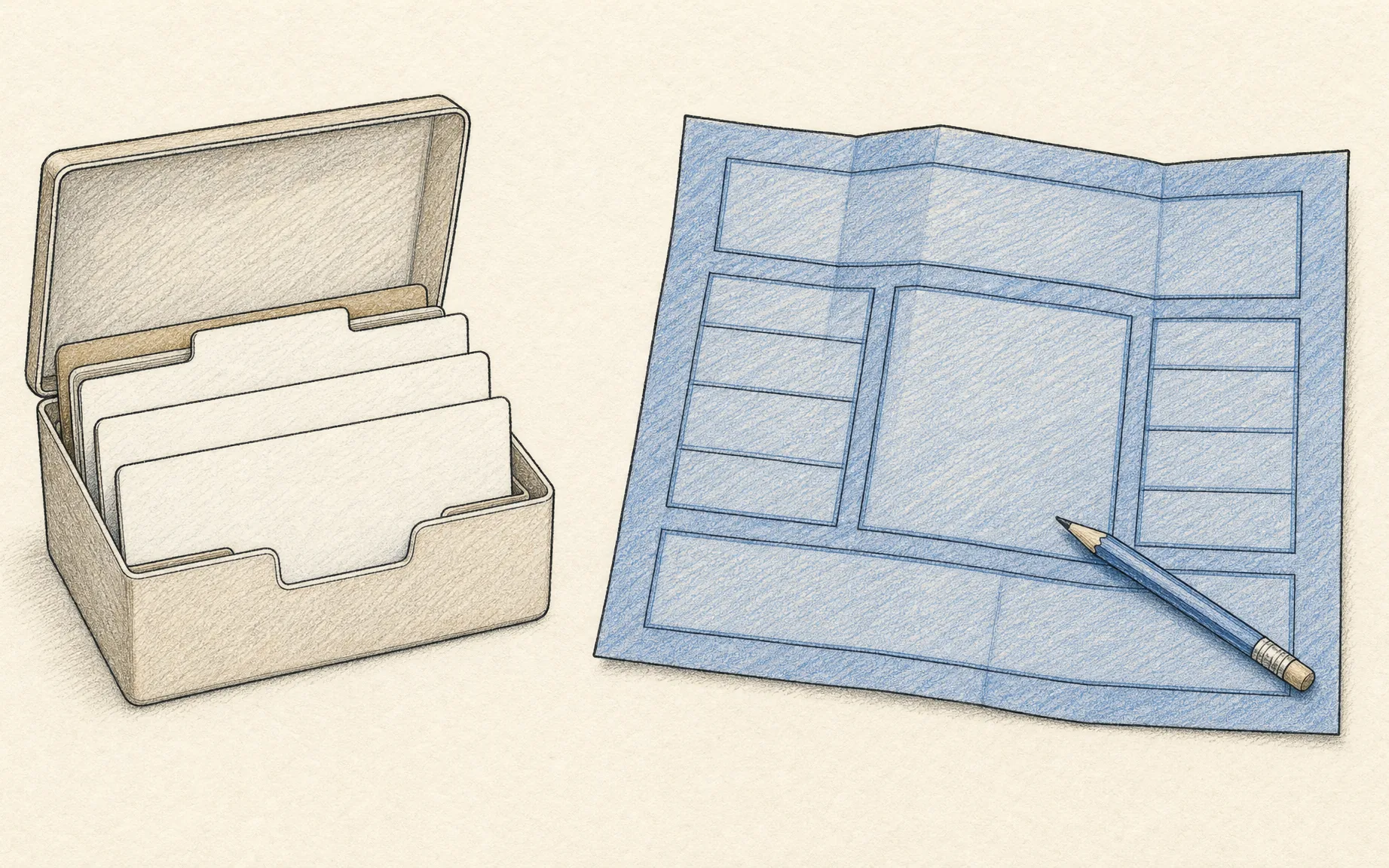
Learn how to use Meta Muse Spaces to build trackers and planners, connect apps, set permissions, and check availability and pricing before relying on updates.
To learn how to use Meta Muse Spaces, describe a tracker, planner, or project board in chat and keep the result inside Muse. Name a specific job, inspect the first version, then decide where it should appear and which connected information it may use. Meta introduced Spaces on November 6, 2026; the announcement says they are available wherever Muse itself is available, not in every country.
Key Takeaways:
- Start with one question you need answered repeatedly, rather than asking Muse to build an entire operating system.
- Revise your Space by asking for missing fields, a different layout, or a changed behavior. Place it in the sidebar or main tabs, hide it, or schedule its appearance.
- Connected Spaces can reflect changes in the background, but Meta does not publish a refresh interval or a separate Spaces price.
- Review connector scope and approval settings before linking school mail, customer messages, or invoices. Sharing a Space with someone else remains under exploration.
What are Meta Muse Spaces?
A Space is a custom experience inside the Muse app, shaped by an idea you type to the agent. Meta's examples range from a holiday gift tracker to an order tracker and a freelance client hub. Unlike an answer that disappears into a long chat, the Space stays in the app so you can return to the same working view. You can check items off, add notes, and edit it directly, according to Meta's launch announcement.
A Space is a view, not a guarantee that every source is connected or every action is automatic. Decide what should update and what needs your review; Meta gives no refresh frequency or source-by-source compatibility table.
Keep recurring work in the tools you already use
Zentor remembers how you work and drafts reports, replies, and follow-ups on schedule. Review before anything goes out.
Start free trial →
How to create, revise, and place a Space
Describe the view you want in Muse chat. Meta says this builds the first version, but gives no fixed button sequence for every account. Its getting-started guide recommends clear context, a requested format, and review. Specify the fields and the decision the view should support.
Try: “Build an assignment board showing course, due date, next action, and done/not done. Keep nearest deadlines at the top. Don't send messages.” This is a suggested request, not a preset template. Check for a missing course or a date from last term; ask Muse to fix it.
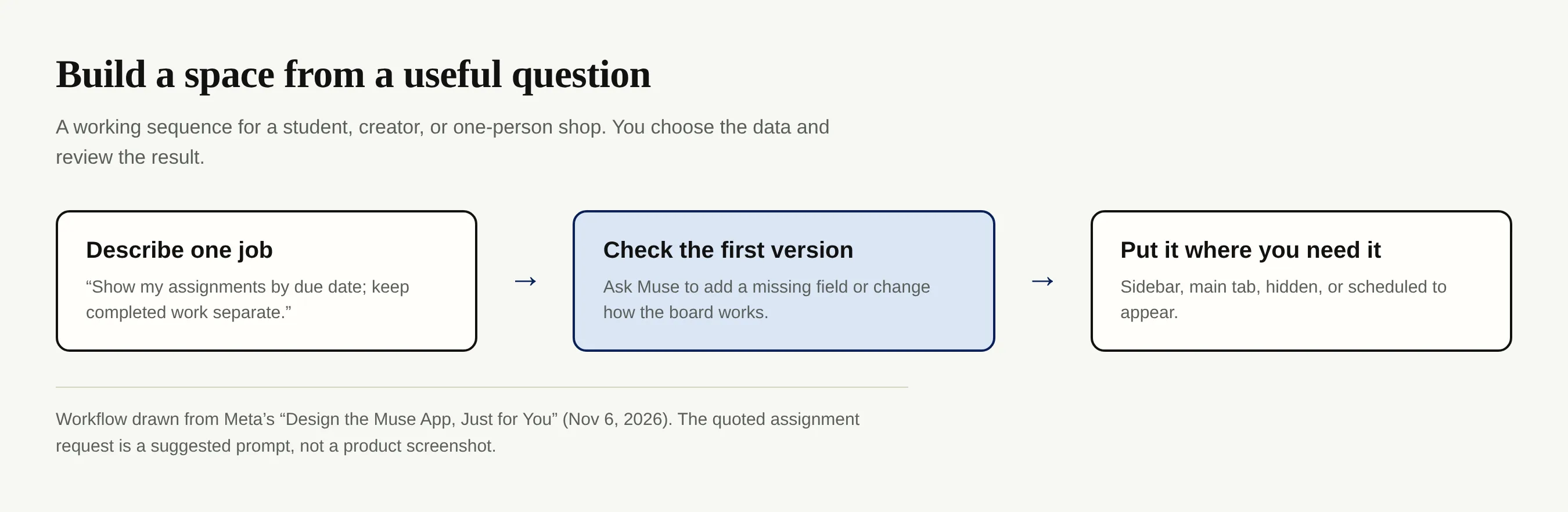
Meta says you can add a Space to the sidebar, put it in a main tab, hide it, or schedule when it appears. Its example puts a weekly planner up front on workdays, then swaps to weekend plans on Saturday. Scheduling visibility isn't the same as scheduling an action: don't assume a hidden or timed Space will send a reminder. Muse has separate scheduled tasks and reminders, which you can inspect under Upcoming.
Meta Muse Spaces examples for school, content, and client work
For a heavy-use student: ask for a course dashboard with assignments, deadlines, and one next step per class. Put calendar dates beside a manual column for work you haven't started. If Muse puts an assignment in the wrong week, correct the source date. Meta's published school-dashboard example concerns parents' school emails; this homework board is an adaptation, not a preset template.
For a creator: group episode ideas, research notes, drafts, and publication dates. Meta suggests a podcast studio for ideas, research, and scripts. Keep a fan-request list, but don't assume Spaces deduplicate followers across platforms. Check the original request before publishing a reply.
For a solo seller: Meta names an order tracker for new orders, customer messages, and today's shipments. Verify shop status before telling a buyer an order shipped. If you sell services, use its client-hub example for projects, deadlines, and invoices; protect contract terms and financial details in the source system.
Start small and test the view against information you can verify.
Can Gmail, Calendar, and Notion keep a Space up to date?
Meta says connected Spaces can update in the background, citing changing prices and concert dates, but does not identify a refresh interval. Meta's Connector guide says some connectors proactively share changes, such as calendar updates, and flags that behavior before connection. Compare a low-risk item's timestamp with the source app before trusting a deadline.
You can ask Muse “Connect my Gmail,” or open Settings → Connectors, choose Connect, read the access information, and authorize. Gmail and Google Calendar are named in Meta's help materials, while Meta's Connect announcement names Notion among its work connectors. That establishes Muse's connector options, not a guarantee of identical read/write actions inside Spaces. The related Zentor guide to Meta Muse integrations goes deeper on checking scopes without confusing a connected app with an approved action.
Outside Muse, Zentor pulls context from Gmail, Notion, Slack, and Airtable. Its workspace memory reaches other AI through Zentor MCP rather than staying in one view. For a client follow-up, specify the destination in Notion or Airtable and confirm the draft before sending. A Space displaying an email doesn't itself promise a reply.
Approvals, permissions, and privacy before you connect
Meta says Spaces are personal from the start and is exploring sharing; collaboration is not announced as available. If a client needs access now, use an existing approved channel.
In Muse's permissions guide, Settings → Permissions lets you choose “Ask for some actions” or “Always ask” and adjust each connector. The Connector guide says many connectors can use retrieve-only access and that sending email normally requires approval. Review the proposed action, not only the headline; Muse can make mistakes. Check Activity log after a sensitive run, and disconnect a source in Settings → Connectors when you no longer need it.
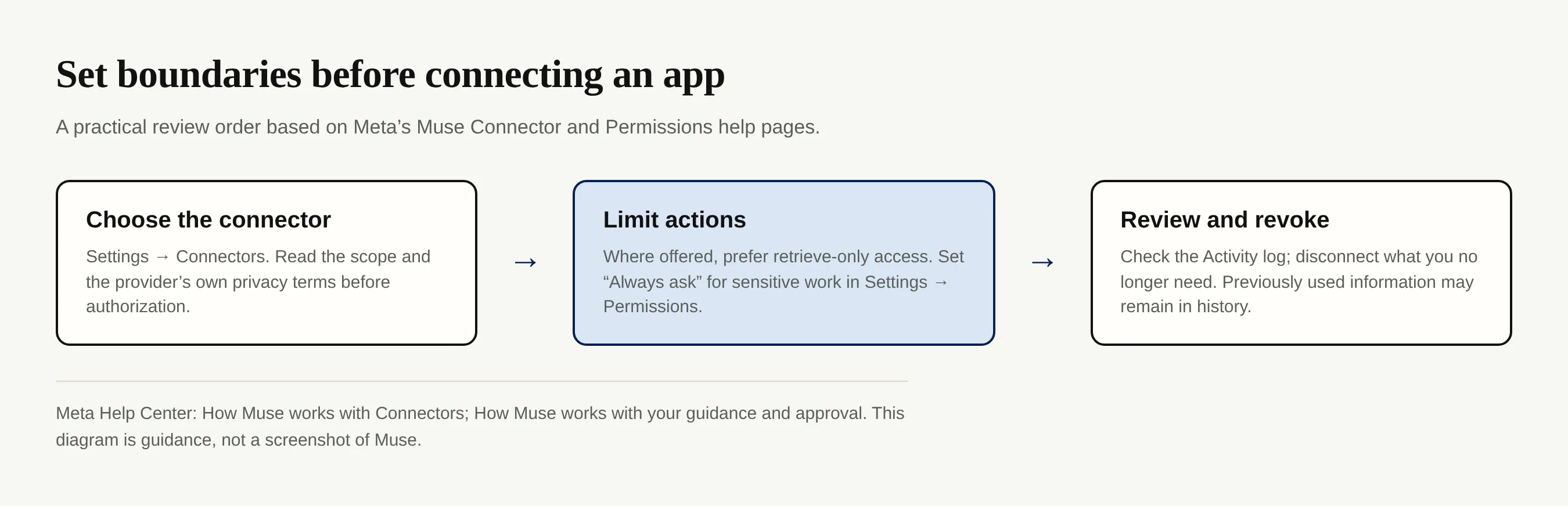
Disconnecting stops future connector exchange, but Meta says previously used information may remain in memories or chat history. Its data-controls guide says the AI-training setting starts on and can be switched off in Settings → Data controls. Review it and the provider's privacy policy before linking customer mail. Zentor asks for approval before a drafted external reply goes out; check names and consent yourself.
Where are Spaces available, and do they cost money?
As of November 7, 2026, Meta's November 6 announcement says Spaces are available wherever Muse is available. It does not give a Spaces-specific country list, and Meta's help center warns that Muse and some features are not available in every area. Check access on your own account instead of inferring it from someone else's screenshot or a general app-store listing. Our Meta Muse availability guide tracks announced markets, but account-level access remains the practical test.
Muse is free with a usage limit. If you reach it, Meta says you can upgrade to a paid subscription or wait for the limit to refresh. The Spaces announcement does not specify a separate Space charge, free-Space allowance, or how background updates count toward the general limit. Avoid promising an unlimited dashboard; check Muse's current usage display before building a business routine around it.
FAQ: Using a Muse Space in a real workflow
Can I pin a Space and change when it appears?
Yes. Meta says Spaces can live in the sidebar or main tabs, be hidden, and be scheduled to appear. Scheduling their appearance is distinct from asking Muse to perform a recurring task.
Will a Space automatically refresh my Gmail and Notion data?
Meta says Spaces can stay current after you connect apps, but it has not published a blanket connector-by-connector refresh promise. Authorize only the sources you need and verify a changed item against its original app.
Can I share a Space with a client or classmate?
Meta says it is exploring sharing and collaboration, not that either is available now. Treat your Space as personal until Meta documents a sharing control you can review.
Is there a separate price for Spaces?
Meta has published Muse's free usage limit and paid-upgrade option, but its Spaces announcement does not state a separate price or quota. If the limits matter to your workflow, check the current Muse account display before relying on background updates.
If you're explaining how to use Meta Muse Spaces to a classmate or coworker, start with a narrow question and a trusted source. Test the first view, inspect what changed, and keep any action that affects another person behind approval. For a seller, that means reconciling an order against the shop; for a student, it means checking a due date against the course calendar. The most useful board is the one whose next action you can verify.

Zentor Editorial Zentor editorial team
The Zentor editorial team writes about workflow automation, AI agents, and the tools we build. Default byline for industry overviews, listicles, and collaborative pieces.
Stop doing this manually.
Zentor handles research, monitoring, reports, and browser tasks for you. No setup. No self-hosting.