Meta Muse Integrations: Notion, Granola, and Box
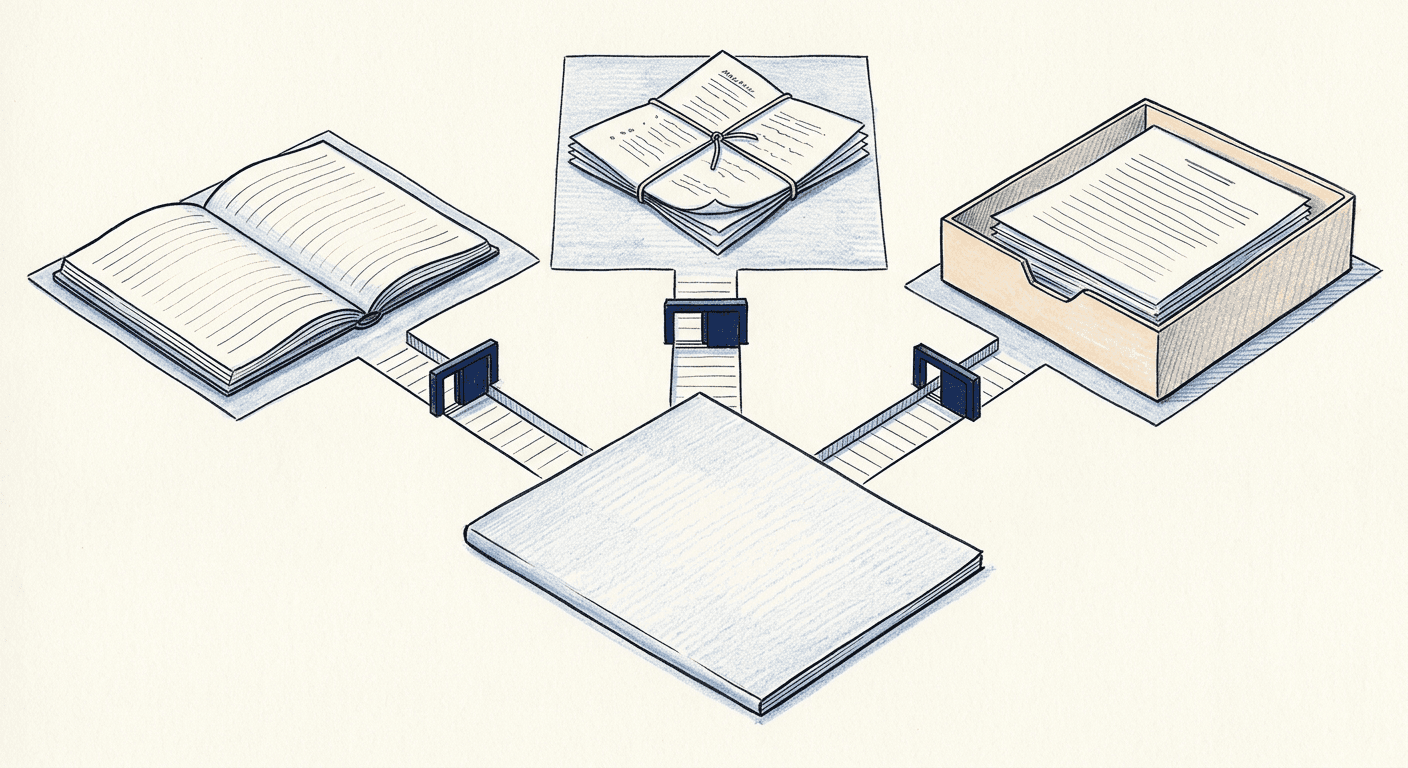
Meta Muse integrations now include Notion, Granola, and Box. Learn what to verify about access, permissions, sources, actions, and write-back.
Meta Muse integrations connect its agent to work apps such as Notion, Granola, and Box. Before connecting client material, check whether Muse can turn one authorized source into a traceable output, and review which actions your current approval settings allow without another prompt.
Key takeaways:
- The announcements confirm the connectors, but leave their individual action sets unspecified.
- Test one non-sensitive source in each app before trusting a cross-app answer.
- Treat reading, creating, updating, and sharing as separate permissions.
- Check the result in its destination, not only in Muse's reply.
I haven't tested the Muse Notion, Granola, or Box connectors. This guide draws on public information; the client-handoff example below is a proposed test, not an observed result.
Quick Answer: These Connectors Extend Muse Into Work Apps
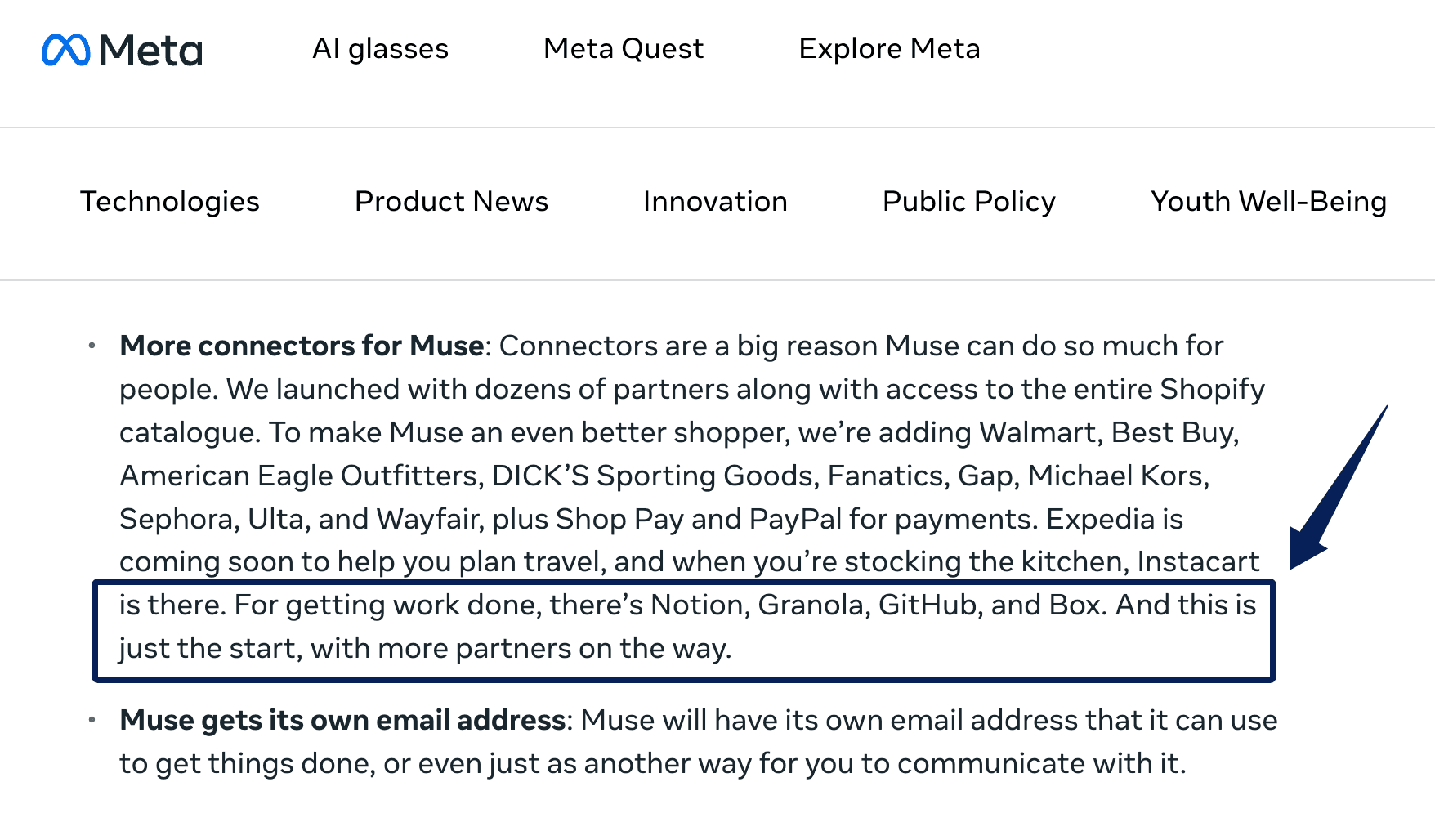
Meta named Notion, Granola, GitHub, and Box as work connectors at Connect 2026. The September 29 announcement directs users to Muse settings for the available connector catalog. Check your account there: the announcement doesn't establish identical reading, editing, or synchronization capabilities across these apps.
Muse work apps also contain different kinds of evidence. A meeting suggestion may disagree with an approved project page. Access to both doesn't resolve the disagreement.
Match Each Connector to One Clear Job
What the Notion Connector Should Be Tested On
Give the Muse Notion connector one project page with a dated decision. Ask for the decision, date, and source link. Check that it uses the chosen page and leaves unrelated client material out. Test a proposed status change separately, stopping before an edit.
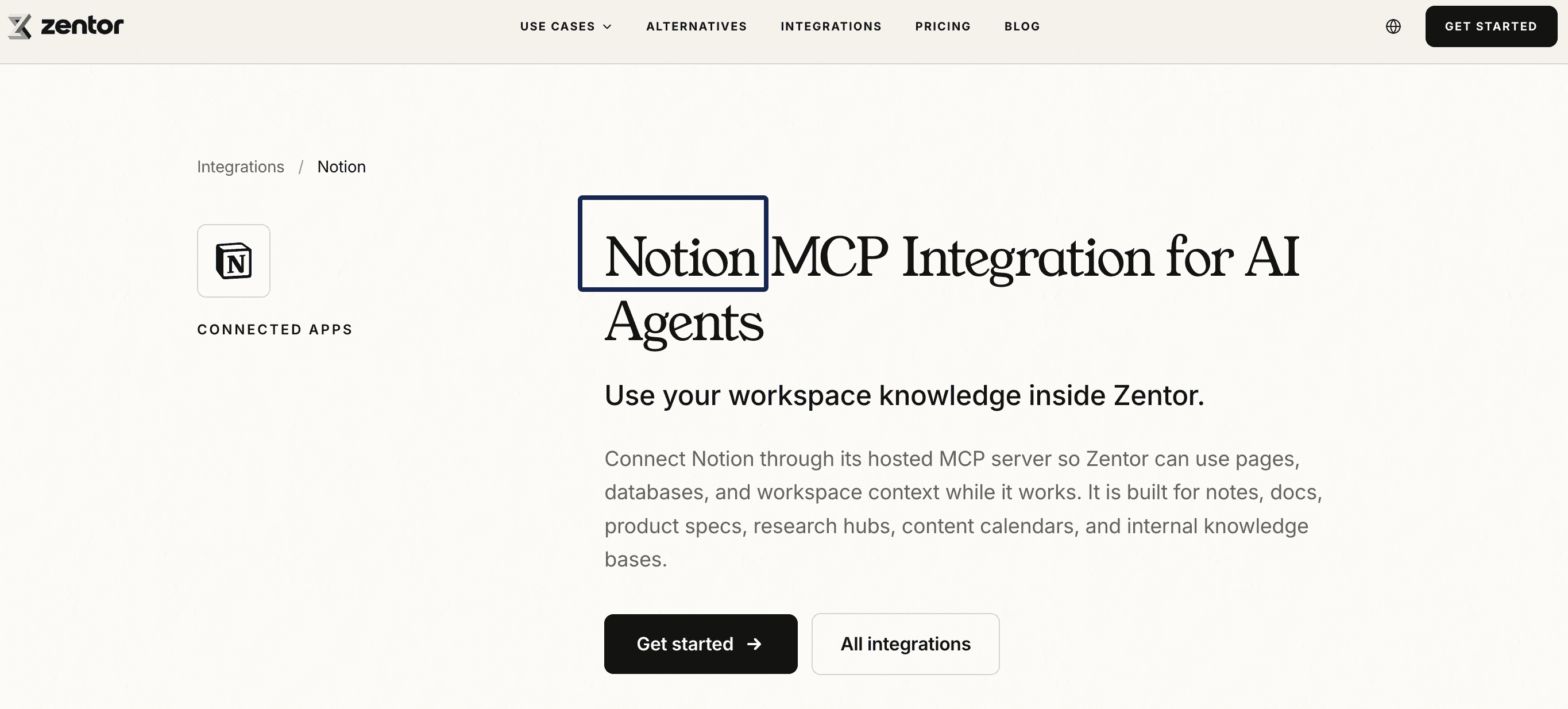
Notion API connections support access to selected pages and databases; verify which controls Muse's authorization actually offers. If you're comparing other routes into Notion, Zentor's Notion integration uses hosted MCP and separate authorization. That establishes no Muse-Zentor integration.
What the Granola Connector Should Be Tested On
Give the Muse Granola connector one shareable meeting note. Ask for an agreed action and its meeting source. Check the wording: "suggested Friday" must not become "approved Friday."
Granola says meeting notes are private by default, but an authorized AI connection may receive data within its granted scope. Granola documents note and transcript access for its own MCP integration; Meta has not specified which of those objects its Muse connector exposes. Start with a non-sensitive meeting and check the authorization scope and the content returned to your account.
What the Box Connector Should Be Tested On
Test the Muse Box connector on one non-sensitive PDF. Ask for its title, version date, and one supported claim. Open the returned source link to check that it points to the chosen file.
Box shared links can permit viewing, downloading, or editing, subject to settings. Keep the test file restricted; Making a private file public is an unacceptable workaround for a failed read.
Check Read and Write Permissions Before Connecting
Meta distinguishes read, write, and sensitive write tools. Reads and ordinary writes ask on each use until the user selects Always allow; sensitive writes require approval every time. These platform rules don't establish each connector's available actions. Read-only authorization is encouraged where possible, so check whether your connection offers it.
Inspect the account, objects, and actions requested. Start with the narrowest available scope and one-use approval. If authorization reaches substantially more client material than the task needs, stop and review it.
Build a Source-to-Output Test
Choose the Source and Requested Action
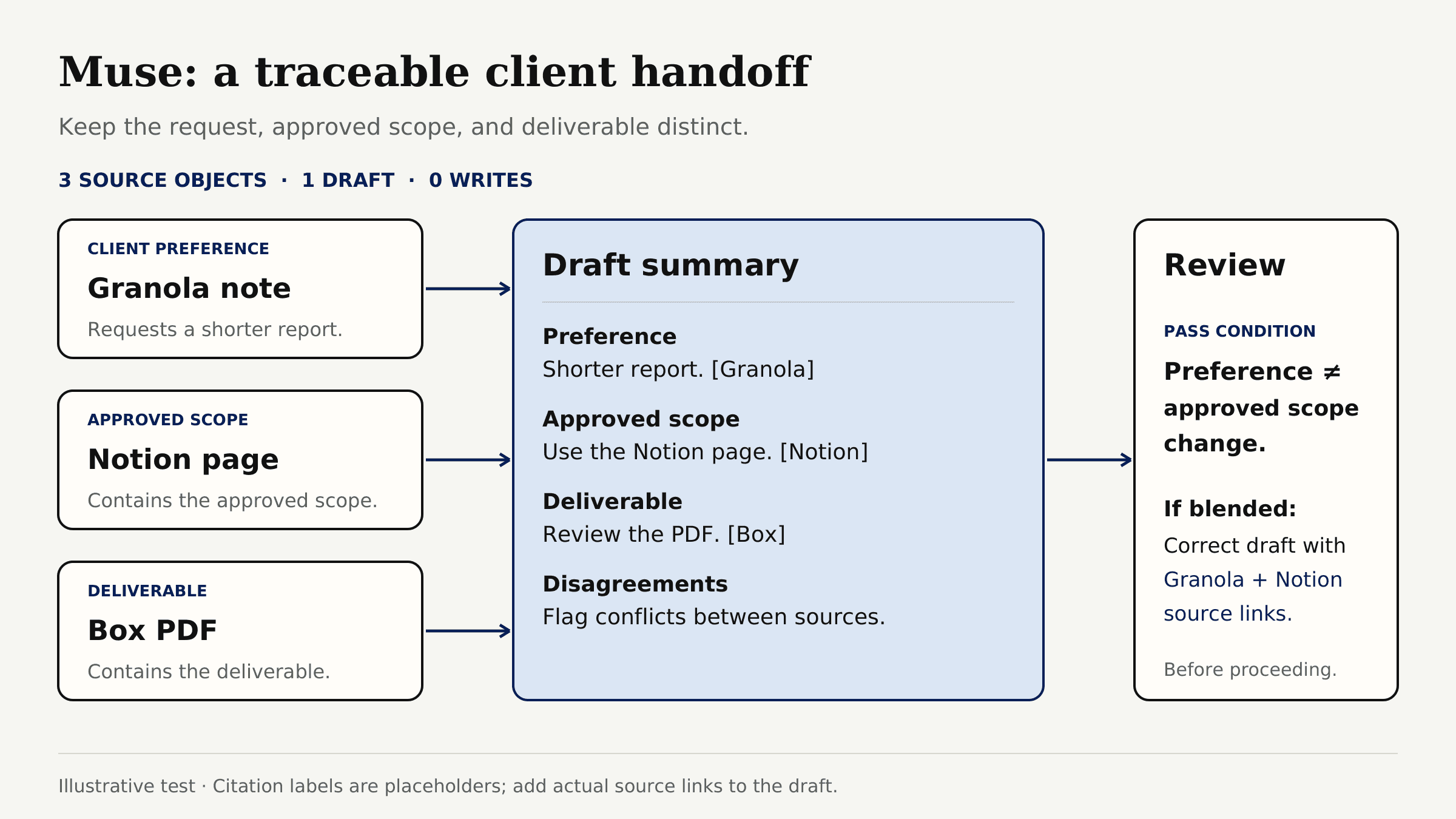
For an illustrative client handoff, use one Granola note requesting a shorter report, one Notion page with approved scope, and one Box PDF containing the deliverable. Ask for a draft summary with citations and disagreements. The test has three source objects, one draft, and zero writes.
A passing draft distinguishes a preference from an approved scope change. If Muse blends them, correct the draft with both source links before proceeding.
Set the Approval Point and Destination
Choose where the draft should land. Writing to a page or file requires a verified tool for that action. Review the target, content, and sharing scope before approval, then inspect the destination afterward. A successful reply without the expected saved change leaves the task unfinished.
Save the source links, permission scope, proposed change, approval, and destination link together so a teammate can reconstruct the handoff.
If approved client preferences need to persist across different assistants, Zentor's workspace-memory approach addresses that separate requirement. Muse connector access and workspace memory still need their own permission checks.
Handle Missing Access or Conflicting Context
For missing material, check the connected account, object permission, and whether you can open the source yourself. Preserve conflicting versions with dates and let the project owner resolve them. Before retrying a failed write, inspect the destination for a partial result.
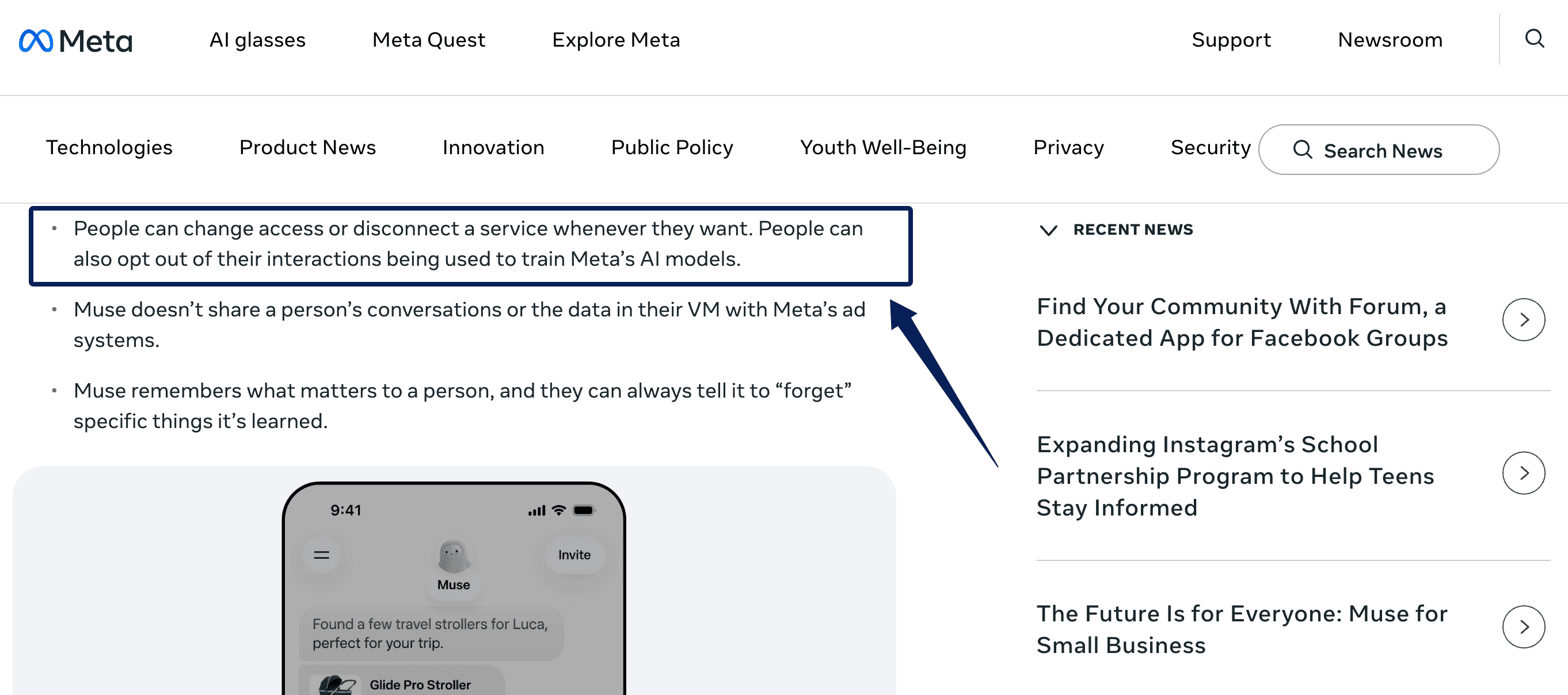
Muse lets users change access or disconnect a service. Use that control when scope becomes inappropriate, and check the provider's authorization settings too.
FAQ
Which work apps does Meta Muse integrate with?
Alongside these three and GitHub, Meta names Asana, Canva, Dropbox, Figma, QuickBooks, Shopify, Slack, Stripe, and Zoom, among others. Consult your signed-in catalog for availability rather than assuming every announced connector is enabled for your account.
Can a teammate open the source links in a Muse handoff?
A source link does not itself grant a teammate access to a private Notion page, Granola note, or Box file. Check the recipient's permissions in the source app and use its approved sharing process; do not make a client file public just to make the link work.
Can Muse edit information in connected apps, or only read it?
Editing depends on the tool and granted scope. Ask whether an available action creates a new object or updates an existing one; those have different consequences for original client records.
Does each Muse integration need separate permissions?
Manage each connection separately. An app's authorization defines reachable data, while Muse's tool approval controls the requested action. Granting account access doesn't authorize every subsequent operation.
Can you disconnect a Muse integration later?
Yes. Disconnecting removes the access route. It should not be treated as deletion of drafts or files already created in another app; review those separately at their destination.
Meta Muse Integrations: Verify the Handoff First
Make Meta Muse integrations earn a place in your workflow through one inspectable handoff. Keep source links beside the draft, review consequential changes, and confirm what actually saved. Expand access only after that small test gives you a result you can trust.

Zentor Editorial Zentor editorial team
The Zentor editorial team writes about workflow automation, AI agents, and the tools we build. Default byline for industry overviews, listicles, and collaborative pieces.
Ready to put this into practice?
Zentor runs browser tasks, research, and schedules automatically. Try it free.