Notion CRM: Set One Up for Client Work

Build a Notion CRM with a client database, pipeline views, follow-up dates, and an editable setup worksheet you can maintain after every conversation.
A Notion CRM is one database of client records, a few views over it, and a next action you actually maintain. Here is how to use Notion as a CRM without rebuilding your workspace: create a client database, add contact and pipeline properties, and build views that show the next follow-up. Start with one database you can keep current. Add related projects or companies only when the work requires them.
Notion publishes its own database-based CRM guide, so this approach does not require an external agent just to store client relationships. Notion's CRM guide.
Key Takeaways:
- Define whether each record represents a contact, company, or opportunity before importing data.
- Keep Next action and Follow-up date visible so the database supports daily work.
- Preserve the message or document behind a stage change; sending a proposal does not mean winning it.
- Evaluate automation on matching, updates, and repeat runs rather than on its ability to create the first record.
This guide is for freelancers and consultants who want to track conversations and proposals alongside their notes. The properties and views are laid out in a worksheet below that you can fill in here and copy across; it is not a native Notion template with a duplication button.
How to use Notion as a CRM: create the client database
Create a database named Clients. Use its title property for the client or prospect name, then add the properties below. Notion documents text, date, select, email, URL, and other database property types. Source: Notion database properties.
| Property | Type | What to record |
|---|---|---|
| Client | Title | Client or prospect name |
| Main contact address | ||
| Stage | Select | Lead, Conversation, Proposal, Active, Won, Lost |
| Next action | Text | A specific step you need to take |
| Follow-up date | Date | When you intend to take it |
| Last contact | Date | Last meaningful interaction |
| Source | URL | Relevant message, proposal, or meeting notes |
Use the page body for conversation notes and links to deliverables. Keep the next action in a property so it is visible in a table, rather than buried below a long meeting transcript.
For multiple contacts at one company, choose whether your record represents a person or a company before entering data. If you need both, use separate databases and a relation. You can postpone that complexity when a single contact per client is enough.
Also separate a client relationship from a particular opportunity when one client can commission several projects. A single Stage field becomes ambiguous if an existing client has one active project and another proposal under review. You can start with one record per opportunity and link to the client information, or add an Opportunities database once the need becomes recurring.
Use consistent definitions for your stages. Proposal means the proposal has been sent or is under review, depending on the rule you choose. Won should require the evidence your process treats as acceptance. Active describes delivery work and may belong in a project status rather than the sales stage. Keep those meanings explicit.
The sample list above is a starting vocabulary, not a required pipeline. Remove stages that do not represent a decision in your process. A shorter pipeline with clear transitions is easier to maintain than a detailed one whose labels overlap.
| Client | Stage | Next action | Follow-up date | Last contact | Source | |
|---|---|---|---|---|---|---|
| TEST Client | lead@example.com | Proposal | Ask for feedback on scope | Mar 12 | Mar 5 | Proposal doc |
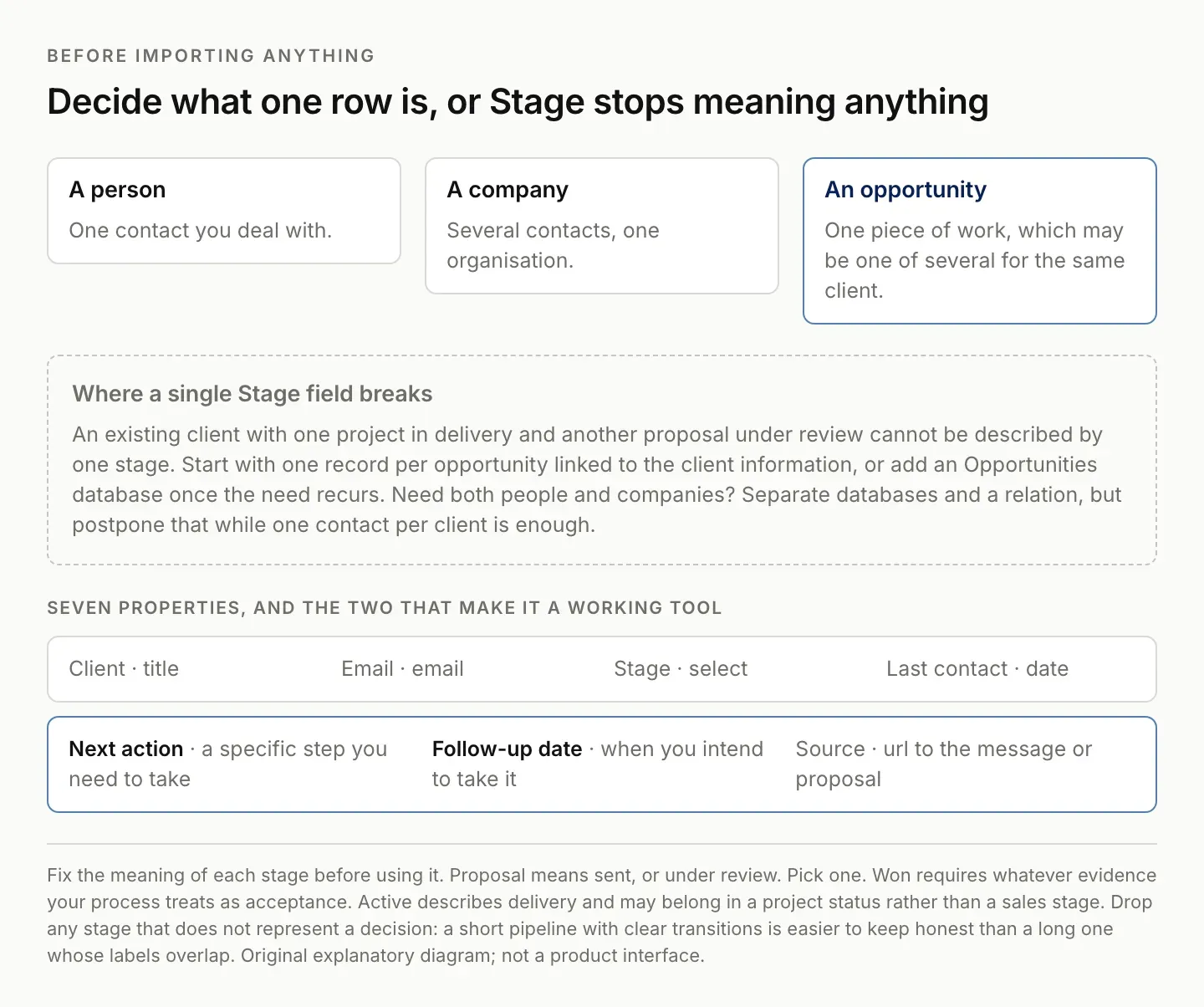
A single Stage field breaks as soon as one client has a project in delivery and a proposal under review.
Build three views for client follow-up
Create a Pipeline board grouped by Stage. This answers where each conversation stands. Add a Follow-ups table sorted by Follow-up date, and a Missing next step view filtered to records with an empty Next action.
Notion supports multiple database views with their own filters and sorts. Exact filter labels can vary with property type and interface changes. Source: Notion views, filters and sorts.
The board helps you review the overall pipeline. The table helps you decide whom to contact today. The missing-action view catches records that look complete but contain no planned next step.
Filter closed opportunities out of the daily follow-up view while retaining their history. A lost opportunity may still be useful for understanding the relationship, but it should not appear as a current obligation unless you deliberately reopen it.
Keep your intended follow-up date distinct from a date promised by the client. You control when you plan to check in; you do not control when another person will respond. If both dates matter, use separate fields or explain the distinction in the next-action note.
Notion's own CRM guide also demonstrates using a database to organize client relationships. The screenshot illustrates the underlying workspace; it does not show a Zentor integration.
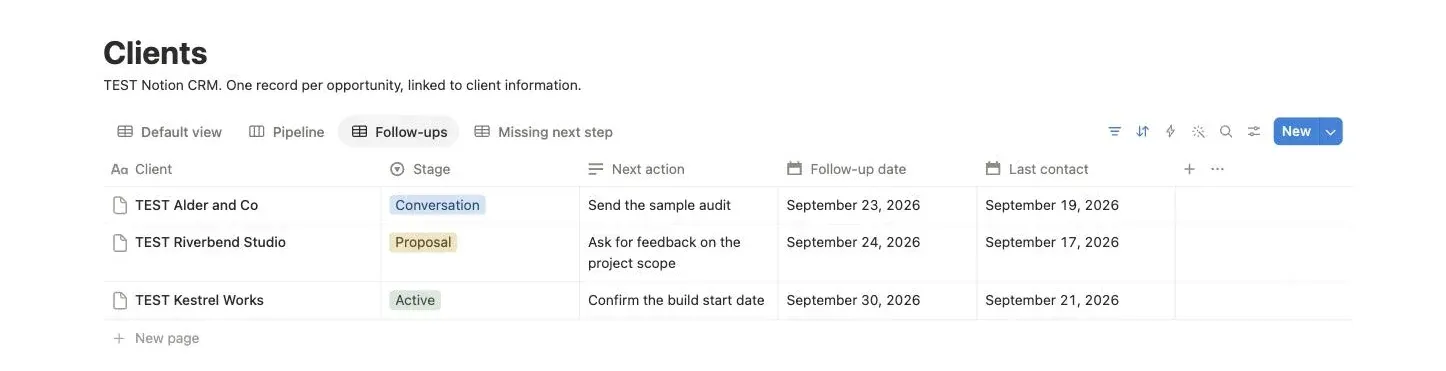
All three views exist over one database. Follow-ups is sorted by date; the TEST client with no next action is held back for the Missing next step view.
Add one client before importing your entire list
Create a record explicitly titled TEST : proposal follow-up. Set Stage to Proposal, write “Ask for feedback on the project scope” as the next action, and choose a test date in Follow-up date. This is a constructed configuration check, not a customer story.
Link the proposal or the relevant conversation. Open the Follow-ups view and confirm you can find that record. Then remove its next action temporarily and check that it appears in Missing next step. Restore the action afterward.
This small check tells you whether your views support the way you work. Importing hundreds of contacts first can hide a weak setup behind a large, attractive database.
Add a second test record with no follow-up date and a third with a closed stage. Confirm that each appears only in the views where you expect it. This makes the intended behavior clear before you depend on the dashboard for real conversations. If you are weighing the built-in assistant against a separate one, the Notion AI alternative comparison covers that choice.
If you import existing contacts, preserve the original file and inspect a small batch. Check email fields, dates, and duplicate names before expanding. Notion supports CSV import, but a successful import does not verify your relationship model or recreate every view you want. Notion import guide.
Do not merge records solely because two people share a name. Use the identity evidence available in your source, and keep uncertain matches for review. If the same person uses multiple email addresses, record that deliberately rather than treating each address as proof of a new client.
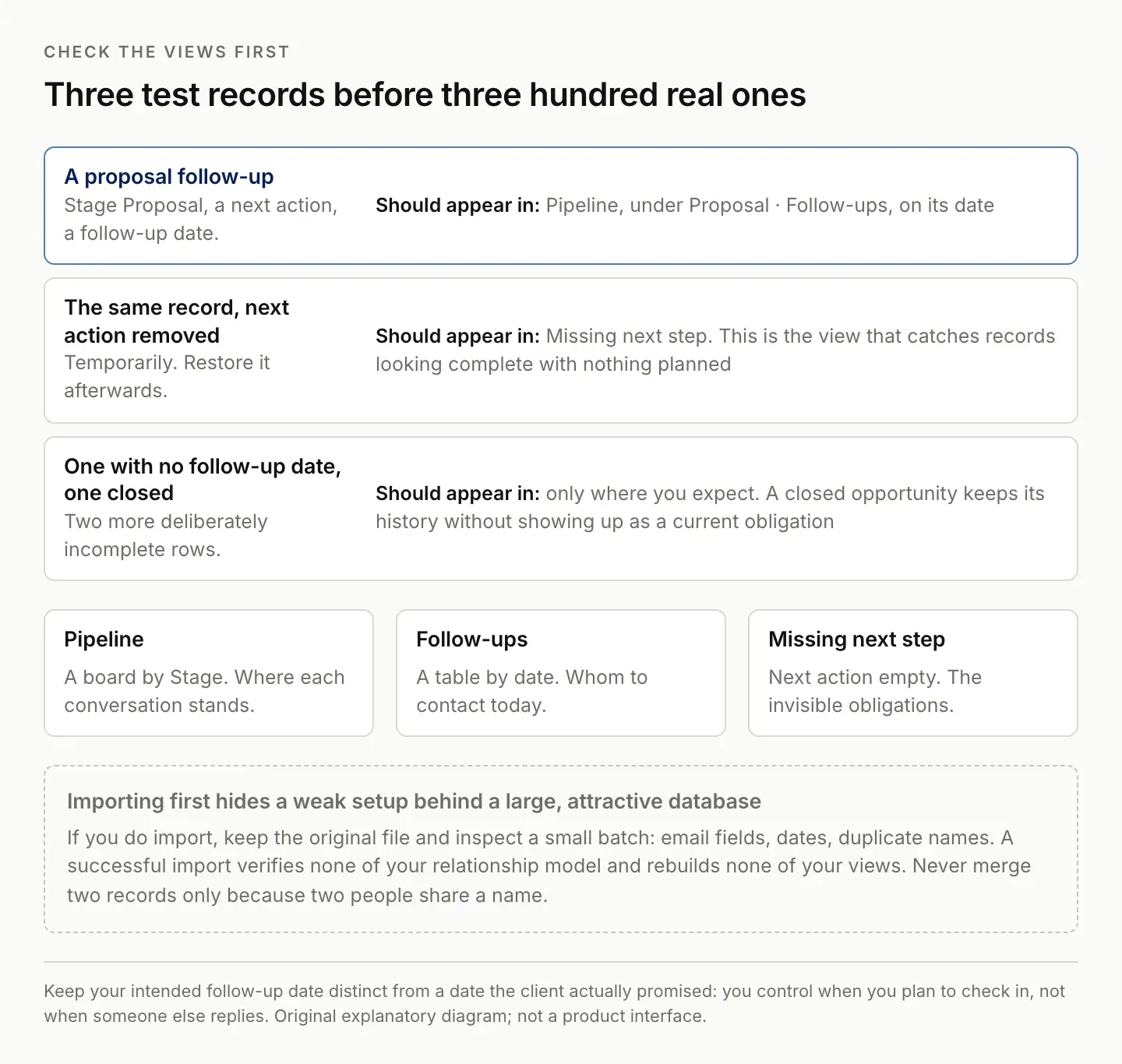
Importing first hides a weak setup behind a large, attractive database.
Maintain your Notion CRM after each interaction
After a meaningful client exchange, update Last contact, review Stage, and replace the next action with the new agreed step. Set a follow-up date that reflects the conversation. Do not mark a deal won just because a proposal was sent.
If a reply changes the scope, add a dated note and preserve the previous proposal link. When a client says “I will get back to you,” record your intended check-in separately from any deadline the client actually committed to.
A Notion CRM for freelancers is useful when this routine stays small enough to perform. If maintaining it becomes another backlog, simplify the fields before adding more dashboards.
Write dated notes that distinguish facts from your interpretation. “Asked for a revised scope” describes an exchange. “Likely to proceed” is your assessment. Both may help you, but a later assistant or collaborator should not mistake the assessment for an accepted agreement.
When a proposal changes, retain a reference to the version the client actually saw. Do not overwrite the only linked document and lose the basis of the earlier conversation. A short version note is often enough to keep the relationship history understandable.
Review records with no next action regularly. Some should be closed; others need a clarification or a new follow-up. Do not add an arbitrary date merely to clear the view. The point is to resolve the missing decision.
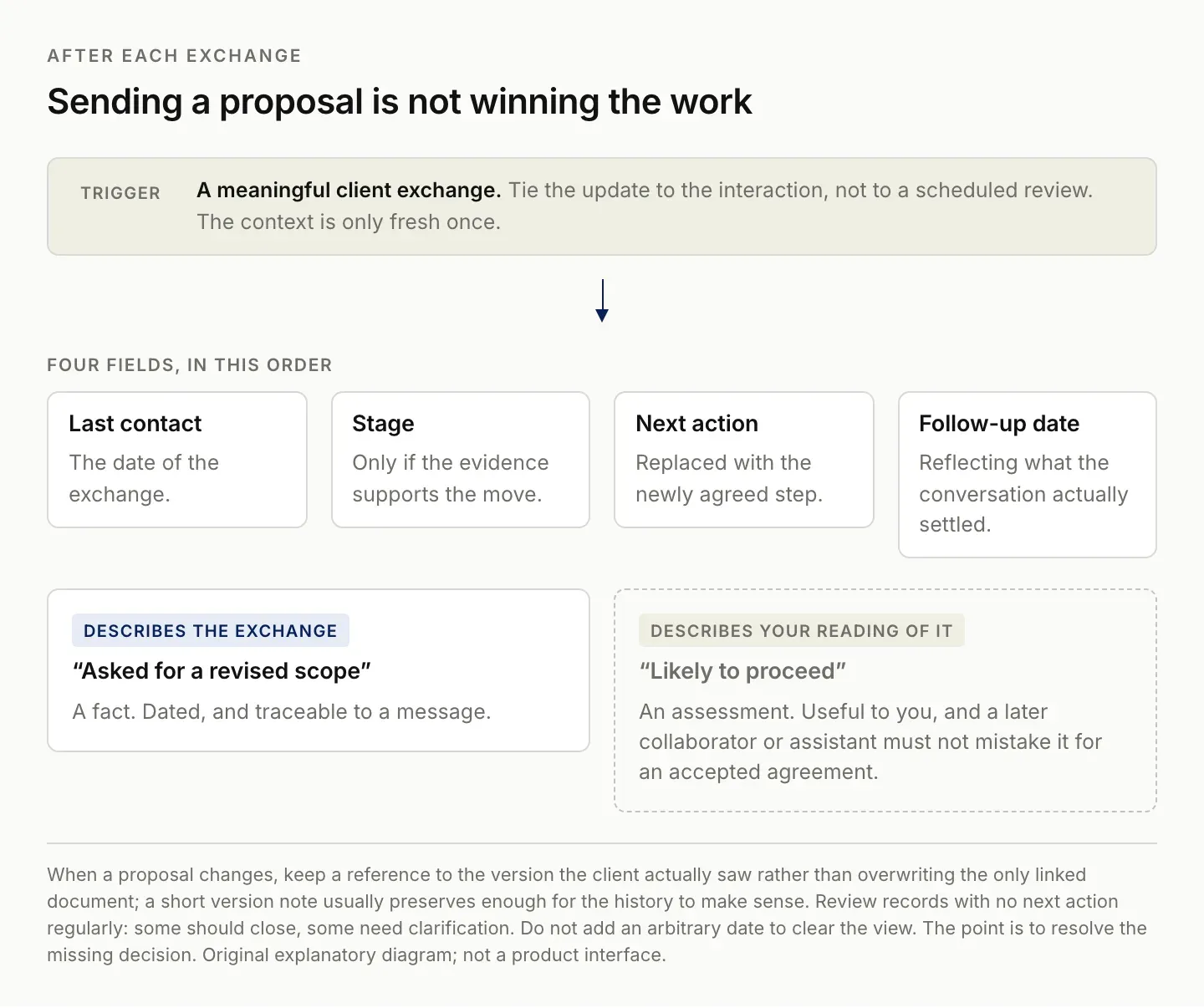
Tie the update to the interaction, not to a scheduled review. The context is only fresh once.
What to check before adding email automation
A manual database does not automatically learn what happened in your inbox. If you add a connection, specify how it matches a message to a client, which fields it can change, and what happens when two records match.
Test a new prospect, an existing client, an ambiguous name, and the same message processed twice. Inspect both the stored note and the next action. An automation that saves the message correctly may still misunderstand whether the client accepted a proposal.
Check the available Zentor Notion integration when evaluating options. Zentor's positioning centers on preserving context across ongoing work; this tutorial does not claim it already maintains this CRM automatically.
Native options also deserve a fair evaluation. Notion's Custom Agents documentation includes Mail connections for workflows involving email and database records. Compare the actual capabilities available in your account rather than assuming an external product is required for every inbox update. Mail connections for Custom Agents.
A concrete Zentor evaluation brief would ask for proposed updates to selected clients, with the source message, changed fields, and next-action rationale attached. Keep ambiguous identities and unconfirmed dates in a review section. Require outgoing replies to remain drafts until you review them. Zentor's sales email generator covers the outreach step once the record is current.
Zentor is in early access. Confirm the available connections and inspect a real result before relying on recurring updates. The criterion is whether the client record becomes more accurate with less repeated work, not whether the assistant writes an enthusiastic summary.
Share client context without exposing the whole CRM
Keep the internal CRM separate from the material you intend clients to see. Internal assessments, other clients' records, and private conversation notes should not appear in a shared project update simply because they are stored nearby.
Review Notion's actual sharing permissions rather than treating a filtered view as an access-control decision. Access can come from several places in the workspace, so inspect the intended reader's permissions and use the supported sharing model. Notion sharing settings.
For a simple client update, a dedicated page containing the approved deliverables and next decisions can be easier to review than exposing the operational database. Link only the material the client should access, and check those links before sharing.
If a collaborator helps maintain the CRM, write down which fields they may update and how uncertain changes should be handled. A consistent definition of Won, Follow-up, and Last contact matters more than everyone using the same favorite dashboard layout.
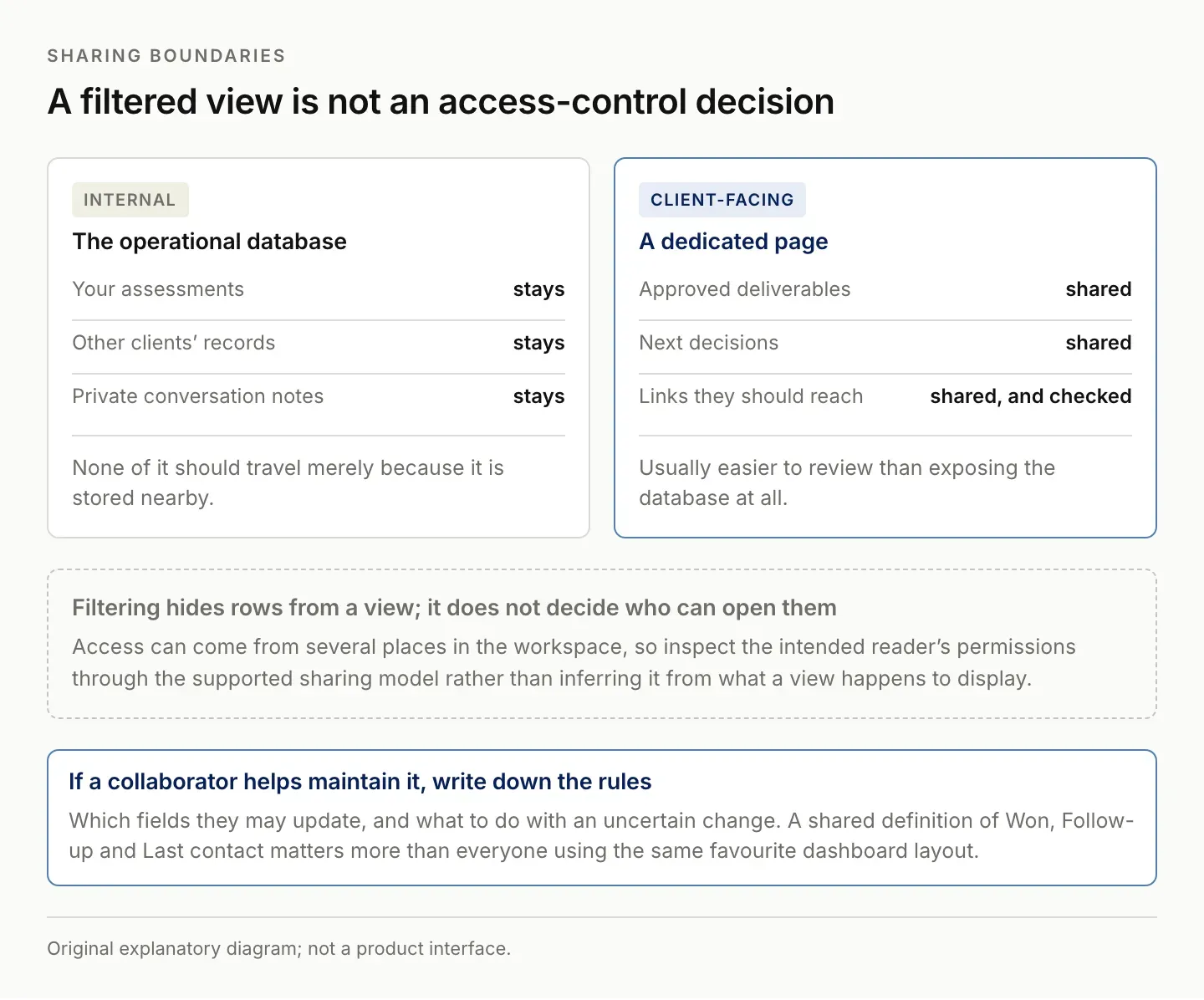
Filtering hides rows from a view. It does not decide who can open them.
When should you choose a dedicated CRM?
Compare a dedicated CRM when you require processes your workspace cannot reliably support, such as a complex sales handoff, strict activity tracking, or reporting that takes substantial manual work. Evaluate the actual requirements and plan limits rather than choosing solely by how the pipeline looks.
Use a small requirements checklist: reliable contact matching, visible next actions, activity history, reporting, access controls, and the integrations your work depends on. Test the most important requirements on representative records before migrating.
Include maintenance in the cost comparison. A flexible workspace can be economical when you understand and maintain it. It can also consume time if every new reporting question requires another custom structure. Measure the repeated work you actually perform rather than assuming either approach is universally cheaper.
Keep an export or another appropriate copy of the data you need during evaluation. A migration should preserve usable relationship history, not merely produce the same number of rows in a new tool.
FAQ: running a Notion CRM for client work
Is this a duplicable Notion CRM template?
No. The worksheet above explains the properties and views to create, and you can copy its table straight into a database. It is not a prebuilt Notion template with a duplication button.
What is the most important field?
For this workflow, Next action is the most useful field for daily review. Contact details tell you who the client is; a clear action tells you what needs attention.
Can a Notion CRM replace a dedicated CRM?
For a solo consultant or a small client list, usually yes. It stops being enough when you need reliable contact matching across sources, activity history you did not enter by hand, or reporting that currently takes manual assembly every month. Test those three requirements before migrating.
How do I stop the CRM going stale?
Tie the update to the interaction rather than to a scheduled review. After each client exchange, change Last contact, Stage, and Next action while the context is fresh. The Missing next step view is the check that catches the records where that did not happen.

Zentor Editorial Zentor editorial team
The Zentor editorial team writes about workflow automation, AI agents, and the tools we build. Default byline for industry overviews, listicles, and collaborative pieces.
Stop doing this manually.
Zentor runs on its own cloud computer - research, monitoring, reports, browser tasks. No setup. No self-hosting.