Notion Content Calendar: From Ideas to Published Work
Build a Notion content calendar that keeps briefs, assets, approvals, publishing dates, and results connected from idea through publication and review.
A Notion content calendar is a database for moving each piece from idea to publication. Its content status can follow this path: Idea → Selected → Brief ready → Drafting → In review → Approved → Scheduled → Published → Archived.
This guide draws on Notion’s documentation checked October 22, 2026, and screenshots the vendor supplied from a private configuration test and a read-only Zentor lookup of fictional records. We checked the public documentation and images, but could not independently repeat that private test. It did not establish live teamwork, external publishing, connector write-back, or permissions.
Key Takeaways:
- Keep one content record for the primary piece, then link follow-ups and assets.
- Maintain the primary blog date in Content and distinct newsletter or social dates in Distribution.
- Use a table for intake, a board for work in progress, and a calendar for approved dates.
- Save the approver, approved version, confirmed live URL, and review date with the record.
- Archive only after linked placements have confirmed outcomes and closed follow-ups.
Illustrative scenario: one interview becomes a blog post, newsletter excerpt, and LinkedIn post. The blog brief and date stay in Content; two linked Distribution records hold the follow-up copy, dates, and live URLs.
Define the Content Lifecycle
Use statuses that change the next action or owner: Idea, Selected, Brief ready, Drafting, In review, Approved, Scheduled, Published, and Archived. Add Blocked or Changes requested only when useful.
Move a record to In review when the draft and assets are attached. Approved means someone checked a named version; Scheduled means the time and destination are confirmed. Published requires a live post and saved URL. A label alone is not proof.
Bring your Notion brief into the next draft
Use authorized Notion pages as context in Zentor, then check the source record before approving the copy.
Get early access →
Build the Content Database and Views
Start your Notion content calendar with a full-page Content table. Each row can hold a brief and source notes. Notion shows the same records through different views, filters, sorts, and groups.
Use these properties: Title (Title), Status (Status), Format (Select), Audience (Text or Select), Topic (Select), Content type (Select), Owner (Person), Editor (Person), Internal due date (Date), Publish date (Date), Campaign (Relation), Next review (Date), and Created time (Created time). Add Priority (Select) only if the team uses it to choose work. Publish date is the planned release date of the primary deliverable, such as the blog post in our example.
Create four views: an Ideas table filtered to Idea and Selected, sorted by Priority (if used) and Created time; a Production board grouped by Status, excluding Published and Archived; a Review queue filtered to In review and sorted by Internal due date; and a Publishing calendar based on Publish date, filtered to Approved and Scheduled. A calendar view requires a Date property. These Notion content calendar views share one record set.
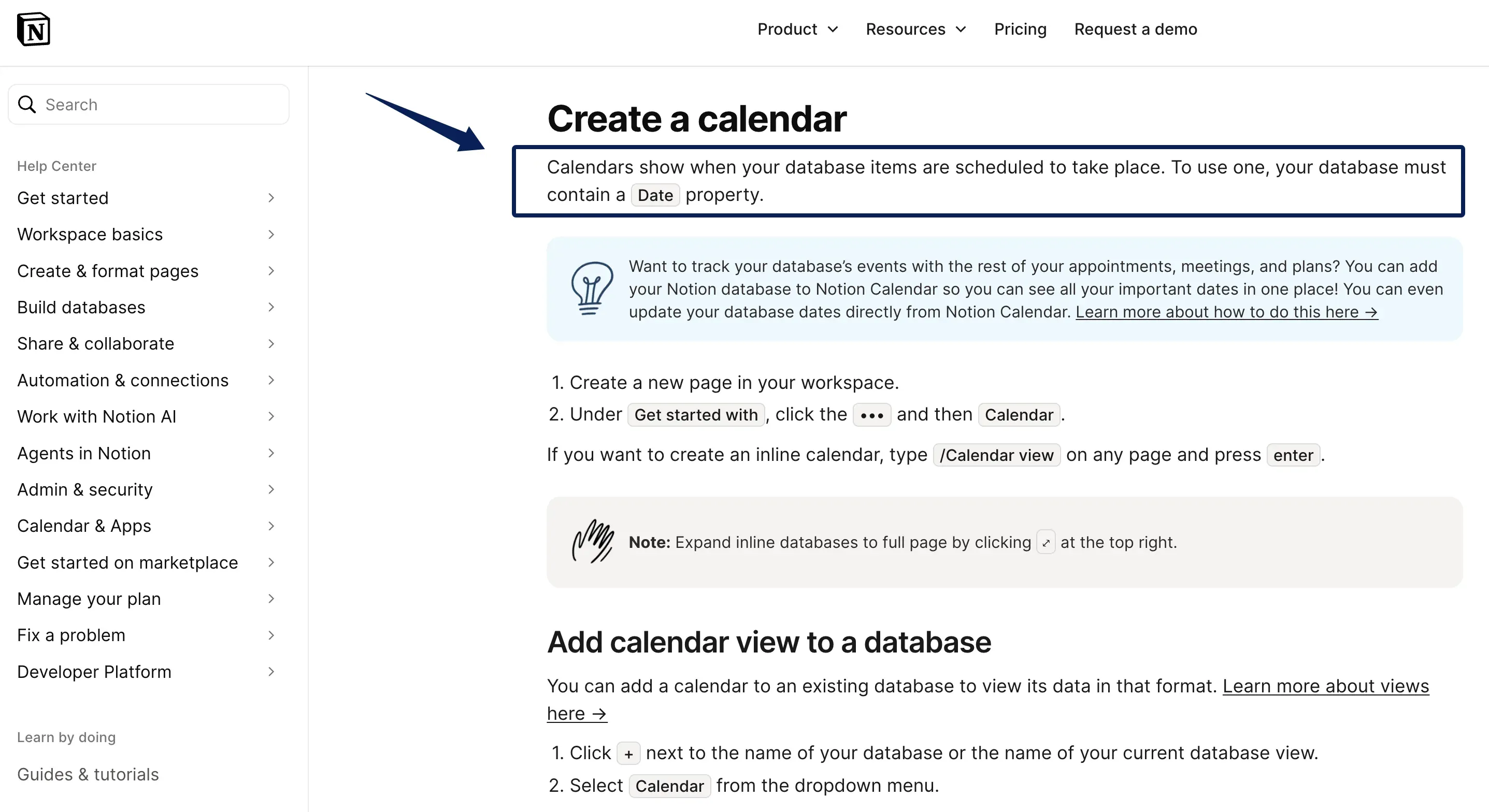
With these filters, moving an interview record from In review to Approved should remove it from Review queue and add it to Publishing calendar. Check the result in your workspace; the supplied screenshots do not verify other users' permissions or screen layouts.
Attach Briefs, Assets, and Owners
In your Notion content calendar, create a template for each format needing a different brief. A blog template can hold the reader question, angle, outline, sources, claims to check, call to action, and draft. A video template can add shots and captions. Keep instructions in the page body.
Zentor can draw on your authorized Notion workspace through its connector when you need a draft based on a brief; the source page still needs a human to check the claims before approval.
For reusable files, create an Assets database with Name, File or URL, Asset type, Source, Rights note, Version, and Owner. Add a two-way relation, so content shows its files and each asset shows its uses. Notion relations connect pages across databases.
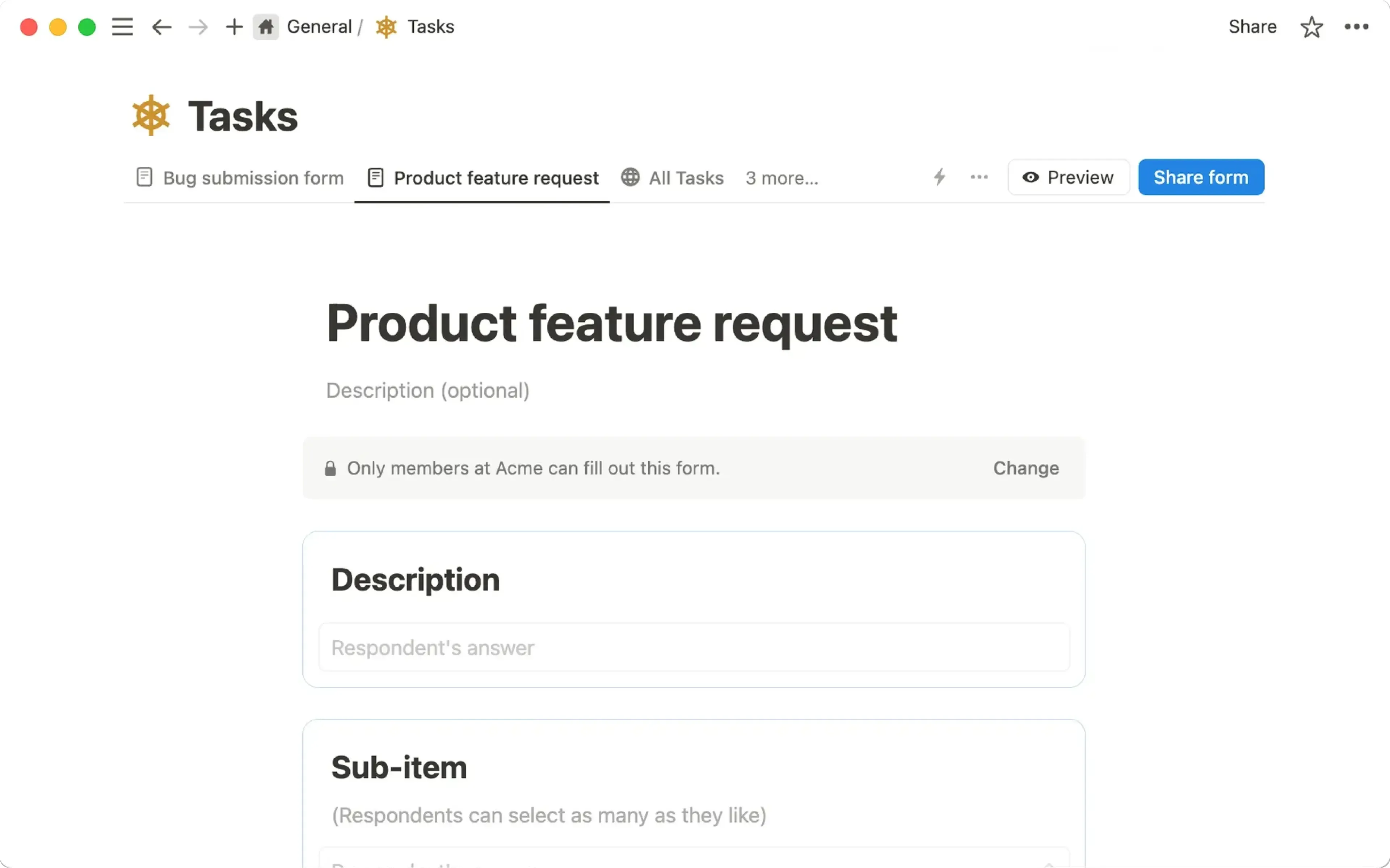
For intake, a Notion Form maps questions to database properties. Contributors with Can edit content can update rows without changing the schema; reserve full access for maintainers under Notion's permission levels. This permission guidance was not tested.
Create an Approval and Publishing Checklist
Put a checklist in the content template and require the owner to finish it before changing Status to Approved: brief and sources attached; claims checked; draft edited; asset rights and alt text checked; links tested; channel version selected; title and metadata reviewed; approver and approved version recorded. Add Approved by, Approval date, and Approved version properties, so the decision is easy to find.
A Status change can remind an editor that a draft is ready for review. Notion database automations are available on paid plans, and paid users need full database access to create or edit them. Free plans allow Slack notification automations only, and one automation cannot trigger another. Treat the alert as a reminder, not approval or proof that an external post is live. For versioned approvals, publish receipts, and recovery after failed handoffs, see Zentor's content creation workflow from brief to publish.
Track Distribution Without Duplicating Records
Keep the primary brief and Publish date in the Notion content calendar’s Content database. Add a linked Distribution row for each follow-up placement, with Channel, Channel copy, Scheduled for, Publisher, Status, Live URL, and Published at. Newsletter and LinkedIn get distinct dates without duplicating the blog brief.
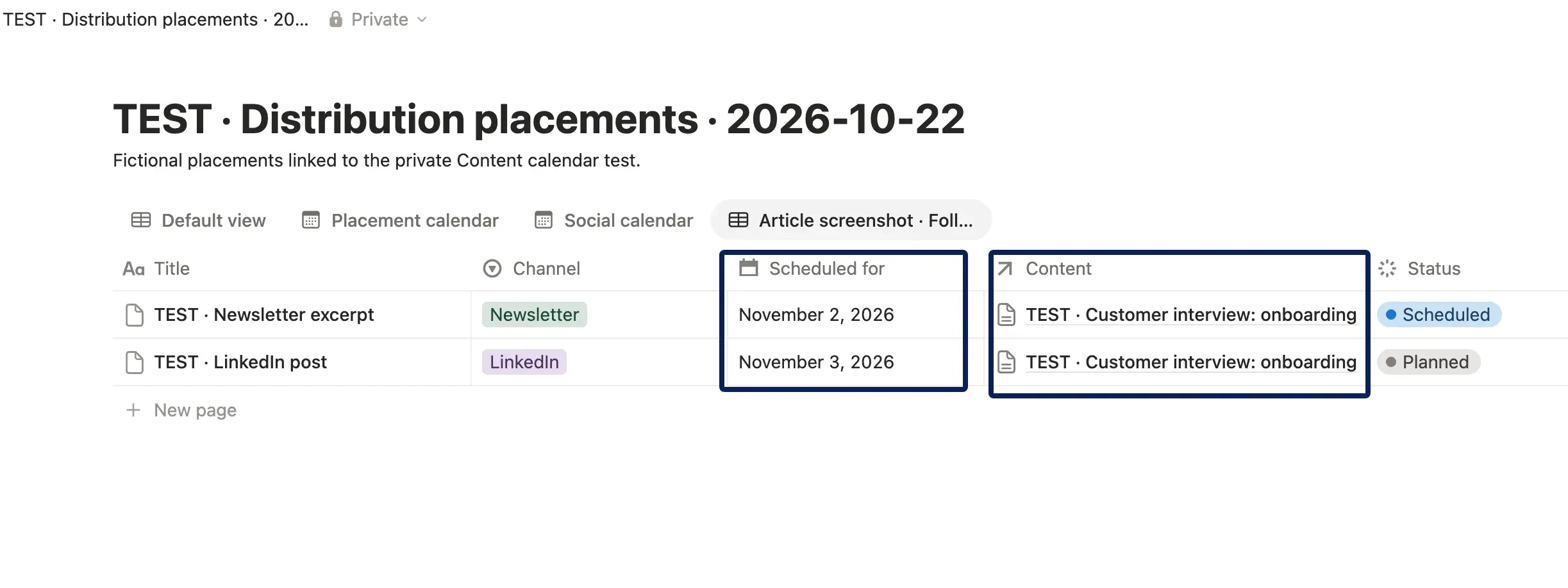
In the vendor-supplied test, the blog date was entered in both Content and a linked blog placement. Changing Content's Publish date from October 29 to November 1 left the placement's Scheduled for at October 29: the relation did not sync them. Keep the primary blog date only in Content and add Distribution rows for the follow-ups. If you need a separate blog placement, choose one editable date as the source of truth and verify any derived date or combined calendar.
Filter a Distribution calendar to social channels; use another view for email if needed. A planned date is not proof of publication. Mark a placement Published after checking the destination and saving its live URL and time. If a scheduler posts it, record its confirmed URL or ID.
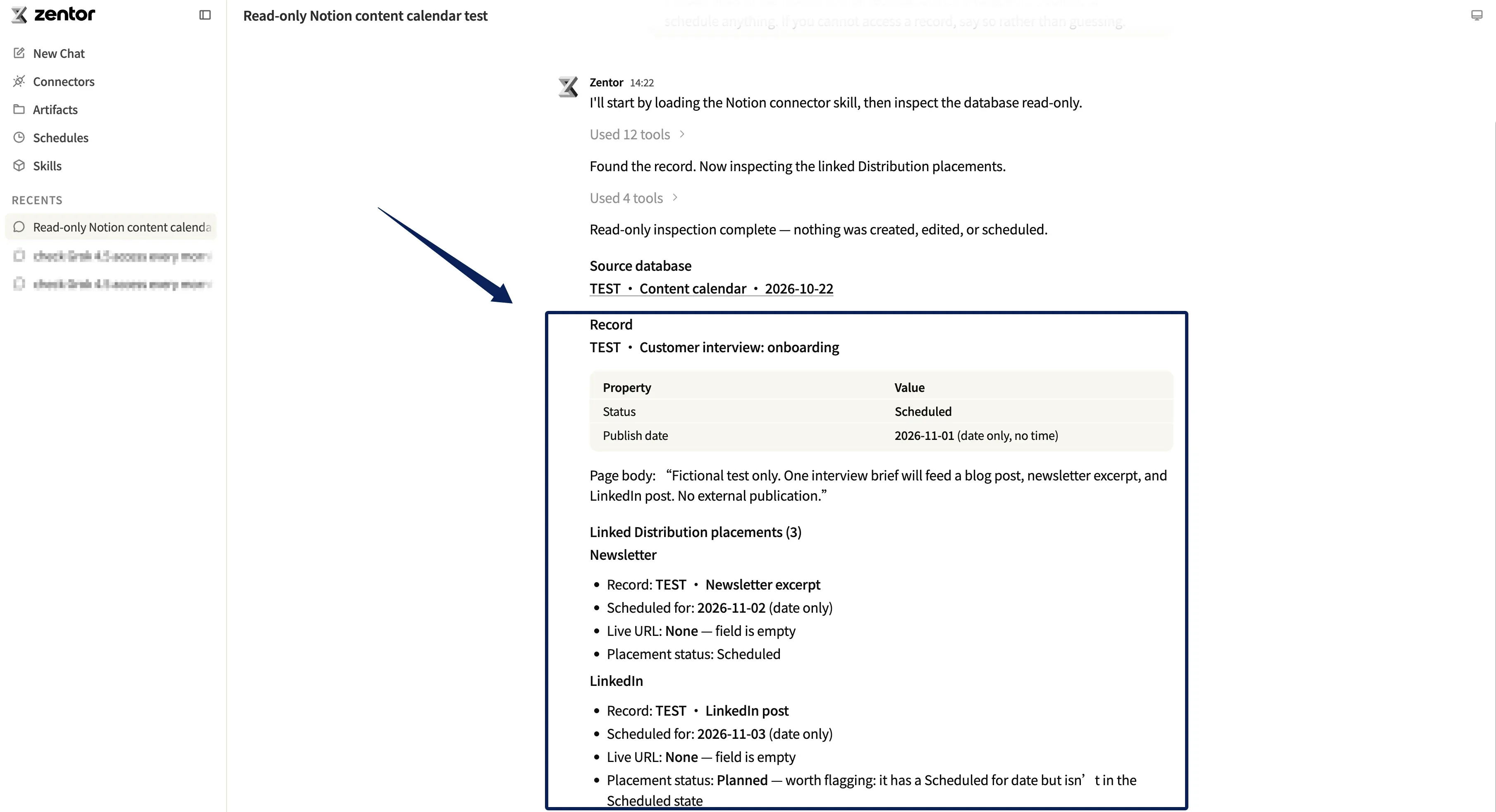
For a cross-tool review, Zentor's Notion connector can use authorized pages and databases as context. In the vendor-supplied read-only test screenshot, Zentor returned source links, the Content record's Scheduled status and November 1 Publish date, the newsletter's November 2 date, and LinkedIn's November 3 date. Both follow-up Live URL fields were empty. It also flagged that LinkedIn still said Planned despite having a Scheduled for date. The vendor reports that direct checks of those Notion records matched the reported fields. The screenshots support a read-only retrieval example; they do not independently establish automatic synchronization or publication.
Review Results and Reuse Proven Ideas
Add Metric, Value, Measurement window, and Measured onto Distribution, or use a Results database for multiple measures. Record each number's source. A newsletter click rate and social savings are different measures.
Archive Content after the primary piece and each linked placement have confirmed outcomes, completed required reviews, and closed follow-ups. Active views can then filter it out while retaining the brief, approved version, assets, URLs, and results. Set review windows by reporting cycle; thirty days is an example, not a Notion rule. For evergreen work, add a repurposed-from relation and Next review date. Give a new campaign or channel version its own linked record.
FAQ
Can one Notion calendar cover multiple channels?
Yes, for planning, but choose the records and date field. Here, the primary post appears in Content's Publishing calendar; follow-ups appear in Distribution views. Channel-specific checks and delivery still happen in their publishing workflows. The calendar is not a receipt.
How should evergreen and campaign content be separated?
Use Content type for lifespan or category, such as Evergreen, Timely, or Tutorial. Track campaign membership separately with a Campaign relation: an evergreen guide may also support a campaign. Add Next review for evergreen pieces and link new placements to the source.
What is the best way to track content dependencies?
For a few prerequisites, use a Blocked by relation or checklist. When writers and designers need separate owners and dates, link a tasks database to content and connect tasks with database dependencies. Choose the date-shifting setting before relying on it.
Which Notion calendar views are available on mobile?
On mobile, tapping a date in a Notion database calendar opens its daily view, according to the calendar-view guide. The separate Notion Calendar app supports one-, two-, or three-day views on mobile. Check your saved view on the device; these are different products, and mobile layouts were not tested here.
How long should published content stay in the active calendar?
No fixed number applies. Keep it active while the team needs it in the working queue. Retain approvals, licensed assets, and metrics under relevant reporting, rights, and privacy policies. Archived changes workflow visibility, not the page's deletion date.
Keep the Calendar Maintainable
Start with the fields the team can keep current. Add relations as handoffs require them, and make every planned date and published result easy to verify in its record.

Zentor Editorial Zentor editorial team
The Zentor editorial team writes about workflow automation, AI agents, and the tools we build. Default byline for industry overviews, listicles, and collaborative pieces.
Ready to put this into practice?
Zentor runs browser tasks, research, and schedules automatically. Try it free.