Superhuman Email Assistant Pricing: 2026 Guide
Superhuman email assistant pricing in 2026: compare Pro with Mail, learn the Gmail and Outlook setup, and see when inbox automation is worth paying for.
Superhuman email assistant pricing starts at $12 per member per month with annual billing, or $15 with monthly billing, as of November 3, 2026. It works in your existing Gmail or Outlook inbox; you do not need to buy the separate Superhuman Mail client. In its launch announcement, Superhuman says Auto Drafts save an average of nine minutes per sent draft, a company-reported figure rather than an independent test.
Key Takeaways:
- Email Assistant comes with Superhuman Pro, not the standalone Mail Starter subscription. The annual rate means a longer billing commitment, not a $12 month-to-month option.
- It labels, drafts, resurfaces unanswered threads, and archives selected low-priority messages inside Gmail or Outlook.
- It does not delete email or send a draft without your approval. Archiving can still hide something you wanted to see, so adjust the controls before judging it.
- The free Superhuman tier is not the same as a free Email Assistant plan. Check the current checkout terms before assuming a product-specific trial.
What Superhuman launched for Gmail and Outlook in 2026
On November 3, 2026, Superhuman announced Email Assistant as a way to bring its inbox automation into existing Gmail and Outlook accounts. The distinction matters if you like your present inbox but dislike its daily maintenance. You connect an account, set preferences, and see labels and drafts where you already read mail. The company says there is no new email application, browser extension, or prompting step required for this product.
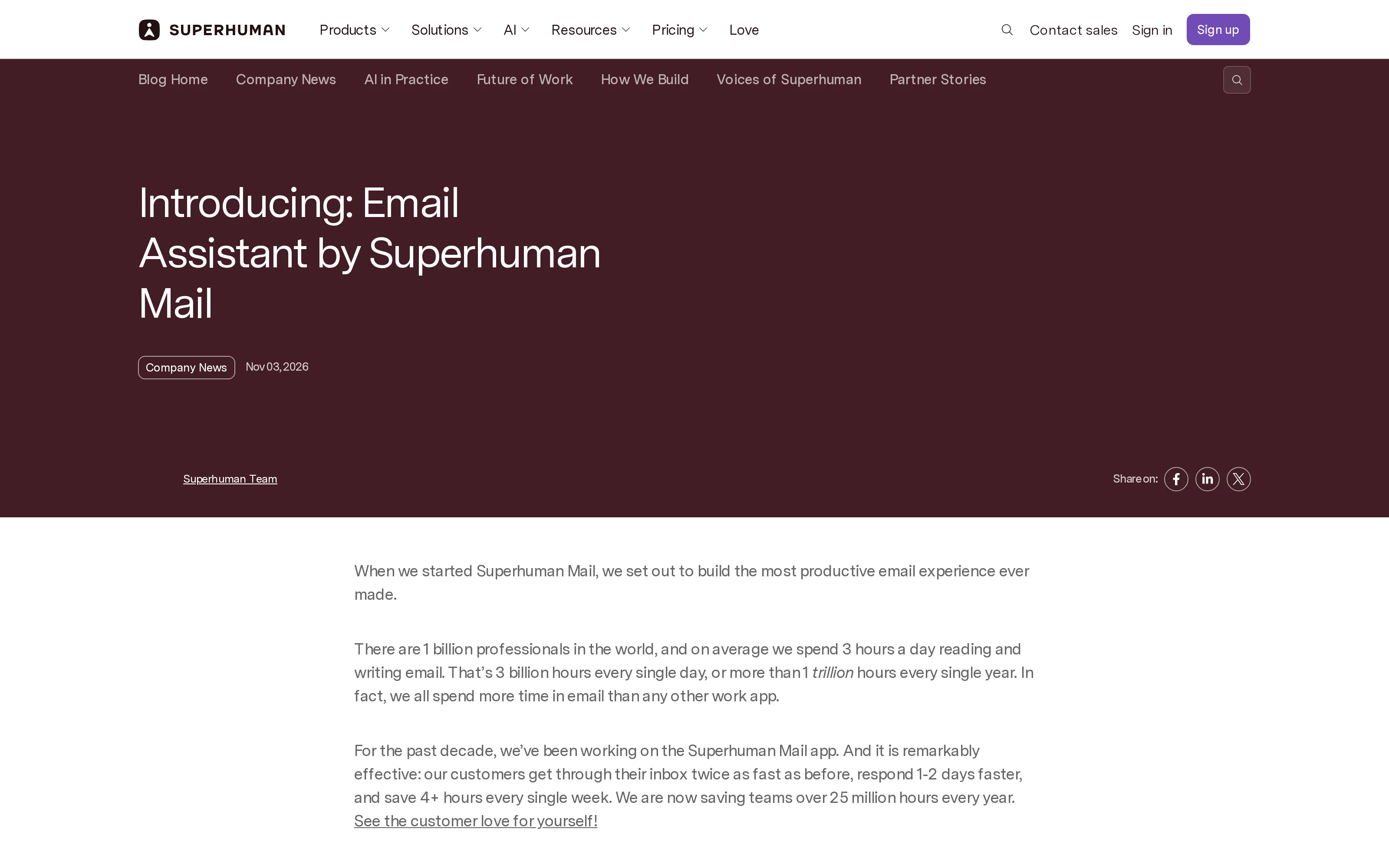
The official screenshot establishes the November 3 launch, not a measured saving in your own inbox. The product overview describes the four inbox actions.
For a solo consultant whose proposals and scheduling requests share an address with newsletters, the attraction is keeping a familiar interface. You still read the messages that can change a contract.
Need the client work to land somewhere after the reply?
Zentor can search Gmail threads, draft a reply for your approval, and deliver the related work to Notion or Airtable.
Get started →
What Auto Labels, Drafts, Reminders, and Archive do
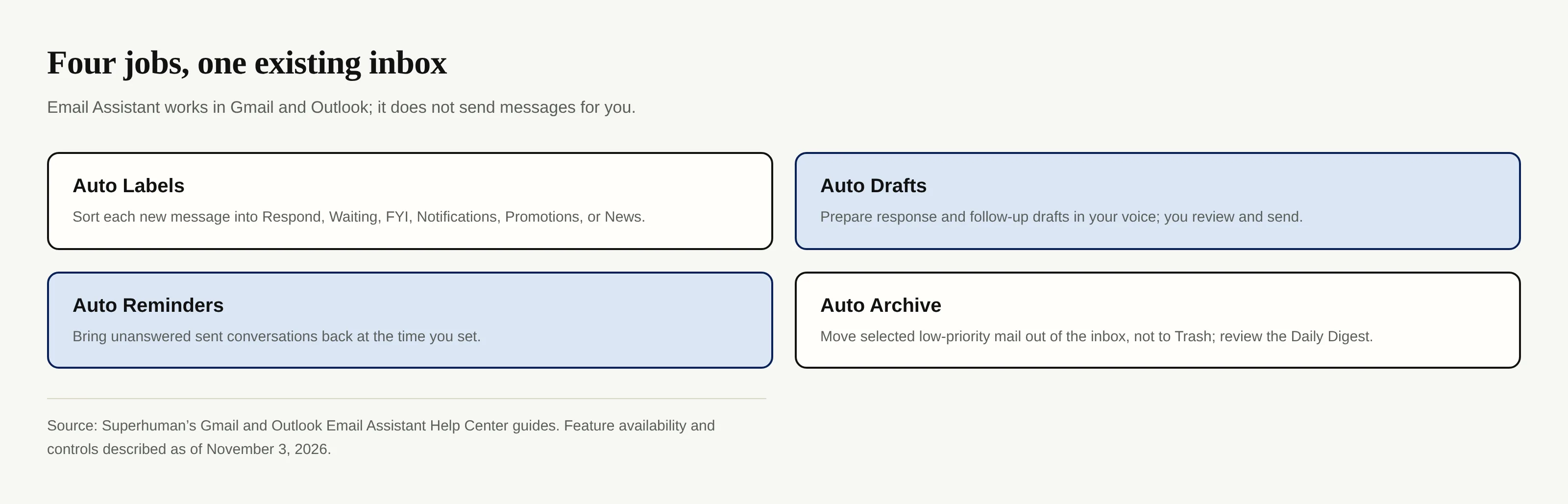
The four jobs work at different points in an email's life. Superhuman's Gmail guide describes Auto Labels as assigning each incoming message one of six labels: Respond, Waiting, FYI, Notifications, Promotions, or News. You cannot rename or individually disable those six labels. In Outlook, they appear as categories, and the Outlook guide says they coexist with categories you already created. A label is a triage suggestion, not a guarantee that the email beneath it is unimportant.
Auto Drafts prepare replies to incoming mail and follow-ups for unanswered sent messages. They appear as normal drafts for your review; Superhuman says the system adapts to previous correspondence and the preferences you enter. If a draft sounds overly familiar with a new customer, change it before sending. Draft quality is a reason to test the tool on your own messages, not a promise that a voice match will always be right.
Auto Reminders resurface sent conversations when a response has not arrived by the schedule you set. Consider a proposal you sent last week: the reminder returns the thread, and a separate follow-up draft may be ready. You still decide whether a follow-up is appropriate. In both Gmail and Outlook, the timing and triggers live in the Email Assistant settings.
Auto Archive moves selected Notifications, News, and Promotions away from your main inbox. It does not delete them; search and the Auto Archived folder can retrieve them, and a Daily Digest lists what moved. The Gmail help page says messages labeled Respond, Waiting, or FYI cannot be auto-archived. You can keep particular types or senders in your inbox through the archive settings. If a client sometimes writes from an unfamiliar address, review these controls instead of assuming that every first message will be classified perfectly.
Superhuman Email Assistant pricing: Pro versus Mail
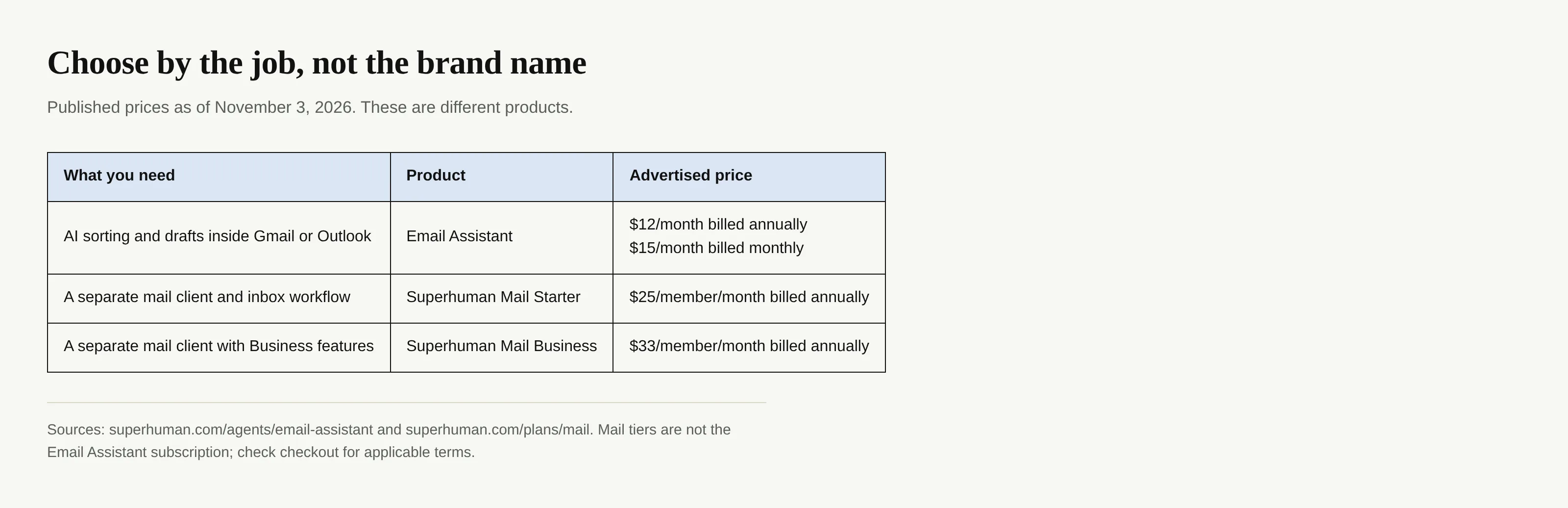
For superhuman email assistant pricing, start with the product rather than the brand's cheapest or most expensive number. On its Email Assistant product page, Superhuman states $12 per member per month when billed annually and $15 per month when billed monthly. Its current suite plan page identifies Email Assistant among Pro features. The $12 rate is an annual-billing monthly equivalent; do not compare it to a cancellable monthly charge as though the commitment were identical. These advertised rates were checked November 3, 2026; taxes and checkout terms can change the amount you pay.
The dedicated Superhuman Mail client has separate published plans: Starter $25 per member per month billed annually and Business $33 per member per month billed annually, as listed on its Mail plan page on November 3, 2026. Mail means choosing a different app; Email Assistant stays in Gmail or Outlook. Do not mistake the $25 Mail Starter offer for the $12 Email Assistant subscription.
Is it free? Superhuman has a broader free tier, but its Pro description puts Email Assistant in the paid tier. The billing FAQ says the suite currently has no free trials; it does not settle whether an Email Assistant-specific promotion exists. Check checkout before counting on one.
How to use Superhuman Email Assistant without switching apps
To see how to use Superhuman Email Assistant, the official setup sequence starts by connecting your Gmail or Outlook account, then setting preferences for writing, scheduling, reminders, and archiving. You may connect calendars if you want scheduling drafts to consider availability. After onboarding, Email Assistant works in the background. You do not need to keep its settings dashboard open, and it may take a while before labels and drafts appear in a large inbox.
Begin with a small inspection routine rather than trusting every default. Check your Personalization details, read two or three prepared drafts against the original threads, and inspect the Daily Digest for mail that should have remained visible. In the Gmail guide, Auto Archive is on by default for Notifications, News, and Promotions, with exceptions. Put payment notices or a client's domain on Never archive if your work depends on seeing them immediately. Settings changes affect new incoming mail rather than sorting old messages retroactively.
For Outlook, enable conversation view if possible. The official guide says drafts and reminders then appear near the relevant thread; otherwise look in Drafts.
More than one inbox? The Gmail setup guide says to add Gmail or Outlook accounts from settings. Each account needs its own archive exceptions and Personalization. Superhuman says Email Assistant supports multiple accounts; do not assume one account’s settings carry over.
The trust boundary and Superhuman's time-saved claims
Superhuman says Email Assistant never deletes email and never sends without your permission. Auto Drafts remain drafts until you review, edit if needed, and hit Send. Those boundaries are narrower than a claim that automation cannot make mistakes. Misclassification or an overzealous archive rule may still shift a time-sensitive message out of your primary view; use search, the archived folder, and the Daily Digest when something seems missing. You can also turn off response or follow-up drafts separately in settings.
The company's launch post reports that Auto Archive clears about half of the average customer's inbox, Auto Labels marks roughly 4% as needing a response, and almost half of Auto Drafts go out without edits. It also claims an average of nine minutes saved per sent Auto Draft. Its example of four replies a day adding up to about three hours a week is Superhuman's calculation, not an independently measured outcome for your inbox. Four times nine minutes times five workdays is 180 minutes; the arithmetic works, but the nine-minute premise still comes from the vendor. If your replies usually take two minutes, the claimed benefit will not transfer intact.
Test the drafts against your own messages before making a time-savings claim. Zentor solves a different part of the same solo-service workflow: carrying relevant client context beyond an email reply into work delivered to Notion or Airtable.
Who should pay for it, and who should skip it?
Solo service sellers handling client follow-ups in Gmail or Outlook are the clearest fit. Creators fielding partnership inquiries and students handling applications may benefit too, if their volume justifies a paid plan. Protect important senders before quieting the inbox.
Skip it if your mail volume is light, replies are legally sensitive, or you need a finished deliverable beyond triage. Zentor can read a Gmail client thread, prepare a reply for your confirmation, and put the related work in Notion or Airtable; its email workflow page addresses that different handoff. Our Superhuman alternatives guide covers when changing inbox clients makes sense.
Zentor’s user-owned workspace memory can carry context into later tasks through MCP. Choose Superhuman when email sorting is the bottleneck; choose a workspace workflow when the work keeps getting lost after a message is answered.
Superhuman Email Assistant FAQ for Gmail and Outlook
Does Superhuman Email Assistant have a free trial?
Superhuman's suite billing FAQ says there are currently no suite free trials. It does not specify a separate Email Assistant trial; confirm any offer at checkout instead of assuming one. Superhuman email assistant pricing starts with paid Pro.
Will it work in the Gmail or Outlook mobile app?
The official Gmail and Outlook help guides say Email Assistant needs no separate mobile app; its labels, drafts, and other work appear in the connected mailbox's mobile app. Layout details can vary between Gmail and Outlook.
Will it ever send a reply automatically?
No. Superhuman says Auto Drafts remain ordinary drafts and never send without your approval. Read each one, especially when it concerns a price, deadline, or promise to a client.
Can I connect multiple accounts?
Yes, the official product page supports multiple Gmail and Outlook accounts. Configure preferences and archiving separately for each account, since one account's settings do not automatically apply to another.

Zentor Editorial Zentor editorial team
The Zentor editorial team writes about workflow automation, AI agents, and the tools we build. Default byline for industry overviews, listicles, and collaborative pieces.
Ready to put this into practice?
Zentor runs browser tasks, research, and schedules automatically. Try it free.