Airtable Automation: Build Workflows That Stay Reliable

Build reliable Airtable automation with clear triggers, human approvals, safe retries, and run-history checks. See limits for scripts, webhooks, and AI.
Airtable automation works by watching for a trigger, such as a form submission or status change, and then performing one or more actions, such as updating a record or sending an email. To keep that workflow reliable, make the trigger specific, test each action, and plan what happens when a run fails. Airtable counts a run each time a trigger is invoked, even if an action fails, so an overly broad trigger is both a reliability and a quota problem.
Key Takeaways:
- Start with a clear event and a visible status field, rather than triggering on every edit.
- Treat approval as a separate human decision before any customer-facing action.
- Check the destination before retrying a failed run; a later step can fail after an earlier one succeeds.
- Review run history and workspace usage separately: one explains failures, the other shows allowance consumed.
How Airtable Automation Works
An automation has a trigger and at least one action. You choose when it starts, then map information from that event into the steps that follow. Airtable lists record changes, forms, schedules, buttons, and incoming webhooks among its available triggers.
Think about the moment work should begin. A newly created record may still lack details you need. If you collect orders by form, a form-submission trigger may be cleaner. If you fill the record over time, use a status such as “Ready for review” and trigger when it matches the condition. The field becomes a handoff you can see, not a hidden rule that fires whenever someone corrects a typo.
They do not process old matching records simply because you turned a new automation on. For a backlog, plan an intentional state change or another controlled way to process it rather than assuming the old rows will run automatically.
Choose a Trigger That Represents Real Work
Open your base, choose Automations, create an automation, and add a trigger. Test it with a representative record. Then add one action, map the values you actually want, test that action, and turn the automation on only after the full path works. Airtable's setup instructions also advise retesting steps after changing the underlying fields.
For a solo service business, try a request intake: a form creates a record with the customer's request, a status field says “Needs review,” and an action sends you a notification. Stop there at first. Check the name and request text in the test output. If you insert a dynamic value from the wrong field, a successful run can still send an unhelpful message.
If your trigger depends on that view, document and protect its filters: changing the view can change which records enter it. Also test with a record that really satisfies the trigger. A test using an unrelated row can make a sound conditional branch appear broken.
Zentor is a workspace memory hub, not a replacement for Airtable's trigger-and-action builder. Its useful role here is keeping the decisions behind your process accessible across work, while the actual automation remains configured and monitored in Airtable. If you want to explore that broader workspace approach, get early access to Zentor.
Keep Actions Small and Observable
Most approval flows do not need code. Airtable's Run a script action is unavailable on the Free plan and has execution limits. Its current script documentation describes a temporarily adjusted 120-second overall timeout, a 30-second fetch timeout, and limits including 50 fetch requests per run. Because that overall timeout is explicitly temporary, check the live documentation before designing around it. If a native update or notification does the job, start there.
An incoming webhook is another trigger: an outside service sends an event to an Airtable-generated URL. Keep that URL private; anyone holding it can trigger the automation. Airtable's webhook guide says it does not verify signatures for this trigger and distinguishes incoming webhooks from arbitrary outbound HTTP requests. For a custom outbound request, Airtable documents using a script rather than a generic “send webhook” action. Ask a technical partner to review sensitive integrations.
Airtable also offers Generate with AI actions for text and structured data. Output may be truncated at model-dependent limits; AI credits vary with input, model, and output. Use AI to draft, not to silently approve a refund. Zentor’s self-learning skills do not make Airtable AI output a verified decision.
Add Approval Before High-Cost Changes
Approval is not “wait a while, then send.” It is an explicit decision. Give the request a status such as Needs review, Approved, Rejected, and Sent. After you inspect the record, change the status to Approved. A separate automation can trigger on that state and send the confirmation; keep rejected requests outside its trigger. You can also use conditional action groups where the flow needs branches.
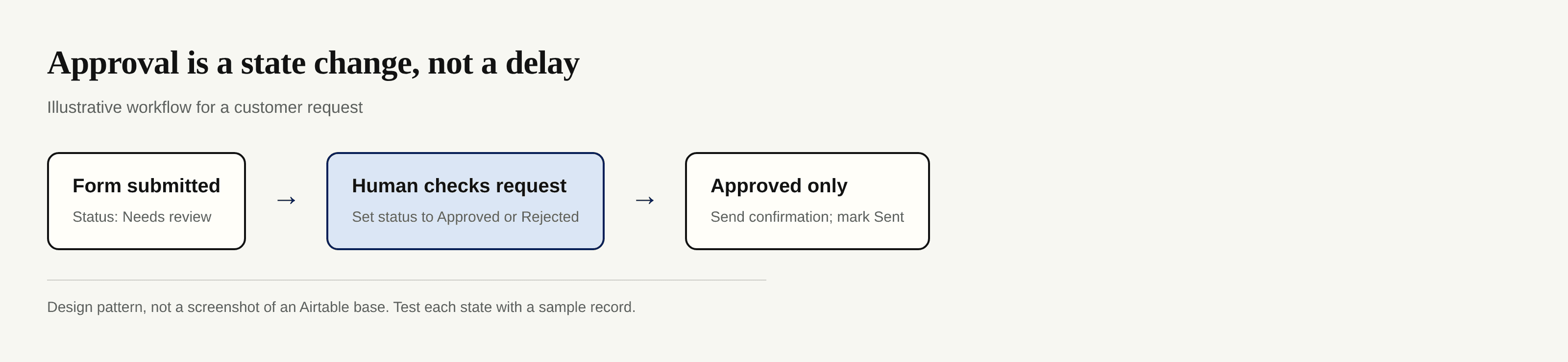
Suppose you sell custom appointments. A form arrives at night, but the requested date needs your sign-off. An immediate customer confirmation could promise a slot you cannot offer. The first automation alerts you; only your approval releases the reply. Before switching it on, test one Approved record and one Rejected record, and check the actual recipient and message content. Testing an action can have a real-world effect, so use a safe address or test record.
Make “Sent” visible after the outbound action, but do not treat the field alone as proof of delivery. A workflow can stop between actions, or an external service can accept a request before a later step fails. For important messages, reconcile what Airtable shows with the destination inbox or service.
Prevent Loops, Duplicates, and Silent Failures
A failed run is a clue, not permission to press Rerun repeatedly. Open the failed entry and identify which step failed. If the email action succeeded but an Update record step failed afterward, rerunning the whole sequence may send the email again. Check the mailbox or destination record first, then decide whether to repair the state manually or retrigger safely.
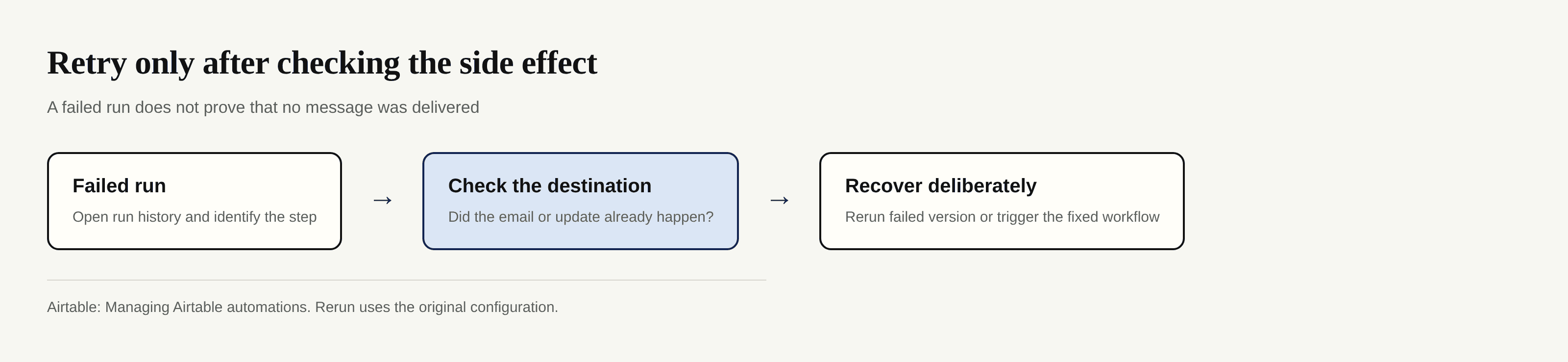
Airtable's automation management guide says you can rerun failed runs, but a rerun uses the configuration from the original attempt, even if you have since edited the automation. If you fixed the configuration, use a fresh, controlled trigger, such as a manual button or checkbox, rather than assuming Rerun tests the fix. Record the outcome so the next person can tell whether a customer already received a message.
Add a guard such as “Sent is empty” to the sending path and update the status once delivery is confirmed. That reduces accidental repeats, but it is not an absolute guarantee against a partial failure. The practical rule remains: inspect side effects before replaying a run.
Monitor Runs and Repair Broken Records
Automation runs are counted at the workspace level. Airtable's current overview lists 100 monthly runs for Free, 25,000 for Team, 100,000 for Business, and 500,000 for Enterprise Scale; both successful and failed trigger invocations count. Limits reset on the first day of each month. Check your own plan and current Usage screen before relying on those figures for a busy process, since plan terms can change.
Run history shows step outcomes; workspace Usage shows runs consumed. Setup tests do not appear in run history. The screenshot below comes from Airtable’s help article, not a live customer base.
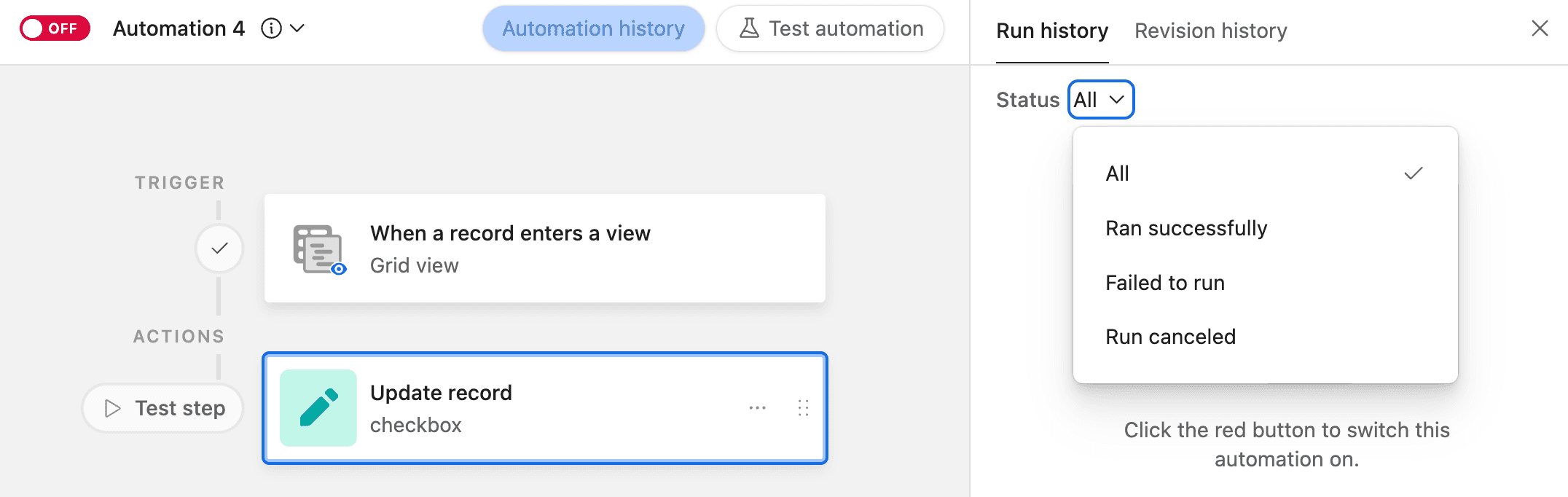
Subscribe the right base creator to failure notifications, then check the history after real activity, not only after your initial test. Zentor's always-on workspace can help keep your working context available when you return to the task; it does not replace Airtable's logs or change its run allowance.
Frequently Asked Questions
Can Airtable automations run on a schedule?
Yes. Airtable includes an “At a scheduled time” trigger. Set the timing, test the trigger, and remember that each scheduled invocation counts as a run even if a later action fails.
How are automation limits counted?
A run counts when the trigger fires, regardless of whether its actions succeed. Allowances apply per workspace and reset on the first of each month. See your workspace Usage for the current balance; a noisy trigger can consume runs quickly.
Can one automation call an external API?
Yes, a Run a script action can use fetch() to call an external API, subject to Airtable's script and fetch limits. The action is unavailable on the Free plan. An incoming webhook is a trigger, not a generic outbound request action.
What happens when a record no longer matches a condition?
That depends on the trigger and when it changes. A record that leaves a view and re-enters can trigger the “When record enters a view” automation again. Do not assume leaving the view undoes actions already completed; inspect the run and resulting records.
How should test records be separated from live data?
Use clearly labeled test records and a safe recipient or destination. Keep them out of customer-facing views or filter them out of live triggers, then test both matching and nonmatching conditions before turning on the workflow. Delete or archive test records only after checking that no real message or change was sent.

Zentor Editorial Zentor editorial team
The Zentor editorial team writes about workflow automation, AI agents, and the tools we build. Default byline for industry overviews, listicles, and collaborative pieces.
Ready to put this into practice?
Zentor runs browser tasks, research, and schedules automatically. Try it free.