Notion Automation: Make Repeated Work More Reliable
Learn what Notion automation can handle, where it stops, and how to build recurring work with clear triggers, owners, and recovery steps.
Notion automation uses database triggers and actions to move repeatable work forward without manually changing every page. It does not turn a repeating task into a safely sent customer email by itself: page creation, reminders, approval, delivery, and confirmation are separate steps.
Key Takeaways:
- Use database automations for predictable changes, notifications, and scheduled actions.
- Use repeating templates to create recurring pages; reminders are separate, dated notifications.
- A page created by a repeating template will not trigger a database automation, and automations do not chain.
- Approve customer-facing copy before sending, and verify the send before marking the task complete.
Picture Monday morning: the new follow-up page is there, but the customer replied on Friday. A rule that sends merely because the page appeared would produce an awkward duplicate. The important design decision is not how fast Notion can create the page. It is which fresh signal, checked by a person, should permit the next action.
The customer-follow-up example is a design exercise, not a live test or client result. Notion's help pages and Zentor's Notion integration page were checked on October 26, 2026.
What Notion Automation Can and Cannot Do
Notion database automations respond to three workflow triggers: a page is added, a property is edited, or an Every {frequency} schedule arrives. Actions can edit properties, add or edit database pages, notify people in Notion or Slack, send Gmail messages, or call a webhook. These rules run inside Notion databases, not across every app you use.
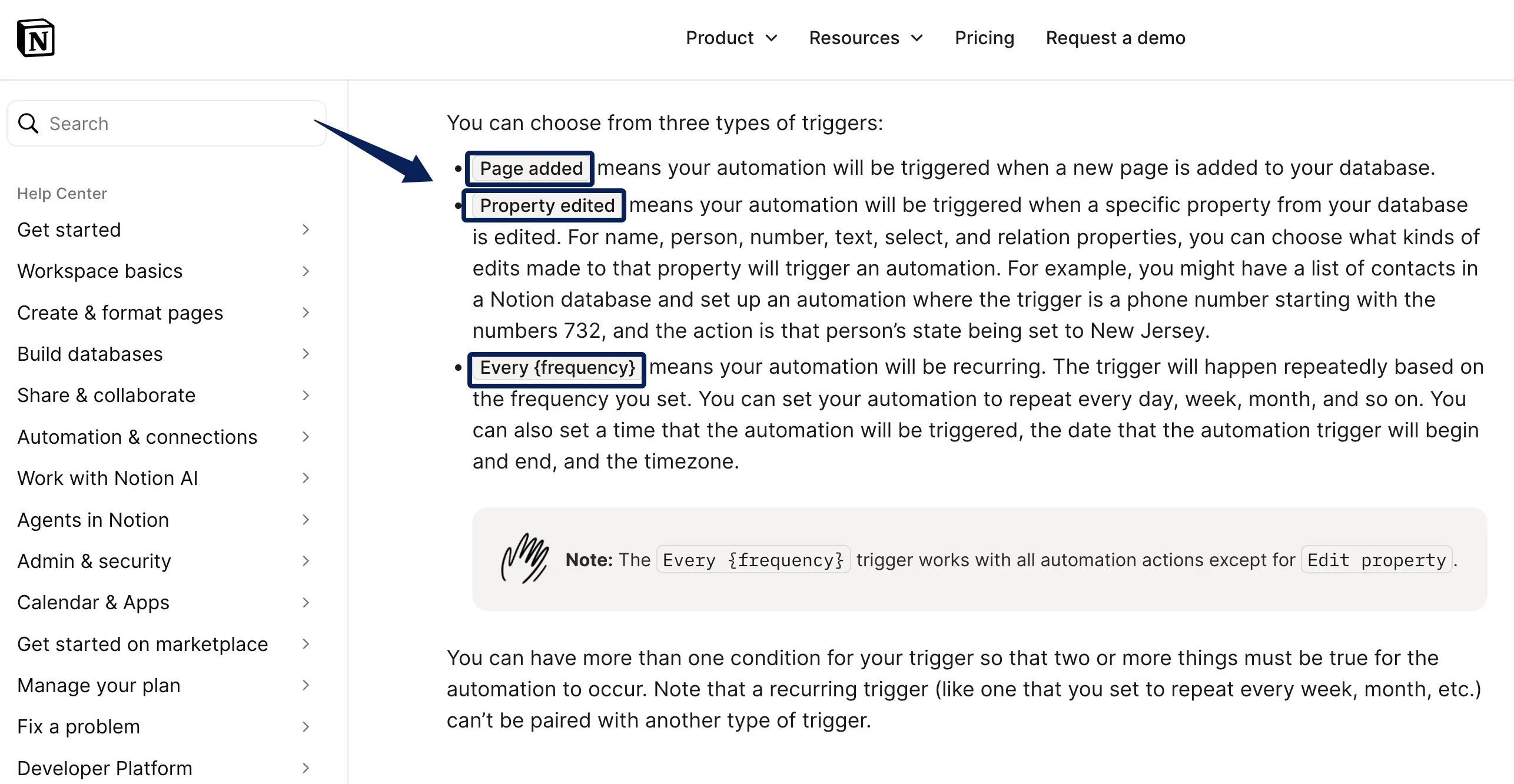
Those distinctions matter when you combine features. A repeating schedule cannot be paired with another trigger or use Edit property. Automations cannot trigger one another; a button is a separate human click.
Keep Notion context handy when drafting follow-ups
Zentor can use your authorized Notion knowledge through its MCP integration. Keep approval and delivery checks in the workflow you already trust.
Get early access →
Choose a Repeated Workflow With a Clear Trigger
In the illustrative follow-up for one customer, a repeating template creates Monday's task page linked to a persistent customer record. The owner sets that week's actual due date on the new page; a copied template is not a rolling customer record. Page creation does not fire a database automation, so it cannot be the send trigger.
Keep Last contacted and Next follow-up on the customer record. Put the reason and reviewed copy on the task. Before approval, the owner checks the record and email thread. If contact is newer or the next date is later, defer or close the task. Only a due follow-up moves from Needs review to Approved.
That status change is the trigger for this Notion automation. In a dedicated one-customer task database, set Send mail to with that customer's fixed address in To; insert the triggering task's Approved copy into the message. The relation supplies context, not the address. Keep Status at Approved until the owner verifies the send, records Sent at, and updates the customer's contact dates. A second status action could disguise a failed send. For multiple customers, verify dynamic addressing separately.
Design Database Rules and Ownership
Keep Client, Owner, Approved copy, Status, and Sent at on the task; retain contact dates on the related customer record. Use Needs review, Approved, Sent, and Needs repair states. Trigger on Status is set to Approved; editing a note or date should not send mail.
Give one person ownership of the rule. Creating or editing it requires full database access; guests cannot create automations. Restricted pages, a locked database, or an excluding view filter can stop a rule. Only the person who linked Gmail can edit that automation, so name an owner who can repair it.
Create the rule from the database's lightning menu. Keep this fixed-address rule inside its dedicated database; do not apply it to a shared customer list.
Add Recurring Tasks and Reminders
Use a repeating database template to create the same kind of page on a cadence: a weekly task, meeting note, or report. It can repeat daily, weekly, monthly, yearly, or at a custom interval. It creates the page, not the message or automation trigger. Repeating pages appear as created by Notion automation, which matters if a view filters by creator.
Notion recurring tasks and Notion reminders solve different problems. A reminder on a database Date property brings someone back at a particular time, but reminders do not currently repeat. For a weekly task, let the template create the page, then check the new page's due date and reminder. Alternatively, use a recurring internal notification where the plan and action permit it. Do not assume the page repeats also sets a fresh reminder.
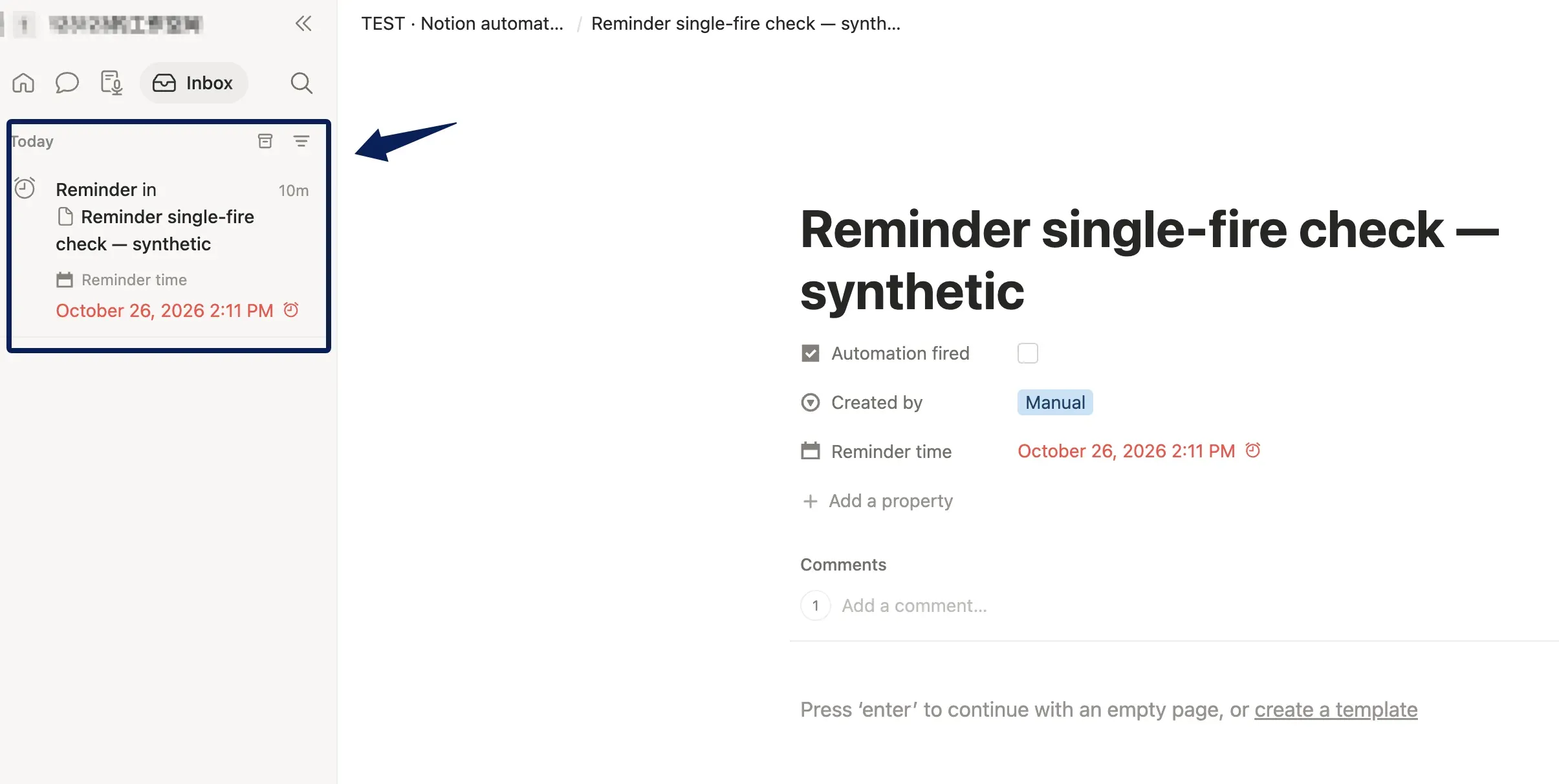
Supplied workspace screenshot (October 26, 2026): A private test page shows a reminder due at 2:11 p.m. and an Inbox entry reading “Reminder in 10m.” The image does not establish that a notification arrived at the scheduled time or that a repeat control was absent. Notion’s reminder documentation says recurring reminders are not available.
Connect External Tools Without Losing Control
Native actions cover simple handoffs: a Notion notification, Gmail message, Slack post, or webhook. Gmail messages send from the connected account and may take up to two minutes to reach the recipient's inbox. Put an approval state before external messages, and keep the recipient and copy visible on the page that triggers the send.
Use Notion integrations or the API when a trigger starts elsewhere, the flow needs branches, or work spans multiple apps. Notion's data-source query can filter and sort entries for an external workflow. An internal connection must be shared with each required page; unshared pages return an error. Keep its token in a secret store. If the job is to prepare a draft from workspace knowledge, Zentor’s Notion MCP integration describes access to authorized page and database context. That connector is separate from Notion’s triggers; its page does not establish customer-email sending or write-back for this example. Keep review and approval inside your existing follow-up process; an AI reading the record is not proof that a customer received anything.
Monitor Failures and Repair the Workflow
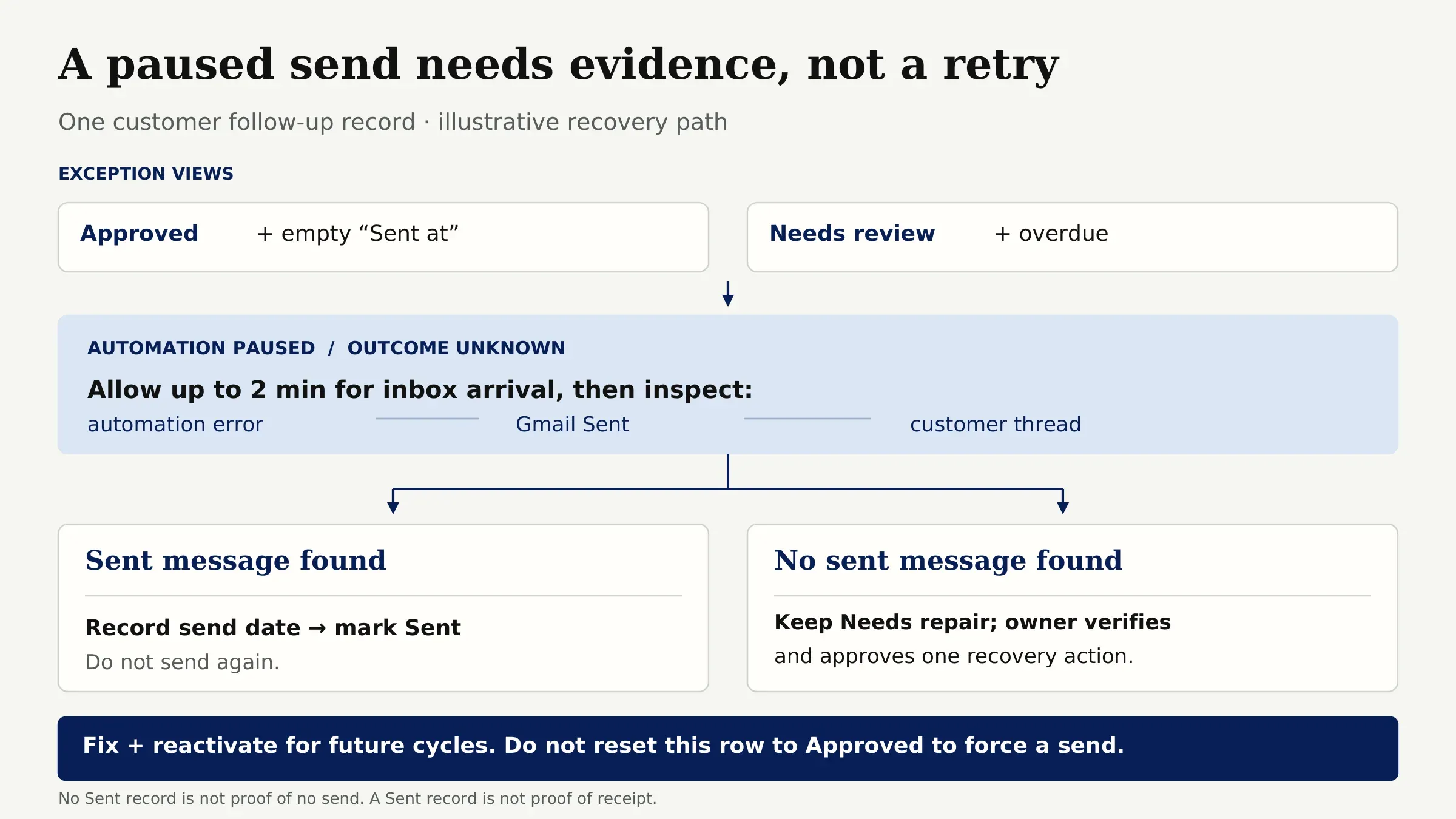
Notion pauses an automation after some errors. It may notify you about a missing database/property or an invalid Gmail/Slack connection; formula and webhook errors may not produce a notification. After fixing a broken automation, someone must reactivate it. Keep views for Approved records with no Sent at and overdue Needs review pages; these expose work that stopped quietly.
If the rule pauses, allow for Notion's stated Gmail delay of up to two minutes, then inspect the automation error, Gmail's Sent folder, and the customer thread. If the message was sent, record its date and mark the row Sent without sending again. If no sent message appears, that still is not proof that a second send is safe. Keep the row at Needs repair until the owner confirms what happened and approves one recovery action. Repair and reactivate the rule for future cycles, but do not flip this record back to Approved merely to force another email. A sent record is not proof of receipt either. If you use Zentor to assemble the next draft from Notion context, preserve this manual send check; workspace memory and Gmail delivery are different steps.
FAQ
Which Notion plans currently include database automations?
Notion lists database automations on paid plans. Free-plan users can create Slack notification automations and can run automations that come with a template, but cannot create or edit other kinds. Creating or editing any automation requires full access to the database; guests cannot create one. Always verify the current plan limits in your own account before relying on a Free-plan exception.
How are automation limits applied?
Notion does not publish one universal monthly run allowance on its current automation help page. Plan and action availability are separate from Gmail's recipient and daily-send limits. Multiple is edited conditions must occur within about three seconds; that is a trigger window, not a usage quota. Check which limit applies before treating a missed run as an exhausted allowance.
Can automation update related databases?
Yes. Add page to and Edit pages in can target another database, and variables can identify related pages such as a task's sub-items. Automation needs permission to edit those records, and restricted pages can block the action. Creating a page in another database still will not trigger a second database automation.
What happens when a property is renamed?
Notion documents errors when a property an automation uses is missing. Its help pages do not detail every rename scenario. Before renaming a property, open the affected rules; afterward, confirm each trigger and action still points to the intended property and test on a duplicate. If a rule pauses, fix it and reactivate it manually.
How should test workflows be kept out of live data?
Use a separate test database or workspace, a dummy customer, and test-only Gmail, Slack, or webhook destinations. Keep the test record out of production views and never use a live customer address as the first recipient. A separate database is easier to inspect and clean up than relying on a filter to contain a test inside production data.
Keep Notion Automation Only When the Handoff Is Traceable
After one weekly cycle, hand the task and customer record to someone who did not build the rule. Can they tell why contact was due, who approved the copy, and whether an email was sent? If they must reconstruct that from a template and Gmail, the automation has moved clicks without making the follow-up dependable. Fix the handoff before adding another rule.

Zentor Editorial Zentor editorial team
The Zentor editorial team writes about workflow automation, AI agents, and the tools we build. Default byline for industry overviews, listicles, and collaborative pieces.
Ready to put this into practice?
Zentor runs browser tasks, research, and schedules automatically. Try it free.