Airtable Automation Limits: Choose a Fix

Understand Airtable automation limits, monthly run allowances, script constraints, and API failures so you can choose the fix that matches the problem.
Airtable automation limits require different fixes depending on whether you have exhausted runs, exceeded an action's capacity, or designed a workflow the native actions cannot express. Airtable documents monthly runs at workspace level and separate limits for scripts and API calls, so identify the failing layer before buying capacity or rewriting the workflow. Automation overview, script action limits.
Key Takeaways:
- Monthly run limits, script limits, and API rate limits are different constraints.
- Inspect actual run history and the failed step before changing your plan or architecture.
- Use formulas and native actions for clear rules; use a maintained script when deterministic logic exceeds those actions.
- Evaluate agents on a specific recurring task with visible inputs, outputs, and exceptions.
Identify which limit you actually reached
Start with the exact error and the time it occurred. A workflow that stopped after many successful runs may have reached a usage allowance. A workflow that fails on a large record set may have an action-specific constraint. A workflow that never supported your required operation has a capability gap rather than a quota problem.
Write down the trigger, the first failed action, the input size, and the relevant plan or connection. Keep the categories separate. Upgrading a monthly run allowance will not repair a malformed record value, and reconnecting an external account will not simplify a script that requests too much data.
| Symptom | First evidence to inspect | Likely kind of remedy |
|---|---|---|
| Runs exhausted | Workspace usage and run history | Reduce unnecessary triggers or change capacity |
| One action fails | Error and actual input | Correct data, configuration, or action design |
| Script times out | Query scope and script operations | Reduce work per run or redesign processing |
| External requests throttled | Provider response and request pattern | Respect rate limits and schedule retries |
| Required operation absent | Current action capabilities | Use another supported method |
Treat this table as a diagnostic starting point, not a substitute for the error itself. Several problems can occur together, and an apparently similar failure can require a different correction in another base.
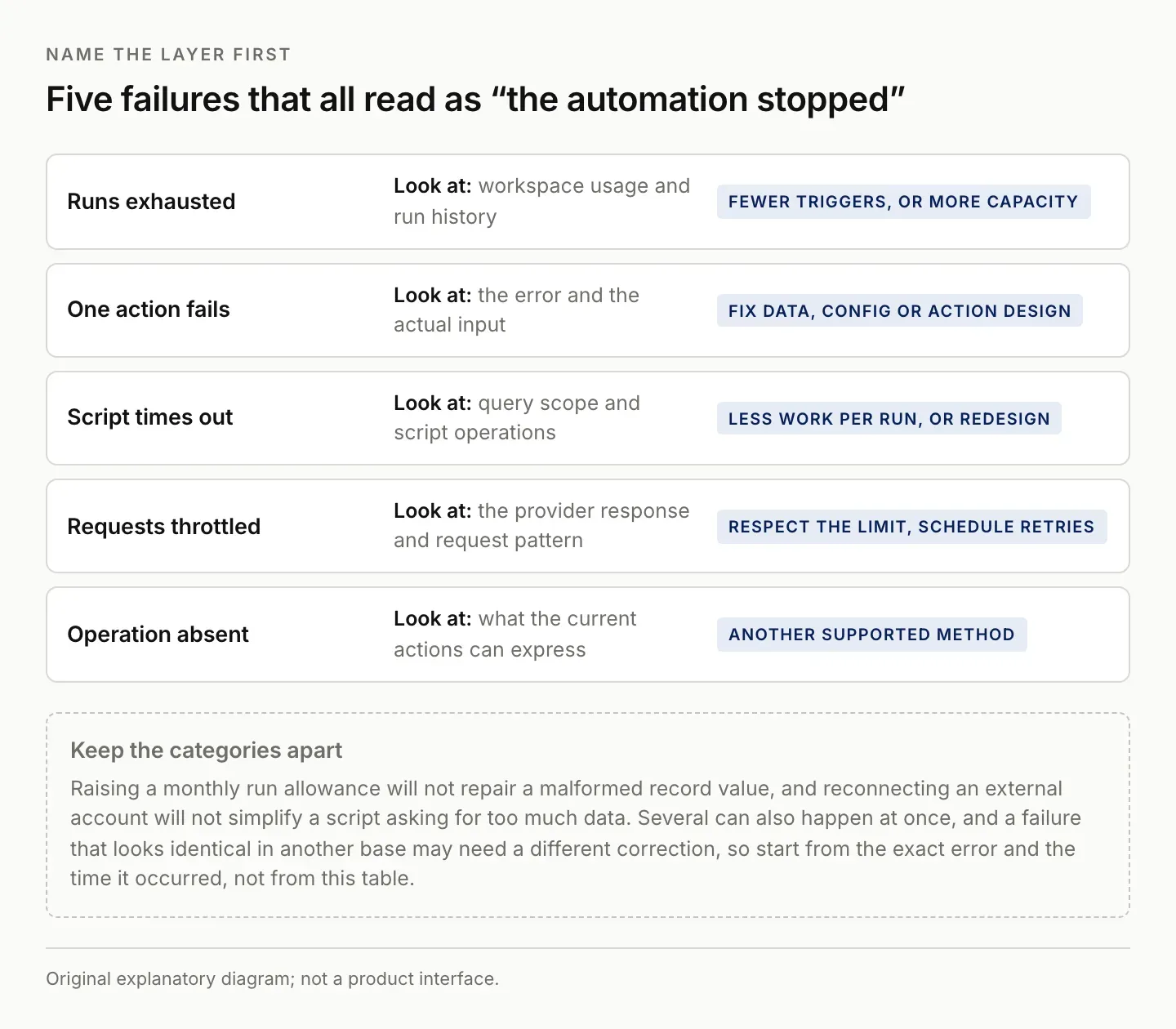
Raising a run allowance repairs none of the other four. Start from the exact error and the time it happened.
Count the work your triggers create
As checked on September 8, 2026, Airtable lists these monthly run allowances per workspace. Both successful and failed triggered runs count, and the allowance resets on the first day of the month. Check the linked documentation for your current plan because these limits can change.
| Plan | Monthly automation runs | Run-history retention |
|---|---|---|
| Free | 100 | 2 weeks |
| Team | 25,000 | 6 months |
| Business | 100,000 | 1 year |
| Enterprise Scale | 500,000 | 3 years |
The same overview says Run a script is unavailable on Free. This matters when choosing a fix: a script may fit the logic while remaining unavailable on the current plan.
Inspect how often the automation runs and which record changes trigger it. A broad trigger can perform repeated work when only a small subset of changes matters. Before reducing legitimate work, look for unnecessary runs caused by an overly broad condition or a loop between updates.
Define the transition you care about. “A record changed” is broader than “A record became ready for review.” If the workflow is supposed to act once when a condition becomes true, make that intent explicit and inspect how the chosen trigger behaves.
Keep a processing state when the workflow needs one, but define it carefully. A record should not be marked processed before the required action succeeds. If the run fails halfway through, the state should help you identify unfinished work rather than hide it.
Review repeated runs against the same item. Some are legitimate reminders or updates; others are accidental duplicates. Decide which before introducing a guard. A rule that blocks all repeats may prevent an intended correction from reaching the destination.
Airtable's automation management guidance explains how to inspect run history. Use actual usage evidence rather than estimating consumption from the number of automations you have built. One frequently triggered automation can matter more than several rarely used ones. Managing automation runs.
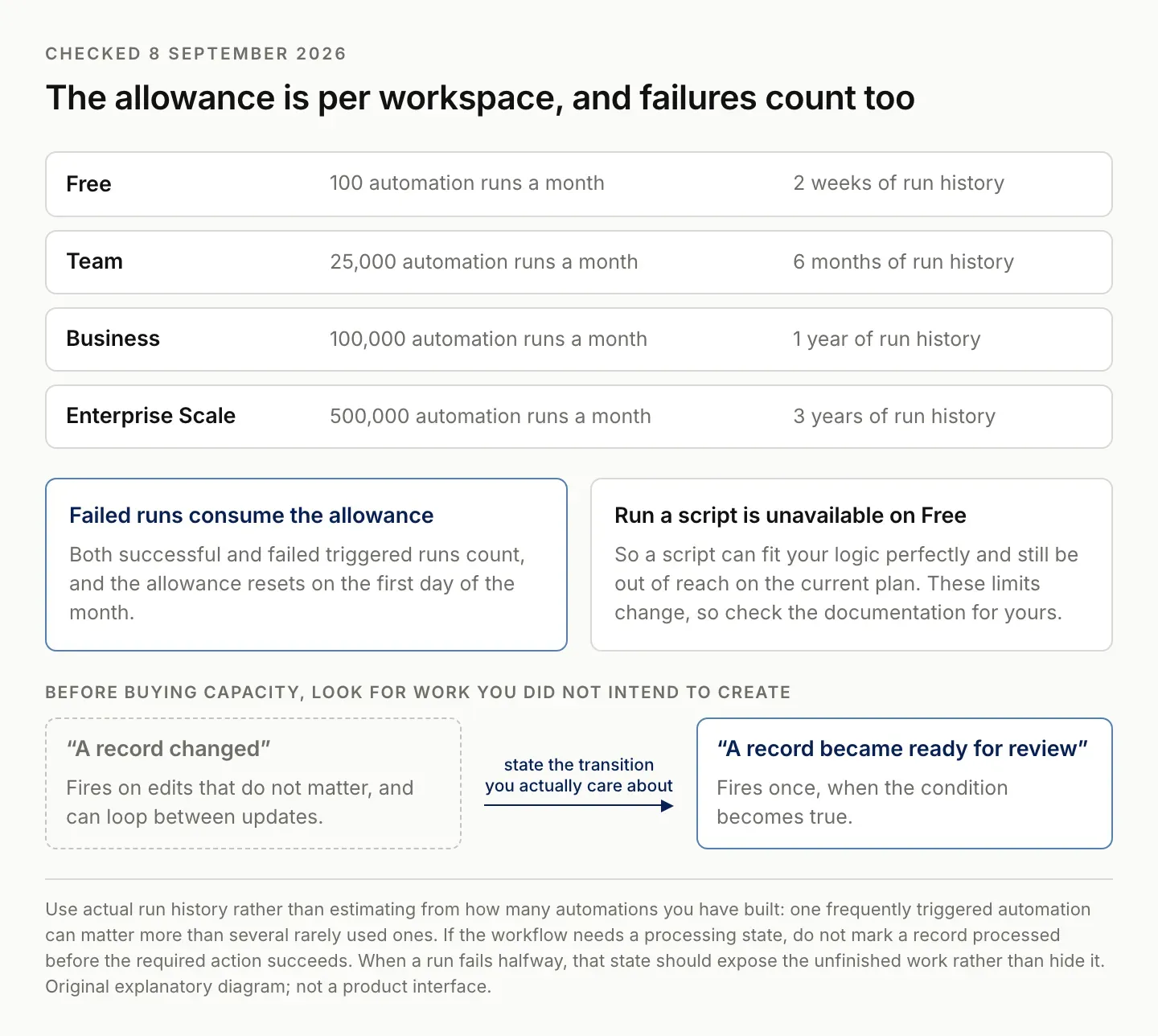
Both successful and failed runs consume the allowance. Look for work you never intended to create before buying more.
Keep simple calculations in inspectable fields
If the task is a repeatable calculation over known fields, consider whether a formula, lookup, or rollup already expresses it. A persistent field can make the rule visible to everyone using the record and reduce the need to ask an assistant to recalculate it repeatedly.
For example, a date comparison within one record is a different problem from comparing every assignment with every other assignment. The first may fit a formula directly. The second needs access to the candidate records and a clearly defined comparison rule. Choose the method that matches the actual data relationship.
Check the field types before using a generated expression. Text, numbers, dates, and lookup lists are not interchangeable. A formula that works with one plain-text value may fail when the field contains several linked results.
Use Airtable's formula reference to verify the supported functions and syntax. Then test the result on ordinary and exceptional records, including blanks and values at the boundary of your rule.
Do not replace a deterministic calculation with a conversational answer merely because writing the formula is inconvenient. An assistant can help propose the expression, but the resulting field should still be inspected against known expected outputs. Zentor's Airtable integration page lists the Airtable connections currently available to an account.
Use a script when the missing piece is logic
A script can be appropriate when the workflow needs custom matching, multi-record comparison, or data transformation that native actions do not express clearly. Define the input and expected output before generating code. Otherwise, you may create a technically valid script that solves the wrong problem.
Distinguish the automation Run a script action from the Scripting extension. Airtable documents the former as background execution and the latter as a foreground tool suited to manual interaction. Code written for one environment may need changes for the other. Scripting extension overview.
Keep the first version small and inspectable. Read only the fields and records required for the task. Return a proposed change list before enabling broad updates when you are still validating the rule. A list of record identifiers, old values, and new values makes the result easier to review.
Account for the documented execution constraints. Airtable's current script guide includes query, fetch, memory, and mutation limits, and labels its broader timeout adjustment as temporary. Check the current guide for deployment rather than treating a copied timeout number as permanent capacity.
Assign maintenance ownership. Someone needs to understand the script's assumptions, inspect failures, and update it when fields change. Generating the code is only one part of making the workflow dependable for a nontechnical operator.
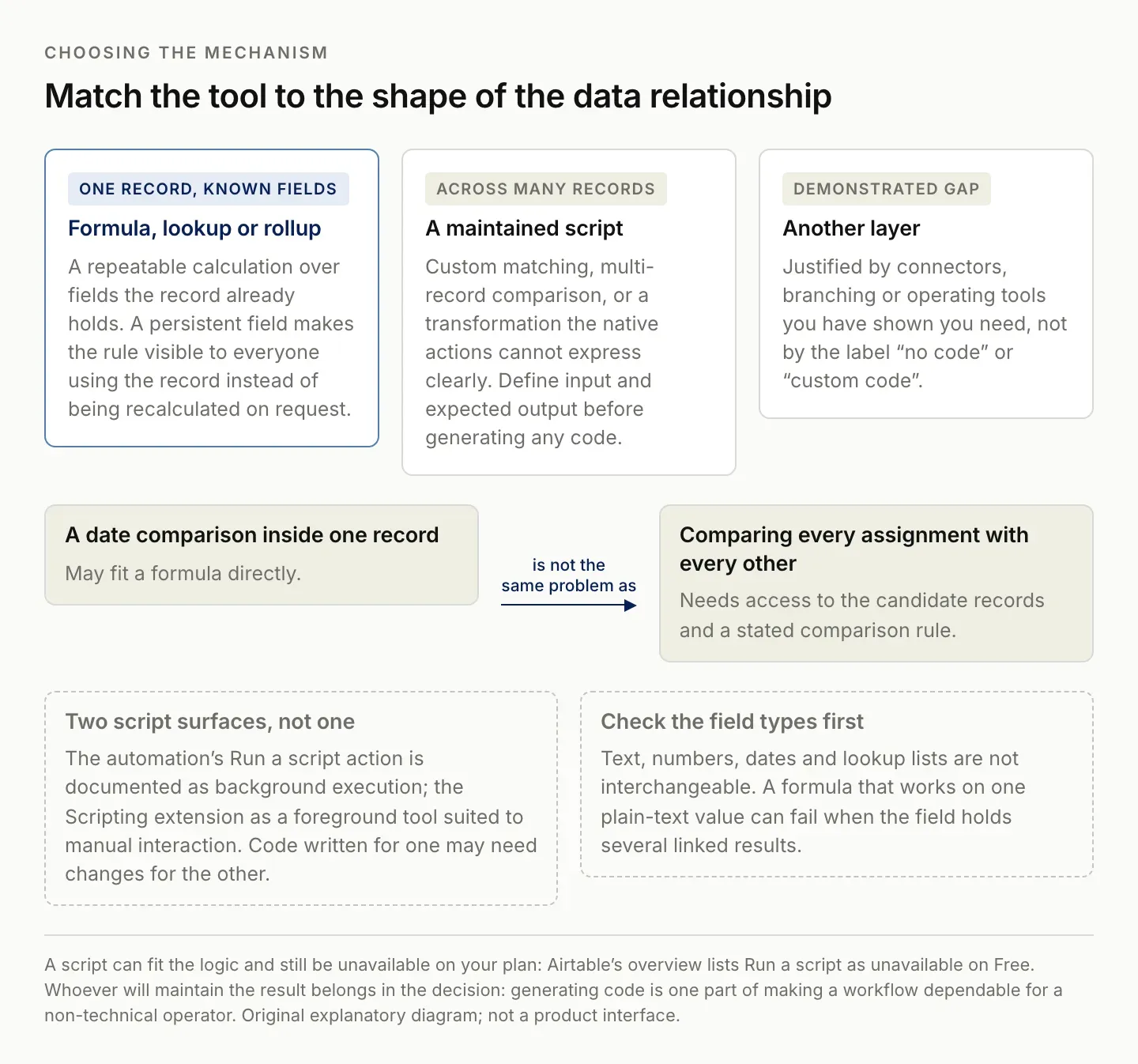
One record with known fields is a different problem from comparing every record with every other.
Handle external API limits at the connection
An external service has its own capacity and authorization rules. Airtable's API limits are also distinct from automation run allowances. Read the response from the relevant service and identify which system is asking you to slow down or change the request. Airtable API limit guidance.
Avoid blind repeated retries. A rate-limit response may require waiting according to the provider's guidance, while an invalid field requires correcting the request. Repeating an invalid request faster does not increase the chance of success.
Plan for partial completion. If a workflow updates several records and stops midway, keep enough state to identify what succeeded. Starting the whole job again without that information can duplicate messages or overwrite changes made after the first run.
Use stable record references and a deliberate repeat-processing rule. For an update, check whether the intended state already exists. For a message, inspect delivery evidence when the outcome is uncertain. Different operations require different repeat behavior.
If another automation service mediates the connection, inspect its logs as well as Airtable's. The failure may occur between the two systems. The goal is to follow the input through to the actual destination, not to stop at the first green status indicator.
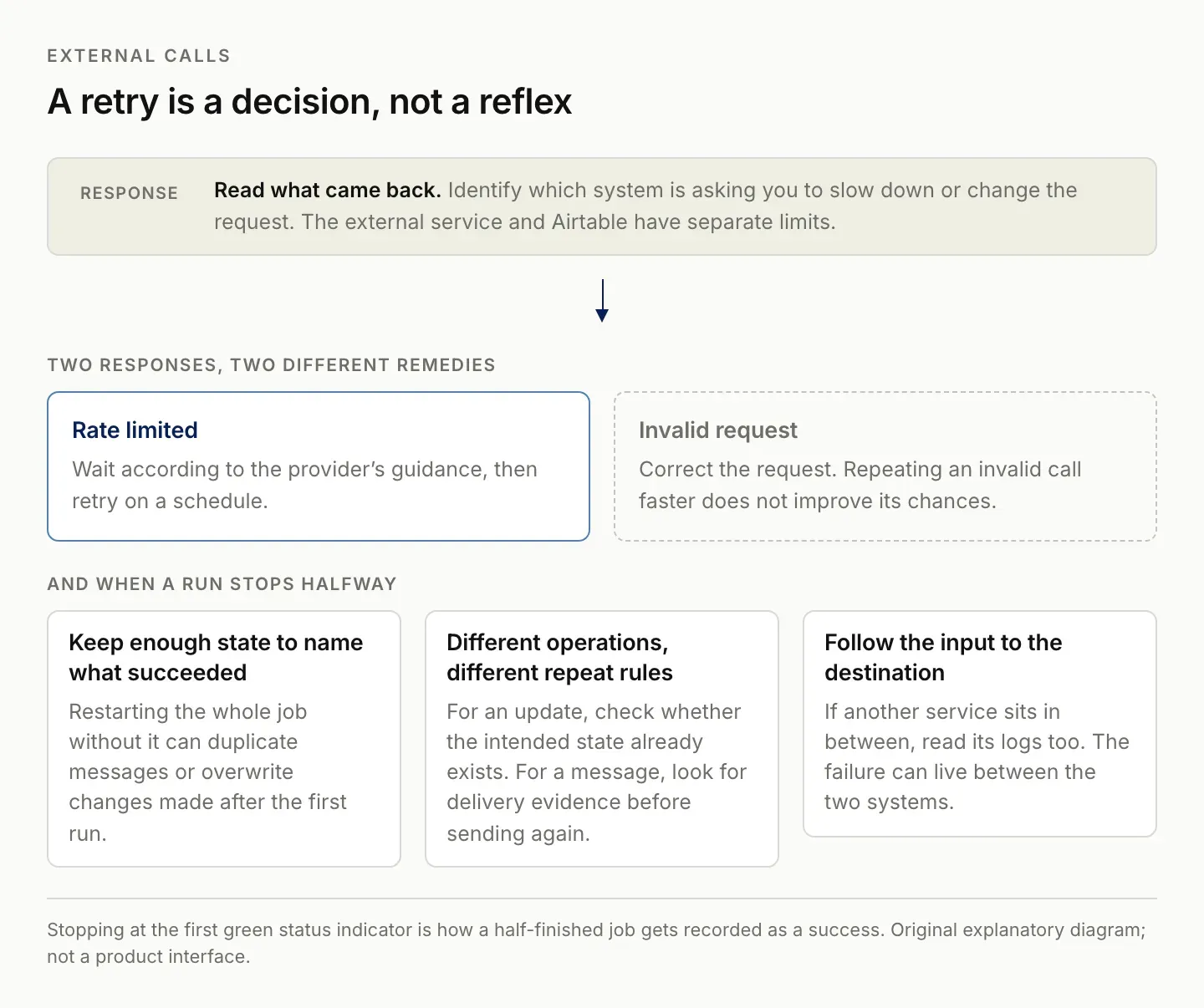
Repeating an invalid request faster does not improve its chances. Read what came back first.
Choose between native actions and another layer
Choose native actions when they express the workflow clearly and provide enough visibility for your operating needs. Choose a script when the main gap is deterministic logic you can maintain. Consider another integration service when its supported connectors, branching, or operating tools solve a demonstrated requirement.
Compare the whole workflow, including failure handling. A visually simple automation can still be difficult to repair if it obscures the record that failed. A short script can be manageable if its inputs, outputs, and exceptions are explicit. “No code” and “custom code” do not by themselves tell you which option will be easier to operate. The Airtable vs Google Sheets comparison covers when a spreadsheet is still the better fit.
Prepare a representative evaluation set: a normal record, a missing required field, an ambiguous match, a repeated input, and a partial failure. Write the expected behavior for each before comparing tools. Use the same set so the comparison remains meaningful.
Check current native troubleshooting guidance before adding a new product. Airtable documents data mismatches and configuration problems that can look like automation limitations. Fixing the existing workflow may be the appropriate answer. Automation troubleshooting.
Include the person who will maintain the workflow in the evaluation. A solution is only operationally useful if that person can tell when it failed and what to do next.
Where Zentor fits after the rule is clear
Zentor's intended role is to help complete recurring work using context from the tools you already use. That can be relevant when the burden includes interpreting selected messages, preparing a deliverable, and returning proposed updates to the workspace. It is not a way to erase the underlying platform's limits.
For evaluation, specify the task and its boundaries: “Review these selected records and linked instructions. Prepare the required draft, cite the source for each proposed update, and leave ambiguous matches for review.” Keep deterministic rules explicit and inspect the destination after any authorized write.
Zentor is in early access. This guide does not claim that it bypasses Airtable quotas, repairs every failed automation, or offers a tested connection in your account. Confirm the available workflow before depending on it. Explore Zentor with a recurring task whose correct result you can describe.
The useful outcome is less repeated work with clear evidence and manageable exceptions. Changing tools without defining the rule can simply move the same ambiguity into a new interface.
FAQ: Airtable automation limits and quotas
Are automation runs and API calls the same limit?
No. They are separate constraints. Inspect the error and the relevant usage information to identify which one affects your workflow.
Should I upgrade before rewriting an automation?
Only when the evidence shows that legitimate usage exceeds the available capacity. Remove accidental repeats and correct configuration problems first.
When is a script appropriate?
When the missing piece is explicit logic that native actions do not express well and someone can maintain the implementation. Test both ordinary records and exceptions.
Can an AI agent bypass Airtable limits?
No such assumption is justified. An agent still depends on the permissions, APIs, and execution constraints of the systems it uses.

Zentor Editorial Zentor editorial team
The Zentor editorial team writes about workflow automation, AI agents, and the tools we build. Default byline for industry overviews, listicles, and collaborative pieces.
Ready to put this into practice?
Zentor runs browser tasks, research, and schedules automatically. Try it free.