Airtable to Google Sheets: Sync Without Data Drift
Compare safe ways to move Airtable data to Google Sheets, define one source of truth, and prevent duplicates or stale reports.
Choose one source of truth, then choose the transport for Airtable to Google Sheets. If Airtable owns the records and Sheets serves reports, a CSV is a snapshot, Airtable’s Google Workspace automation appends rows, and a keyed integration can update existing rows; those are three different promises. Airtable’s documentation explicitly calls its Sheets action “Append a new row,” not a two-way sync.
Key Takeaways:
- Assign one system ownership of each field before connecting anything.
- Use CSV for occasional snapshots, the native action for an append-only log, or a keyed updater for a current report.
- Carry Airtable record IDs into Sheets, then reconcile missing, repeated, and stale rows.
- Treat attachments and linked records as representations to map, not identical cells to copy.
Decide Why the Data Needs to Move
A weekly sales summary is different from a working order queue. In the first, you can export a view every Friday and label the spreadsheet with its snapshot date. In the second, your sheet must reflect later corrections to shipping status; an append-only action would leave the old row there alongside the new one. Write down the acceptable delay, whether deletions matter, and who needs to edit what before choosing a tool.
Zentor’s workspace memory can retain that reporting intent across the tools you work in; it does not turn a historical CSV into a live feed. If you want to explore the workspace, get early access after defining the handoff you need.
Choose One Source of Truth
For a one-person shop, the cleanest rule often reads: update orders in Airtable; analyze them in Sheets. Put a separate raw-data tab behind the chart tab, and leave manual notes in another tab. Otherwise a well-meant correction to a report becomes an unexplained discrepancy the next morning.
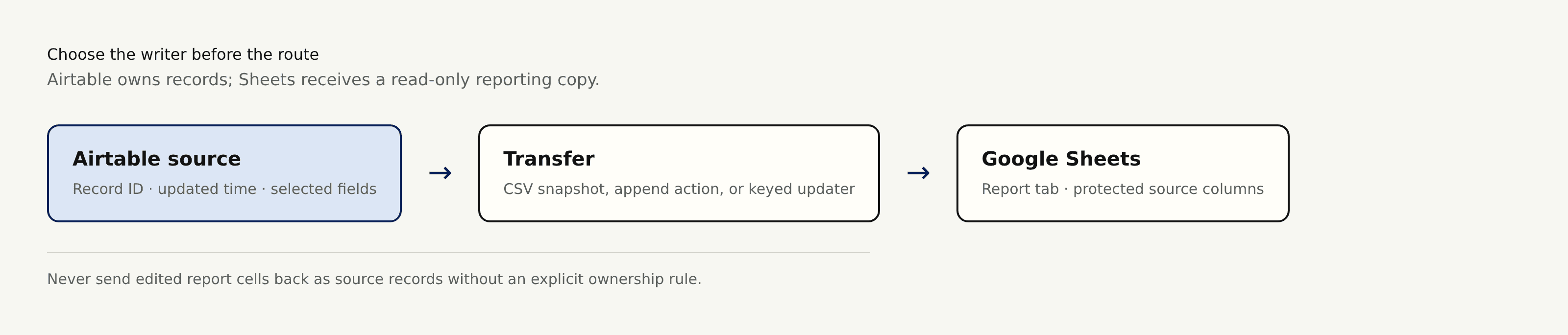
If Sheets owns a specific field, name that field and its return path explicitly. “Both apps are editable” is not an ownership policy. Zentor’s user-owned memory, available to different AI tools through Zentor MCP, is a way to keep your workflow context portable; the record authority still belongs to the app you designate. Protect the sheet’s imported cells from accidental edits, but remember Google says protection is not a security control.
Compare Export, Automation, and Sync Options
| Route | Best fit | What happens to changes |
|---|---|---|
| Airtable view CSV → Sheets import | Periodic snapshot | Replace or manually reconcile the old copy |
| Airtable Google Workspace automation | New-event log | Appends a row; does not update a previous row |
| Third-party connector or custom API workflow | Current keyed mirror | Can update rows if configured for lookup and upsert |
Airtable exports a grid view as CSV, not an entire base as a single file. Only visible fields in that view go into the download; download each table separately. In Sheets, import into a staging tab and check headers before replacing a live report. Never interpret a fresh import as proof that older rows were removed correctly.
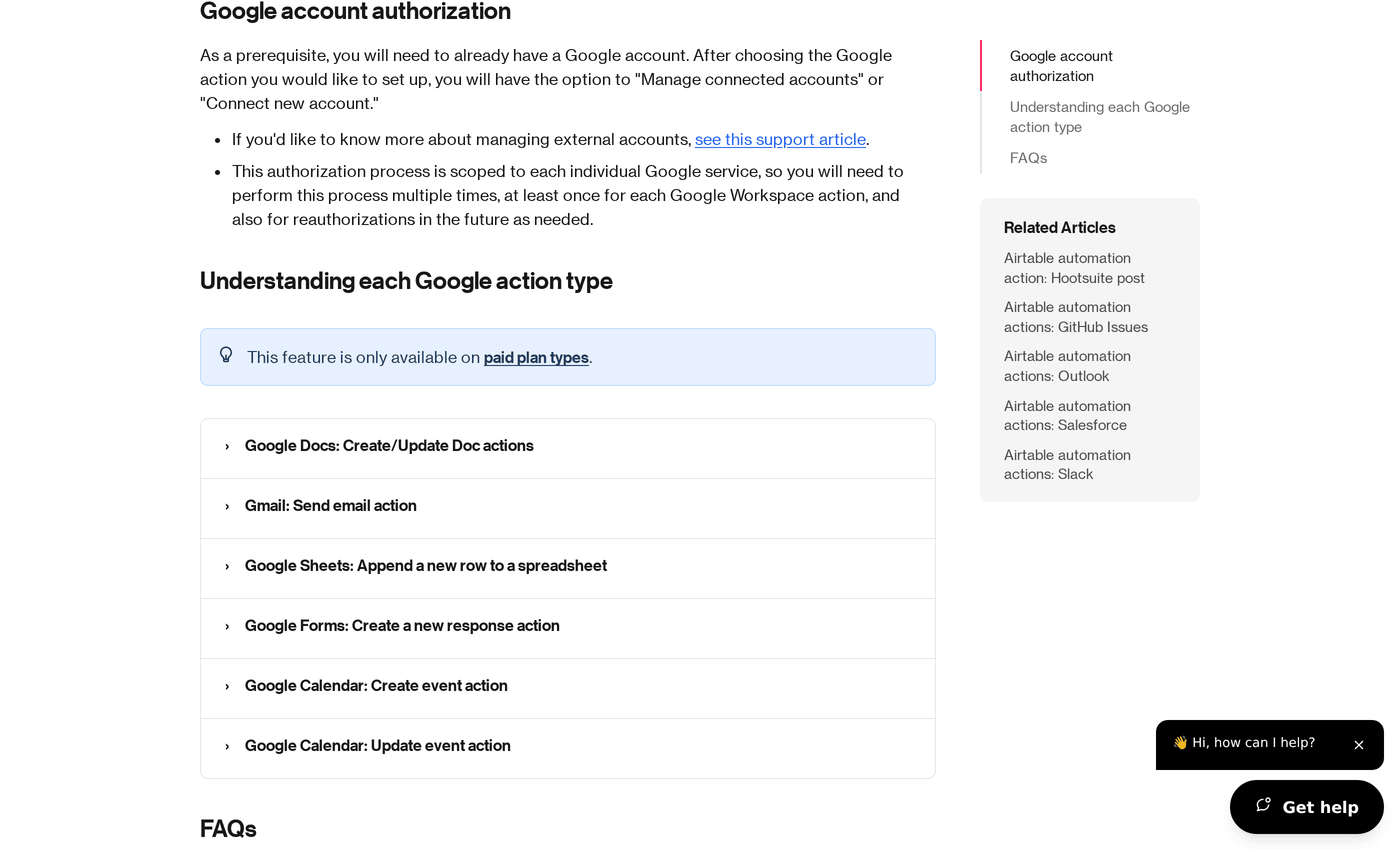
The native Google Workspace action requires a paid Airtable plan, a connected Google account, access to the destination sheet, and a header row for field mapping. It appends only. Airtable even warns that blank cells in column A can make appended rows appear near the top rather than the bottom. The screenshot below shows the action named in Airtable’s own help page, not a connector interface.
Do not confuse this with Airtable Sync, which brings supported sources into Airtable and is unavailable on Free workspaces. It is not a built-in Airtable-to-Google-Sheets live mirror. A third-party connector may offer that route, but check its actual direction, polling interval, deletion behavior, and plan limits before paying for it. A custom updater can use the Airtable Web API to read records and the Google Sheets API to write values; that is an integration you build or commission, not a native toggle. Zentor’s always-on workspace can support ongoing work, but don't infer a specific bidirectional Sheets connector from that description.
Map Fields and Stable Record IDs
Make a mapping sheet before your first transfer: Airtable field, destination header, expected type, empty-value rule, and owner. Preserve an airtable_record_id column. The Airtable API exposes a record id; a record-ID formula or an API extraction can expose it in your export path. Test the chosen view with one record before assuming a CSV includes that ID automatically.
A customer name is a poor key: two customers can share one, and a name can change. A record ID persists through edits to that record, but copying a record creates another record and a new ID. If you migrate between bases, plan a separate migration key rather than assuming IDs carry across as the same entity.
Map dates with a declared timezone, keep account numbers as text if leading zeroes matter, and decide what an empty source field should do to an existing sheet cell. For attachments, CSV carries a filename and URL, not the file; Airtable says those export URLs expire after a few hours. Save authorized files separately if your report needs lasting access. Linked records need a choice too: API linked-record values default to record IDs, while a visible view export may show human-readable primary-field values. A display name is useful in a chart but should not replace the stable join key.
Prevent Duplicates and Update Loops
An idempotent upsert gives the same final destination state when you safely retry the same source record. Read the airtable_record_id, find its one matching sheet row, update that row if present, and insert only if none exists. More than one match is an error to investigate, not a cue to append again. For multi-step jobs, store the last successfully processed update time and retry failed writes without advancing that checkpoint prematurely.
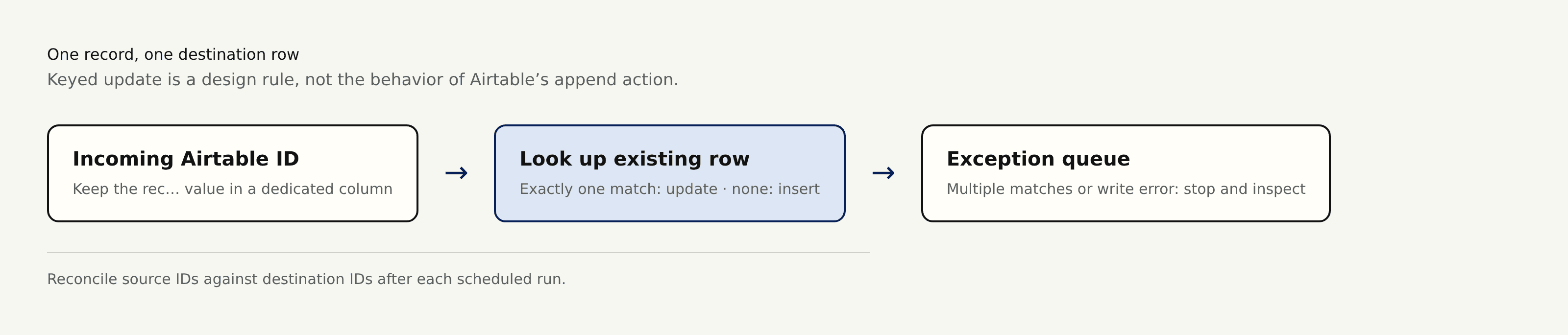
Airtable’s own API has a performUpsert option for writes into Airtable using specified merge fields. It does not make Airtable’s Sheets append action an upsert. On the Sheets side, the Google API offers separate value update and append operations; your workflow must implement the lookup and exception handling. If both apps can change the same field, a returned update may trigger another outbound update. Avoid the loop by making the mirror one-way, or exclude your integration’s own writes and specify per-field ownership. Zentor’s self-learning skills can remember how you prefer to review exceptions; they cannot substitute for a deterministic record key.
Monitor Failures and Reconcile Records
A “successful run” can still leave a stale report if an update was appended rather than applied to the old row. Track the last successful run, source record count for the selected view, destination unique-ID count, duplicate-ID count, and the newest source update represented in Sheets. Compare the two ID sets regularly; investigate source-only IDs, destination-only IDs, and records whose selected fields differ. Decide whether disappearing records should be deleted, marked inactive, or retained for historical reports before automating cleanup.
If an authorization expires, a permission changes, or the spreadsheet hits a limit, pause and fix the failed batch rather than starting a second independent import. Airtable publishes automation run limits by plan; the Google Sheets API publishes usage limits. Check both for your actual setup rather than assuming yesterday’s refresh schedule will always fit. Zentor’s self-adaptive workspace can help keep the review task at hand, while the counts and ID comparisons supply the evidence that the report matches the source.
Frequently Asked Questions
Which Airtable plans currently include Google Workspace integrations?
No. Airtable lists its Google Workspace automation actions as paid-plan features, with plan-dependent automation limits. CSV export remains an option without treating it as a live integration.
Can an Airtable enterprise admin restrict Google Sheets connections?
Yes. Airtable Enterprise Scale settings can restrict third-party integrations to an allowlist; Google account authorization and spreadsheet permissions can also block a route. The allowlist rule concerns third-party integrations, not proof that Airtable’s native action is itself blocked. Ask your Airtable and Google Workspace admins to confirm the specific policy and permissions before rollout; a paid plan alone does not guarantee your account can connect.
How are Airtable attachment fields represented in Google Sheets?
Airtable CSV exports filenames and temporary URLs, not the binary files. A connector may map attachment metadata or links differently. Test a representative attachment and store files separately if the sheet must point to them later.
Do linked-record fields preserve their display values in Google Sheets?
It depends on the route. Airtable’s API normally returns linked-record IDs; a view export is presentation-oriented. Map both a readable label and a stable ID when your analysis needs joins, and check what the chosen connector actually emits.
Can Google Sheets protected ranges block an automated update?
No. Protection can reduce accidental manual edits, but it neither grants an integration write permission nor fixes an expired connection. Google explicitly warns that protected sheets are not a security measure. Test the connected account’s access to the target range and keep the raw tab separate from editable analysis.

Zentor Editorial Zentor editorial team
The Zentor editorial team writes about workflow automation, AI agents, and the tools we build. Default byline for industry overviews, listicles, and collaborative pieces.
Ready to put this into practice?
Zentor runs browser tasks, research, and schedules automatically. Try it free.