Airtable Notion Integration: Docs and Data
Plan an Airtable Notion integration with clear links, field ownership, and update checks. Understand the difference between an embed and data sync.
An Airtable Notion integration can be as simple as a reliable link between an operational record and its working document, or as involved as a maintained data-update workflow. Start with the relationship you need: Airtable supports rich text, but its documented formatting is not the same as a full Notion page made from blocks. Airtable rich-text guide.
Key Takeaways:
- Keep each piece of information in one maintained location and link to it from the other tool.
- A link, an embed, and synchronized records provide different behaviors.
- Define which system owns each field before allowing updates in both directions.
- Test missing documents, changed names, repeated processing, and access from the intended reader's account.
Decide what belongs in Airtable and Notion
Use Airtable for the structured records your workflow needs to filter, group, and calculate. Use a document page when the work benefits from a richer narrative structure, such as a brief, research summary, or operating guide. This is a practical division of responsibility, not a claim that either product can only serve one purpose.
For a client project, the operational record might contain status, owner, due date, and the link to the current brief. The brief might contain context, requirements, decisions, and deliverable references. You can navigate between them without copying every paragraph into a long-text field.
Airtable's rich text includes useful formatting such as headings, lists, links, and code. If that is enough for the note you need, keep it there. Adding a second application for a short description can increase maintenance rather than reduce it.
The source research includes a community request for a Notion-style editor inside Airtable. Treat that as evidence of a document-authoring need, not proof that a particular third-party integration supplies every requested block type. Original editor request.
Choose the simplest arrangement that supports the actual work. The useful outcome is a current record and an accessible document, with a relationship that survives ordinary changes.
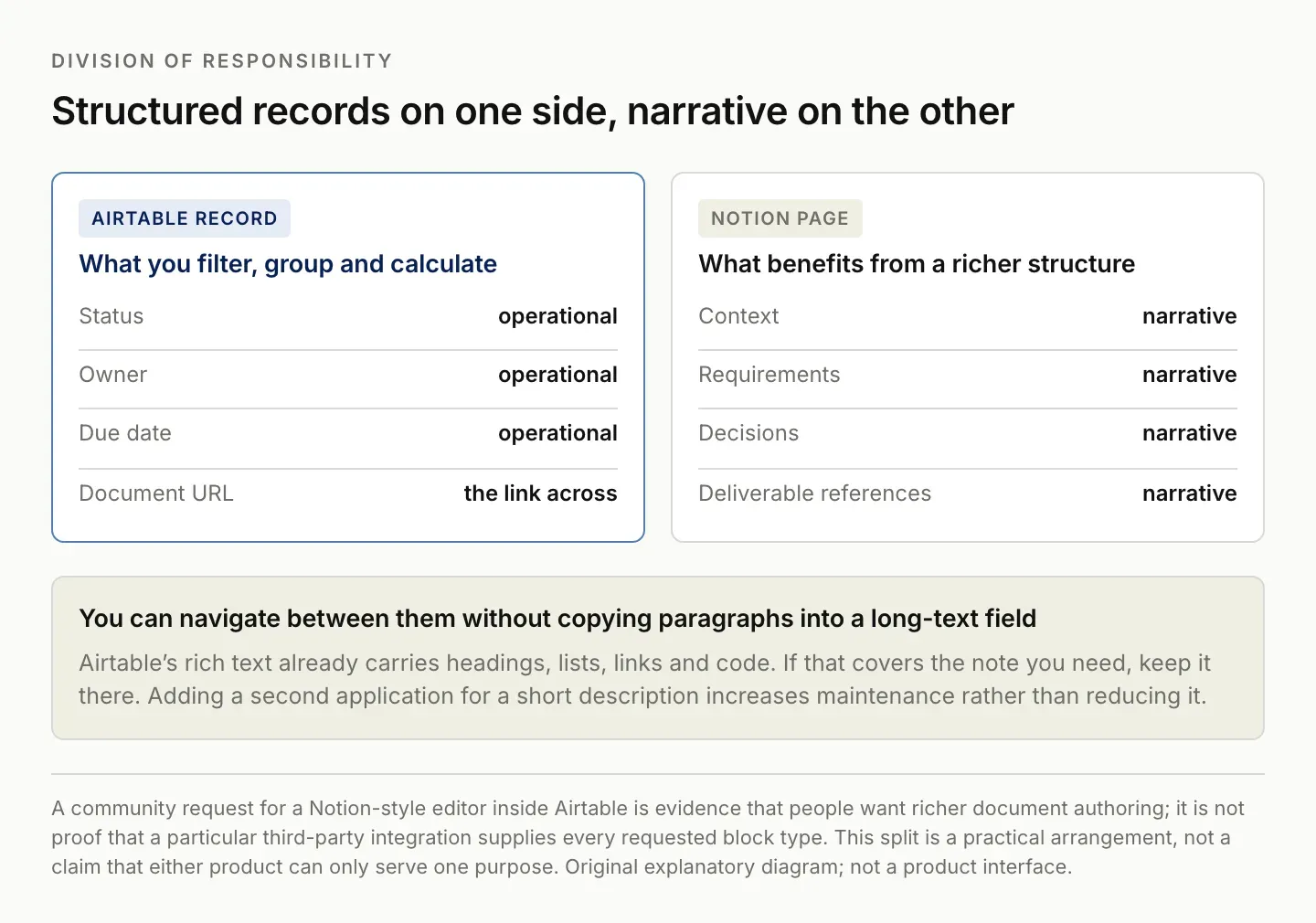
A practical division of labour, not a claim about what either product can do.
Start with two explicit references
Add a Document URL field to the Airtable record and place the current Notion page link there. In the Notion page, add a reference back to the Airtable record. Use a recognizable project or item title on both sides so a person can verify the relationship.
Keep a stable identifier in the working record if your process already has one. Names can change, and several projects can share a similar title. A maintained identifier or direct record URL helps distinguish identity from display wording.
Decide whether the linked document is a current working page, an approved version, or an archive. Those are different destinations. If the project needs both a current brief and the version a client approved, keep both references and label their roles.
Test navigation in both directions. Open the document from the record, then return to the record from the document. Check the relationship after renaming one of the titles. The test should establish that the link still identifies the correct object, not merely that the visible names match.
For a small workflow, these explicit references may be enough. They reduce searching without introducing synchronization rules, recurring runs, or another service to maintain. Add automation only when the repeated work justifies the additional behavior.
Distinguish an embed from synchronized data
An embed presents content from another source inside a page. It can make a workspace more convenient to read, but it does not automatically turn the embedded records into native Notion database rows. A visual connection and a data synchronization workflow are different things.
Notion documents embedded content as a page capability. Check whether the particular Airtable share or embed URL is supported in your context and inspect the result as the intended reader. Notion embeds.
Keep access implications visible. A shared view may expose a selected dataset, while the original base has a different audience. Use Airtable's supported sharing controls and inspect what the view actually reveals before placing it in another workspace. Airtable shared views.
If you need native fields in both products, define the synchronization separately. Specify which records are included, which fields are copied, which direction updates travel, and what happens when both sides change. Do not label a one-time import as a live sync.
For many document-and-data workflows, the right answer is to keep the structured source in one place and embed or link it where the narrative work happens. This avoids creating another dataset that must be reconciled every time the original changes. The Notion vs Airtable comparison covers where each tool is the better home for this kind of record.
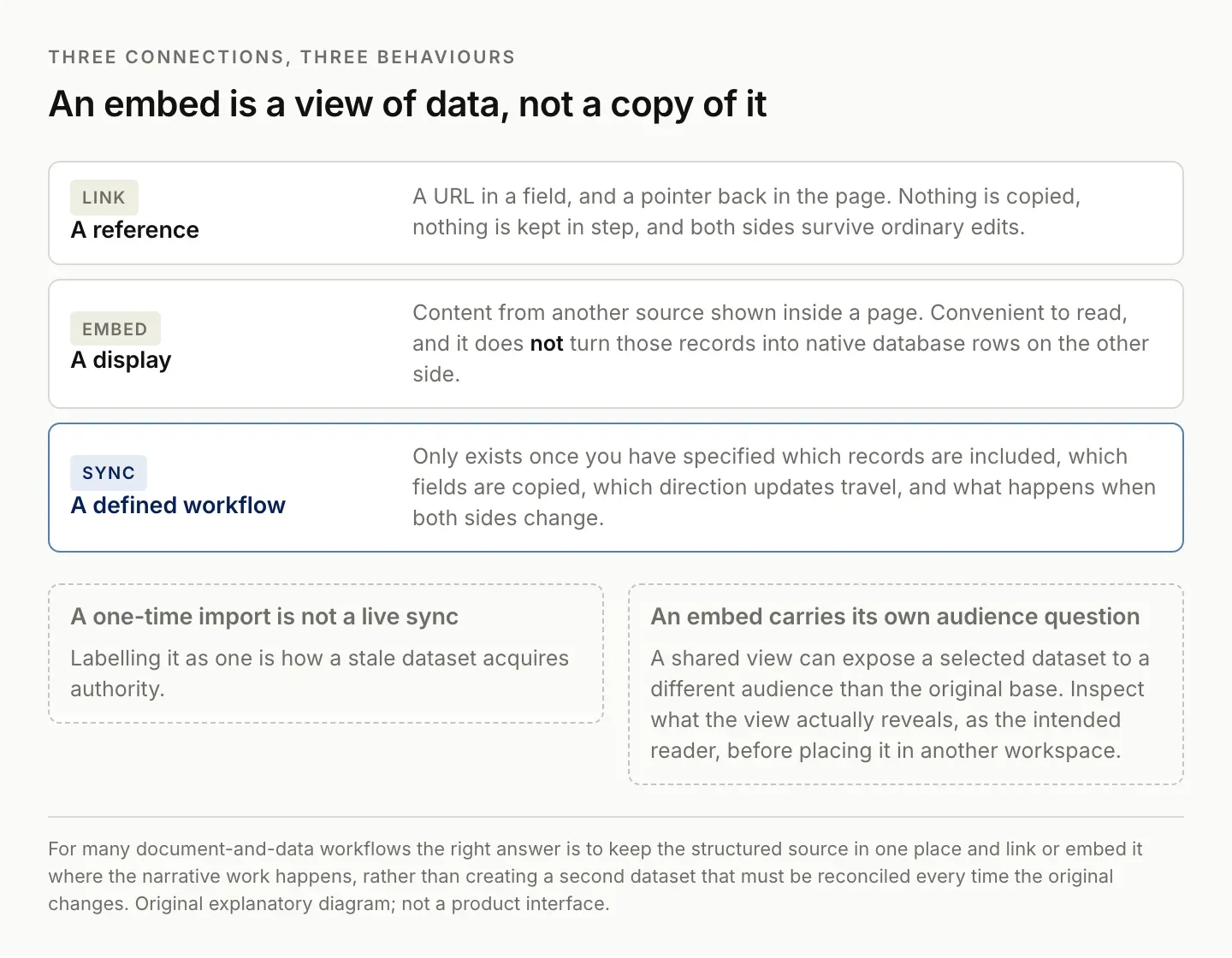
An embed shows the data. It does not copy it, and it does not keep anything in step.
Assign one owner to every shared field
If a field appears in both tools, choose which system owns it. The owner is the location where a person or approved workflow makes the authoritative change. The other location can display or copy the value according to a defined rule.
For example, Airtable might own the operational status and deadline, while the Notion page owns the long-form brief. A short summary copied into Airtable should be labeled as a summary of that page rather than a competing full brief.
| Information | Suggested maintained location | Reference elsewhere |
|---|---|---|
| Operational status | Airtable record | Link or displayed value in the document |
| Current brief | Notion page | Document URL in Airtable |
| Approved version | Designated version record or document | Explicit approval reference |
| Next action | Chosen task or record system | Link from the related page |
This table is a suggested arrangement, not a requirement imposed by the products. Reverse the ownership where your actual process needs it, but make the decision explicit.
Avoid two-way writes until you have a conflict rule. If a person changes a deadline in Notion while another person changes it in Airtable, the workflow needs to surface or resolve the disagreement deliberately. “Use the latest value” can erase a meaningful decision if timestamps do not reflect authority.
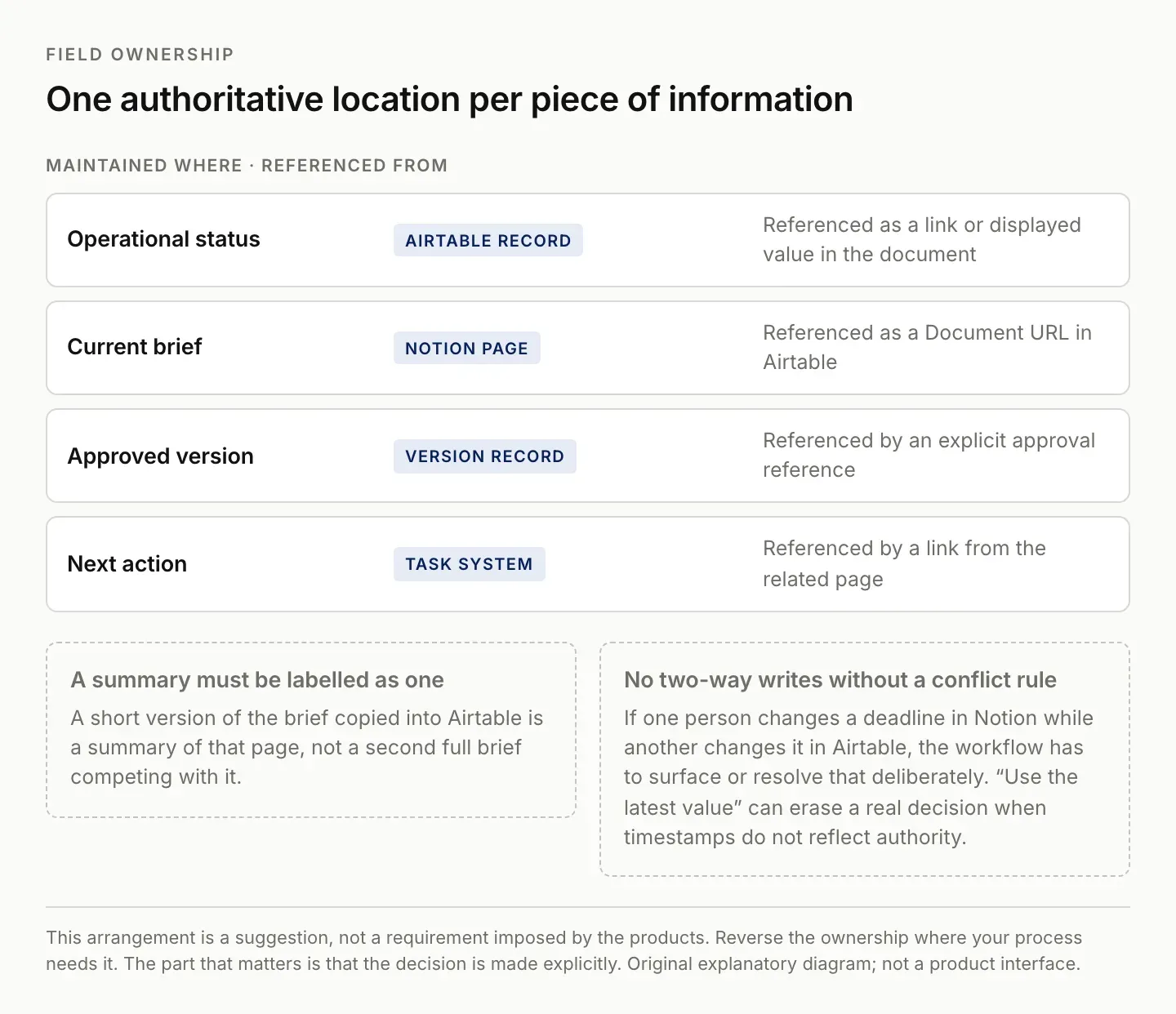
Two-way writes need a conflict rule first. "Use the latest value" can erase a real decision.
Test updates before connecting the whole workspace
Use a small set of clearly labeled test records. Include one valid document link, one missing link, one renamed document, and one record whose title resembles another. Write the expected behavior before running an automation or assistant.
Inspect both destinations after the test. Confirm that the intended record changed, that unrelated fields remained correct, and that the document link still opens the right page. A success message from the integration does not prove that the relationship was preserved.
Process the same input again. Decide whether the correct outcome is no change, an update to the existing record, or a review item. If the second run creates another document unnecessarily, fix that behavior before expanding the workflow.
Check how rich text moves through your selected method. Formatting support differs between a field value and a document page. Preserve the meaning first, and inspect any formatting that is essential to the work, such as a checklist or a code block.
If you use Airtable native automations for part of the workflow, inspect the trigger and action results in its run history. The official troubleshooting guide can help distinguish a data mismatch from a connection or configuration failure. Airtable automation troubleshooting.
Review access and stale references routinely
A link that works for the creator may fail for a collaborator. Review the intended audience in both products. Notion's sharing settings determine access to the page independently of the Airtable record that links to it. Notion sharing guidance.
Keep a small exception view for records with missing document references or unresolved review states. Do not create a new blank document automatically whenever a link fails; the original page may still exist with a permission problem or a changed location.
When closing a project, identify which document is the final reference and which working pages can be archived. Preserve the relationship needed to understand the delivered work. An archive should reduce clutter without making previous decisions impossible to trace. Zentor's Notion integration page lists the Notion connections currently available to an account.
Review the scope before bulk changes. A repair intended for one project should not update every document with a similar title. Use the stable record relationships and keep an inspectable list of proposed changes when the matching is uncertain.
Assign maintenance ownership for the connection itself. Someone should know where to inspect failures, how to correct a bad link, and which fields the workflow is allowed to update. The link between tools becomes useful when ordinary exceptions are manageable.
Before handing the workflow to another person, ask them to locate the current brief from the record and explain which fields they may change. Have them inspect one archived item as well as an active one. If they need your memory to find the right version, add the missing reference or ownership note now. This simple handoff check exposes gaps that a technically successful connection can leave behind.
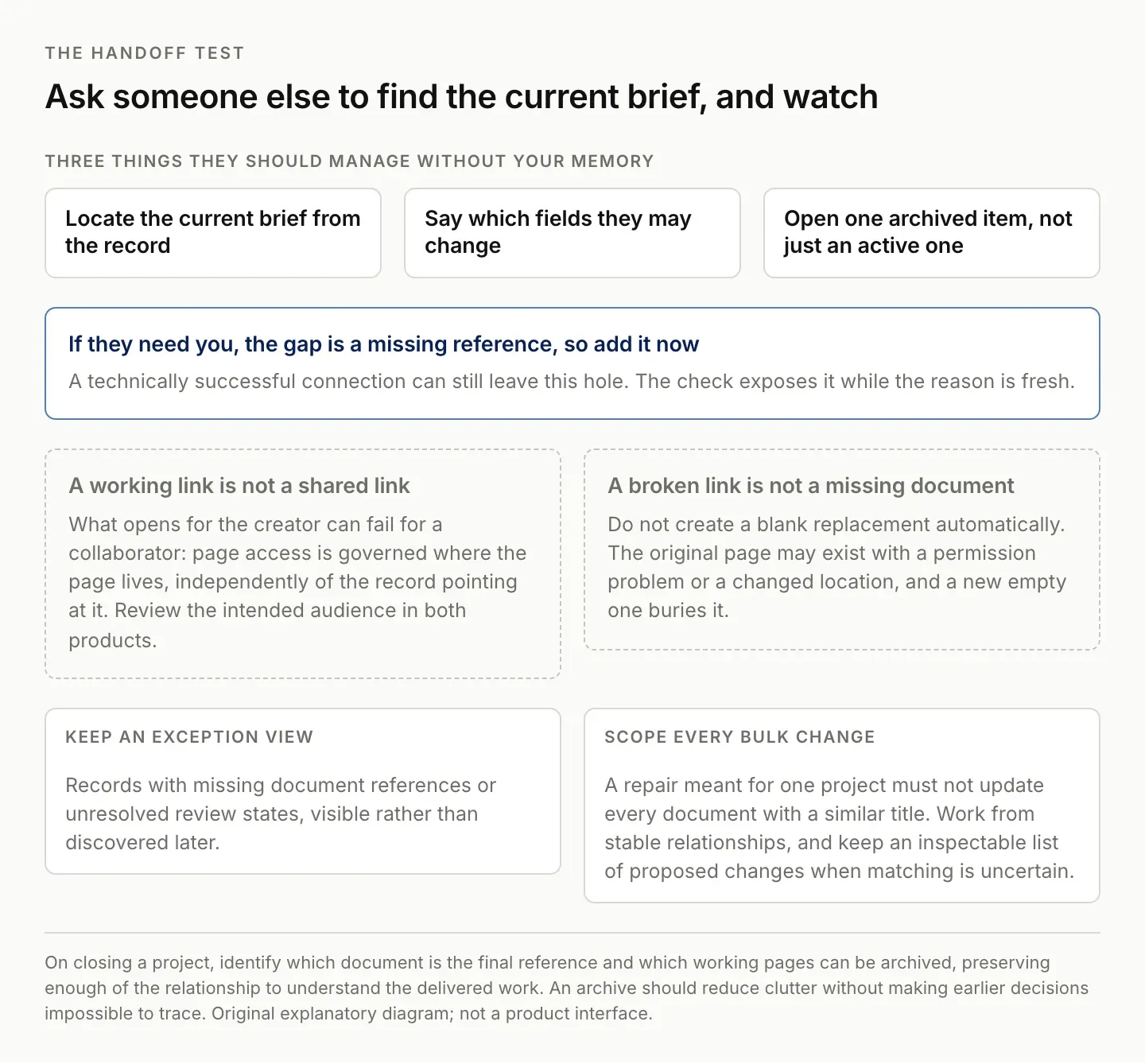
A working link is not a shared link, and a broken link is not a missing document.
Where Zentor fits in the shared workflow
Zentor's intended role is to help use context across existing workspaces and return a useful deliverable to the right place. In this arrangement, a bounded task might use the Airtable record to identify the current Notion brief, prepare a revision from selected evidence, and propose a corresponding operational update.
A concrete brief would say: “Use this record and its linked brief to prepare the next draft. Preserve the approved requirements, cite new source material, and list proposed changes to status or next action separately. Do not replace the approved version.” That makes the desired result reviewable.
Zentor is in early access. This guide does not claim continuous Airtable-to-Notion synchronization or a tested write workflow in your account. Confirm the available connections and inspect a representative result before relying on recurring execution. Explore Zentor with one document-and-record pair.
The added value should be less repeated searching, copying, and context reconstruction. Keep the source ownership rules even when an assistant helps. An agent that writes in both tools still needs a clear answer to which version is authoritative.
FAQ: connecting Airtable records and Notion pages
Does embedding Airtable create a Notion database?
An embed displays external content. Do not assume it creates native records or provides two-way synchronization. Test the specific behavior your workflow requires.
Should I copy the whole brief into Airtable?
Only if that is the maintained location you want. Otherwise, use a clear document reference and a short operational summary to avoid competing versions.
What is the safest place to start?
Link one real record and document in both directions, check access, and define field ownership. Expand only after the relationship behaves as expected.
Can Zentor keep both systems synchronized?
This article does not establish that capability. Evaluate the actual connection, supported updates, conflict handling, and repeated-run behavior in your account.

Zentor Editorial Zentor editorial team
The Zentor editorial team writes about workflow automation, AI agents, and the tools we build. Default byline for industry overviews, listicles, and collaborative pieces.
Ready to put this into practice?
Zentor runs browser tasks, research, and schedules automatically. Try it free.