Canva Brand Kit: Keep Repeated Work Consistent
Set up a Canva Brand Kit with approved assets, fonts, colors, and reusable templates. Check the team, feature access, and consistency of real designs.
A Canva Brand Kit keeps approved visual assets close to the designs you make repeatedly, but consistency also requires a maintained template and a clear review process. The gap between plans is wide: Canva's help centre states that Free users can keep one colour palette of up to three colours, while paid, education and nonprofit plans can create 100 palettes of up to 100 colours each, so confirm what your account actually has before rebuilding a kit that looks missing. Canva colour palettes. Canva's current color-palette documentation gives Free users one palette with up to three colors, so a missing full-featured kit should not be confused with the absence of every free brand-color option.
Key Takeaways:
- Confirm the active team and available plan features before rebuilding a kit that appears missing.
- Keep approved logos, colors, fonts, and usage rules together, then apply them to a small set of recurring formats.
- Separate the reusable master from the working copy and the approved output.
- Use assistance for content preparation and review only where the available connection supports it; do not assume automatic Canva editing.
Check the team and the feature you actually need
If a familiar brand option disappears, first confirm which Canva account and team you are using. A person working with several clients or organizations may have different assets and permissions in each. Check the intended team before recreating files or assuming that Canva removed the feature for everyone.
Identify the exact missing capability. A color palette, uploaded font, logo library, brand template, and restriction on what teammates can change are different features. Your workflow may require some of them but not all. List the requirement before comparing plans or workarounds.
As checked on September 8, 2026, Canva's palette help page states that Free users can keep one palette containing up to three colors. Other listed eligible plans have broader palette allowances, and some team plans can restrict palette access through Brand Controls. Recheck the current documentation before making a purchasing decision.
If you work with a nonprofit, inspect Canva's current nonprofit program and eligibility process rather than assuming that every volunteer account automatically has the same features. The program is a distinct access route with its own requirements. Canva for Nonprofits.
The practical question is whether your account provides the assets and controls needed for the work. A general claim that Brand Kit is either completely free or completely unavailable is too coarse to answer that question.
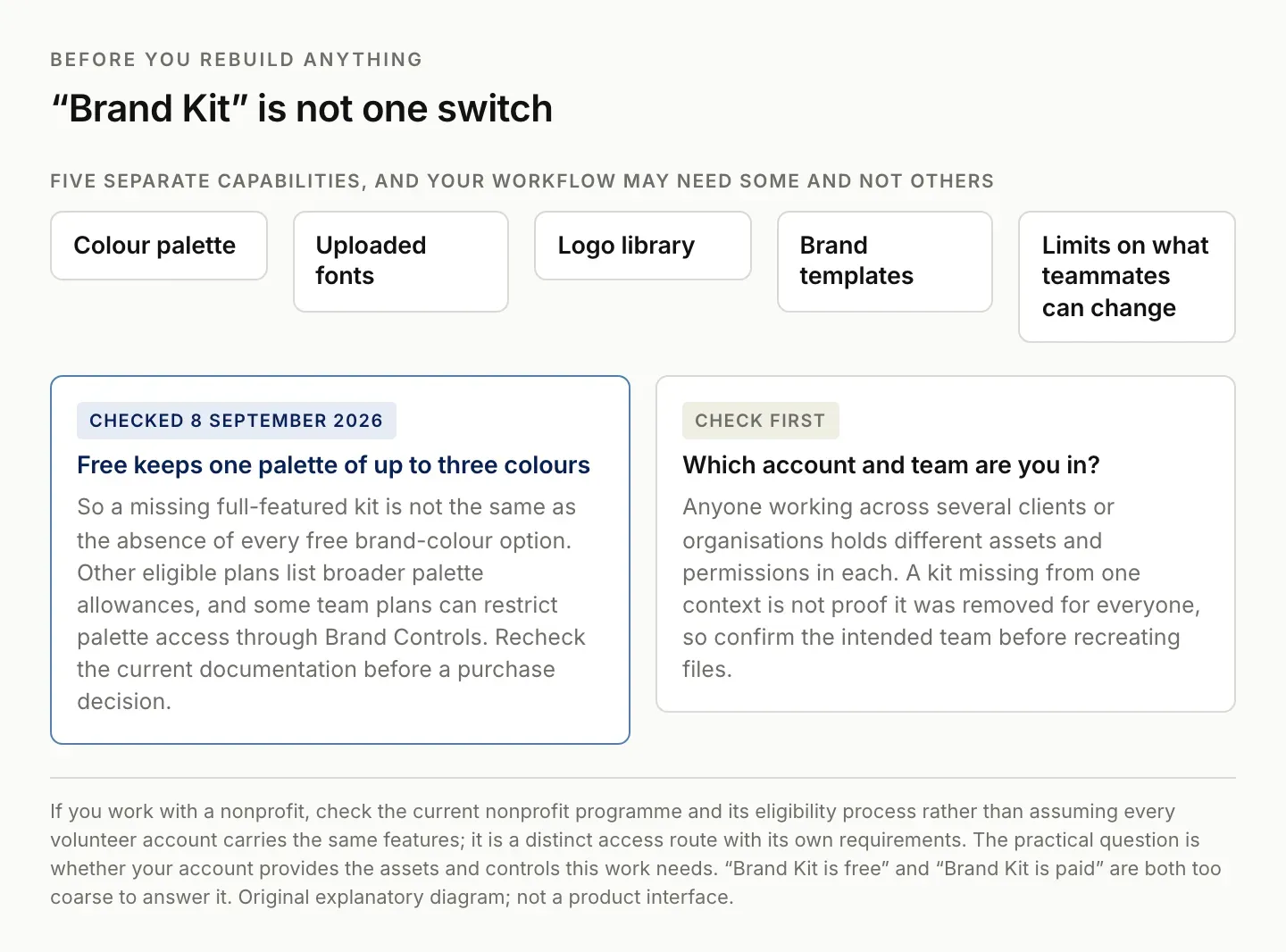
"Brand Kit is free" and "Brand Kit is paid" are both too coarse to answer whether your account can do this work.
Prepare the approved assets before configuring the kit
Gather the actual logo files, color values, font choices, and a small set of usage rules. Use the approved sources rather than extracting approximate colors from a compressed screenshot when the original values are available.
Keep logo variants recognizable. A light-background version, a dark-background version, and a compact mark may serve different situations. Name them by intended use so someone creating a quick social post does not have to guess which file belongs on a dark image.
For colors, record the exact values and their roles. A primary color, background color, and accent color should not be used interchangeably merely because they are all part of the palette. A short note about intended use can prevent repeated inconsistency more effectively than adding many nearly identical swatches.
For fonts, record the approved family and the intended heading or body role. Keep an allowed fallback when the preferred font cannot be used in a particular context. Confirm that you have the right to use any uploaded font files in the intended work rather than treating possession of a file as sufficient permission.
Canva's own brand-kit overview describes assembling fonts, colors, and imagery in one place. The operating checklist here adds a practical requirement: each asset should be identifiable as current and approved. Canva's brand-kit overview.
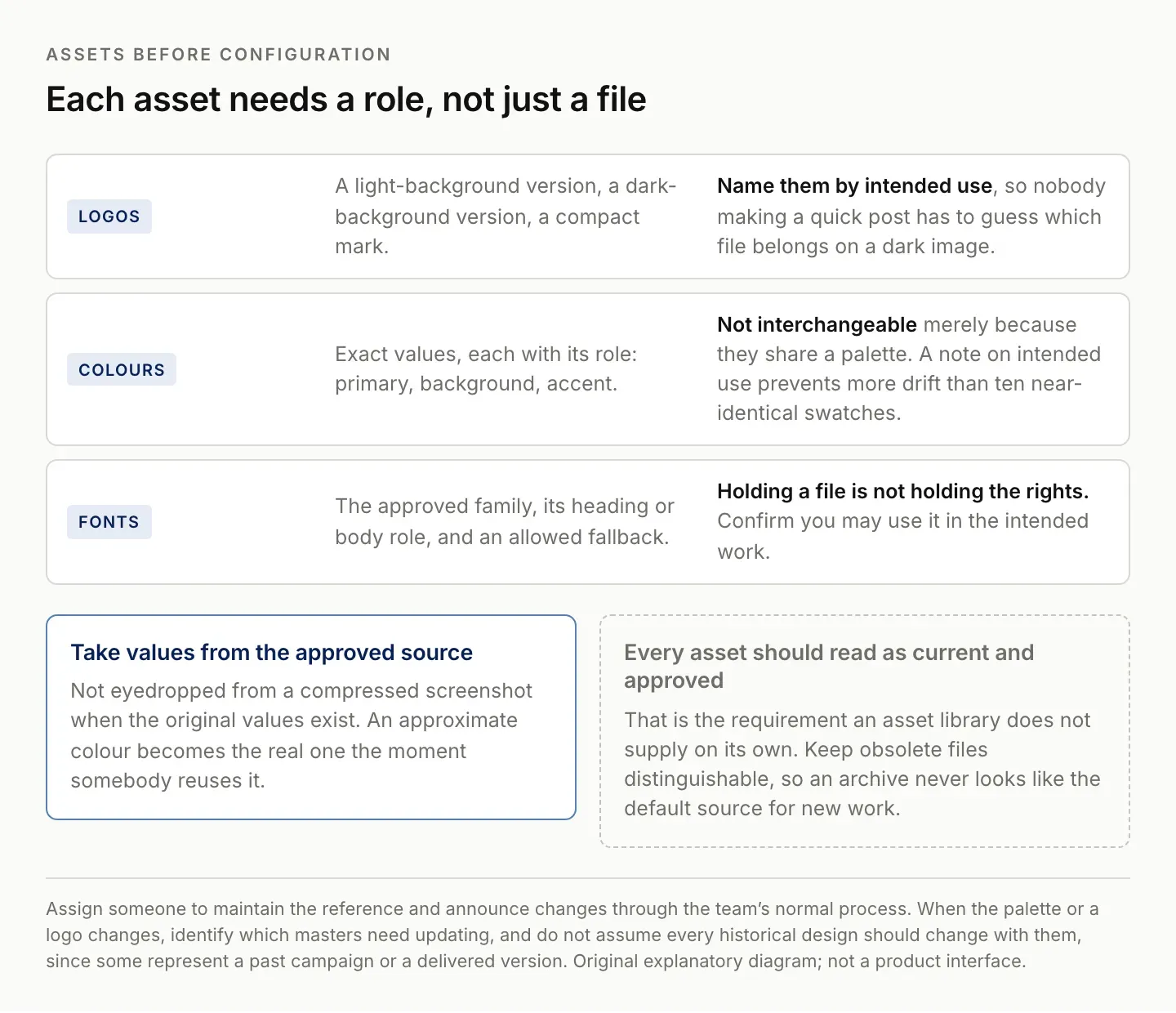
Holding a font file is not holding the rights to use it. Every asset should read as current and approved.
Configure the kit and verify one real design
Open the Brand area in the intended team and select or create the relevant kit using the options available to your account. Add the approved assets and give the kit a recognizable name. Canva's setup guide covers the supported configuration flow. Set up Brand Kits.
For fonts, Canva documents selecting the relevant kit, opening Fonts, choosing a heading type, and saving the chosen font settings. Check the resulting text in the design where it will be used, because a saved font choice alone does not establish a readable layout. Brand-font setup.
Apply the kit to one representative design rather than generating a large batch immediately. Inspect the logo variant, color use, typography, and the actual copy. The first test should resemble the work you repeat most often, such as a short announcement or a product-information card.
Check the design at the size the audience will see. Text that looks comfortable while zoomed in may become difficult to read in a feed. A logo can be technically present while too small or placed over a background that obscures it.
Save the reviewed example as a reference for future work. The point is to give the next person a concrete standard, not just a folder of assets. If the example reveals a missing rule, add that rule while the reason is clear. Zentor's Notion integration page lists the Notion connections currently available to an account.
Create a small family of reusable templates
Choose the recurring formats that actually consume time. You might need an announcement, a testimonial layout using approved quotes, a product detail card, and a presentation cover. Start with the formats you use rather than building a large library of hypothetical future needs.
For each format, identify which elements are fixed and which change. Fixed elements might include the logo position, visual hierarchy, and footer. Variable elements might include the headline, image, date, and call to action. Make those roles clear in the working instructions.
Keep the reusable master distinct from working copies. Name each copy for its purpose and version so a later editor can identify the approved output. Do not let the most recently edited file automatically become the new master.
Test long and short content. A template that works for a two-word heading may fail with a realistic product name. Use a constructed stress-test line and inspect wrapping, spacing, and the relationship between the image and text. Fix the layout or define a copy limit before delegating repeated use.
Do not treat resizing as a guarantee that the design remains correct. Different formats can require different composition. Review each intended output and preserve the distinctions that matter to its audience and channel.
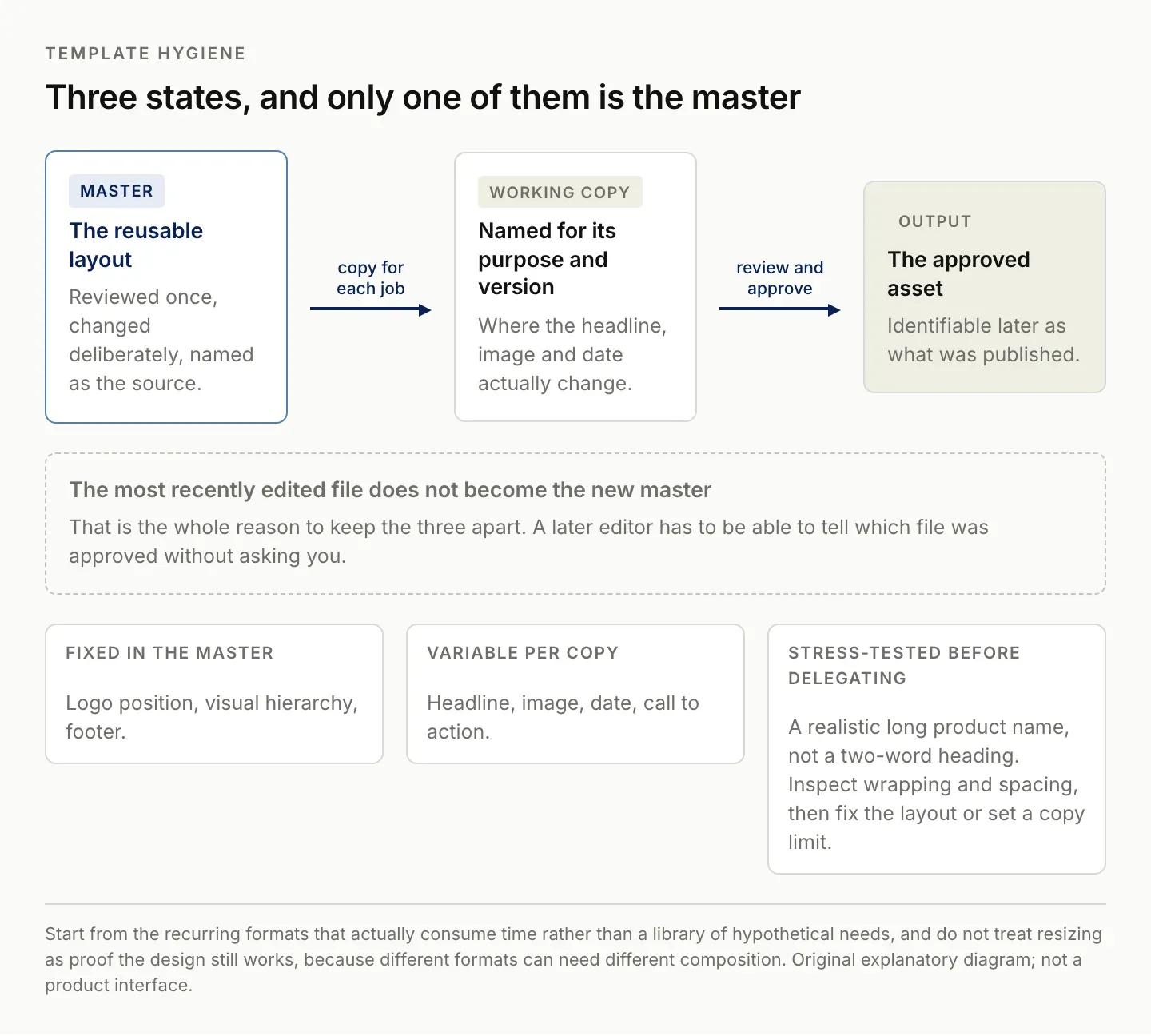
The most recently edited file does not become the new master. That is the whole reason to keep three states.
Keep content accuracy separate from visual consistency
A design can use every approved color and still contain an incorrect date, stale offer, or unsupported claim. Keep a content source beside the design request. For product work, that might be an approved specification or current offer record. For an event, it might be the confirmed schedule.
Use a short production record with the content owner, source, design link, review state, and intended destination. This gives you a way to trace a finished asset back to the information it was supposed to communicate.
Separate content approval from design approval when different people own those decisions. A designer may confirm that the layout follows the brand rules while the offer owner still needs to verify the price or conditions. Do not collapse both into a vague Done status.
For recurring content, review the variable fields explicitly. Dates, URLs, names, and calls to action are common places where an old working copy can survive into a new output. A brief checklist focused on those fields is more useful than a general instruction to double-check everything.
If you later use Bulk Create, maintain the same content review standard. Generating many variants from a table increases the importance of correct rows and field mapping. Canva documents Bulk Create as a data-to-design workflow; it does not establish that the underlying content is approved. Canva Bulk Create guide.
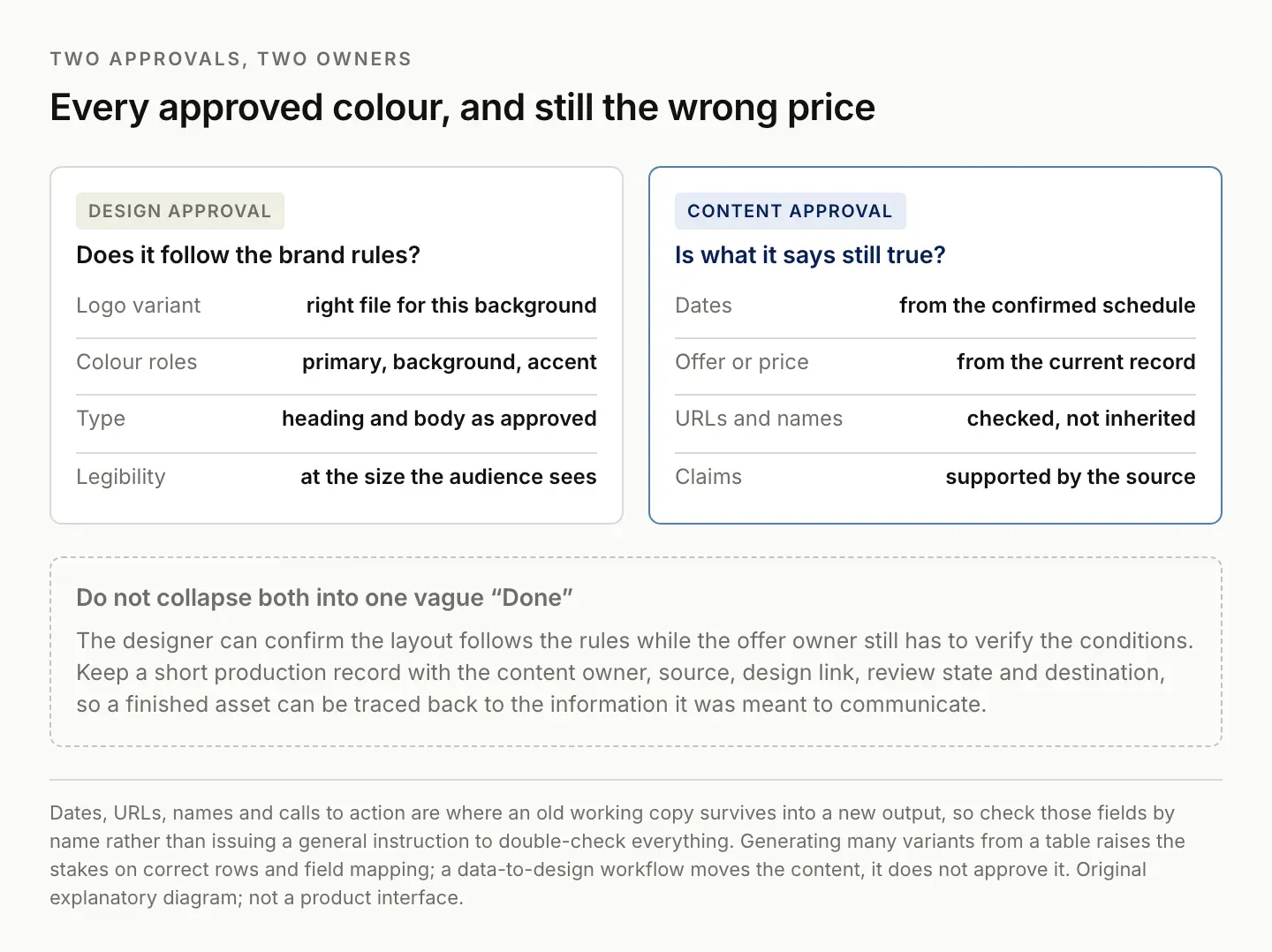
A design can use every approved colour and still carry last quarter's price.
Build a workable fallback when a feature is unavailable
If your account lacks the full kit features you want, keep a clearly named reference page or design containing the approved color values, fonts, and logo files. Use working copies of reviewed layouts to reduce repeated setup. This is a manual operating method, not a claim that a free account gains paid controls.
Write the rules that matter most: which logo goes on which background, which type style belongs to a heading, and which copy fields must be checked. Keep the reference short enough that people will actually consult it while making the design.
Assign someone to maintain the reference and announce changes through the team's normal approved process. If the palette or logo changes, identify which masters need updating. Do not assume every historical design should be changed automatically; some represent a past campaign or delivered version.
Keep obsolete assets distinguishable from current ones. An archive can be useful, but it should not look like the default source for new work. The goal is to reduce accidental reuse without destroying the context of previous deliverables.
Evaluate a paid feature based on the recurring work it removes. If a manual reference reliably serves a small volume, it may be sufficient. If coordinating many contributors repeatedly causes errors, test the controls and collaboration behavior available in the relevant plan before deciding.
Where Zentor fits around the design workflow
Zentor's intended role is to help carry context between the tools where work happens. Around Canva, a useful task could be preparing approved copy variants from a source brief, maintaining the content record, and assembling a review checklist that follows your existing brand rules.
A concrete evaluation brief would be: “Prepare three copy variants for this approved layout using the linked product facts and tone guidance. Keep the offer unchanged, flag missing facts, and return a review table with the intended design reference.” This task has a clear output even before any direct design editing is considered.
Zentor is in early access. This article does not claim that a Canva connector can edit Brand Kits, resize designs, enforce controls, or publish assets. Confirm the available workflow before relying on direct design operations. Explore Zentor with a bounded content-preparation task and your existing approved assets.
Keep Canva responsible for the design operations it already supports. Evaluate additional assistance on whether it reduces repeated preparation and coordination while preserving the source facts and review state. The result should be ready for your next step, not merely another generic brand description.
FAQ: Canva Brand Kit access and consistency
Is Canva Brand Kit completely unavailable on Free?
Do not treat all brand features as one entitlement. Canva currently documents a limited free color palette. Check the specific logo, font, template, and control features required by your workflow.
Why can I not find the kit I used before?
First confirm the active account and team, then inspect access and available features. A missing kit in one context does not prove it was removed globally.
Does a Brand Kit guarantee consistent designs?
No. You still need usable templates, current content, and review. Asset availability and correct application are different parts of the workflow.
Can Zentor update Canva designs automatically?
This guide does not establish that capability. Verify the actual connection and supported operation in your account before depending on it.

Zentor Editorial Zentor editorial team
The Zentor editorial team writes about workflow automation, AI agents, and the tools we build. Default byline for industry overviews, listicles, and collaborative pieces.
Ready to put this into practice?
Zentor runs browser tasks, research, and schedules automatically. Try it free.