Cursor Computer Use: Agents Now Drive Your Desktop Apps
Cursor Computer Use lets agents drive desktop apps. See the iOS Simulator demo, local-versus-cloud differences, and permission questions still open.
Cursor Computer Use lets Cursor agents click and type in desktop apps on your computer, rather than stopping at a browser or code editor. On October 23, 2026, Cursor announced this local capability with a video of an agent testing a newly built feature in Apple’s iOS Simulator. That is a vendor demo, not an independent reliability test.
Key Takeaways:
- Cursor says Computer Use can act across desktop applications, not only web pages.
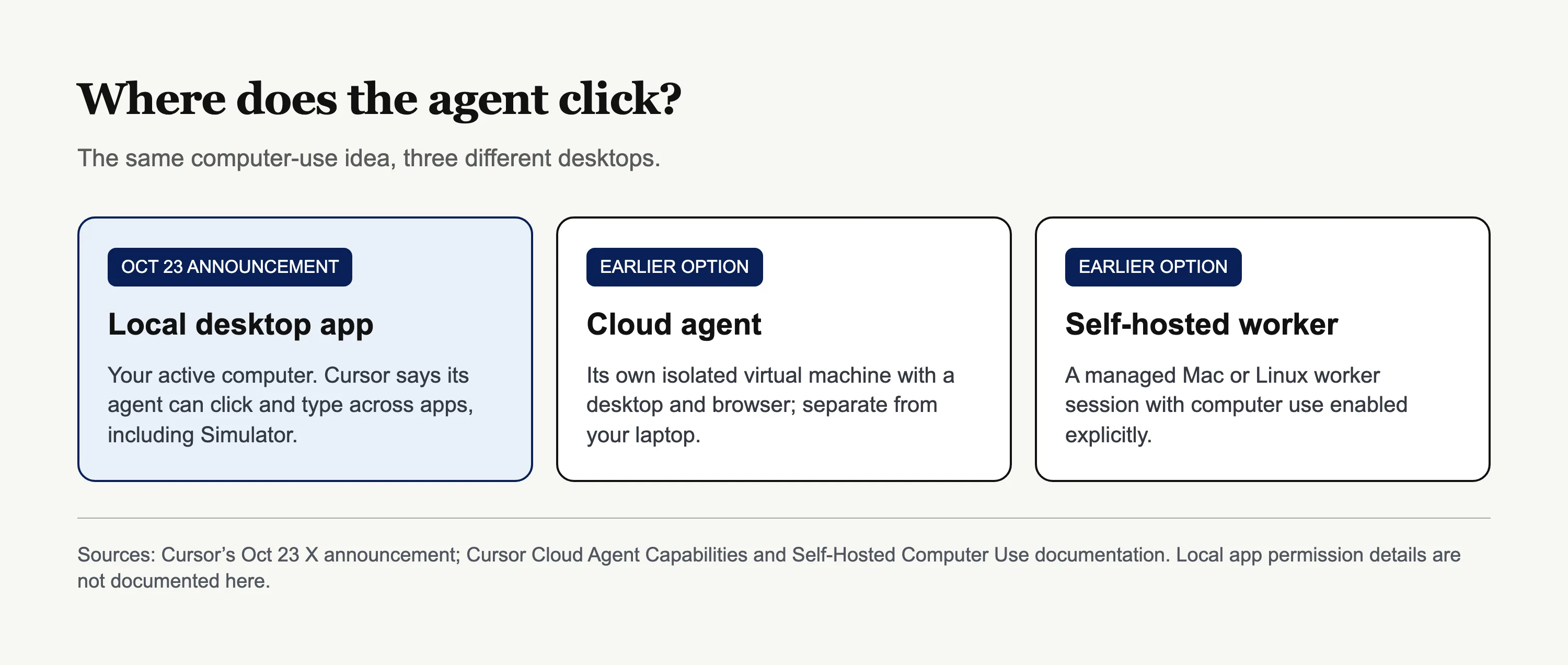
- The new point is the active local desktop: cloud agents already operated their own isolated VMs, while self-hosted workers could operate Mac or Linux desktops.
- The agent may invoke Computer Use when needed, or you can mention
@Computer Usein a prompt. - The Mac worker permission rules are documented; local editor-agent permissions remain 【Needs verification / as of Oct 2026】.
What is Cursor Computer Use?
Computer Use names an agent’s ability to act through a visual desktop interface. Cursor’s follow-up post says it can click and type across any app on your computer, not only the browser, and asks users to update Cursor. “Any app” describes the intended reach; it does not establish compatibility with every protected dialog or account.
Suppose you ask for a mobile-app change. The agent can edit the project, open Simulator and interact with the screen. You still decide whether the visible result meets your requirements.
Zentor handles a different job: its user-owned workspace memory can move context between compatible AI tools through Zentor MCP. That connection does not grant desktop access; memory and mouse-and-keyboard control require separate decisions. Our agent-memory guide explains why stored context is different from the history of one chat.
Keep your working context portable
Zentor keeps your workspace memory yours and connects it to compatible AI tools through Zentor MCP. Desktop control remains a separate permission decision.
Get early access →
What changed: your desktop versus a cloud VM
Cursor did not invent computer use this week. Its February cloud-agent launch described agents using virtual machines with full desktops and recorded demos. The capabilities manual confirms that each cloud agent controls a desktop and browser inside its own isolated VM, distinct from the apps already open on your laptop.
Cursor separately documents self-hosted workers that can operate a Mac or Linux worker’s desktop. A worker might be a machine you own, but that setup is not the newly advertised local editor agent. The October news is about putting desktop control on the computer in front of you. Do not borrow cloud-VM isolation or worker safeguards as if they covered this release.
If your laptop has invoices, client messages and signed-in browser tabs, it is not a disposable testing VM. Zentor’s always-on workspace can preserve working context without requiring that laptop to stay awake, but it is not a substitute for testing an app on the local screen.
How do you activate Computer Use?
Cursor says the agent may select Computer Use itself when a task calls for a visual interface. You can also request it by mentioning @Computer Use in your prompt; the company says to update its desktop app. This is the launch guidance, not a verified local permissions walkthrough.
Start with a bounded test app and inspect where the agent goes. Whether local mode offers a per-app allowlist, per-action approval, or a switch that disables automatic invocation remains 【Needs verification / as of Oct 2026】. Mentioning the tool is not permission to enter unrelated accounts.
What does the iOS Simulator demo prove?
The launch video described by Advance Intelligence begins with a request to add and demo favorite trails. The agent works on a hiking app, opens it in iOS Simulator and reaches a Favorites screen. Other coverage of the clip identifies a “Cursor is using Simulator” badge and stop button. We have not independently operated the demo or tested that button.
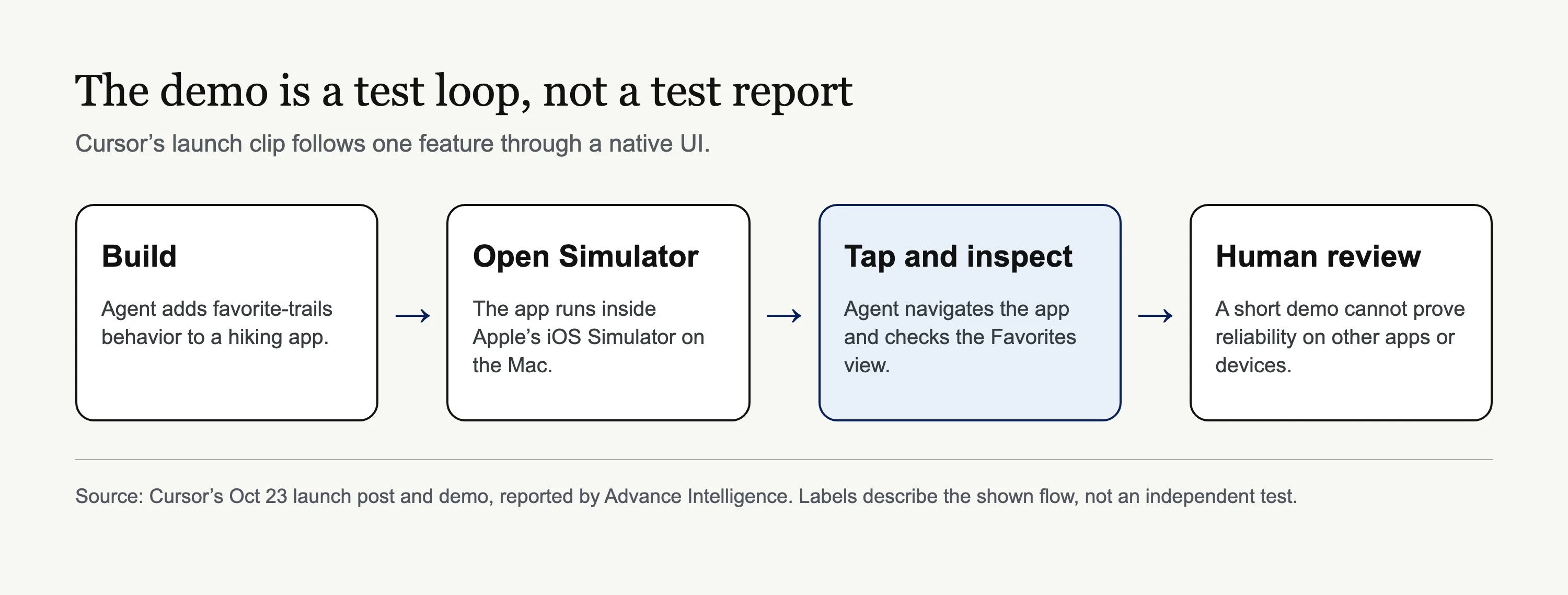
The recording establishes one visible example of build-then-test. It cannot establish persistence after restarting the app, behavior on every device or reliability across unrelated applications. Ask the agent what it tested and inspect the result yourself.
Permissions and risk on the local desktop
An agent able to click any app may also reach an open email inbox, password manager or banking tab. That is a risk of broad desktop access, not a claim that Cursor visited those apps in its demo. A malicious page instruction or mistaken click can steer a run outside the app under test. Keep sensitive accounts away from test sessions; review before sending, paying, deleting or publishing.
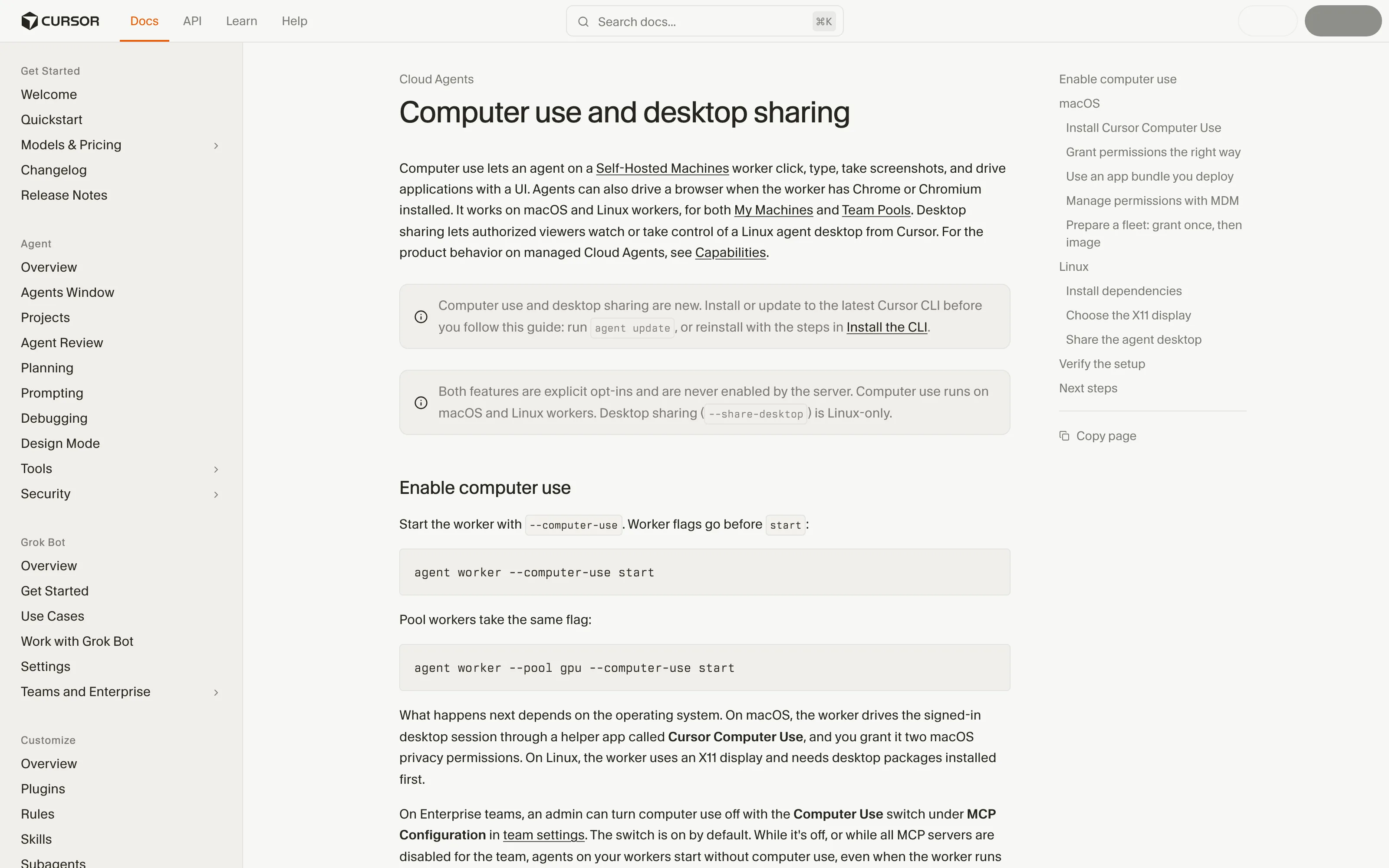
For a self-hosted Mac worker, Cursor’s official documentation requires explicit opt-in. Its separate Cursor Computer Use helper needs Accessibility for clicks and typing and Screen Recording for screenshots. Those permissions attach to the helper, not automatically to Cursor’s desktop app. Whether the newly announced local editor mode follows this model remains 【Needs verification / as of Oct 2026】.
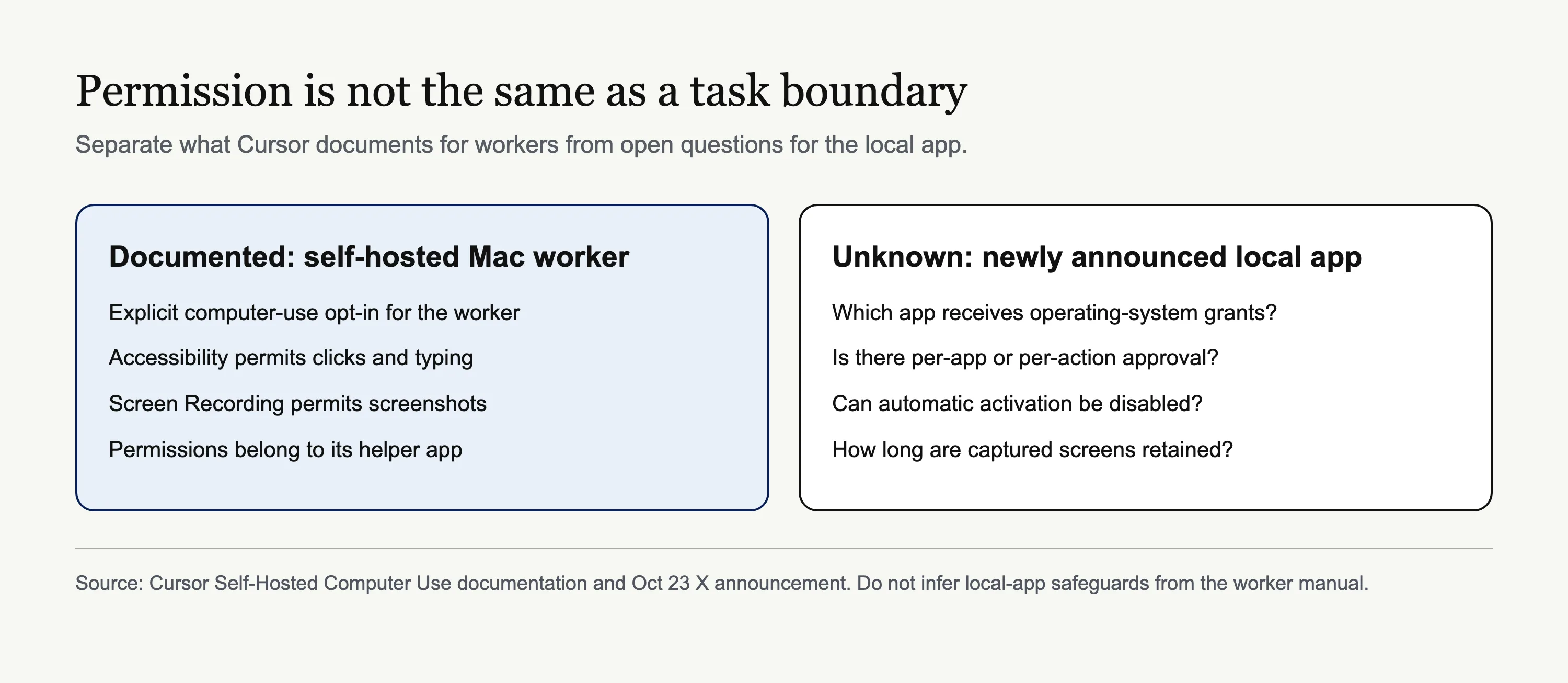
Zentor’s AI workspace explainer distinguishes triggers, connected tools, approvals and logs. The same distinction helps here: asking for a test is not approval to act in every other open app. Our governance guide also asks who owns connected data and who can review an agent’s actions; those are useful questions even when the task sounds as small as tapping a heart in a test app.
What remains unconfirmed about the local release?
【Needs verification / as of Oct 2026】 Cursor has not established in the checked launch materials which Windows or Linux versions, plans or pricing cover local Computer Use; how it stores screenshots; whether per-app limits or an automatic-use off switch exist; or whether each consequential action requires approval. Mac and Linux support in the worker manual does not answer the local editor question. Likewise, Cursor’s multi-OS download page is not a Computer Use support matrix.
The visible stop button shows a control in the demo, not a universal audit trail. Before using this on a sensitive machine, ask Cursor for local-mode documentation. Zentor’s portable memory can keep your context from being trapped in one assistant, but it cannot narrow another product’s desktop grant for you.
FAQ: Cursor Computer Use on your machine
Does Cursor Computer Use work outside the browser?
Cursor says yes and shows iOS Simulator. Compatibility with every application has not been independently tested here.
Is this the same as a cloud agent desktop?
No. Older cloud agents control an isolated VM; the announcement concerns your computer. Self-hosted workers are a third, separately configured route.
What permissions does the local Mac app need?
A self-hosted Mac worker needs Accessibility and Screen Recording for its helper. Local editor-agent requirements remain 【Needs verification / as of Oct 2026】.
Can I stop automatic use or allow only Simulator?
The demo has a stop button, but a global automatic-use toggle and per-app allowlist are not established in the public launch materials.

Zentor Research Public data on the AI ecosystem
Zentor Research publishes quarterly data studies on the AI tools ecosystem, drawing on public registries (npm, GitHub, Hugging Face, arXiv, Google Trends). All charts and datasets ship under CC-BY 4.0.
Turn insights into action.
Zentor automates the recurring work your analysis points to. No engineering required.