AI Workspace: What It Is and How It Works

Understand what an AI workspace connects, remembers, automates, and logs, plus the permissions and approval checks to review before you trust one.
An AI workspace is a shared operating layer where AI can read the context behind your work, use approved tools, carry out repeatable steps, and return results to the place you already organize them. It differs from a normal chat because it keeps work state beyond one conversation and can act through connected apps. This distinction matters enough that NIST published a dedicated Generative AI risk profile in July 2024, covering risks such as false output and data privacy rather than treating AI as an ordinary software feature.
Key Takeaways:
- An AI workspace joins persistent context, app connections, triggers, approvals, write-back, and activity records.
- Memory stores selected facts; sync refreshes source data; automation starts defined work. These are separate functions.
- AI can draft, sort, compare, and propose. You should retain authority over sending, publishing, paying, deleting, and making promises.
- Permission scope and failure recovery matter more than the length of a feature list.
- Start with one low-risk workflow whose result you can inspect in under two minutes.
What an AI workspace is, in plain English
Picture a client folder containing the brief, recent emails, accepted proposals, deadlines, and unfinished tasks. A chatbot sees only what you paste into the current conversation. An AI workspace gives the system controlled access to that folder and selected tools.
“Workspace” does not mean one giant replacement app. It keeps context and actions organized across the apps where work already lives. The Model Context Protocol documentation describes MCP as an open-source standard connecting AI applications to external data sources, tools, and workflows. For a nontechnical user, the result is simpler: connect once, limit what the AI may reach, and stop repasting the same background.
Zentor takes this workspace-memory approach. The product site says the memory belongs to the user, can be exported or deleted, and can move between compatible AI surfaces. Continuous synchronization is a separate connector-specific claim.
See how Zentor connects workspace knowledge through Notion, or get started with Zentor when you have one repeatable task ready.
Give your one-person business a shared place for AI to work
Zentor can hold the context behind your work, run repeatable steps on its own, and return results to the tools you already use to run the business.
For solo founders →
The building blocks that organize AI work
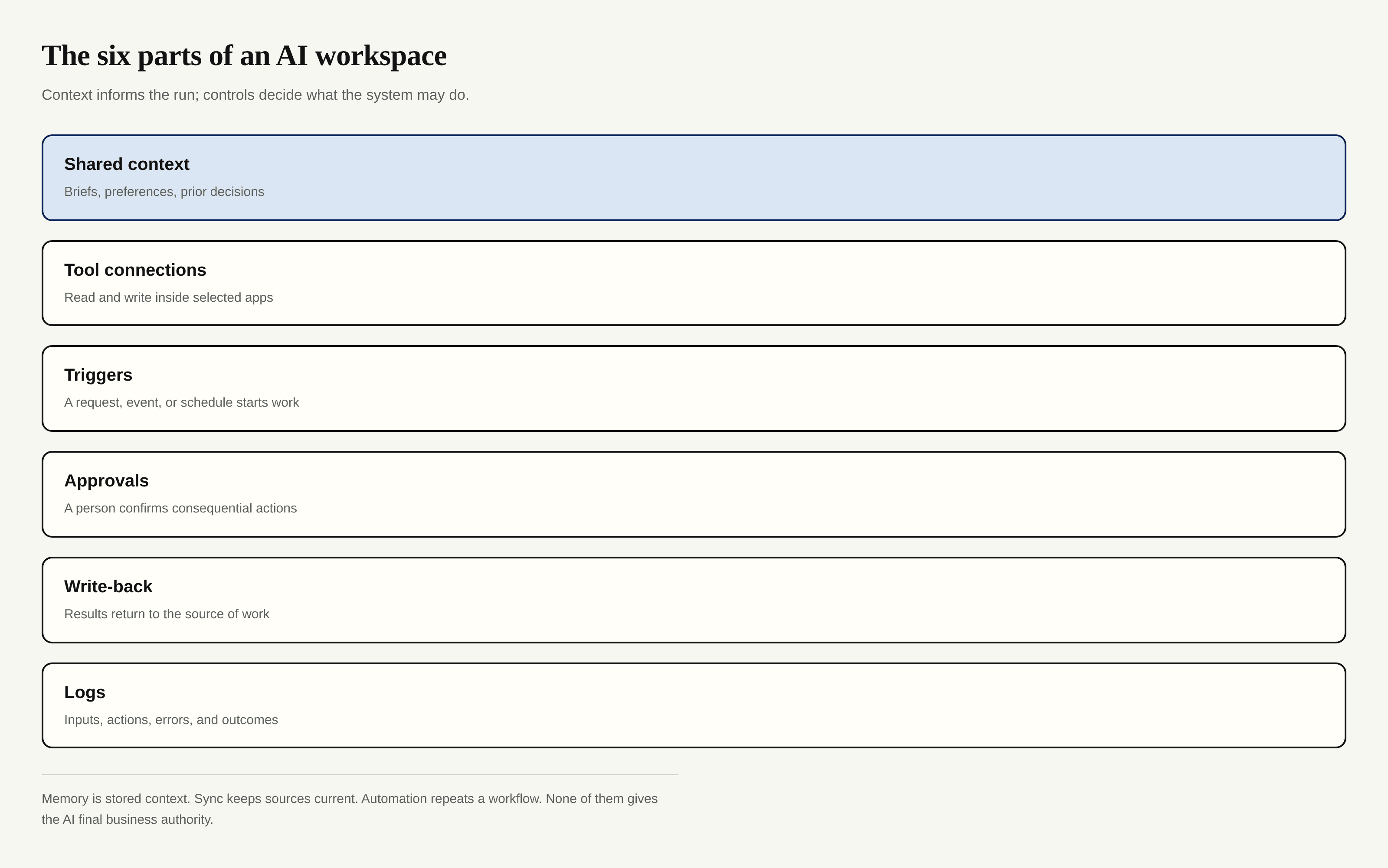
An AI workspace becomes useful when six parts work together.
Shared context includes the source material and preferences needed for a task: your service list, a client brief, previous decisions, inventory records, or an editorial calendar. Good context is specific and current. A pile of old documents is storage, not useful context.
Tool connections let the system retrieve or change information. Each connection should say what it can read, what it can write, and how to revoke access. Notion warns that MCP tools act with the user’s existing Notion permissions, while Airtable personal access tokens can be limited by scope and by base. Those two models create different risk boundaries.
Triggers start a run. You may ask directly, set a schedule, or use an event such as a new form response. A trigger is not permission to do anything the AI wants; it only starts a defined workflow.
Approvals pause consequential actions for a person. Drafting a refund reply is reversible. Sending it or issuing money is not. Write-back then places the accepted result into the task board, document, or inbox draft rather than leaving it buried in chat. Logs record what sources were read, which actions ran, what failed, and what changed. CISA’s event-logging guidance recommends protecting logs against unauthorized modification or deletion.
A complete AI workspace run, step by step
Suppose you freelance and owe four client updates every Friday. The work repeats, but each update depends on different threads, files, deadlines, and open questions.
- Trigger: Friday at 2 p.m. starts the workflow. You can also launch it manually if the week ends early.
- Read context: The workspace reads each client’s approved brief, current task board, recent email thread, and files changed that week. It does not search unrelated folders.
- Execute: AI drafts one update per client, compares due dates with task status, and marks missing facts instead of guessing. If a date conflicts across sources, the draft carries the conflict to you.
- Approval: You verify scope, dates, tone, and any promise. The system may recommend a next action, but you decide whether that recommendation becomes a commitment.
- Write back: Approved copy returns to the email draft folder, while accepted next steps update the client board.
- Log: The run records its trigger time, sources, generated drafts, your changes, write results, and any error.
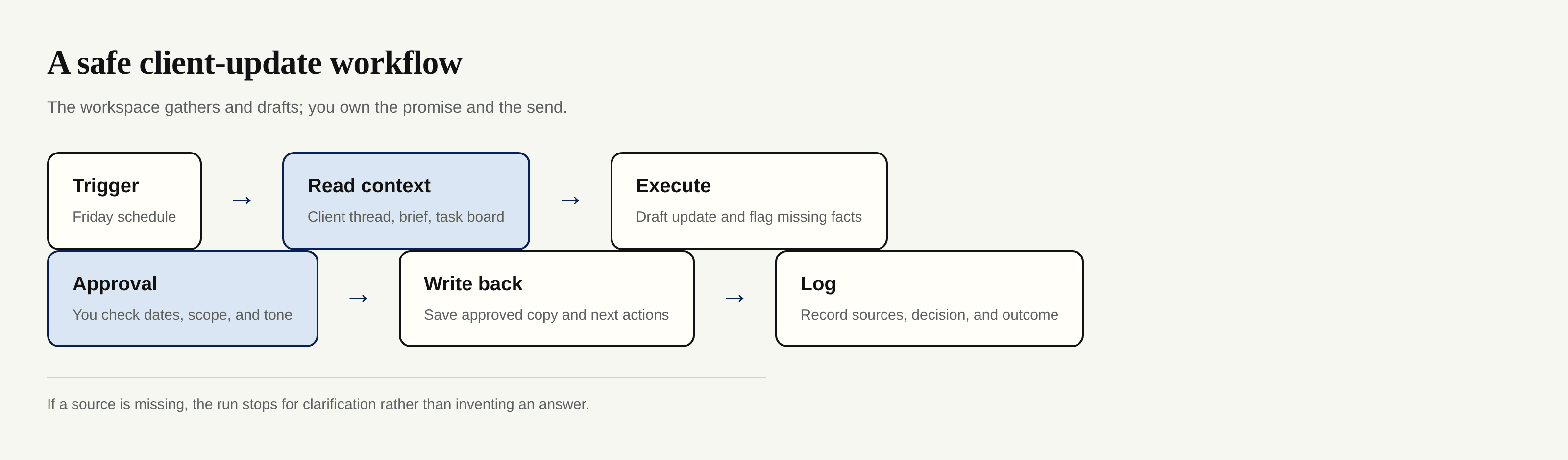
This sequence is the useful test of the category. If a product offers chat and file upload but cannot show where approval, write-back, or recovery happens, it may be an AI assistant without a real workspace around it.
AI workspace use cases for one-person businesses
A solo service provider can draft updates from project activity, prepare proposals from accepted work, or turn meeting notes into tasks. The AI handles retrieval and assembly; you check claims, price, and scope.
For a seller, the workspace can prepare channel-specific listings and place drafts beside the right product record. Inventory alerts also fit because their inputs and thresholds are inspectable. Publishing, changing a price, or promising a refund should remain gated.
Creators can turn one approved source into a newsletter draft, captions, and a calendar entry. The system may remember past edits, but it should not accept sponsorship terms. Students can organize notes and build a revision schedule; they still need to check citations and do the assessed reasoning.
Official pages document live Notion context through a hosted MCP connection and scoped Airtable access through a personal token. The integrations directory mixes available entries with items marked “coming soon,” so check each connector page. The site does not disclose one universal sync interval.
Memory, sync, automation, and decisions are different
These terms often get bundled together, which makes demos sound more capable than the underlying system.
| Function | What it does | What it does not decide |
|---|---|---|
| Memory | Retains selected preferences, facts, and prior working patterns | Whether an old fact still applies |
| Sync | Refreshes data from a connected source | Which source wins when records conflict |
| Automation | Starts and repeats defined steps | Whether an unusual case should follow the normal path |
| AI reasoning | Sorts, summarizes, drafts, compares, and recommends | Final commitments, payments, publication, deletion, or legal judgment |
AI may decide how to prepare a reversible draft within rules; you decide whether to commit an external consequence. Anthropic describes agents as systems that plan, act, observe, and adjust, yet its research on agent autonomy still calls for user oversight and post-deployment monitoring.

Zentor says its memory can be exported or deleted, and its privacy policy says conversation history remains while an account is active unless the user deletes it or asks for deletion. It also says primary service servers are in Singapore. Public pages do not disclose memory capacity, connector-by-connector sync frequency, a general audit-log retention period, or a platform-wide matrix of roles and permissions. Treat those items as unanswered until the vendor documents them for your account.
Limits, permissions, and failure modes to inspect
The first limit is stale context. A polished draft based on last quarter’s price list is still wrong. Date sources, nominate a source of truth, and expose conflicts.
Permissions create the next problem. A connection that inherits all your access may expose more than one workflow needs. Start read-only, select individual folders or bases, and grant write access after a few clean runs. OWASP recommends minimum privileges and human approval for high-impact actions.
Then test ordinary breakage. A connector expires. A document moves. The model misunderstands “latest.” A write succeeds in one app and fails in another. Your workspace should stop clearly, preserve the partial result, and tell you what to retry. Silent partial completion is worse than a visible failure because it leaves you trusting an inconsistent system.
Zentor’s pricing page says files and credentials are encrypted and customer work is not used for training. Its terms also say AI output may be inaccurate, incomplete, or out of date and must be evaluated before use. It does not publicly disclose storage quotas, backup recovery targets, a full list of per-action approval rules, or a general user-facing activity-log specification. Ask about those if your workflow carries sensitive client material.
How to evaluate an AI workspace before committing
Choose one workflow with a clear input and an observable result. A weekly client update works better than “manage my business” because you can inspect every claim quickly.
Repeat the test with one bad input. Remove a required file, add conflicting dates, and revoke a connection. Check whether the system asks for clarification, exposes the error, and avoids unauthorized write-back.
Score the product on questions that affect daily use:
- Can you see and edit the context used for the run?
- Can each connection stay read-only, and can you limit its scope?
- Which actions require approval, and can you add a gate?
- Where does the result land, and what happens after a partial write?
- Can you export memory, delete it, and inspect an activity record?
- Are storage location, retention, quotas, and recovery terms published?
Do not reward a long integration directory by itself. Confirm read actions, write actions, availability, and permissions for the apps your workflow needs. Start with the current integrations directory and then open each connector page rather than assuming every listed category has the same maturity.
AI workspace FAQ
Is an AI workspace the same as a chatbot?
No. A chatbot mainly responds inside a conversation. A workspace keeps selected context, connects to tools, supports repeatable runs, and returns work to an organized destination. Some chat products add these features, so judge the workflow rather than the label.
Does an AI workspace remember everything automatically?
No. Memory policies vary, and remembering everything would create accuracy and privacy problems. Check what gets stored, how you correct stale facts, whether memory can be exported, and how deletion works.
What is the difference between sync and automation?
Sync refreshes information between a source and the workspace. Automation starts steps after a request, event, or schedule. A workflow can run automatically against stale data if sync failed, which is why status and error messages matter.
Which decisions should AI make on its own?
Let it make bounded, reversible preparation choices: grouping notes, selecting a template, drafting copy, or flagging a late task. Keep human approval for sending messages, publishing, payments, refunds, deletions, contract terms, and promises to customers.
How should a freelancer start using an AI workspace?
Pick one weekly task, connect the smallest possible source set, keep access read-only, and require approval before write-back. After several accurate runs, add one write action and test its failure path before scheduling it.
Make the workspace earn more authority slowly
The best starting setup is narrow. One trigger, two sources, one draft, one approval, one destination, and a visible record let you judge the system without risking the rest of your business.
Expand after the workflow handles stale files, conflicting facts, revoked access, and partial failure. An AI workspace should earn permission through observable work, not a fluent demo.

Zentor Editorial Zentor editorial team
The Zentor editorial team writes about workflow automation, AI agents, and the tools we build. Default byline for industry overviews, listicles, and collaborative pieces.
Ready to put this into practice?
Zentor runs browser tasks, research, and schedules automatically. Try it free.