Ecommerce Fulfillment Automation: Ship Orders

Ecommerce fulfillment automation starts with an order handoff. Map the trigger, stock check, human review, shipping update, and failed-order path.
Ecommerce fulfillment automation moves a confirmed order to a warehouse, then brings shipment results back to the store. A request, an accepted job, and a shipped parcel are different states.
Key takeaways:
- Release only verified orders.
- Keep store and warehouse IDs together.
- Give cancellations, split shipments, and failed tracking writes an owner.
The order below is fictional; this workflow draws on Shopify and ShipBob guidance, not a live store or 3PL test.
The fictional order F-104 contains one mug and one tote. The customer paid, but the tote's warehouse quantity is unconfirmed. A "new order" alert is not permission to pick both items.
What Should a Fulfillment Handoff Cover?
An order fulfillment workflow starts with an eligible order and ends with a store record showing what shipped, in which parcel, and what remains open. A message to the warehouse proves neither acceptance nor completion.
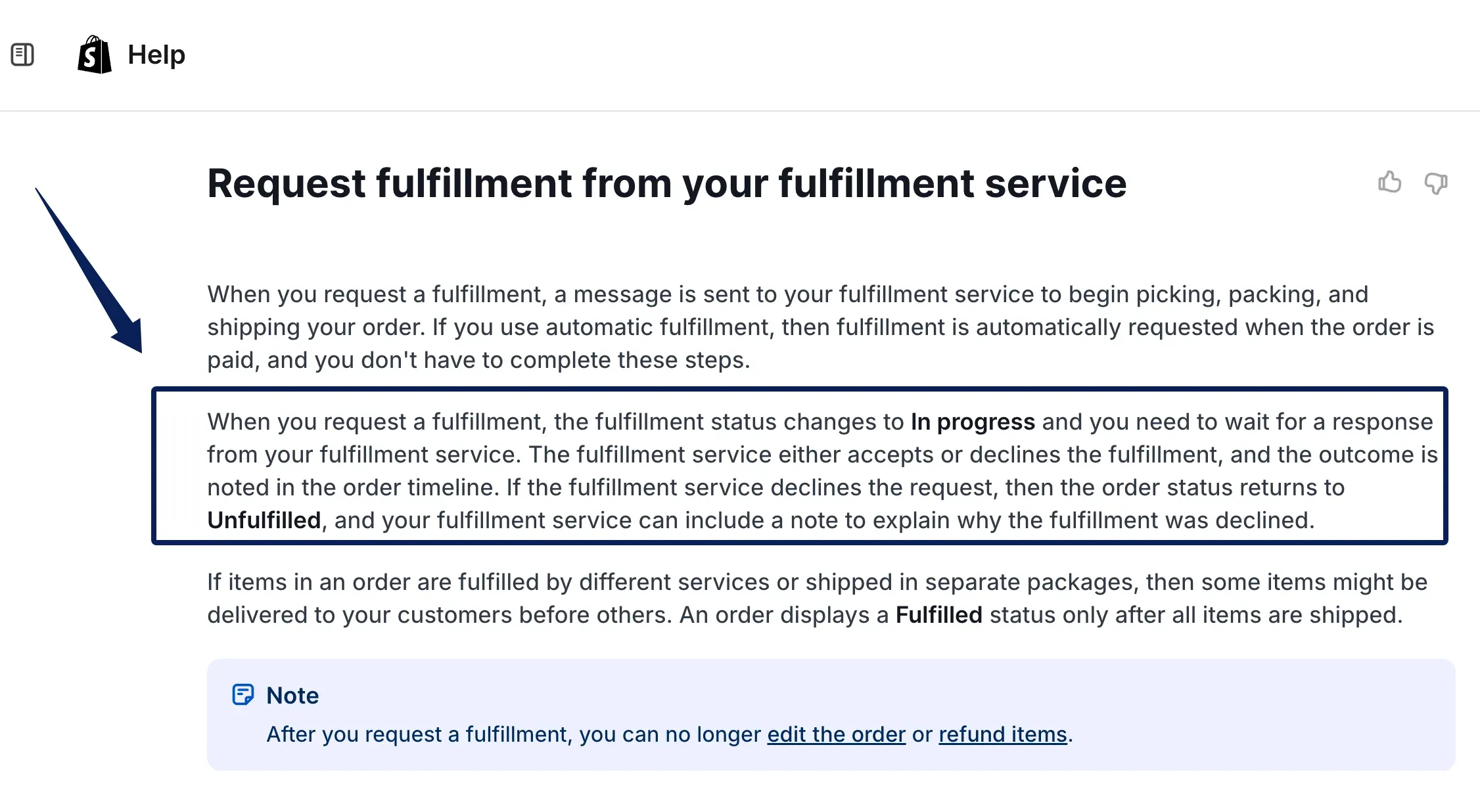
For F-104, track ready, released, requested, accepted or declined, and shipped. These are proposed operational states, not Shopify labels. With an app-connected service, a fulfillment request changes the Shopify order to In progress; acceptance or decline appears later in its timeline. Record both times.
If the buyer asks where the tote is, "request sent" is not an answer. Zentor's workspace memory can hold the handoff policy alongside your notes, but the store and warehouse remain the sources for live order status.
Keep the handoff rules next to your work
Use Zentor to keep your order-review notes accessible while the store and warehouse own their live records.
Get early access →
The broader ecommerce automation blueprint covers payment through follow-up. This handoff is narrower: it stops at the shipping result and its exceptions.
Choose the Order and Stock Sources
The store owns payment, cancellation, line items, and promised service. The partner owns pickable stock, acceptance, packing, and shipment IDs. Neither should invent the other's latest state.
For F-104, preserve order and line IDs, SKUs, quantities, location, destination, and shipping service. Map both SKUs before release. A stale store quantity cannot prove the tote is pickable. A self-adaptive Zentor workspace can keep the review checklist close at hand; it does not certify live warehouse stock. On-hand versus reserved stock belongs in the separate inventory tracking workflow; here it gates one order.
If using a 3PL API rather than its store app, decide which creates the job. ShipBob requires order-read and order-write scopes for a custom orders integration. F-104 does not assume that connection. Running app and API creation together risks duplicate jobs.
Trigger Ecommerce Fulfillment Automation When an Order Is Ready
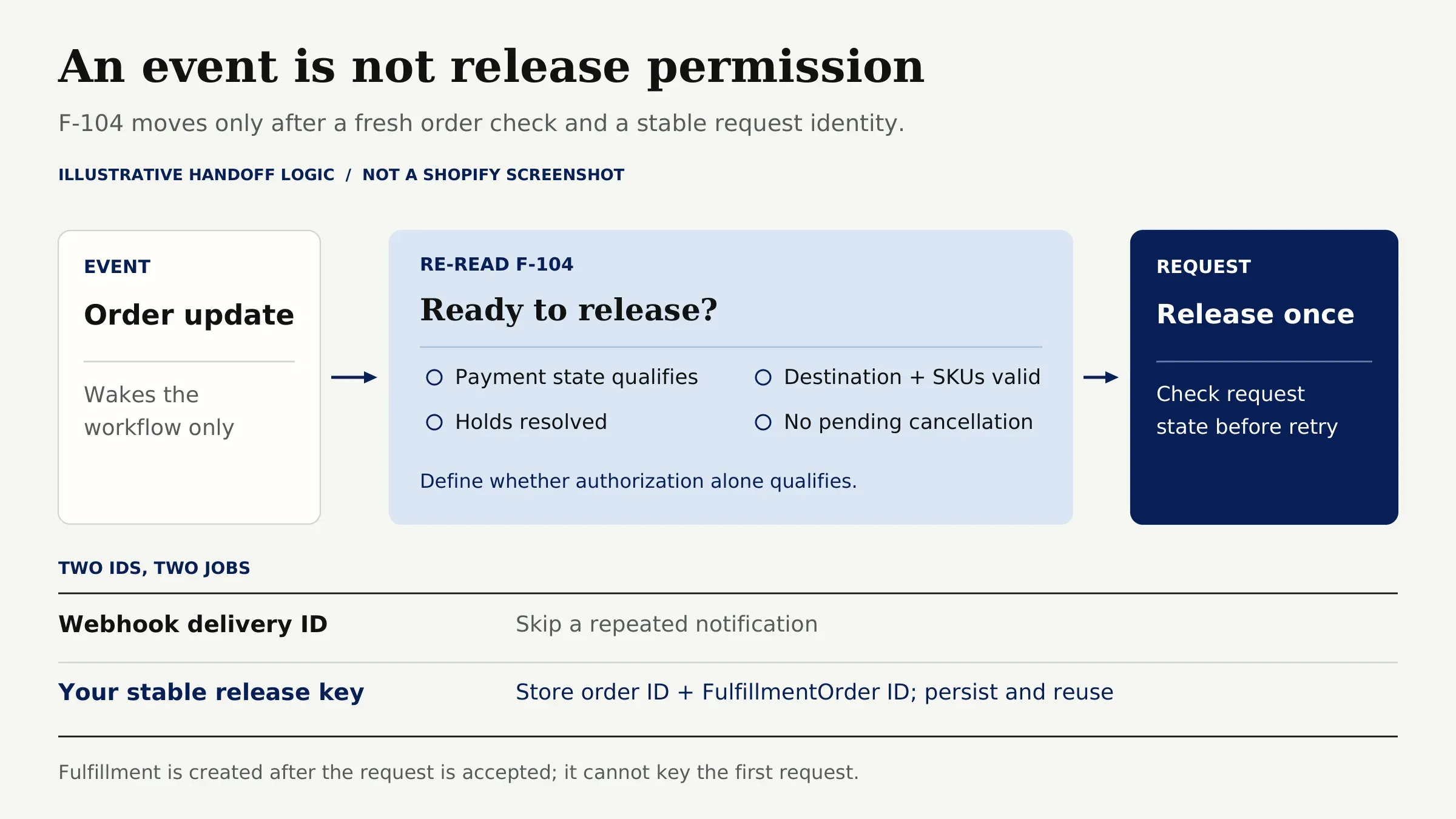
Do not trigger on order creation alone. This is where ecommerce order automation needs restraint: F-104 requires the right payment state, resolved holds, valid destination and SKUs, and no pending cancellation. Define whether payment authorization alone qualifies; often it should not.
An event can wake the workflow; reread the order before acting. Shopify notes that webhook deliveries can repeat or fail. Its delivery ID catches a retried notification, not a second release request. Keep your own stable release key against the store order and Shopify FulfillmentOrder ID; reuse it and check request state before retrying. The Fulfillment object comes after acceptance, so it cannot identify the initial request.
Check Stock, Address, and Fulfillment Rules
Check pickable tote stock at the assigned warehouse. Validate the address, serviceable destination, and shipping service against checkout. A changed street or substitute SKU needs human review.
If the mug is available but the tote is not, hold F-104. On the main path, the seller waits for both items, then approves one full release. The mug-only shipment below is a separate test branch, not a second request silently added to the first job. Show the reviewer the current stock, promised delivery, and approved address; record the decision next to the order ID.
Send the Approved Order to Fulfillment
Send only approved lines. Capture request time, response, partner ID, and decline reason. After a timeout, query for an existing job. If a later partial release is approved, submitting a partial fulfillment request can split Shopify's original FulfillmentOrder; save the submitted and remaining IDs under F-104 with a new release record. A retry keeps its original key.
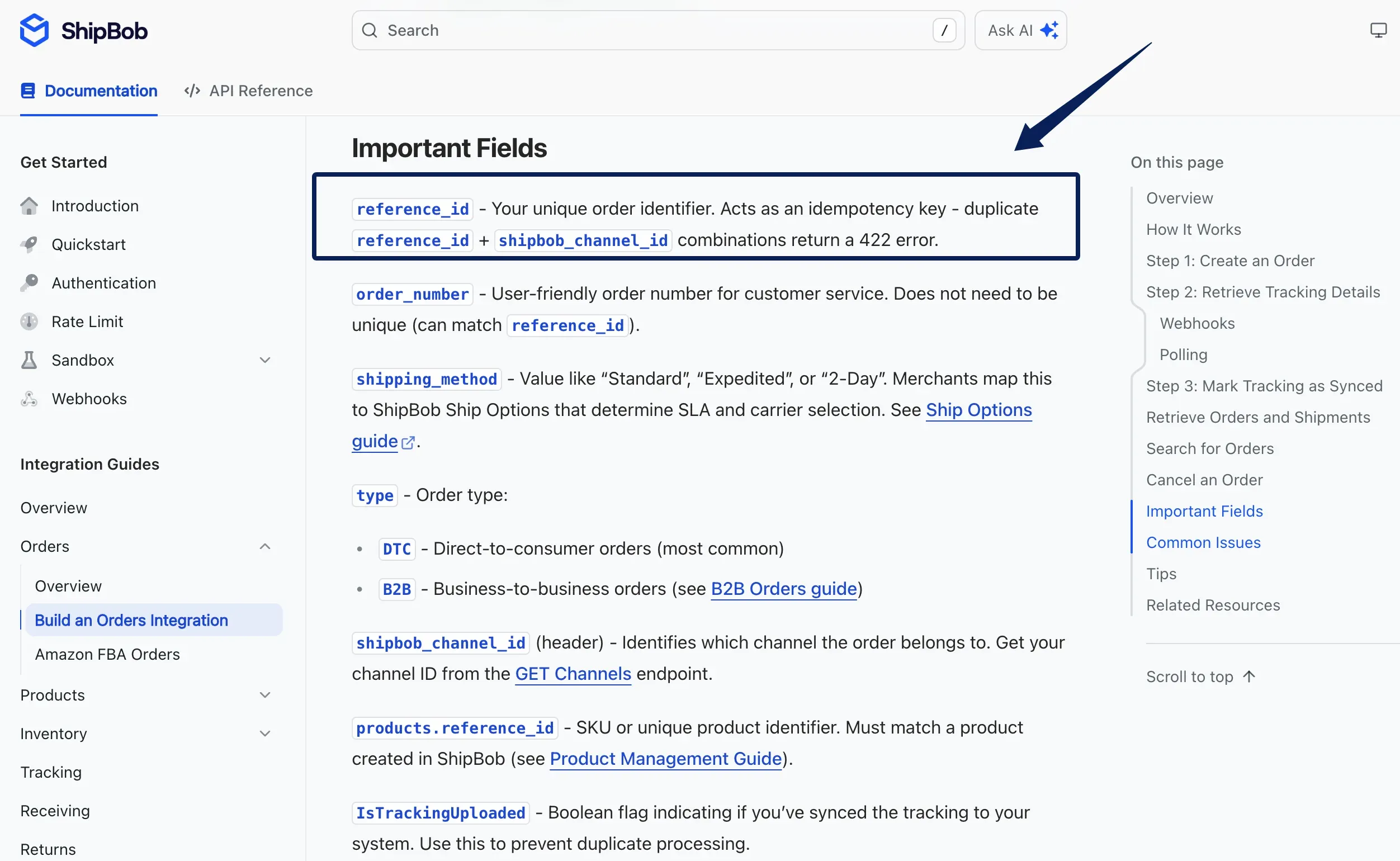
With ShipBob's API, order reference plus channel forms an idempotency key. A fresh reference on retry risks another order. An app-connected Shopify service has different request semantics; do not assume the ShipBob rule applies to it.
Warehouse acceptance means the partner has agreed to handle F-104, not that either item has shipped. A decline goes to a named seller for correction.
Return Tracking and Exceptions to the Store Record
Write carrier, tracking, shipped lines, shipment ID, and ship time to the store through its authorized integration. Keep parcels separate. Shopify shows Fulfilled only after all items ship; in the split-order test branch, F-104's tote remains open when the mug leaves first.
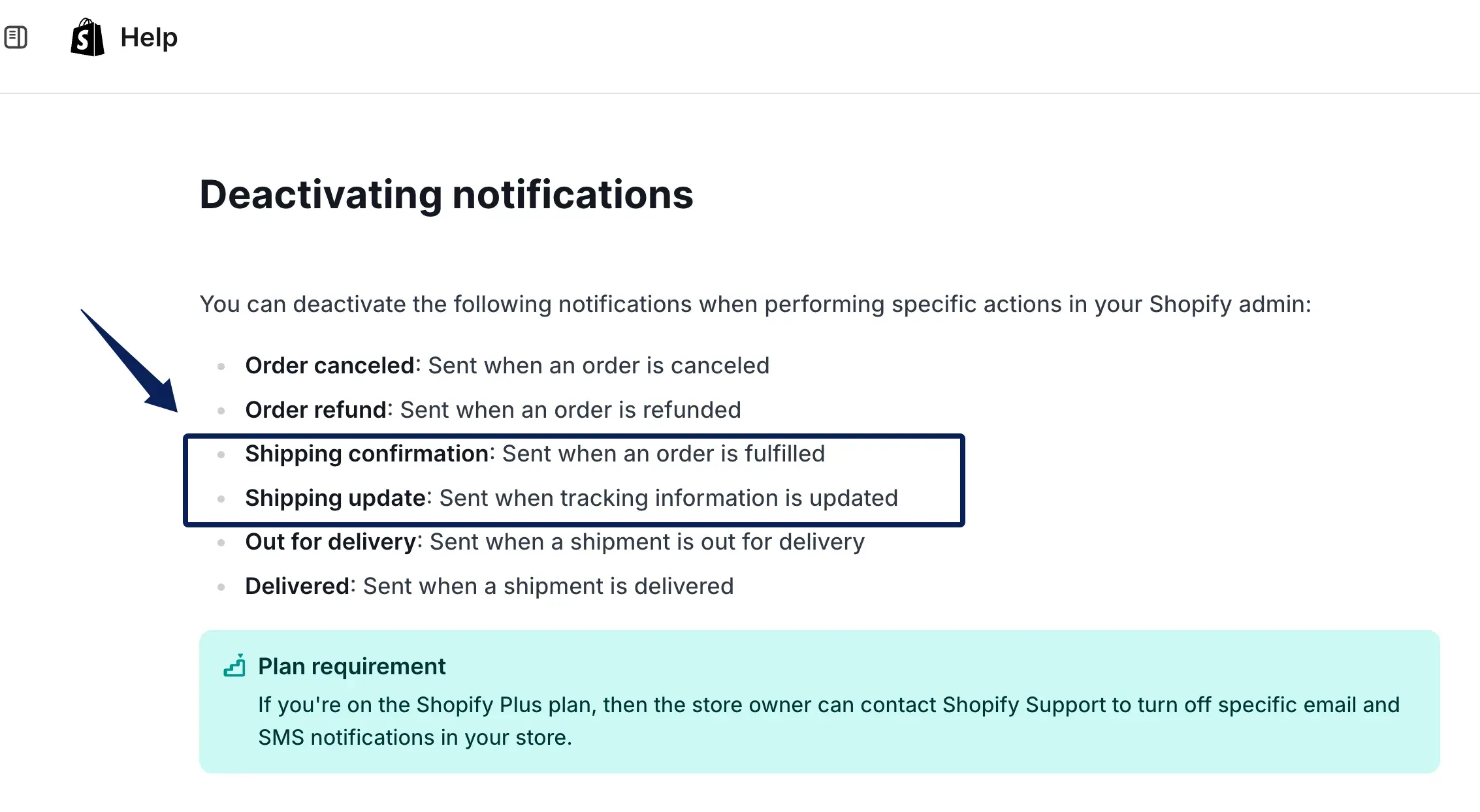
In ShipBob's custom API, order.shipped can expose tracking after label purchase or print; later tracking events carry carrier status. For this proposed workflow, a label-only update may say "tracking available," while a "shipped" claim waits for confirmed carrier handoff or scan where the partner supplies that evidence. Shopify separates shipping confirmation from tracking-update notices. Before automating shipping status updates, test whether your store sends a native notice earlier.
Fulfillment exception handling begins with a visible hold, an owner, and a next check time for F-104. Zentor MCP can carry your exception notes to another AI you use, without turning those notes into the store's shipment ledger. An address error, damaged item, or failed label must not leave the store presenting a normal shipment.
Test Cancellations, Split Orders, and Failed Updates
Before launch, use permitted test environments. F-104 is illustrative, not a test result. Each branch should leave one understandable state:
| Branch for fictional F-104 | Expected handling |
|---|---|
| Customer cancels before warehouse acceptance | Cancel the outstanding request, confirm the partner's response, then reconcile the store. |
| Customer cancels after acceptance | Request cancellation; do not promise success until the warehouse confirms it. |
| Mug ships, tote waits | Record the mug's shipment and tracking; leave the tote open. |
| Release event repeats | Find the existing request or job; do not create another. |
| Tracking write fails | Keep the warehouse shipment ID, alert an owner, and retry only the tracking write. |
Shopify distinguishes cancelling a request from requesting cancellation after acceptance. Reverting the store record to unfulfilled may not stop warehouse work.
FAQ
Can a customer change an address after warehouse acceptance?
Possibly, but a storefront edit alone will not reroute the parcel. In an app-connected Shopify flow, order editing is restricted after a fulfillment request. If accepted, request cancellation and wait for confirmation before changing and resubmitting where permitted. A separate shipping-address edit may affect taxes; confirm the warehouse label and store record agree. For other 3PLs, follow their actual amendment rules.
Who should own the order status when a 3PL is involved?
The store should own the customer-facing order record; the 3PL owns its warehouse facts. Keep both IDs and reconcile discrepancies. One named seller-side owner resolves conflicts rather than letting the newest timestamp automatically win.
What customer data should a fulfillment partner be allowed to see?
Only what it needs to pick, pack, ship, and resolve delivery exceptions: usually recipient and delivery details plus order lines. Do not include payment credentials, unrelated client notes, or marketing history. Check the partner's permission and retention settings before connecting it.
Can a seller pause an order after handoff?
Only if the partner supports a hold at that stage. A hold is not a cancellation: record who may release it, and obtain warehouse confirmation before treating the job as paused.
When should a customer receive a shipping update?
After the store confirms the shipment event named in its notification policy. If the 3PL and store can both email tracking, choose one sender and test that a split order does not produce duplicate or misleading notices. Keep the send receipt with F-104.
Before You Automate Fulfillment, Verify Every Handoff
A real workflow is ready for production only when a seller can follow an order through release, warehouse acceptance, each shipment, and the store's final status without guessing which system is right. For ecommerce fulfillment automation, keep the first rollout to one fulfillment route and review every exception. If cancellation or tracking recovery still depends on someone remembering an inbox message, the automation is not finished.

Zentor Editorial Zentor editorial team
The Zentor editorial team writes about workflow automation, AI agents, and the tools we build. Default byline for industry overviews, listicles, and collaborative pieces.
Ready to put this into practice?
Zentor runs browser tasks, research, and schedules automatically. Try it free.