Google Vids Free in 2026: Omni 1.2 Limits
Google Vids free now offers three 15-second Omni 1.2 Flash AI clips a month. See the real quota, desktop limits, setup steps, and account caveats for 2026.
Google Vids free now includes up to three AI-generated 15-second videos per month with Omni 1.2 Flash, according to Google's November 5, 2026 announcement. That's enough to test a short product shot or class explainer, not a weekly video schedule. The announcement says anyone with a Google account or Workspace subscription can use this allowance at no cost; which additional AI controls appear still depends on your account.
Key Takeaways:
- As of November 5, 2026, Google says its free Omni 1.2 Flash allowance in Vids is up to three 15-second generated videos each month.
- You can start at
vids.new, but create and edit on a computer; mobile viewing is a separate capability. - Reference images and improved speech narration make a product teaser or concept explanation plausible. Check every generated frame and spoken claim yourself.
- The published allowance is for generated videos, not a promise that every revision, Vid project, AI avatar or editing tool costs nothing.
What's new in Google Vids with Omni 1.2 Flash
Google's launch post says Vids now runs on Omni 1.2 Flash and names three uses: making a product promo in one go, using uploaded reference images to keep characters and scenes consistent, and making clips with improved speech narration. For a solo shop owner, the reference image is the interesting part. A text-only prompt might invent packaging that looks nothing like the item you sell; an image of the actual product gives the generation a visual anchor. It still doesn't certify that the resulting label, dimensions or motion are accurate.
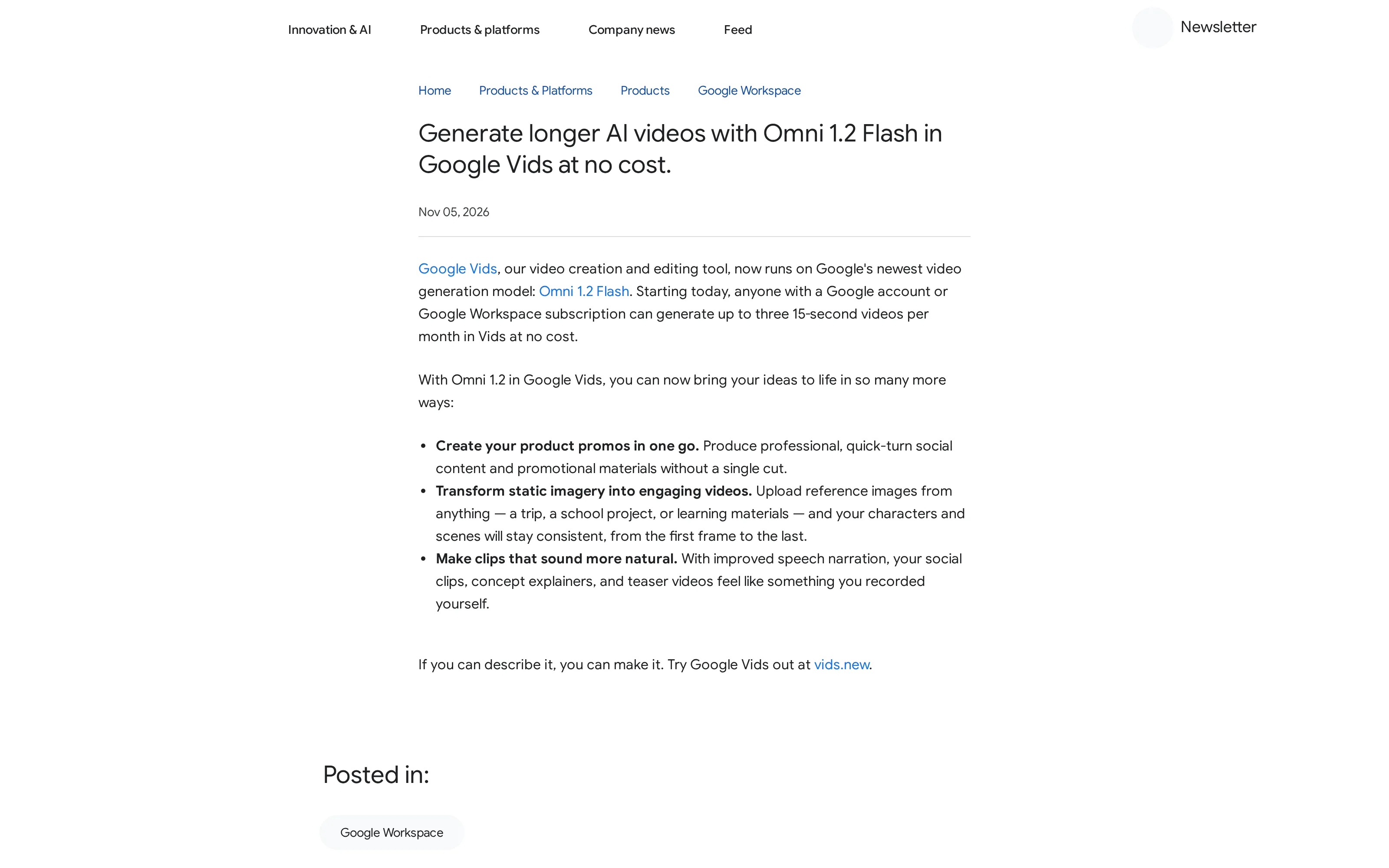
That screenshot shows the actual launch text, not a paid-account dashboard. Google hasn't published a side-by-side quality test in this announcement, so treat "improved" narration as its description, not a measured gain. If you need a customer-facing clip, listen to it before sharing; a fluent voice can state a wrong price just as smoothly as a right one.
Keep the work around your next video organized
Zentor remembers how you work and helps draft the research, copy and follow-ups around a project. Review anything before it goes out.
Start free trial →
Is Google Vids free with a personal Google account?
For this release, Google's dated announcement says anyone with a Google account or Google Workspace subscription may generate up to three 15-second videos monthly without paying. The Vids product FAQ also says a person can try Vids at no cost by signing in with a Google account; advanced features and larger limits depend on an eligible plan. This is not a blanket promise that every tool on the editor's opening screen is free.
There is a documentation wrinkle worth keeping visible. Google's feature-availability table, when checked on November 5, 2026, lists a personal-account AI-video allowance in seconds per month, while the launch article expresses the new free Omni offer as three 15-second videos per month. Those are different descriptions; neither page explains here exactly how one meter interacts with the other or whether all account categories see the same controls immediately. Use the dated announcement for the newly announced offer, then check the allowance shown in your own account before planning a campaign. The help page also warns that work or school administrators can turn off generative features.
Google Vids free limit: three short generations, not a content calendar
For google vids free searches, as of November 5, 2026, the clear offer is up to three 15-second generated videos per month at no cost. “Up to” matters. Google hasn't promised three acceptable takes; it describes an allowance. Put your shot idea, the message you need to communicate and a usable reference image together before you press Generate. A spelling mistake in a product label or an odd hand movement can consume the time you thought you had reserved for the final.
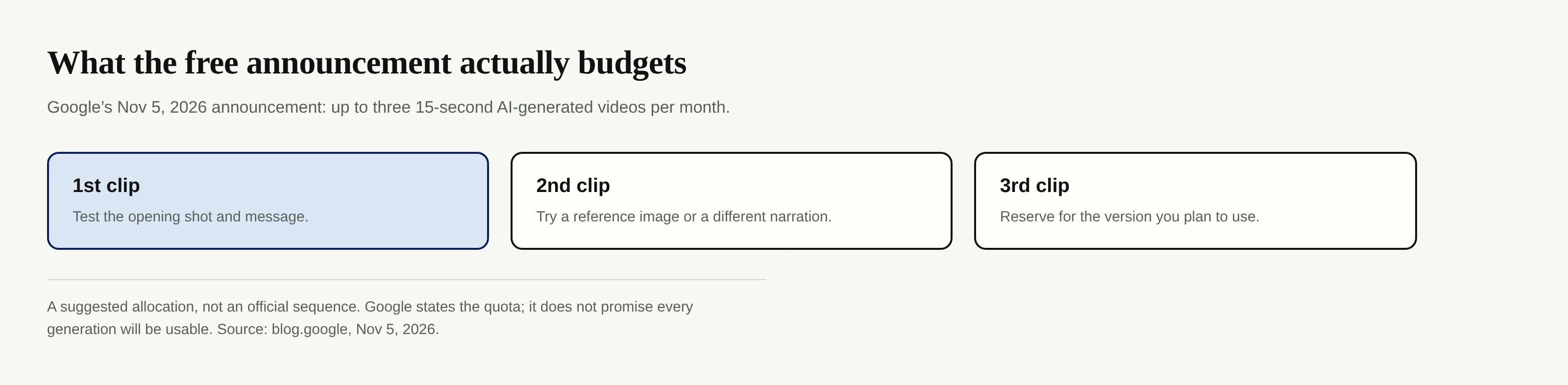
Google's clip-generation help page says its duration selector can run from 3 to 15 seconds for the Create flow and describes landscape and portrait output. It also gives a general monthly reset time for video limits, but account-specific help tables differ from the announcement's three-video language. We won't translate that reset note into a guaranteed personal-account balance or promise unused generations roll over. Open the account's current limit display when timing matters.
How to use Google Vids to create an AI video
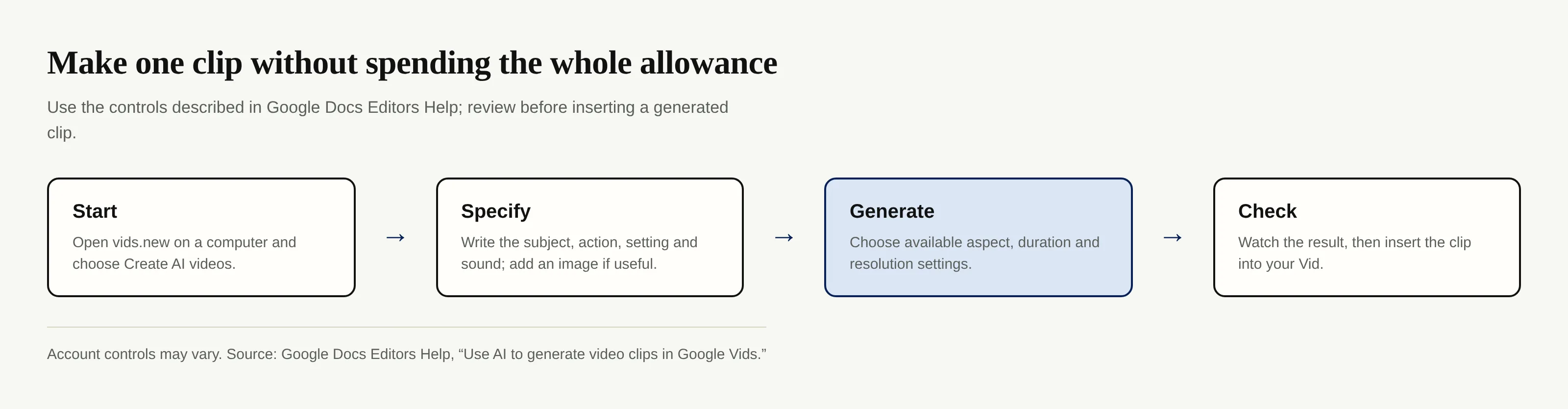
Google's getting-started guide says to open vids.new on a computer, then choose Create AI videos if that option is available to your account. The separate generation guide details the Create side panel. Here's the route to one reviewable clip, not a claim that I signed in and tested a free account:
- Decide on one thing the audience should remember. For a handmade product, try the texture or a use in context rather than a whole catalog. Keep claims about ingredients, price and availability out of generated speech unless you've checked them.
- Choose Create AI videos, then Create. Describe the subject, setting, action, camera, sound and tone in plain language. “Show the front of this notebook while the camera slowly moves closer; keep the cover design unchanged” gives the model a tighter job than “make an ad.”
- If you have a good product photograph, use the Ingredients control to upload it as a reference. The official guide says the Create flow can take reference images; check that you own or may use anything you upload.
- Select an available orientation and duration; Google documents landscape or portrait for generated clips and a 3-to-15-second duration selector in this Create flow. Then generate once and watch before considering another attempt.
- Review the first and last frames, words, audio and any product details. If the clip is usable, insert it into the Vid. Google's help page says inserting matters if you want access to the generated clip after the session.
A “Generate” button doesn't substitute for clearance. If you sell skin care, a model may invent a certification mark or put a shade name on the wrong bottle. Don't publish an inaccurate product representation because the animation looks attractive. For a school explainer, have the student check whether a demonstration is physically and factually correct before placing it in a submission.
Who can get real use from the free clips?
A creator can test whether a recurring image, opening visual and spoken hook work together before building a longer video. If you have multiple posts to prepare, three generations won't replace a production schedule. Use them for a short opener, then do the caption, edit and distribution work separately. Keep a memory of your working preferences across recurring work; that does not require the video generator to store your whole process.
A solo seller of goods could begin with a real product photo, describe one movement and compare the output with the item on the shelf. If the generated version changes the packaging, discard or correct it. The point of a reference image is continuity, not a warranty that the model preserves your brand assets. Keep a written shot list outside the video generator so the next attempt can change one detail instead of guessing again.
A heavy-use student can turn a static illustration into a short transition in a class presentation, provided the image and use meet the assignment's rules. Google explicitly mentions trips, school projects and learning materials as reference-image examples in the launch post. The student still needs to cite original research and explain the topic; animation alone won't make a source reliable.
For any of them, the larger job includes notes, source links, copy and follow-ups. Workspace memory carries context between recurring tasks; it doesn't export videos from Vids. You can use a separate video tool and still keep the surrounding work organized in Zentor.
Limits, desktop access and AI provenance
Google's Cloud announcement about Omni 1.2 Flash describes a model that can generate and edit clips up to 15 seconds and says model outputs have an imperceptible SynthID watermark. That's a provenance mark, not a visible advertising stamp. Google DeepMind's SynthID explanation describes how the invisible video mark works and why it can survive common changes to a file. Neither page lists a separate visible-logo policy for the three free Vids clips. If a customer asks for an unmarked video, distinguish three questions: does the model attach invisible provenance, does an export show a visible overlay, and does the publishing platform require an AI disclosure? Check the actual export and the destination's current rules. Removing a visible corner graphic would not establish that the video has no AI provenance.
The Google Vids product FAQ says creation and editing work on desktop; mobile supports viewing. If you manage a shop from your phone between deliveries, that restriction is decisive. Set aside computer time before promising a new clip by the end of the day. Browser support has its own conditions: Google's getting-started guide lists recent Chrome and Firefox versions and recent Edge on Windows, and notes that Safari cannot currently edit or comment.
For a service seller recording an explanation, narration quality isn't the only risk. If the voice says you'll deliver work by Friday but your actual appointment is Monday, the clip becomes a false commitment. Keep a human-approved script beside the generated media and compare the final audio against it before sending a link. A thirty-minute editor limit doesn't enlarge the monthly allotment of generated footage.
Account access isn't uniform. Google says work and school admins can disable AI features; if Create AI videos isn't visible, check the availability guidance instead of assuming the feature is broken. An announced allowance doesn't override an organization's policy or make advanced features free.
What about a watermark? Google describes Content Credentials for AI media in supported Workspace apps, and its official AI-label guidance says SynthID metadata generally survives edits, downloads and exports. That does not establish that every free Omni 1.2 clip carries a visible logo, nor does the launch post specify a removable-watermark rule for this offer. Inspect your own rendered clip and the platform's disclosure requirements. Don't promise a watermark-free deliverable to a client without seeing the exported file.
Google Vids free questions answered
Can I use Google Vids without paying in 2026?
Yes. Google's November 5 announcement says anyone with a Google account or Workspace subscription can generate up to three 15-second Omni 1.2 Flash videos per month at no cost. Other controls and higher limits vary by account.
Does the 15-second limit apply to my entire Vid?
No. It describes the generated clips in this offer. Google's Vids product FAQ describes a separate, longer maximum for the assembled video project.
Do I need to download an app to make the free video?
Google directs creators to vids.new in a browser on a computer. The product FAQ says mobile devices can view videos but cannot create or edit them in Vids at present.
Will my free AI clip have a visible watermark?
The launch announcement doesn't specify a visible-watermark rule. Google's separate guidance explains AI content credentials and SynthID metadata, which aren't the same thing as a visible overlay. Review the exported clip before relying on it for client or commercial work.
Can another workspace make the video inside Google Vids?
No such integration is claimed here. Zentor is a workspace memory hub for the work around a project; use the video product's own editor to create and inspect its output. For an overview of Zentor's account options, see its current pricing page.
Make the next Google Vids clip count
Treat the three free generations as a chance to validate a short idea, not as three guaranteed finished ads. Start with a photo or a precise shot description, review the output for factual mistakes, and save the clip in your Vid if you plan to use it. Then keep your working notes and approved copy available for the next assignment or campaign. The video tool makes the footage; the repeatable process is what gets useful work out the door.

Zentor Editorial Zentor editorial team
The Zentor editorial team writes about workflow automation, AI agents, and the tools we build. Default byline for industry overviews, listicles, and collaborative pieces.
Ready to put this into practice?
Zentor runs browser tasks, research, and schedules automatically. Try it free.