Airtable CRM: A Practical Setup for Client Work
Build an Airtable CRM with linked client records, a visible sales pipeline, clear follow-up ownership, careful automation, and tested permissions.
An Airtable CRM suits freelancers, consultants, and small service teams that need a shared client database without the weight of a dedicated sales suite. It doesn't suit a large sales organization that needs territory management, forecasting controls, or tightly governed customer portals. Airtable's current Free plan allows 1,000 records per base, which is enough to test this setup before client history grows.
Key Takeaways:
- Start with four linked tables, not a giant spreadsheet.
- Give every active opportunity an owner, next step, and follow-up date.
- Use views for daily work; use an Interface only when the team needs a cleaner front end.
- Automate reminders after the workflow works by hand.
- Treat an Airtable CRM template as scaffolding, then fit it to your real client process.
Decide What Your Airtable CRM Must Track
Define the decisions the system must support before adding fields. For client work, those decisions are usually: Who is this person? Which organization are they tied to? What are they considering buying? What happened last? Who follows up, and when?
A minimal opportunity record needs Opportunity name, Contact, Service, Stage, Estimated value, Owner, Next step, Follow-up date, and Last activity. Keep email and phone on the contact, not copied into every deal. Use Airtable's typed fields rather than generic text: email for addresses, currency for value, date for follow-up, single select for stage, user for owner, and linked record for relationships. Airtable's official field reference confirms that linked records connect related tables while lookups display data from those links.
Zentor can later read an approved base schema and work with records through its Airtable integration, but clean fields still come first. An assistant can't rescue five meanings hidden inside one Notes column.
Get early access to Zentor if you want an always-on workspace to query and update an Airtable base without moving client context into another chat.
Design the Core Tables and Relationships
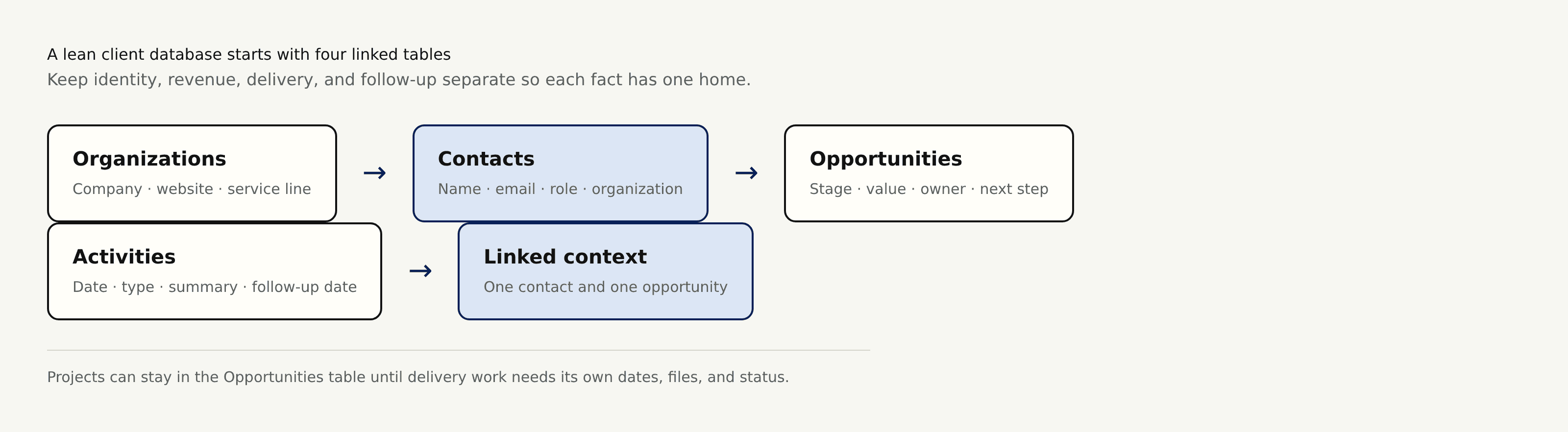
Use four tables: Organizations, Contacts, Opportunities, and Activities. Link them. Don't create separate tables for “Leads” and “Clients”; stage changes, but the person remains the same.
Contacts and Organizations
One contact can change employers, and one organization can have several contacts. Contacts should hold name, work email, phone, role, relationship status, and a link to Organization. Organizations need only company name, website, service line, and account notes at first.
Email is a practical duplicate check, though shared inboxes and address changes mean it isn't a perfect ID. Review duplicates before importing and use Airtable's Dedupe extension when needed; it can merge selected field values into one primary record.
Opportunities and Projects
Opportunities hold the sales pipeline. Start with New, Qualified, Discovery, Proposal, Won, and Lost. Avoid twelve stages that nobody can distinguish. If delivery is simple, a won opportunity can carry project status and completion date. Split Projects into a new table only when delivery needs its own milestones, files, or several jobs per sale.
Activities and Follow-Ups
Activities preserve the sequence: call, email, meeting, note. Each activity needs date, type, short summary, linked contact, linked opportunity, and follow-up date. This prevents the common failure where the pipeline looks current but the conversation history lives in private inboxes. Zentor's workspace memory is useful here because the reusable context stays connected to the work rather than becoming another isolated answer.
Build Views for Daily Work
A sales pipeline only matters if it tells you what to do today. Build four views:
- My follow-ups today: owner is current user, follow-up date is today or earlier, stage isn't Won or Lost.
- Active pipeline: group opportunities by stage and sort by follow-up date.
- Unowned leads: owner is empty.
- Stale opportunities: active stage and last activity older than your chosen review interval.
Airtable supports grid, calendar, gallery, kanban, timeline, list, and Gantt among its current view types. Use a grid for cleanup and a kanban for stage review. An Interface can put records from several tables on a simpler page, add filters, and restrict visible records. Interfaces exist on all plans, but sharing one separately from the base requires a paid plan and a verified Airtable account.
For an owner checking the week, Zentor can summarize due records and surface missing owners. It should help inspect the system, not replace the filtered view that makes the rule visible.
Add Forms and Automations Carefully
A standalone inquiry form should collect name, email, organization, service, and project brief. Airtable says the form builder works on all plans, while some branding, validation, and access features depend on plan. Public forms can accept responses without an Airtable account; interface forms require appropriate interface access. Don't collect private client material through an open link.
Use one realistic lead-to-follow-up workflow:
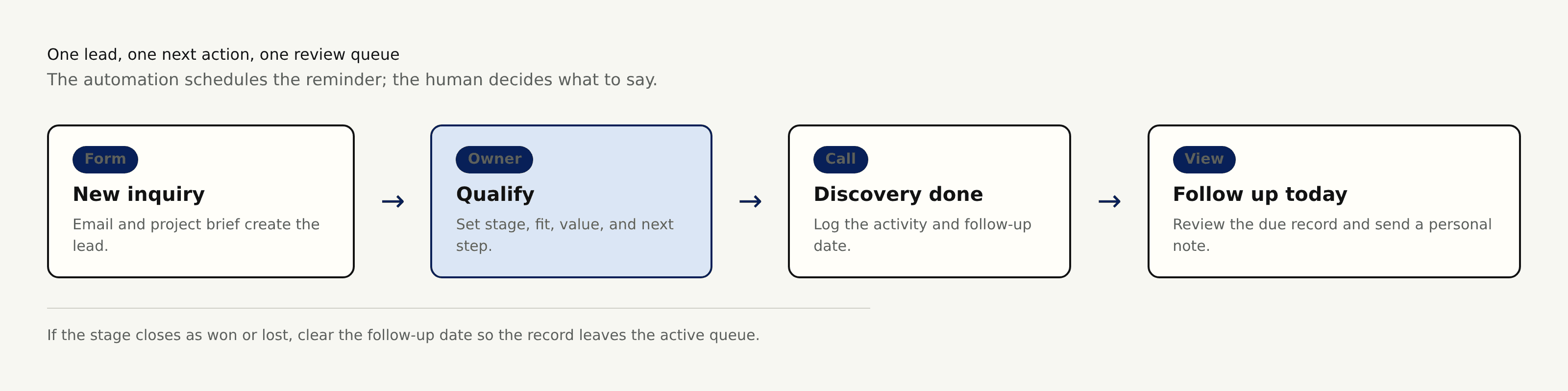
A prospect submits the inquiry form on Monday. The record enters Opportunities as New. You review it, link or create the contact, set Qualified, add an estimated value, assign an owner, and book discovery. After Thursday's call, log an Activity with “Send scoped proposal,” set next Tuesday as the follow-up date, and move the opportunity to Proposal. On Tuesday, the record appears in My follow-ups today; you read the call summary and write the note yourself.
Only then add an automation that notifies the owner when a follow-up becomes due. Airtable automations run on all plans with different limits, and the run history shows successes and failures. Name the automation plainly, subscribe another responsible person, and test blank dates plus Won and Lost records. Zentor's always-on execution can support repeated checks, while the owner keeps judgment over client communication.
Protect Data Quality and Permissions
Make owner, stage, and follow-up date required in your working process, even when the base itself doesn't force every field. Add field descriptions for ambiguous terms. Once a week, fix empty owners, impossible dates, and duplicate contacts.
Permissions need a test account, not confidence. Interface-only collaborators can use published interfaces without base access on Team, Business, and Enterprise Scale plans. A “Current user” filter can show records assigned through a user field, yet Airtable warns that page filters and field visibility are separate controls. Public interface pages may expose underlying values to technically skilled viewers, so don't use public pages as a private client portal. Read Airtable's Interface permissions guide and preview as the intended user.
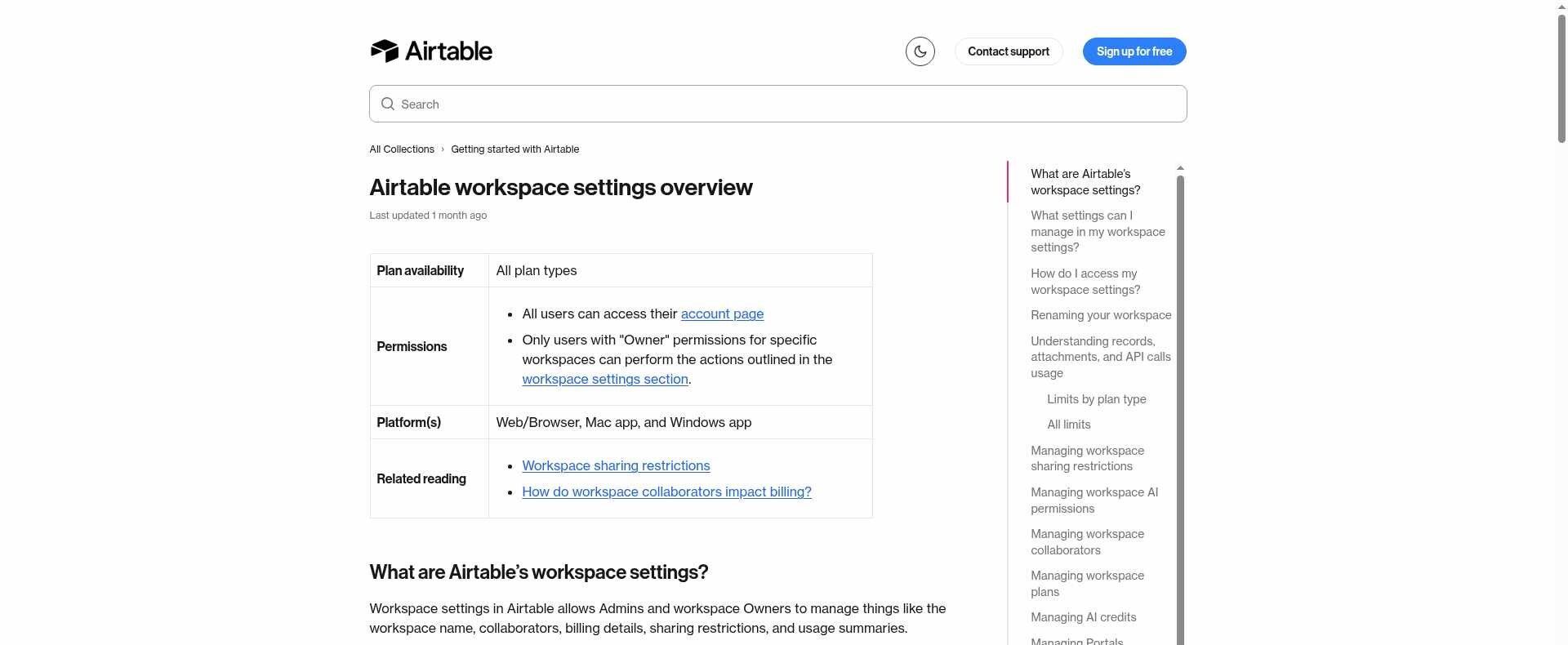
Storage also depends on plan. Airtable currently lists per-base record limits of 1,000 on Free, 50,000 on Team, 125,000 on Business, and 500,000-plus on Enterprise Scale. Attachment storage is 1 GB, 20 GB, 100 GB, and 1,000 GB respectively; the attachment guide says individual files can be up to 5 GB, except Free is constrained by its 1 GB base allowance. Check the live plan page before sizing a migration.
Run a Weekly CRM Review
Block 25 minutes. Clear unowned leads, scan overdue follow-ups, advance or close stalled opportunities, merge obvious duplicates, and open automation history for failures. Then ask one uncomfortable question: does every active opportunity have a next action with a date?
That habit matters more than any Airtable CRM template. Templates provide tables and sample stages; they don't define qualification, ownership, or what “Proposal” means for your service. After several reviews, remove fields nobody uses and split Projects only if delivery records have become crowded. If you connect the base to Zentor, its self-learning skills can retain the review pattern, but your written stage definitions remain the authority.
Frequently Asked Questions
Can Airtable CRM handle more than one service line?
Yes. Start with a single-select Service field on Opportunities. Create a Services table when each service needs separate pricing, owners, or delivery steps.
How should duplicate contacts be merged?
Choose the record with the strongest activity history as primary, copy missing values into it, relink opportunities and activities, then remove the duplicate. The Dedupe extension can assist, but review every merge.
What are Airtable's current record and attachment limits for a CRM?
They depend on plan and apply per base: 1,000 to 500,000-plus records and 1 GB to 1,000 GB of attachment storage across the current tiers. Limits change, so confirm the official workspace settings documentation before importing.
Can clients see only their own records?
A logged-in interface can filter by Current user when records contain a user field, subject to plan and permission rules. For external clients, test every page and consider Airtable Portals; don't assume hidden fields or public pages provide private record-level security.
When should a freelancer move to a dedicated CRM?
Move when sales work needs dependable email sequencing, forecasting, territory controls, or governance that you're rebuilding manually. If the weekly review stays short and the client database remains clear, an Airtable CRM can remain the better fit.

Zentor Editorial Zentor editorial team
The Zentor editorial team writes about workflow automation, AI agents, and the tools we build. Default byline for industry overviews, listicles, and collaborative pieces.
Ready to put this into practice?
Zentor runs browser tasks, research, and schedules automatically. Try it free.