Notion CRM: A Simple System for Freelancers
Build a notion crm that tracks leads, projects, and client follow-up without sales software bloat. Includes permissions, relations, reminders, and review.
A Notion CRM works best for a freelancer who needs dependable client context and follow-up dates, not the reporting machinery of a sales department. Notion documents six access levels, including database-specific permissions, so a small system can support a contractor or collaborator without exposing every page (Notion sharing and permissions). The setup below keeps one relationship record intact while work moves from first inquiry to paid project and later follow-up.
Key Takeaways:
- Store only facts that change a decision or prevent a missed promise.
- Separate contacts from opportunities, then link work instead of copying names.
- Use Today, This Week, and At Risk views as the daily operating screen.
- Review stale and incomplete records weekly before adding more automation.
Decide What the CRM Needs to Remember
Start with four questions: Who is this? What are they considering or buying? What did I promise? When will I act? If a property doesn't help answer one of them, leave it out until a real job requires it. Notion supports dates, statuses, email fields, relations, and other database property types, but availability isn't a reason to add a column (Notion database properties).
A solo designer might track a referral source because it shapes the thank-you message. That same person probably doesn't need territory, lead score, or quarterly forecast fields. A useful Notion CRM earns each field: write down your stages in plain language, choose what “closed” means, and decide which date owns the next action.
CTA: Get early access to Zentor if you want an assistant that can work from client context already stored in Notion.
Run one live inquiry through the proposed stages on paper. If you can't tell where it belongs, fix the stage definitions before building databases.
Build the Contacts and Opportunities Databases
Use Contacts for durable identity and relationship facts. Use Opportunities for a specific piece of possible work, because one client may return with another brief months later. Two small databases avoid both duplicate contacts and a single table packed with project-specific columns.
| Database | Property | Purpose |
|---|---|---|
| Contacts | Name, email, company | Identity and primary contact route |
| Contacts | Last contact | Most recent meaningful exchange |
| Opportunities | Stage | Lead, qualified, proposal, won, lost |
| Opportunities | Next follow-up | Date of the next promised action |
| Opportunities | Next action | Verb-led step, such as “send revised scope” |
| Opportunities | Contact | Relation back to the person |
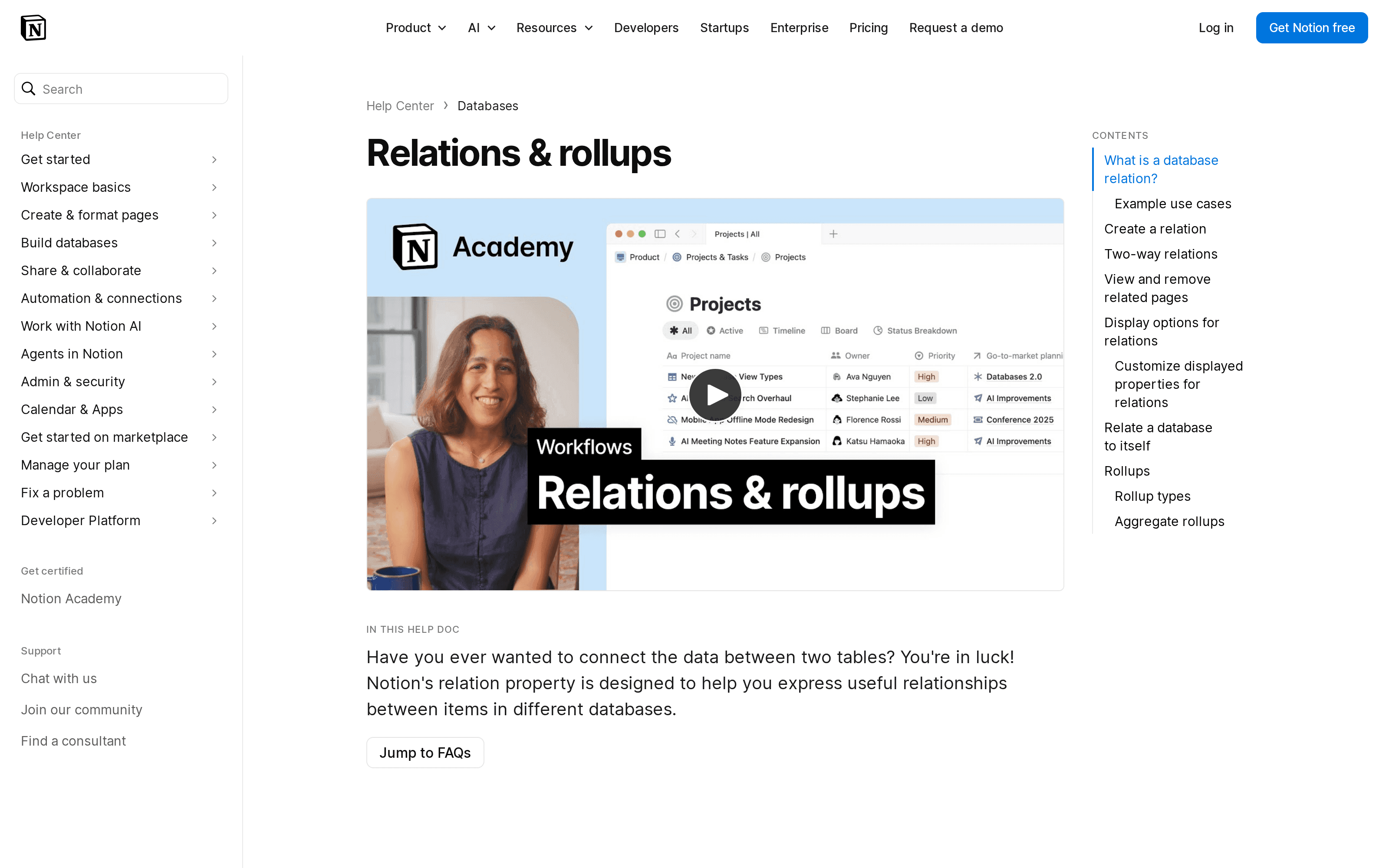
Create the corresponding two-way relation so a contact page shows its opportunities. Notion describes relations as links between pages in separate databases and allows the connection to appear on both sides (Notion relations and rollups). This Notion CRM needs a Projects database only after won work starts crowding opportunity records.
Connect Client Work and Communication Notes
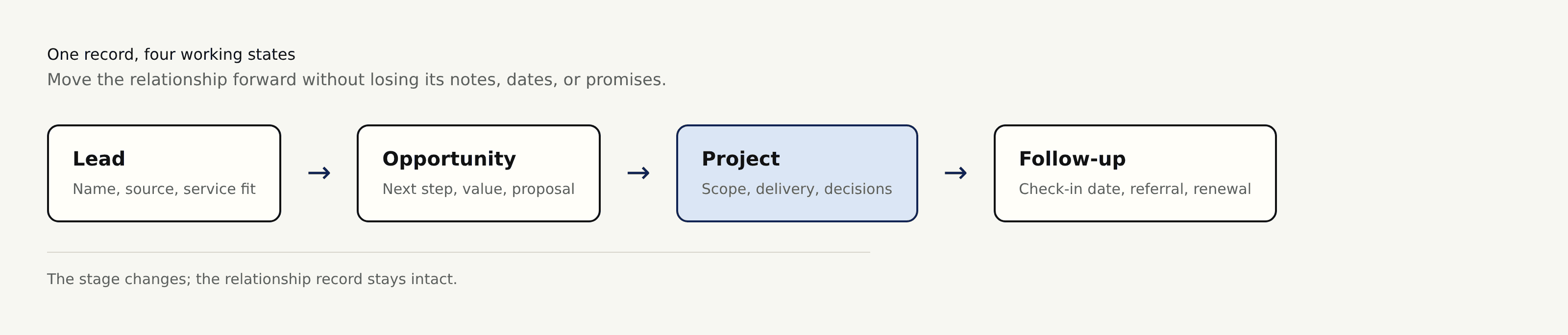
When an opportunity becomes paid work, link a project rather than turning the contact into a project record. Keep scope, files, milestones, and delivery decisions on the project. Keep identity and relationship history on the contact. The opportunity remains the record of what was proposed and why it won or lost.
After a meaningful email or call, record the decision, the promise, and the next date. Don't paste an entire inbox into a page. A note such as “approved homepage option B; send revised schedule Tuesday” is easier to scan and exposes less correspondence if the page is later shared.
Zentor's verified Notion connector uses Notion's hosted MCP server to retrieve authorized pages, databases, and workspace context. It can use clean linked records as working context, but it doesn't turn Notion into an email inbox or repair a muddled relation.
Once the records connect cleanly, the next job is to stop browsing the full database whenever you sit down to work.
Create Views for Today, This Week, and At Risk
Each Notion database view can keep its own filters and sorts (Notion views, filters, and sorts). Build three linked views of Opportunities:
- Today: filter out won and lost records, then show
Next follow-upon or before today so overdue promises don't disappear. Sort byNext follow-upascending, thenLast contactascending. - This Week: show active records with
Next follow-upafter today and within the coming week. Sort by the follow-up date, then Stage, which keeps proposals near other proposals without hiding urgency. - At Risk: use an advanced OR filter for active records where
Next follow-upis empty or overdue, orLast contactis older than the limit you chose. Put blank follow-up dates first, followed by the oldest contact date.
Keep these as list or table views and hide properties that don't guide the next message. Today is the work queue, This Week is a capacity check, and At Risk catches records whose next step has gone missing. These Notion CRM views reveal where reminders will help; they also show where automation would merely hide bad data.
Add Follow-Up Rules Without Over-Automating
Set a reminder inside each Next follow-up date. Notion says database reminders use a Date property and can notify you in the app, by mobile push, or by email when Notion isn't open; its help page also says native recurring reminders aren't available (Notion reminders).
One rule is enough to begin: when Stage changes to Proposal, require a next action and follow-up date before you leave the record. Paid plans and database access levels affect who can create or edit automations, and Notion lists actions such as property edits, notifications, page creation, webhooks, and Gmail mail sending (Notion database automations).
Automation can move a date or send a prompt. It can't decide whether silence means “send the contract” or “close this politely,” so keep that judgment in the weekly review.
Review Data Quality Every Week
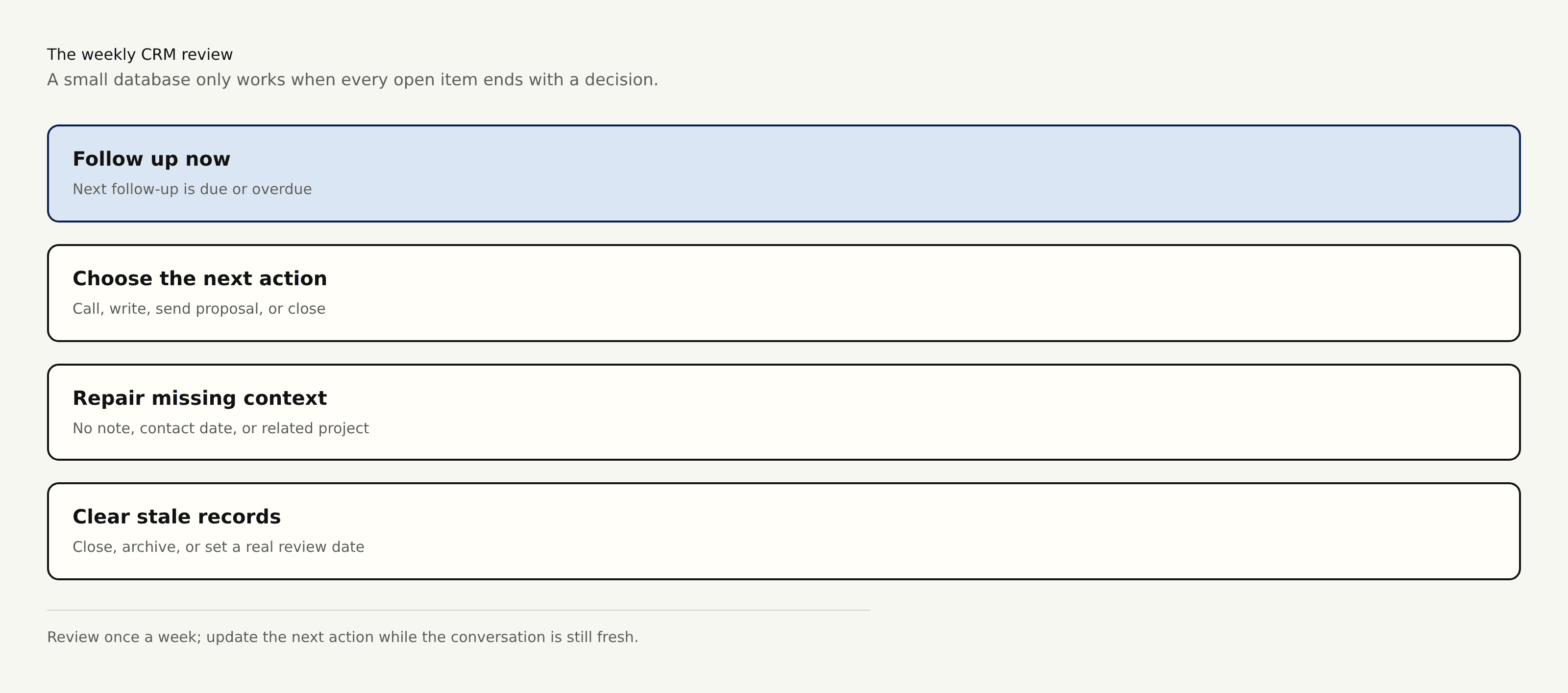
Reserve a fixed 20-minute slot for the Notion CRM review. Open At Risk first, then check records marked won, lost, or inactive. You are looking for contradictions: a won opportunity with no project, a proposal with no next date, two contacts sharing the same email, or a last-contact date that disagrees with the note.
- Complete today's overdue actions before rescheduling them.
- Replace vague steps such as “check in” with the actual message or decision.
- Merge duplicates carefully and reconnect any detached project.
- Close work that has ended instead of letting it pollute active views.
Zentor can use connected Notion context to prepare a summary or draft, while workspace memory carries working preferences between tasks. Agent memory versus chat history explains the distinction. Keep the source records accurate first, because a polished draft based on last month's status is still wrong.
Frequently Asked Questions
Does a Notion CSV export preserve relation and rollup values?
Not in a form that reconstructs the database. Notion says relations export as plain-text URLs, and importing that CSV doesn't re-establish those links. A new CSV import also can't create rollups or formulas, so keep the original workspace and test an export before treating CSV as a backup.
How should sensitive client notes be protected?
Keep them out of shared portal pages, grant the narrowest useful access, and review inherited permissions before inviting anyone. Notion applies the broadest access a person receives through the available paths. For material that doesn't need to sit beside pipeline data, use a separate private page or an approved system built for that data class.
Can email activity be captured automatically?
Yes, but inbound capture depends on a third-party email integration or an external workflow. Notion's Gmail automation action can send mail; that doesn't mean it automatically logs incoming conversations. Notion's gallery lists tools such as SupportBee, and the listing says third-party integrations aren't maintained by Notion. Review each service's permissions and retention rules. Zentor's Notion connector must not be inferred to provide email capture; it works with authorized Notion context.
What is the best way to import an old contact list?
Clean a UTF-8 CSV first, standardize emails and dates, remove obvious duplicates, then import a small test into a copy of the database. Match headers to existing property names when merging. Notion's CSV import guide warns that imports and merges add rows rather than updating matches, so a full merge can duplicate every existing contact.
When should a freelancer leave Notion for a dedicated CRM?
Move when several people need ownership rules, automatic activity capture, dependable forecasting, strict audit controls, or reports that drive sales decisions. Another signal is maintenance: if weekly review time goes mostly to fixing the system rather than contacting clients, the flexible setup has become the work.

Zentor Editorial Zentor editorial team
The Zentor editorial team writes about workflow automation, AI agents, and the tools we build. Default byline for industry overviews, listicles, and collaborative pieces.
Ready to put this into practice?
Zentor runs browser tasks, research, and schedules automatically. Try it free.