Notion Project Management: A Practical Workspace Setup
Set up Notion project management with lean project and task databases, decision-ready views, clear ownership, review rhythms, and a clean archive.
Notion project management works best when the work is moderately complex: several active client projects, shared deadlines, reusable briefs, and a small team that needs one source of truth. Notion itself offers three project-management starting points, from a single to-do database to projects, tasks, and sprints; if you need strict resource planning, financial controls, or hundreds of dependency-heavy tasks, choose a dedicated project tool instead (Notion).
Key Takeaways:
- Keep two operational databases, Projects and Tasks, plus a light Reference library.
- Give every active item one owner, one current status, and a date only when the date changes a decision.
- Build views for decisions you make daily or weekly; don't make a dashboard merely to display everything.
- Review the system before adding forms, recurring templates, or database automations.
Decide What Belongs in Notion Project Management
Use Notion for work that benefits from sitting beside the brief, meeting notes, decisions, and deliverables. A client website refresh belongs because its tasks depend on a signed scope and approved copy. “Reply to Sam” doesn't need a project unless that reply moves a larger outcome forward.
Draw the line with two tests. First, will somebody need this context again? Second, will missing the item create a commitment problem? If both answers are no, keep it in a personal scratch list. If either answer is yes, add it to the team workspace.
Intake shouldn't require database training. Notion forms connect questions to database properties, and people outside the workspace can submit a web form. That makes a form useful for client requests, but each submission still needs triage; it isn't automatically an approved project.
If you later want workspace context to support work beyond Notion, see how Zentor connects to Notion after this system has settled. Treat it as a separate connector choice, not a built-in Notion feature or a substitute for clean ownership.
Structure Projects, Tasks, and Reference
A lean setup has three parts, although only two need daily updates:
| Database | What one row means | Minimum properties |
|---|---|---|
| Projects | A bounded outcome with a finish condition | Owner, Status, Target date |
| Tasks | A next action someone can complete | Project, Assignee, Status, Due date |
| Reference | Reusable context, not work | Type, Project, Last reviewed |
The minimum relationship is Tasks → Project. Limit that relation to one project per task so the same action doesn't appear to satisfy several commitments. Notion's relation property connects pages across databases, and a two-way relation can show the connected tasks back on each project. Add a rollup only when it answers a real question, such as the percentage of related tasks complete.
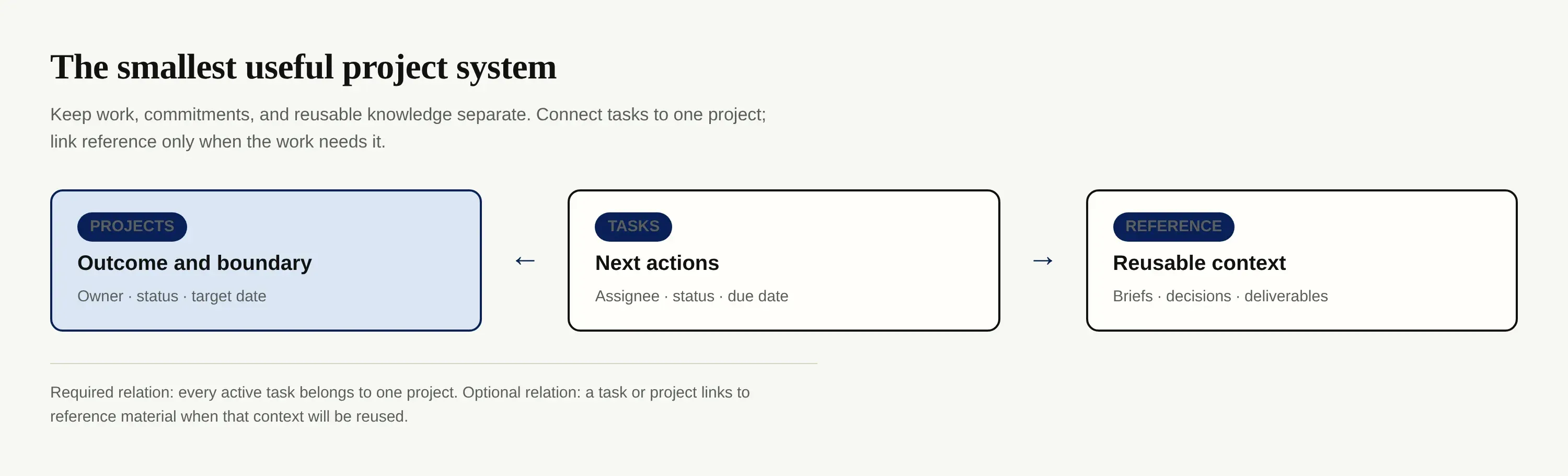
Don't create separate databases for clients, milestones, deliverables, risks, and meetings on day one. Put a client field on Projects; put milestone dates in the project page; link a reference page when its contents will be reused. Split a new database out only after one list has conflicting properties, permissions, or review rules.
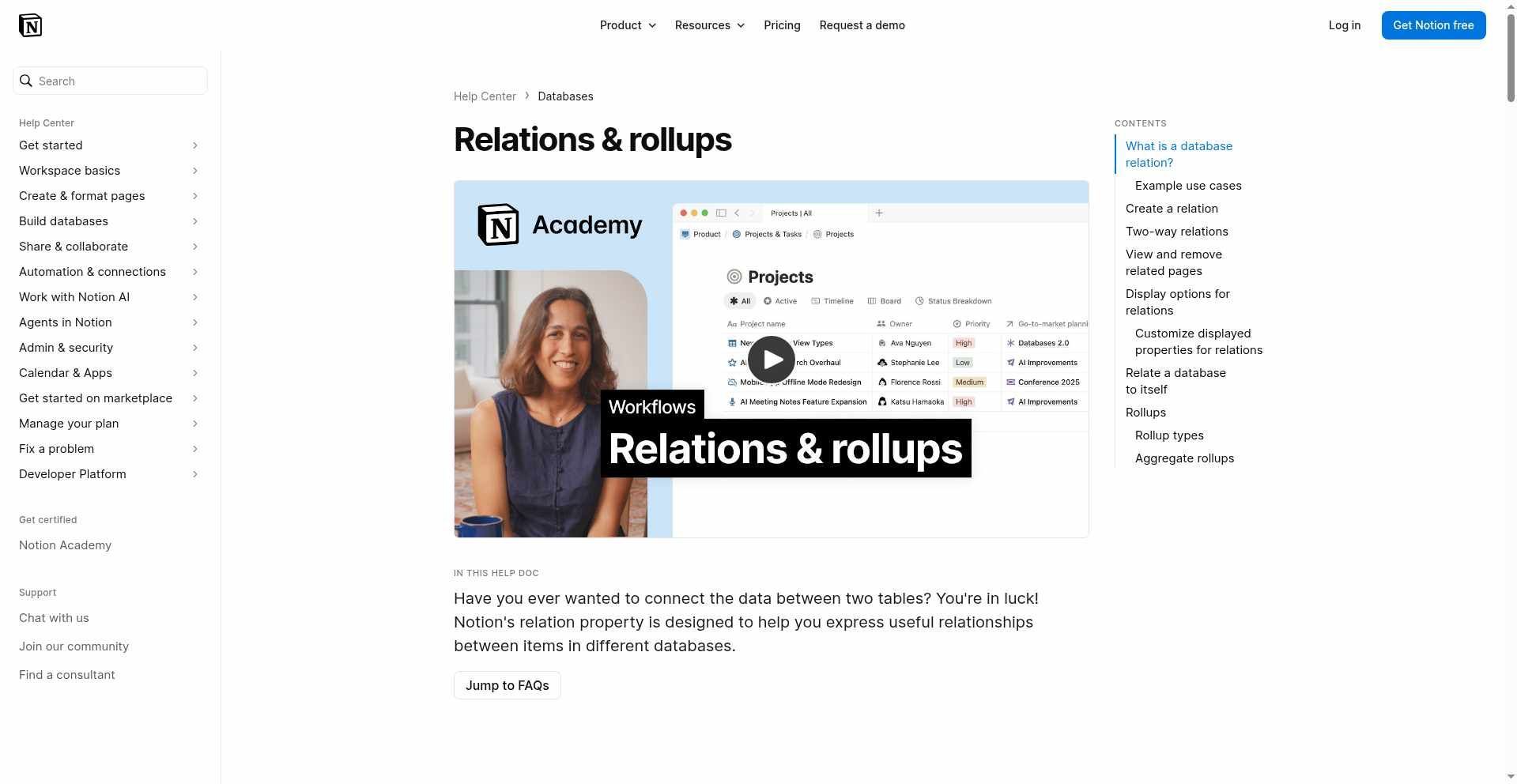
The official help page below shows that relations and rollups are native database features, rather than copied links between pages.
Build Views for Decisions, Not Decoration
A project dashboard should reduce choices, not repeat the full database. Notion lets each view keep its own layout, visible properties, filters, sorts, and groups (Notion). Start with four views:
- Today: incomplete tasks assigned to the viewer, due today or overdue.
- This week: open tasks due in the next seven days, grouped by project.
- Active projects: projects in Planning, In progress, or Blocked, sorted by target date.
- Unowned work: active tasks where Assignee is empty.
A board grouped by status suits the morning scan. A table is better for correcting owners and dates in bulk. Add a timeline only when duration and overlap affect delivery; it needs a date property, and its main value is showing collisions, not looking impressive.
A useful Notion task tracker hides completed work by default but leaves it searchable. Keep one “All” table for maintenance, then stop adding views until somebody can name a recurring decision the existing set doesn't support.
Make Ownership and Status Unambiguous
Every active project and task needs exactly one directly responsible owner. Collaborators can appear in the page body or a separate People field, but a shared owner field makes missed work everybody's problem and nobody's job.
Keep statuses literal in a Notion project management workspace: Not started, In progress, Blocked, Done, Archived. “Waiting” usually hides two different situations. If your team owes the next move, use Blocked and write the next action. If a client owes it, keep the project In progress and record the follow-up date.
Permissions deserve the same restraint. Can edit content lets collaborators create and edit database pages and property values without changing the database structure, views, sorts, or filters. More granular database page-level access based on a Person or Created by property is available on Business and Enterprise plans, according to Notion's current permissions documentation. Notion respects the broadest access a person has, so a narrow rule won't override wider workspace access.
Run Daily and Weekly Reviews Before Automation
Spend ten minutes at the end of each workday clearing loose capture, assigning new tasks, and choosing the next visible action for anything blocked. Reschedule dates you no longer believe. A due date that everyone ignores damages the whole Notion task management system.
Once a week, give the workspace thirty minutes. Review active projects by target date, inspect unowned and overdue work, close stale projects, and check whether each blocked task names the person or event it awaits. For a two-person service team, this can replace a status meeting when no decision needs discussion.
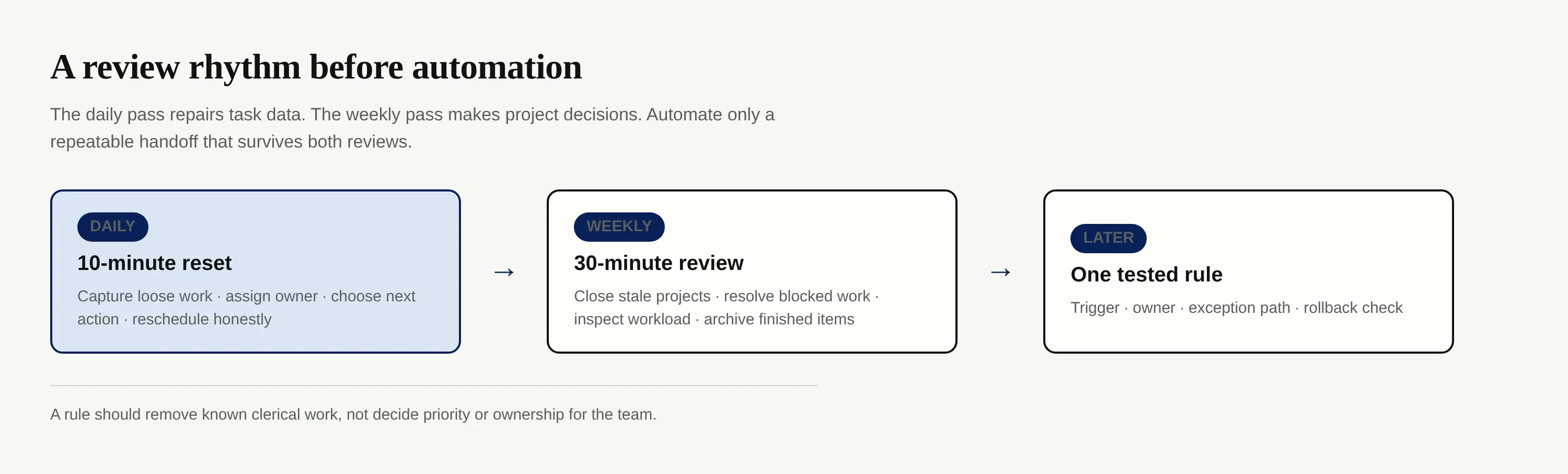
Only automate a handoff that has survived several reviews unchanged. Notion database automations can react when a page is added or a property changes, and paid plans also support recurring triggers. They can edit properties, add pages, notify people, send mail through Gmail, or call a webhook. Yet automations can't trigger other automations, and restricted pages can prevent actions. Start with one harmless rule, such as notifying an owner when a task becomes Blocked, then check the exception path.
Archive Without Breaking the Workspace
Archive work; don't delete history merely to clean a view. Set the project to Archived, remove it from active views, and retain the project page with its decision notes and final deliverables. Tasks can remain related, which preserves the reason behind the work.
At the monthly review, archive completed projects, abandoned requests, and reference pages that no longer guide current work. Before archiving a reference page, search for backlinks and relations. Notion notes that linked data sources respect the access of their original database, while edits to source properties or pages appear wherever that source is linked (Notion). Moving or restricting a source can therefore change what a dashboard reveals.
The aim isn't a pristine archive. It is a small active surface with enough retained context to answer, “Why did we make that choice?” six months later.
FAQ About a Notion Project Workspace
Can Notion handle task dependencies?
Yes. Notion dependencies connect tasks linearly and offer date-shifting options: shift when dates overlap, maintain the interval between dependent items, or never shift automatically. The dependencies guide also lets you avoid weekends. Once a schedule has many linked chains and frequent baseline changes, a dedicated scheduling tool will be easier to govern.
Which Notion plans have granular database permissions?
Business and Enterprise plans have database page-level access rules tied to a Person or Created by property. Business and Enterprise also offer Can create, which lets someone add pages without seeing entries they haven't separately received. Other plans still have page and database access levels, including Can edit content; check Notion's permissions page before designing a client workflow because plan features can change.
How should I set up recurring projects?
Create a project template with the standard brief, review checklist, and task links, then make it repeat daily, weekly, monthly, or yearly. Notion's repeating database templates create a fresh copy on schedule. Leave relation fields empty unless every generated page should point to the same existing page. Review the first two generated projects before trusting the recurrence.
How can I give a client a limited view?
The simplest route is a separate client page containing a linked, filtered view and only the approved documents. Give the client view or comment access, then test it in a guest account. Filters alone aren't security. For row-level restrictions based on a Person property, you need Business or Enterprise page-level access, and broader inherited access can still win.
When should I move to a dedicated project management tool?
Move when scheduling mechanics dominate the work: many cross-project dependencies, capacity planning by hours, time sheets tied to billing, approval controls, or audit requirements that can't tolerate informal page edits. Notion project management is strongest when documents and delivery context matter as much as task state. If your weekly review has become database repair, the workspace has outgrown its useful complexity.

Zentor Editorial Zentor editorial team
The Zentor editorial team writes about workflow automation, AI agents, and the tools we build. Default byline for industry overviews, listicles, and collaborative pieces.
Ready to put this into practice?
Zentor runs browser tasks, research, and schedules automatically. Try it free.