Proton Lumo Review 2026: Is Desktop Worth It?

Proton Lumo review 2026: see what the free desktop app can do with files, schedules, and Skills, where privacy helps, and when switching makes sense.
Proton Lumo Desktop is worth trying if you need a private assistant to read your own documents and prepare recurring summaries, but it is not an automatic replacement for the cloud assistant you already use. This Proton Lumo review is based on Proton’s published documentation and the public desktop code, not a hands-on performance test. Proton introduced the desktop app on November 17, 2026, with Connectors, Schedules, and Skills; the useful question is whether those features fit the work you actually do.
Key Takeaways:
- Lumo Desktop runs on Windows, macOS, and Linux; its Connectors and Schedules do not run in the mobile apps.
- A free Proton account can use Lumo, but free usage is limited. Proton does not publish a reliable numerical desktop allowance on the pages checked here.
- Connect a document source, schedule a read-only summary, then save your preferred output format as a Skill. Check permissions before allowing any messages to be sent.
- Proton says it cannot read zero-access-encrypted chat history and will not use chats or connected data for model training or personalized ads. Those are specific privacy commitments, not a guarantee that every connected service shares them.
What is Proton Lumo Desktop in 2026?
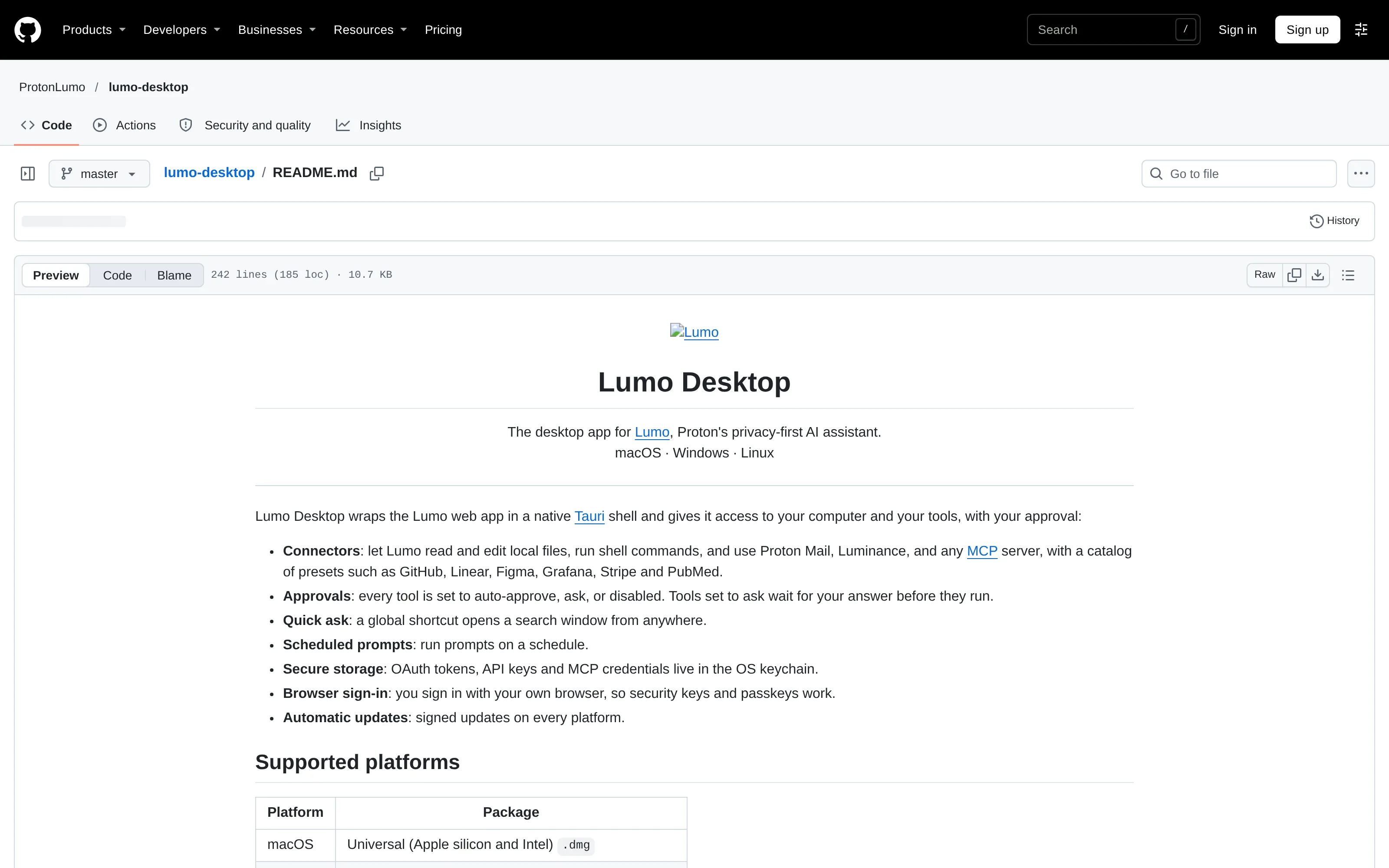
Lumo is Proton’s AI assistant. The November 17 release adds a Windows, macOS, and Linux app around the web experience. The public desktop repository describes a Tauri shell that connects the web app to local tools, subject to permissions. The desktop app can reach approved files and services; phone apps cannot run its Connectors or Schedules.
This Proton Lumo review covers the published product design, not a claim that we installed all three operating-system builds or measured model quality. A feature list cannot tell you whether Lumo will summarize your particular client documents accurately. Test a non-sensitive sample before trusting a recurring task.
Is Proton Lumo free? What do you pay for?
Proton’s download FAQ says you can download Lumo and start with a free Proton account. The Lumo plan page says Free includes basic chat history, web search, and single small-file uploads; free use has limits on messages, uploads, images, and projects. Plus expands those allowances, including unlimited chats and projects and uploads of multiple larger files. As of November 19, 2026, the checked pages give no stable desktop price or per-day allowance; compare live terms before paying.
The distinction between a free download and unlimited automation is easy to miss. A Schedule does not remove account limits. Start with a small job. Proton’s getting-started guide describes Free as limited and Plus as offering higher usage, rather than promising free unlimited work.
Put your recurring work where the result belongs
Zentor learns how you work, drafts reports and follow-ups on schedule, and waits for your OK before anything goes out.
Start free trial →
How to use Lumo Desktop: Connectors, Schedules, Skills
Start with one source. Proton’s connector instructions say to open Customize > Connectors, choose a service, then choose each action’s permission: automatic, ask first, or deny. Local files, Google Drive, and Proton Mail through Proton Mail Bridge are documented options. A direct Gmail connector is not established by these sources. If all your client mail is in Gmail, do not assume Lumo will read that inbox just because it can connect to Google Drive. Proton Mail Bridge also has its own setup requirement.
Next, try a read-only question about a folder you already understand. When the answer looks right, create a Schedule: Scheduled > New task > Create with Lumo; describe the task, answer its questions, check timing and permissions, then confirm. For a solo service provider, a useful test is: “On Friday, summarize the documents added to my client handoff folder this week; list anything that still needs my decision. Do not send messages.” Run it once manually and compare the output with the folder.
Finally, make a Skill with your preferred summary shape: client name, work completed, unanswered questions, and next action. Proton says Skills can store reusable instructions, templates, and reference files, then apply in later conversations. You can ask Lumo to help write one; still check every source.
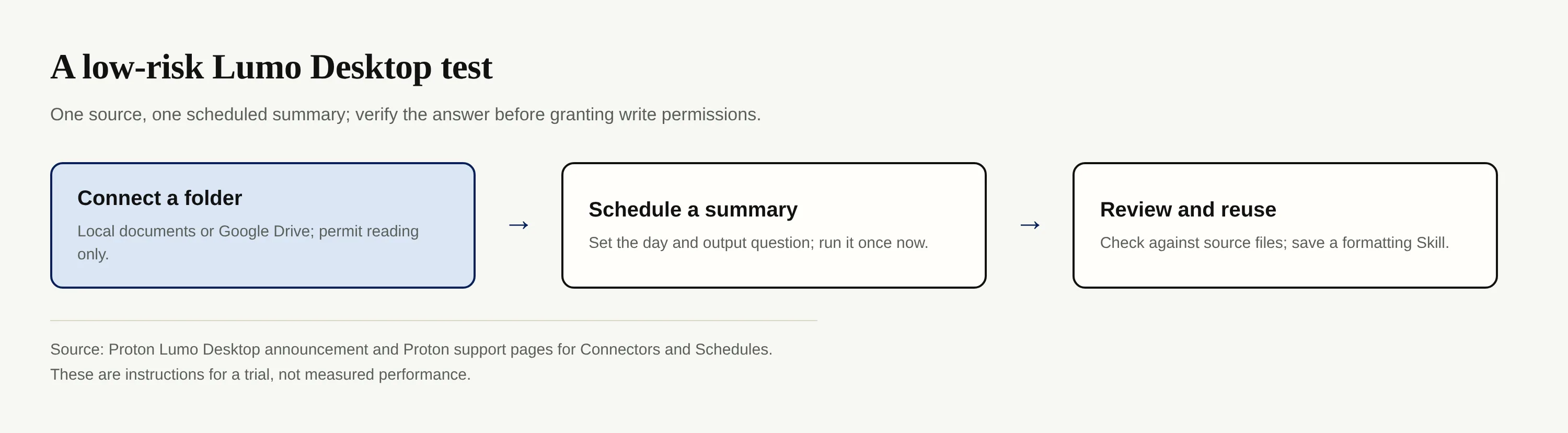
The default permissions deserve a deliberate pass: Proton’s connector help says actions initially use auto-approve. Switch sending, deletion, and editing actions to “ask” or “deny” before attaching sensitive sources. You can disable a Connector for an individual conversation in its Tools menu.
How private is Lumo Desktop, exactly?
Proton makes several checkable commitments in its desktop announcement. It says chat history uses zero-access encryption, so Proton cannot read saved conversations; it does not use conversations or information from connected apps and files to train models or serve personalized ads. The service runs on European infrastructure under Swiss privacy protections, which Proton says lie outside the scope of the US CLOUD Act. The published desktop source lets technically qualified reviewers inspect how the desktop application handles permissions and connections.
Privacy claims need boundaries. Zero-access encryption protects saved chat history; it does not mean a model can answer a question without processing the words and documents you submit. A third-party service you connect retains its own terms and access controls. Public source does not audit Proton’s servers or certify a downloaded binary. Keep your originals and check policy before processing regulated records.
Who should try it, and what can’t it do?
If you sell services alone, Lumo can prepare an internal Friday checklist from client documents in Google Drive. A creator can save a Skill that turns rough research notes into a consistent content outline; a heavy-use student can ask it to locate a reading in an approved local folder and draft a study summary. Verify dates and quotations against the originals. Proton’s own getting-started guide warns that Lumo can give inaccurate answers, particularly for recent or highly specific questions.
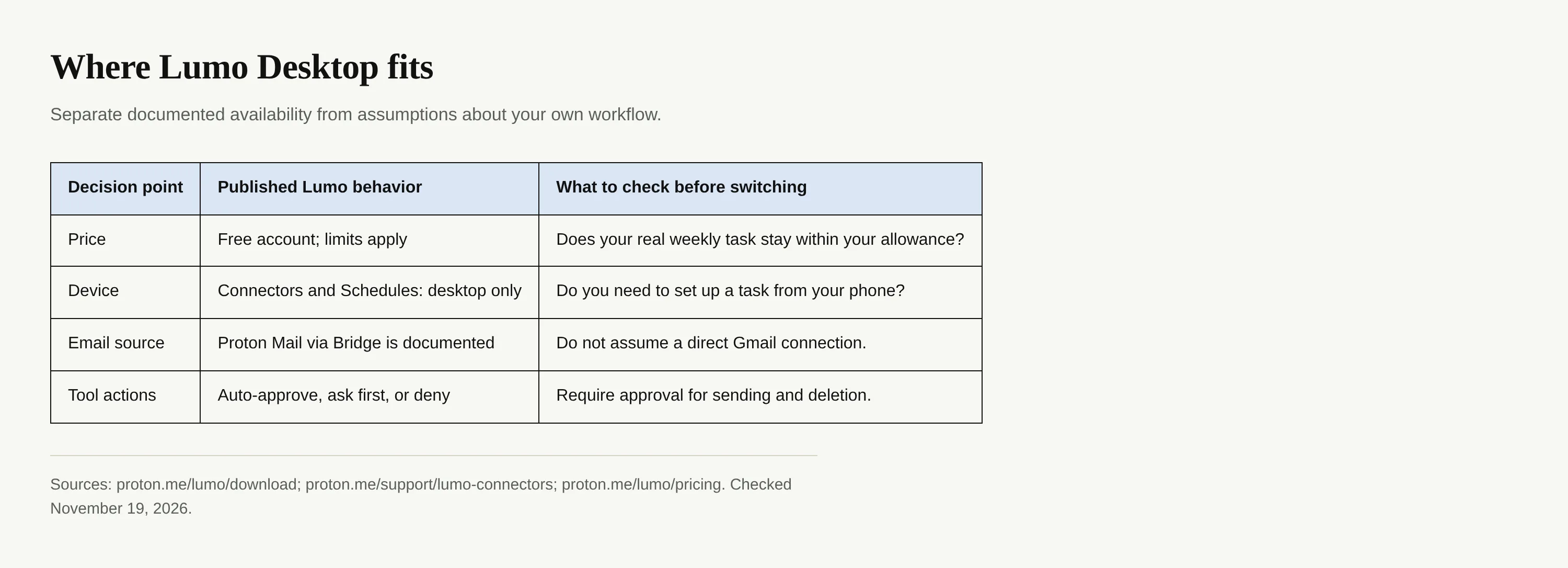
The largest practical limit for a phone-first worker is plain: Connectors and Schedules are desktop-only, although mobile Lumo can handle chats and dictation. If your source material is in Gmail, the documented Proton Mail and Google Drive options do not establish a direct Gmail path. And if your work requires a finished client update in Notion or Airtable rather than a summary in a chat, confirm an actual delivery route before calling the workflow complete.
Proton Lumo vs ChatGPT or Gemini: which trade-off matters?
Do not make this a contest of unsourced model scores. ChatGPT and Gemini offer their own chat products; features, connected apps, controls, and policies change by plan and account. Lumo’s distinctive proposition is the combination Proton documents: private saved chat history, explicit policies for tool actions, local-file access, and recurring desktop tasks. That justifies a test, not a performance or price ranking.
Test both on the same non-sensitive documents; check factual errors, requested permissions, output destination, and device support. For client work, permissions and the finished update’s destination matter most. Zentor has a different emphasis: its workspace memory belongs to you and can reach other AI through Zentor MCP; it also handles scheduled reports and follow-ups while waiting for approval before anything goes out. Treat this as a workflow distinction, not a privacy equivalence claim.
Verdict: try Lumo Desktop before switching everything
For this Proton Lumo review, a free account makes the initial test straightforward. Connect one low-risk source, deny write actions, run one scheduled summary, and decide whether its output and limits suit your week. Lumo is particularly compelling when a private chat history and local document access outweigh a broad collection of cloud features. Hold off on a complete switch if your only working device is a phone, your email lives in an unsupported connection, or your task depends on an unverified output destination.
For a solo provider who wants the completed follow-up to live in an existing workspace, Zentor’s documented Gmail workflow searches mail, reads threads, and drafts a reply for your confirmation before sending; results can land in Notion or Airtable. Its current trial and plan terms are a separate decision from Lumo’s free-account limits. Compare the actual job.
FAQ: Lumo Desktop in 2026
Is Proton Lumo free to use on desktop?
Yes. Proton says a free account can download and use Lumo, subject to account usage limits; check its live plan page for any updated allowance.
Can I use Lumo Connectors or Schedules on my phone?
No. Proton says both features currently require the Windows, macOS, or Linux desktop app. Mobile apps support ordinary on-the-go chat, including dictation.
Does Lumo Desktop connect directly to Gmail?
The Proton sources checked here document Proton Mail through Proton Mail Bridge and Google Drive, not a direct Gmail connector. Do not treat Drive access as inbox access.
Can a saved Skill send an email by itself?
A Skill stores reusable instructions; an action depends on the Connector’s permissions. Set sending to require approval or deny it entirely when you only want drafts. Does this Proton Lumo review include hands-on benchmarks?
No. It compares documented capabilities and limits; test accuracy, speed, and account allowances with your own non-sensitive material.

Zentor Editorial Zentor editorial team
The Zentor editorial team writes about workflow automation, AI agents, and the tools we build. Default byline for industry overviews, listicles, and collaborative pieces.
Choosing between tools? Let Zentor run the work.
An always-on AI assistant that does the work. No switching required, no setup.