Motion AI Review: Task Scheduling and Its Limits

Motion AI review for freelancers: assess calendar scheduling, deadline changes, review effort, pricing, and when a simpler task setup may fit.
Motion AI schedules tasks around your calendar using the duration, priority, and deadline you give each one. For freelancers, it fits a week with several deliverables to place and meetings that change, provided you can keep those task inputs current.
Key Takeaways:
- Enter a start date, a realistic duration, and the deadline you intend to protect. Motion uses those fields for different scheduling decisions.
- A moved work block and a changed client deadline are separate updates. Adjust the date in the task when the commitment moves.
- Review the task list alongside the calendar. Motion distinguishes work scheduled after its due date from work that has no feasible slot.
- Compare the individual plan and trial end time with the value of automatic replanning across an ordinary week.
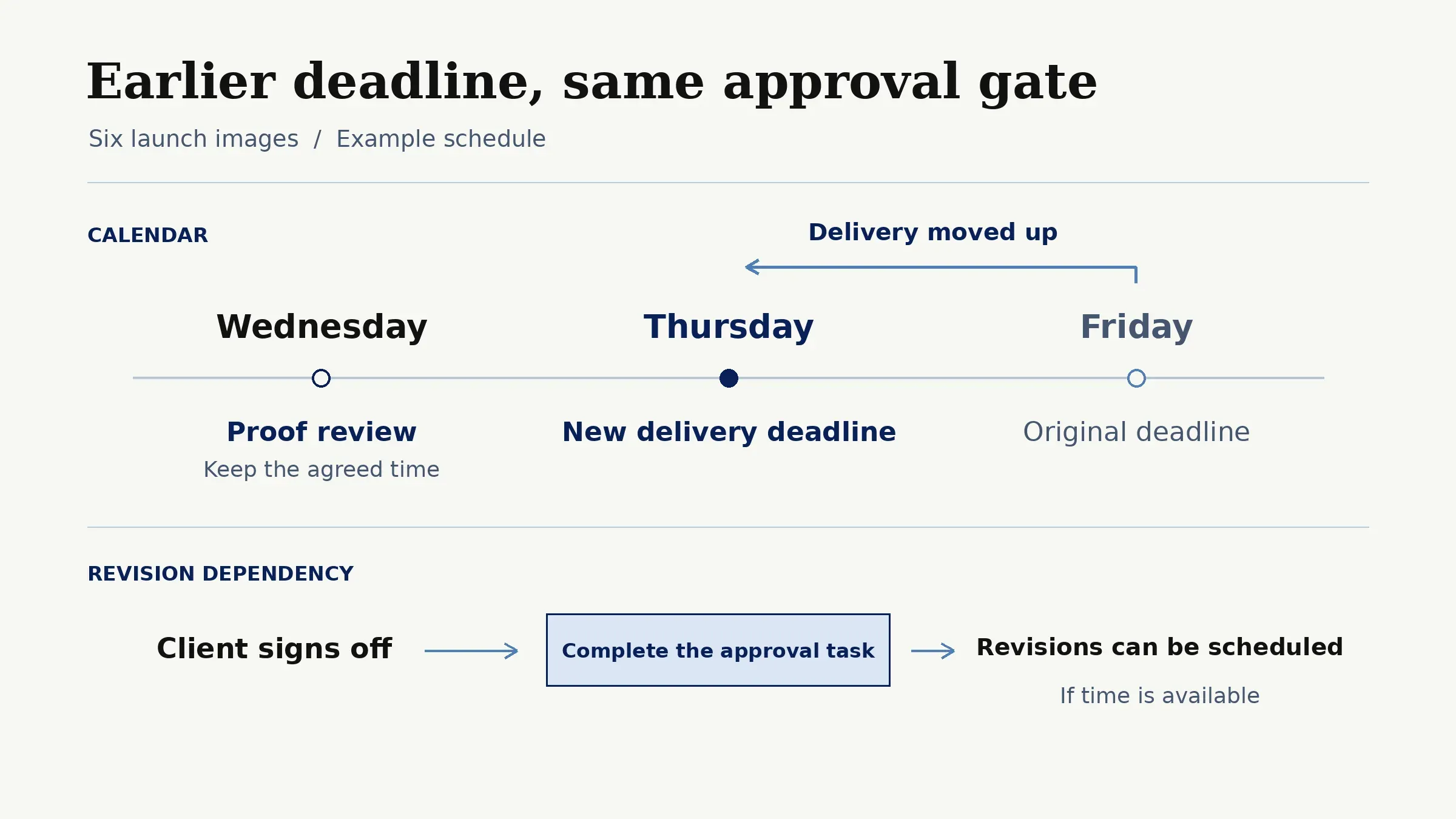
Suppose you're preparing six product images for a launch. Your client moves the delivery deadline up from Friday to Thursday. Wednesday is the earliest they can review the proof, so you need to figure out how much time you can set aside for revisions once they sign off.
What Motion Is Being Evaluated For
Evaluate Motion AI as the calendar layer for work you can already describe. It takes an item like "prepare launch images" and gives the task time on the calendar alongside calls, appointments and other work. That is the useful question for AI scheduling for freelancers: can you go from a list of deliverables to a plan for when you have time to work on them?
This Motion calendar review uses Motion's public task-manager page and help documentation checked on November 19, 2026. It is a purchase-before-use assessment, not a hands-on test. The focus is on how Motion schedules tasks and how much of the plan you still need to review.
Keep the client commitment beside the work
Zentor can find the agreed date in Gmail and draft a follow-up for your approval. You still set the scheduling inputs in Motion yourself.
Start free trial →
How Task Inputs Affect the Calendar Plan
Think about the three hours for the images as three pieces of work: assembly, proof review, and export. Enter the earliest start date when the source files will actually be available. Give each task a duration based on the work involved. Set the deadline when it has to be done and use priority for how it should compete with other work. Motion's scheduling reference identifies start date, duration, deadline, priority, chunking and busy events as inputs.
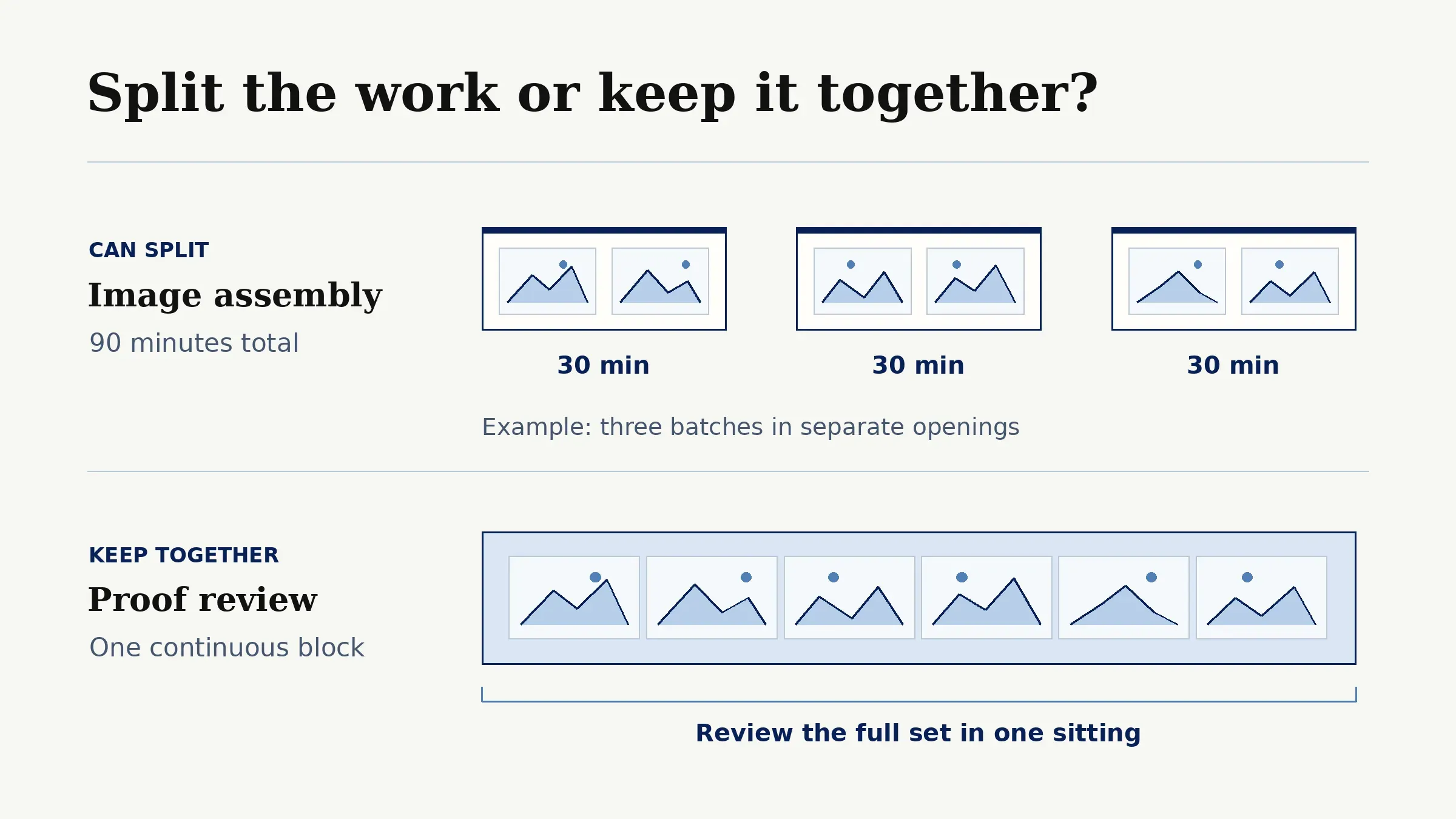
The chunk setting is especially useful for work that can be interrupted. A 90-minute image assembly task can use a smaller minimum chunk when the images can be prepared in batches. Proof review may need one continuous block so you can assess the entire set. The same open calendar can produce a different plan from those two estimates. Use a fixed-time task for a review you want at a particular hour and leave other work eligible for automatic placement.
Check What Happens When Client Deadlines Change
You can use Zentor to check the new delivery date against the client's email. If the confirmation is buried in a long Gmail thread, its AI email assistant can help you find the original message. Once you've confirmed Thursday, update the delivery task in Motion and keep Wednesday's proof review at its agreed time. In the revision task, set a dependency on the proof approval task. Mark that task complete once the client signs off. A start date sets the earliest eligible slot; Motion's blocker guidance says a blocked task cannot be scheduled until its blocker clears. There is no Zentor–Motion integration implied here; you transfer the confirmed deadline yourself.
Motion's auto-scheduling guide says tasks can be rearranged after a new busy meeting. A hard deadline can place work outside normal working hours to seek a slot before the due time. For an internal target, use a flexible deadline. For client deadline planning, choose the deadline setting with the actual time available between approval and delivery in mind.
Review Tasks That Do Not Fit the Schedule
Look at the task list alongside the calendar. Motion defines Past Due and Can't Fit separately: Past Due includes a future block scheduled beyond its deadline or a deadline already passed; Can't Fit means the planner found no feasible slot within its scheduling window. A task can remain visible without a usable calendar block.
For the image launch, compare the unplaced work with the usable hours after proof. Shorten the estimate only when the work itself has changed. Lower another task's priority, open an additional work window, or split work that can be done in stages. If the remaining work needs more time than the calendar holds, confirm what can ship Thursday and agree on the timing for the rest.
Assess Project Context and Team Handoffs
Assign the revisions to yourself or a team member in Motion. Keep the accepted brief and proof link beside the task. Use a content approval workflow to record which version the client approved, who signed off, and when. Zentor can help retrieve context from connected Gmail for that record, but it does not approve the client's proof or enter the resulting Motion task for you.
Once the client approves the proof, give the next owner a clear action, such as exporting the six approved images. Motion can allocate time for the export. The project record tells the assignee which files to use and who can authorize the final delivery.
Check Current Pricing and Trial Terms
Motion's public product page describes its AI Task Manager and calendar scheduling; its pricing page separates Individuals and Teams and monthly from annual billing. Check the live Individuals selection and the checkout amount for your region before committing. Plan and billing selections change the displayed amount, so use the total at checkout rather than a number shown for another selection.
Motion's public page advertises a free trial. Motion's trial terms say it bills the payment method after the trial ends unless you cancel beforehand. Check the offer's exact length and end time at signup, then pick a week with meetings and a deadline change. That gives you a chance to see what the scheduler handles and what you still decide yourself.
When Motion or a Simpler Setup Fits
Choose Motion when the week contains several estimated tasks and rebuilding the plan after changes is a recurring job. Motion AI fits particularly well when those tasks already have reliable deadlines and you want to open a calendar that shows the planned work alongside your meetings.
A task list and two manually reserved blocks may be enough for a steady week with one active deliverable. Keep the list as the record of what is due and put the few commitments that need time on your calendar. If you already use Zentor to retrieve client commitments from Gmail, that context can support the list without claiming automatic synchronization with Motion. As the week starts to involve dependent work or frequent changes, use that familiar setup as the baseline for evaluating the paid planner.
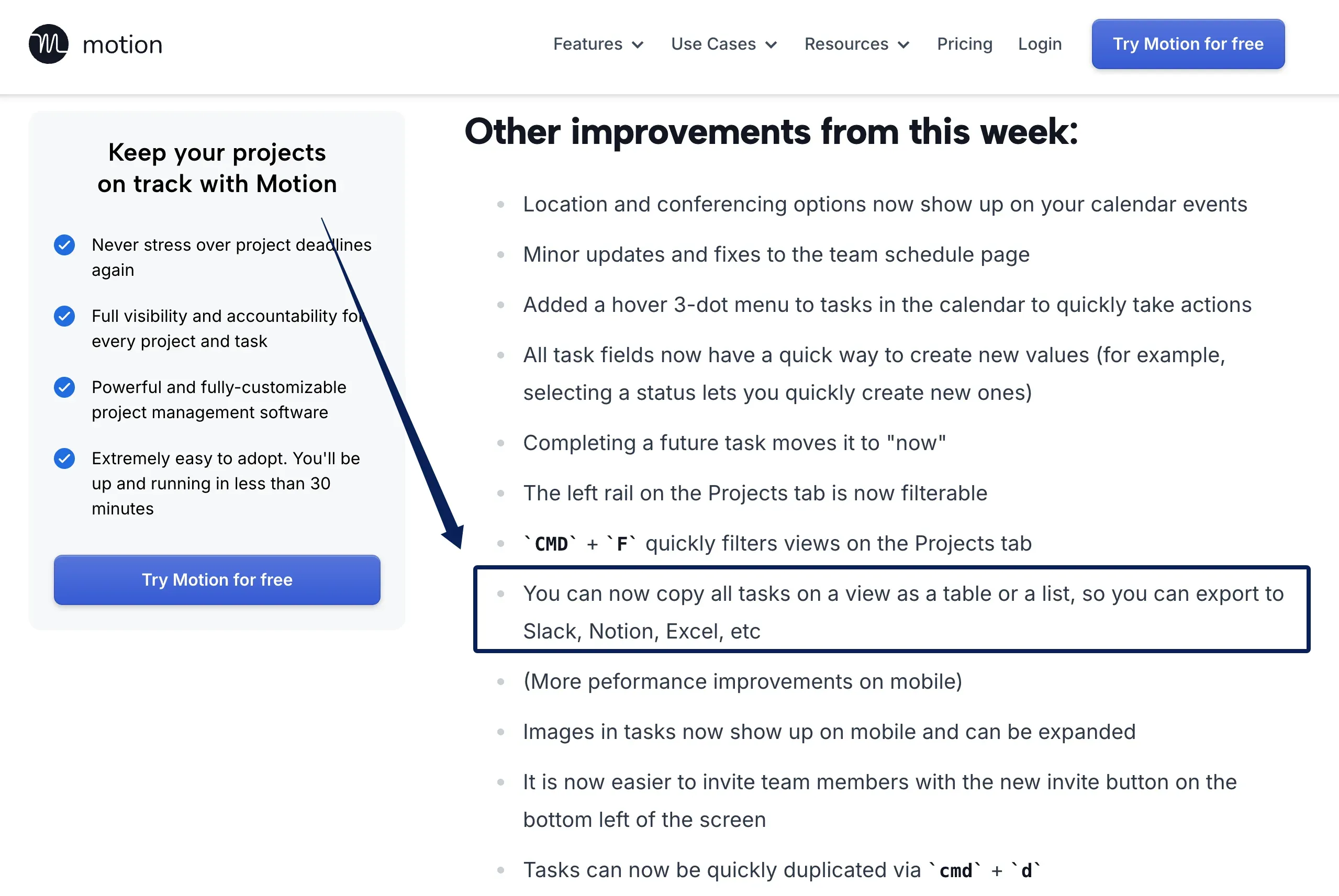
For a future switch, Motion says its in-app data remains when you disconnect or switch the main calendar account. A screenshot of Motion's product update also describes copying tasks in a view as a table or list. Verify the available export fields in your account before treating that copy as a complete backup.
FAQ
Can a client meeting be marked unavailable for task blocks?
Yes. Mark the meeting Busy in its source calendar and include that calendar in Motion's My Calendars for conflict checking. Motion's calendar guide says only Busy events on calendars in that group affect task placement.
How should tentative client deadlines be entered?
Use a soft deadline for a provisional target and record what would make it firm. A start date sets the earliest slot. For work that needs an approval first, set a dependency on the approval task. When the client confirms the target, update the deadline from the approved record.
What happens to scheduled tasks if a calendar connection is revoked?
Motion distinguishes task data inside its workspace from blocks displayed on a connected calendar. Its calendar guidance says data inside Motion stays when disconnecting or switching the main account. Review the resulting plan and any previously published blocks separately after revocation; the guidance does not establish what happens to old external copies in every account configuration.
Can a freelancer separate personal and client calendars?
Yes. Motion lets you connect Google, Microsoft Outlook and iCloud calendars and choose which calendars affect availability. Select the main calendar with task visibility in mind. Its connection guide says external task display is available for Google and Outlook, but not iCloud.
What should be exported before leaving the tool?
Copy the active task view as a table or list, if that action is available in your account, and inspect the fields in a sample. Full workspace restoration from that copy remains unverified. Save essential files separately and record any recurrence rules, dependencies or project relationships missing from the copy before you remove access.
Choose Motion AI When Your Calendar Needs to Carry the Work
Motion AI is a fit when a changed deadline creates a real planning problem and the work involved can be entered with a duration and an owner. Start with one client project and look at the calendar after the next approved date change. The plan should show time to do the work, and the task list should show what still needs a decision.

Zentor Editorial Zentor editorial team
The Zentor editorial team writes about workflow automation, AI agents, and the tools we build. Default byline for industry overviews, listicles, and collaborative pieces.
Choosing between tools? Let Zentor run the work.
An always-on AI assistant that does the work. No switching required, no setup.