Airtable Forms: Build an Intake-to-Action Workflow
Turn Airtable Forms into a reliable intake workflow with validation, ownership, approvals, and a clear destination for every submission.
Airtable forms are only as valuable as the chain of responsibility after someone clicks Submit. A dependable setup turns each response into a checked record with an owner, a review state, a written-back decision, and an exception path. Airtable's official form guide says its current builder is available on every plan, while data validation is paid.
Key Takeaways:
- Decide the destination, owner, deadline, and closing message before publishing the form.
- Use required fields plus paid-plan validation for cleaner intake; conditional visibility changes what respondents see, not who can access sensitive data.
- Route clean submissions and exceptions separately, then make approval status visible in the record.
- Send a receipt immediately and another message when the request is approved, rejected, or needs more information.
Define What Happens After Submission
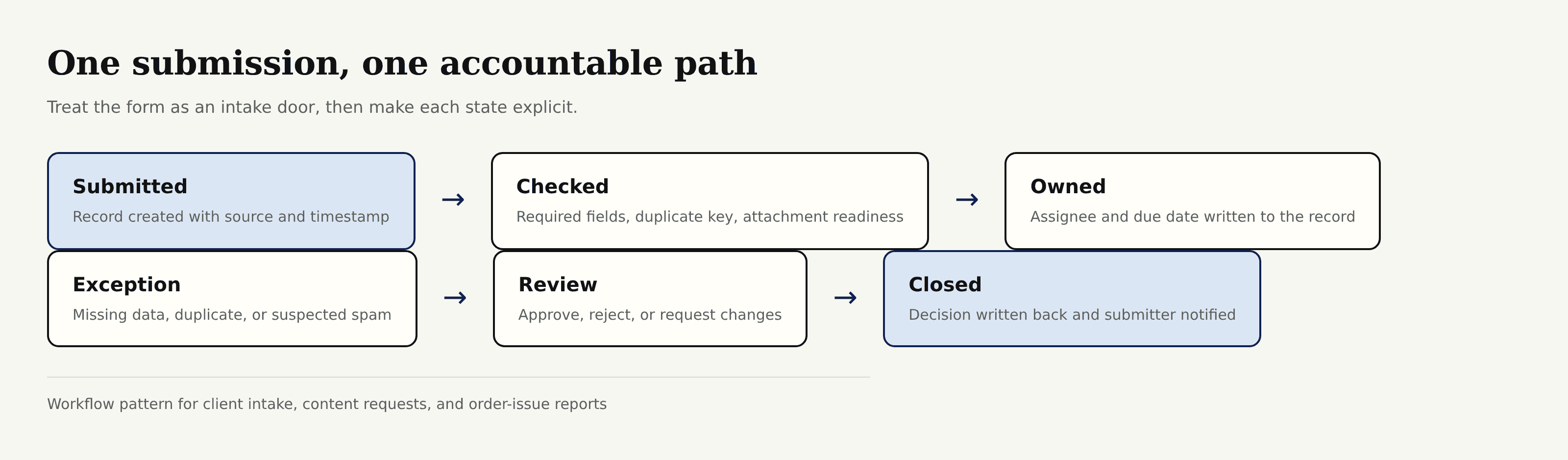
Start with states, not questions. For client intake, content requests, or order-issue reports, Airtable forms need a status field: New → Checking → Needs approval → In progress → Closed. Add Waiting on submitter, Duplicate, and Spam. Each status needs one person responsible for moving it.
Airtable's When a form is submitted trigger exposes the submitted record ID and created time to later actions. Test the trigger, then use Update record to stamp the source, initial status, owner, or due date onto that same record. The official trigger instructions stress selecting the exact form, which matters when a base contains several forms.
Zentor's Airtable integration can inspect unowned records or summarize a queue through permitted access. Still write decisions into Airtable so the table, not a chat transcript, remains the operating record.
Get early access to Zentor if you want recurring intake checks delivered into the workspace where the requests live.
Design Fields for Clean Intake
Good Airtable forms collect facts that support a decision. Replace “Tell us what happened” with request type, order number, date noticed, desired resolution, evidence, and one constrained description field. For a content request, collect channel, audience, deadline, approver, source material, and final destination.
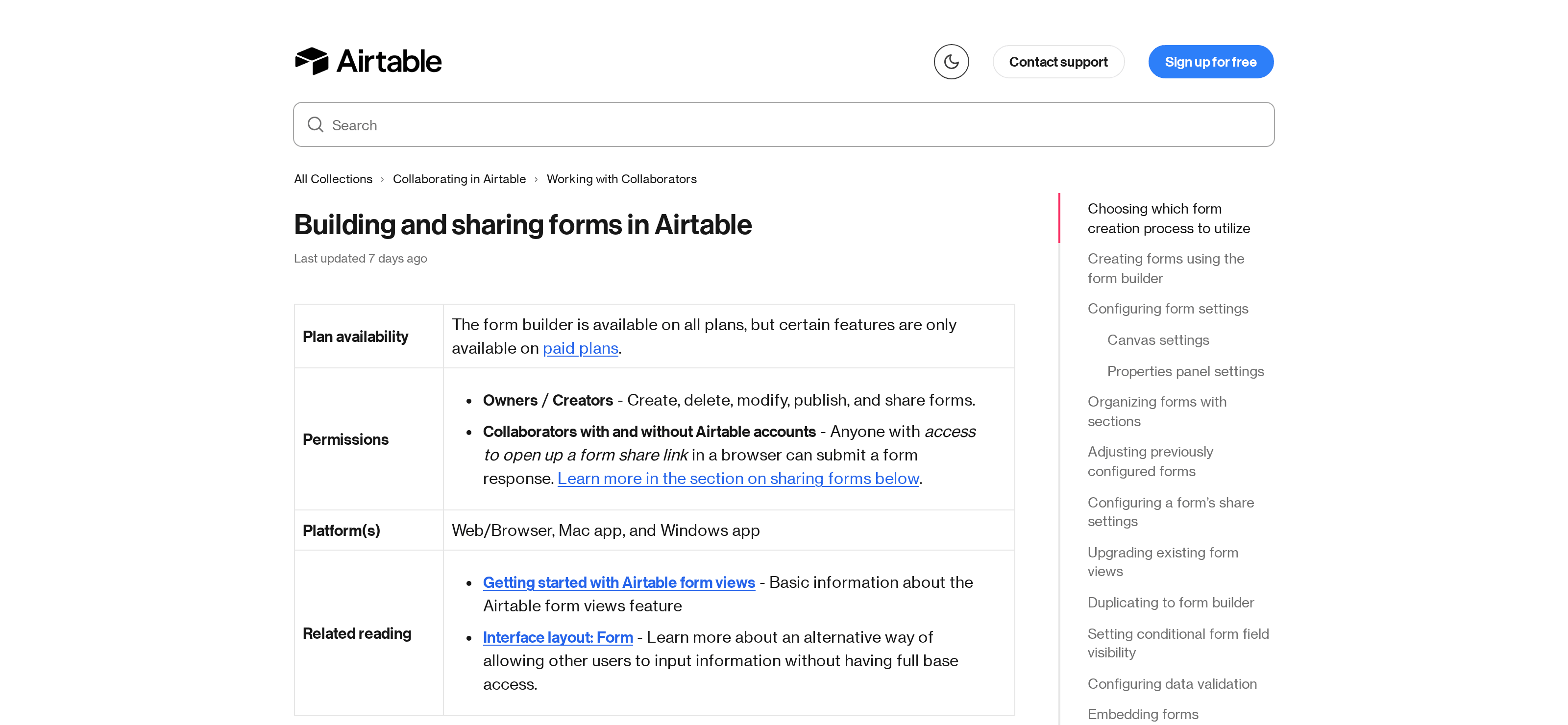
Mark fields required only when every respondent can answer them. Airtable says validation applies to non-empty fields, so “required” and “valid” solve different problems. On paid plans, the form builder can validate email format, character counts, number ranges, URLs, and allowed attachment MIME types. Add helper text because the built-in error explains the rule broadly, not your business reason.
Conditional fields are available on all plans, while conditional groups require Business or Enterprise Scale. Use them to reveal “Photo of damaged item” only after a buyer chooses “Arrived damaged,” or to ask for a publication date only when “Ready to schedule” is selected. Airtable warns that hidden values may still be exposed, so conditional visibility must never stand in for access control.
Attachments deserve their own test. The builder can restrict allowed file types. Airtable's attachment documentation states that individual attachments can be up to 5 GB, subject to plan storage limits, but its form guide documents a rare case where a large public-form upload shows success without the expected record. For urgent evidence, confirm the record exists.
Route New Records to the Right Owner
Don't send every submission to a shared notification pile. Create fields for Request type, Owner, Priority, Due date, and Routing result. Then use conditional automation groups to assign the record according to values already collected.
In Airtable forms, route client onboarding to the service owner, content requests to the editor, and order exceptions to support. Leave an Otherwise branch that marks the record “Unmatched” and alerts a fallback owner. Airtable's conditional-groups documentation says only the first matching group runs, so put narrow rules first.
Write ownership to the record before sending a notification. Otherwise the message becomes the assignment, and nobody looking at Airtable can tell who has the job. Zentor can query for a New status and an empty owner through scoped access, giving a one-person business a second check.
Add Review and Approval Steps
Approval is a state change, not an inbox reply. Add Decision, Reviewer, Reviewed at, and Decision note fields. Trigger the review notification when Status becomes “Needs approval,” then let the reviewer set Approved, Rejected, or Changes requested in Airtable or an appropriate internal interface.
After that change, a second automation should write back the next operational status. Approved content moves to “Ready to produce”; a rejected refund closes with a reason; changes requested move to “Waiting on submitter.” Airtable's custom notification guide supports email, Slack, or Microsoft Teams actions when a record matches a condition.
Avoid a chain that depends on two automations firing in order because Airtable says simultaneous runs may execute out of order. Put dependent actions together, or trigger the next step from a dedicated field. Zentor can check a recurring review queue while approval stays recorded inside Airtable.
Handle Duplicates, Missing Data, and Spam
Build a duplicate key from stable values such as lowercase email plus order number, then search before creating follow-up work. If the search returns several records, set Status to “Possible duplicate” for review.
Missing values belong in “Waiting on submitter,” not “In progress.” Suspected spam belongs in quarantine, with no customer-facing action besides a neutral receipt if you send one at all. Public “Anyone on the web” links are open to anyone who finds them. Airtable also offers password protection for public forms, domain restrictions on paid plans, base-access restrictions, and required Airtable sign-in when See who submitted a response is enabled, as summarized in its form permissions table.
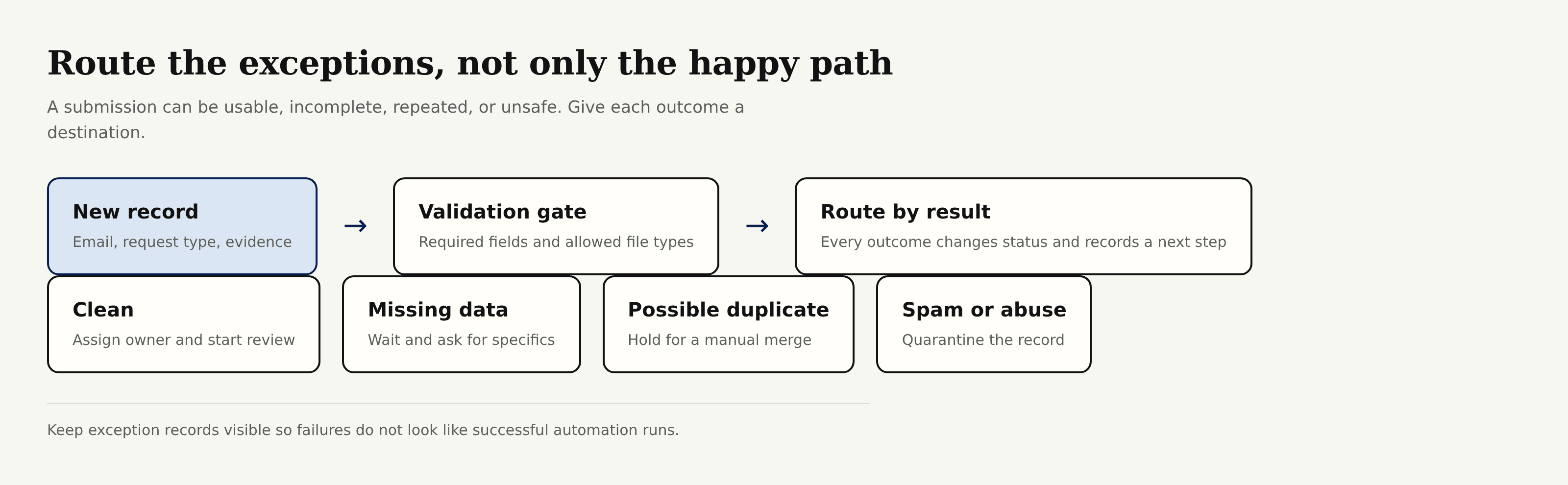
Check automation history, not only the green success label. Airtable documents that Find records can return zero results without failing the run, leaving a dependent update with nothing to change. Add a conditional branch for zero matches and record that outcome. If an attachment drives a later action, account for upload processing: automations can fire before the attachment URL is ready, according to Airtable's automation troubleshooting guide.
Close the Loop With the Submitter
The first message from Airtable forms should confirm receipt: reference, next step, and response timing. The final message reports the disposition. Native settings can show a post-submit message and notify base collaborators; custom confirmations use an automation.
Don't promise acceptance in the receipt. For an order issue, say the report was received, not that a refund was approved. When the status changes, send the decision and write a Notified at timestamp back to the record. If the email action lacks an address, route the record to an exception view rather than pretending the loop closed.
Zentor can remember your response style and prepare a follow-up from the record. The facts still come from Decision, Owner, and Due date, keeping the workflow auditable.
Before publishing, test every route: a duplicate, blank optional email, wrong attachment type, and Otherwise branch. Confirm ownership, approval, write-back, and both messages in automation history.
FAQ
Can Airtable forms update an existing record?
Not directly. Native submissions create new records. Airtable's official workaround uses an updates table, linked record, prefilled URL, and automation to write values back. Interfaces or Portals may suit collaborators on eligible plans.
Which plans support branded or password-protected Airtable forms?
Paid plans support password protection, cover images, logos, and hiding Airtable branding. Airtable says the native UI can't remove every branding element or add fully custom branding. Check the current plan table before rollout.
Can different respondents see different questions?
Yes. Conditional field visibility can show questions based on earlier answers and is available on all plans. Conditional groups require Business or Enterprise Scale. Native Airtable forms remain single-page, so this isn't the same as a multi-page branching survey.
Can I prefill a hidden record identifier?
Yes. Add prefill_FieldName=value and hide_FieldName=true to an encoded form URL. Airtable warns that the value remains visible in the URL and can be revealed by editing it, so don't place secrets there. Its prefill guide recommends ENCODE_URL_COMPONENT() for dynamic field names and values.
Can I limit an Airtable form to one submission per respondent?
Airtable's current documentation doesn't offer a one-response-per-person switch. Enable See who submitted a response to require sign-in and capture Created by, then route later submissions from that user to duplicate review. Email matching on public forms cannot prove identity.

Zentor Editorial Zentor editorial team
The Zentor editorial team writes about workflow automation, AI agents, and the tools we build. Default byline for industry overviews, listicles, and collaborative pieces.
Stop doing this manually.
Zentor runs on its own cloud computer - research, monitoring, reports, browser tasks. No setup. No self-hosting.