Notion Job Application Tracker That Gets Used

Build a Notion job application tracker with clear statuses, follow-up dates, source links, and practical views that keep the next action easy to find.
A Notion job application tracker is most useful when every active application has a next action, a date, and a link to the evidence behind its status. You can build that workflow with one database: Notion documents both date-property reminders and database templates, so you do not need to start with a complicated dashboard. Notion reminders, database templates.
Key Takeaways:
- Track the next action separately from the application stage. “Applied” does not tell you what to do today.
- Keep job descriptions, submitted materials, and recruiter messages attached to the relevant application.
- Use a small set of views over one database, so changing a status updates the same underlying record.
- Add automation after you can explain how a new message should change a record. Review uncertain matches and keep outgoing replies as drafts.
The field design below is repeated as a worksheet you can fill in on this page, then copy straight into a new Notion database.
Start with the decisions your tracker must support
A useful job search dashboard answers three questions quickly: what needs attention today, what are you waiting for, and which opportunities should you stop pursuing? A database containing every company you have ever considered may still fail all three. The problem is often that its fields describe history without pointing toward a decision.
Write one short rule for each stage before choosing colors or icons. Saved means you have identified a role but have not submitted. Applied means you have evidence of submission. Interviewing means a conversation has been arranged or is underway. Offer means you have an actual offer to evaluate. Closed means the opportunity no longer needs routine follow-up, whether because you withdrew, received a rejection, or accepted another role.
Keep waiting separate from inactivity. An application can be in the Applied stage while you wait until an agreed date to follow up. It can also be in Interviewing while you owe a portfolio link today. If both appear as identical cards, the board hides the work that matters most.
This is an organizational design, not a promise of more interviews. A public account of using Notion for a job search describes a database with state-based views and reusable page content. It is useful evidence that the approach is practical, but one person's outcome does not establish that a particular template improves hiring results. Read the documented job-search workflow.
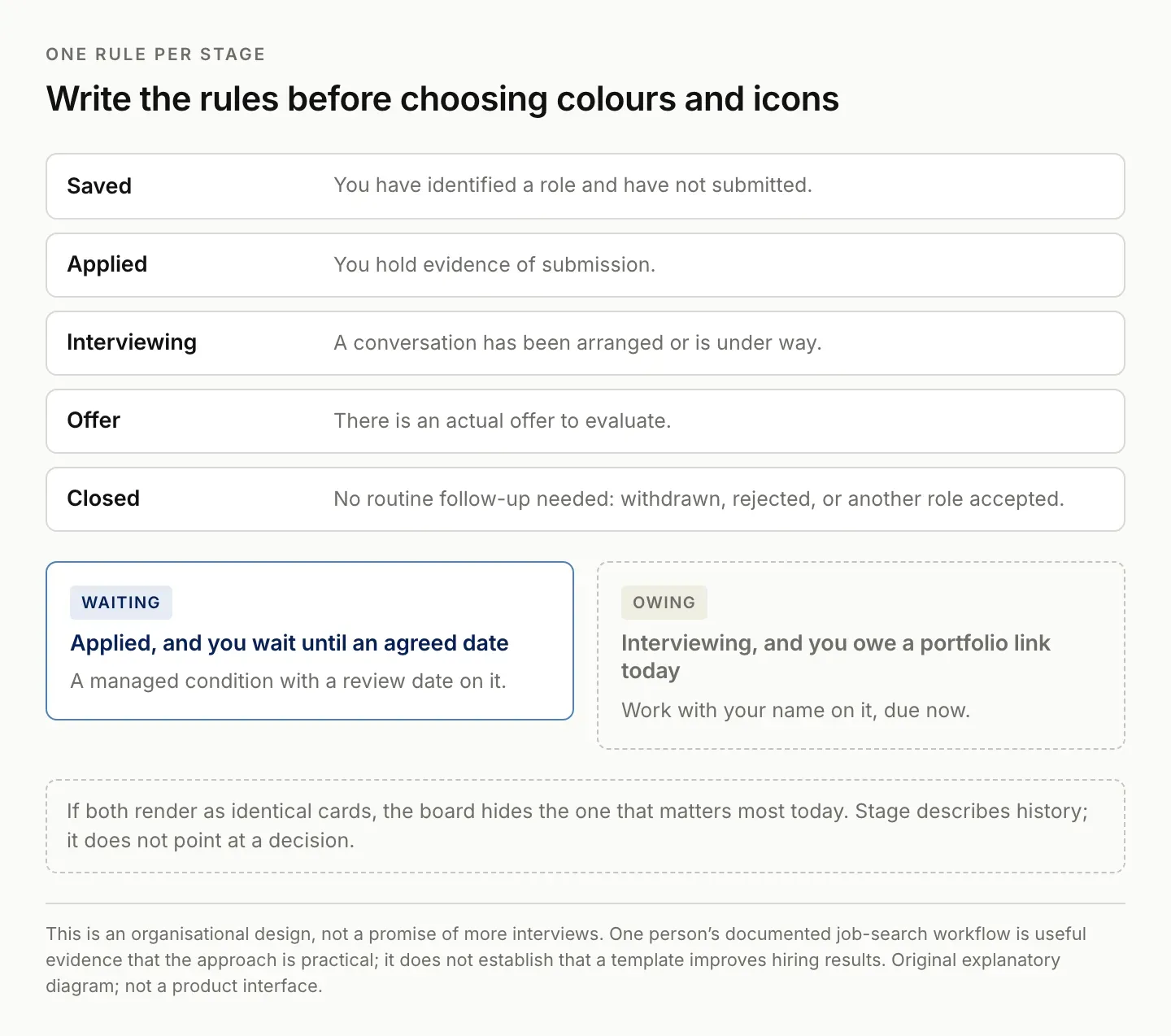
Stage describes history. On its own it does not point at a decision.
Build one application database with clear fields
Create a database named Applications. Use one record for each distinct role you pursue, even if several roles belong to the same company. A company-level record alone makes it difficult to tell which resume version, interview, or rejection belongs to which position.
Start with the following field design. The labels are recommendations for this workflow, not required Notion system fields.
| Field | Suggested type | Purpose |
|---|---|---|
| Application | Title | Company and role in one recognizable label |
| Company | Text | Group related opportunities without merging them |
| Stage | Select or Status | The current position in the hiring process |
| Job link | URL | The original role or application reference |
| Submitted | Date | When you actually applied |
| Next action | Text | A concrete task or waiting condition |
| Follow-up | Date | When that task or waiting condition should be reviewed |
| Last checked | Date | When you last verified the record |
Notion supports these basic property types; its property guide explains their behavior and configuration. Keep longer context inside the application page rather than turning every note into another column. Notion database properties.
For the title, use the actual company and role in your own workspace. For a shared demonstration, use clearly labeled test records and avoid putting personal recruiter details into a public template. If a posting has an external reference number, keep it in the page. That identifier is particularly useful when two openings have nearly identical titles.
Do not require information you rarely possess. Salary, interview dates, and contact names can be helpful, but forcing them on every new record makes capture slower without making the unknown facts more reliable. Empty means unknown; it should not silently become zero salary, no contact, or a rejected application.
| Role | Company | Source | Status | Last contact | Next action | Follow-up |
|---|---|---|---|---|---|---|
| Research Analyst | Northwind | LinkedIn posting | Applied | Mar 3 | Ask recruiter about timeline | Mar 12 |
Make today, waiting, and pipeline views
Keep the database as the single source and create different views for different decisions. Notion lets views have their own filters, sorts, and layouts over the same database. That avoids maintaining separate copies of an application for a calendar, a board, and a list. Views, filters, and sorts.
For Today, show active applications whose Follow-up date is due or overdue. Sort by that date, with the oldest first. Make Next action visible. A card that says “Prepare three questions for the interview” is actionable; a card that only says “Interviewing” still requires you to reconstruct the next step.
For Waiting, show the applications that are awaiting someone else's response. You can add a small Waiting checkbox if this becomes hard to represent with your existing fields. Keep the date at which you will review the wait. Otherwise, Waiting becomes an indefinite parking area rather than a managed condition.
For Pipeline, use a board grouped by Stage. This is the place to understand the overall search, not necessarily the place to work through today's tasks. A Calendar view can help with application deadlines, but distinguish those deadlines from interviews and follow-up dates. One date field cannot represent all three meanings without confusion.
Finally, make a cleanup view for active records with no next action or no review date. These are your invisible obligations. Decide whether to add the missing information, intentionally close the opportunity, or record why it remains uncertain. The cleanup view is often more valuable than an extra chart. Zentor's Notion integration page lists the Notion connections currently available to an account.
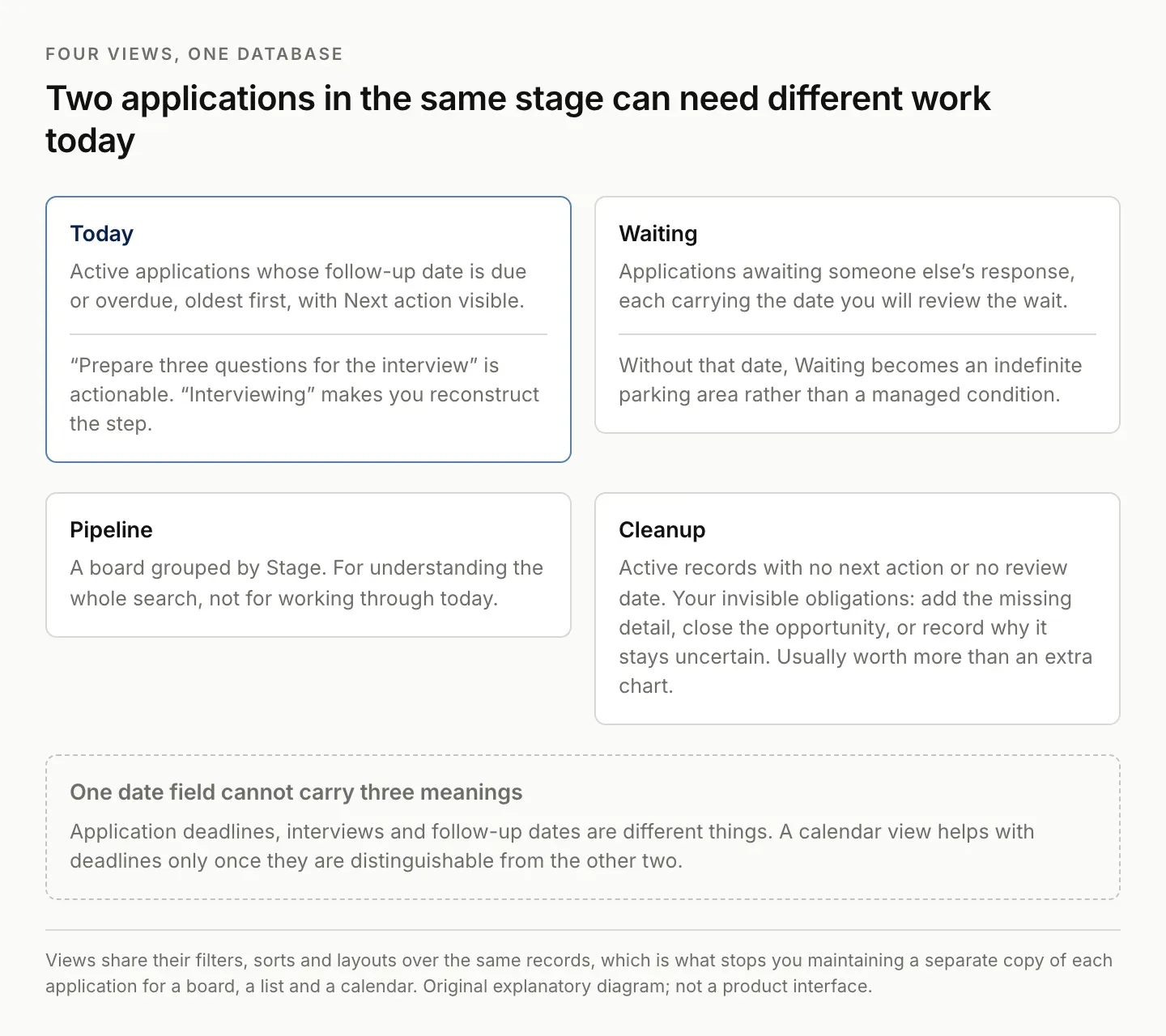
One date field cannot carry application deadlines, interviews and follow-ups at the same time.
Preserve the evidence inside each application
Give each application page a short, repeatable structure: role requirements, materials submitted, conversation notes, and next decision. Add a database template so a new page starts with these headings. Templates save setup work; they do not establish that the contents are current.
Under role requirements, keep the important requirements and a reference to the original posting. If you save a personal copy of relevant posting details, include the capture date. Job pages can change or disappear. You want to know which requirements you were responding to when you prepared the application.
Under materials submitted, link to the actual resume and cover letter versions used. A folder full of files named final, final-new, and final-revised creates the same uncertainty as an incomplete tracker. Use names that make the role and version recognizable, and avoid replacing the only copy of a submitted document with later edits.
Under conversation notes, preserve the message or meeting reference that supports a status change. Write “Recruiter requested availability” when that is what happened. Do not upgrade the application to Interviewing solely because a message sounds encouraging. Separating evidence from interpretation makes your own review easier and helps any assistant avoid amplifying a mistaken assumption.
For the next decision, write the smallest useful action. “Improve application” is vague. “Choose two portfolio examples matching the role's research requirement” identifies the work. The tracker should help you resume that work without rereading the entire application history.
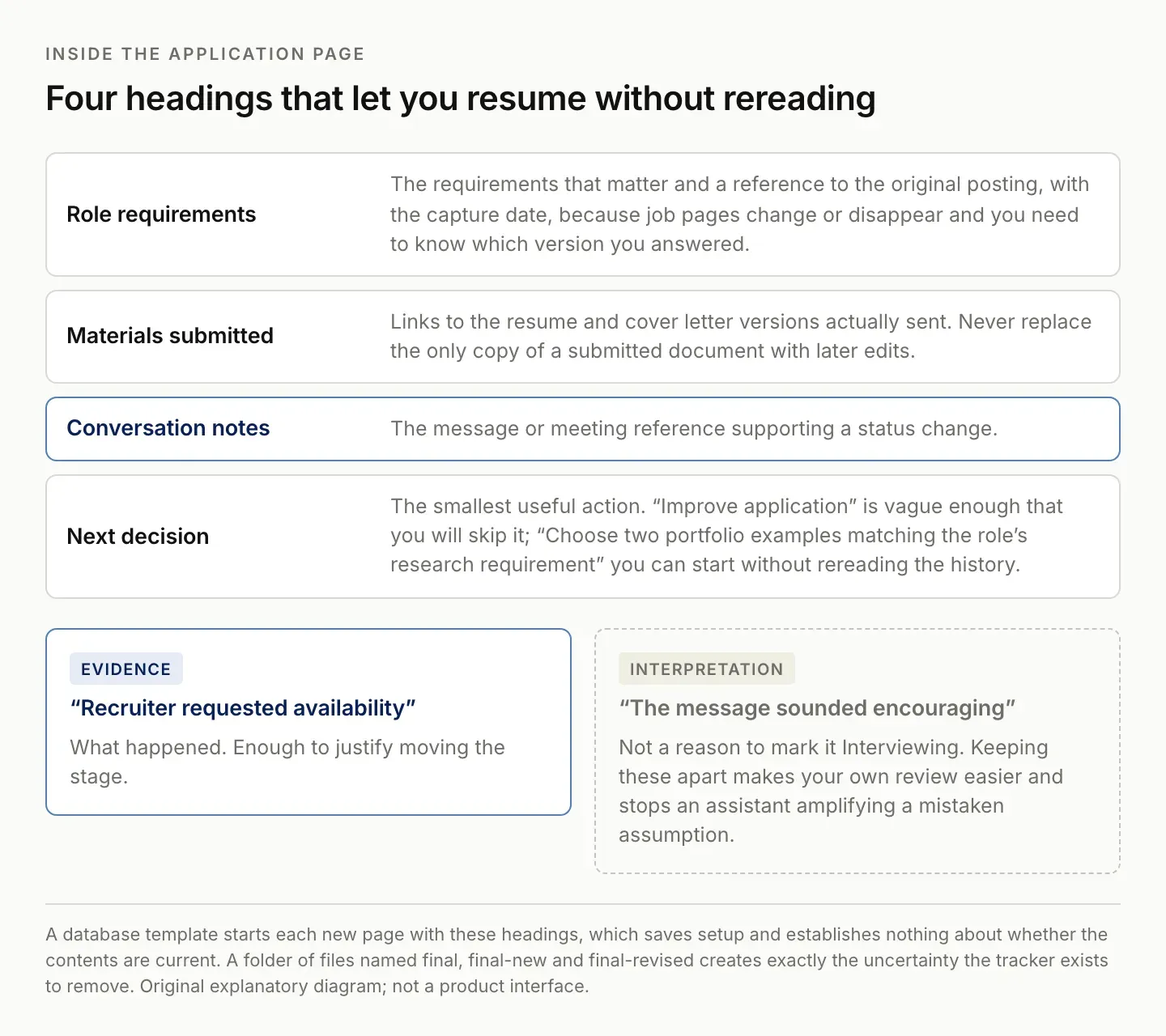
"Recruiter requested availability" is evidence. "The message sounded encouraging" is not a reason to move the stage.
Use reminders and a short review routine
Set a reminder on a date when you need a notification, and check the timezone if the timing matters. Treat the reminder as a prompt to inspect the application. It is not evidence that a recruiter will respond, and it should not automatically send a follow-up message without your review.
Choose your follow-up timing from the actual conversation and application instructions. If a recruiter gave a response date, use that as your reference. If a posting asks applicants not to contact the team, respect that instruction. There is no universal number of days that fits every hiring process.
During a review, open the Today view and resolve each due item. Finish the action, move the review date for an explicit reason, or close the opportunity. Then inspect Waiting and the cleanup view. Check whether any new messages have changed the record before preparing another reply.
Keep a short note when you move a date. “Waiting for response until the date the recruiter gave” preserves useful context. Repeatedly moving dates without a reason can make an apparently tidy dashboard conceal a stalled search. A review should reduce ambiguity, not merely turn overdue dates into future dates.
If you already have a spreadsheet, you can use Notion's import options as a starting point. Expect to inspect the imported columns and configure your views afterward; importing data is not the same as importing a complete working dashboard.
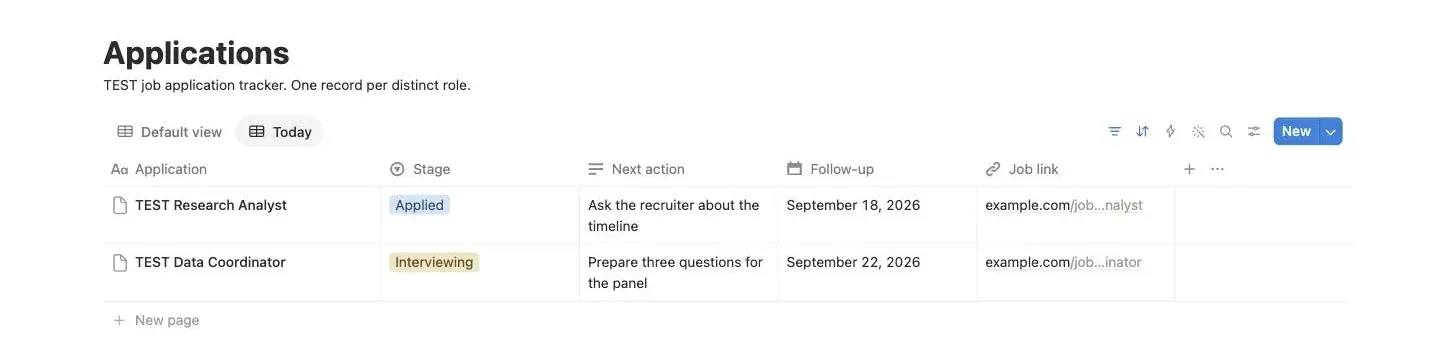
The Today view resolves to two TEST applications: one overdue on 18 September, one due on the day. The record with a follow-up next week and the closed one are filtered out.
Decide what automation should actually change
Before connecting an assistant, write a change rule in ordinary language. For example: when a message clearly identifies an existing application and requests availability, prepare an update containing the message reference, proposed next action, and a review date. If the application cannot be matched confidently, create a review item instead of changing an unrelated record.
Match on more than a company name. You may have multiple applications at one employer, and a recruiting agency may contact you about several clients. Use the role, posting identifier, message thread, or other available evidence. An uncertain match should remain uncertain in the proposed update. Zentor's follow-up email generator covers the drafting step once the record is current.
Keep a distinction between a proposal and a completed action. A generated follow-up email belongs in Draft until you review it and send it through an authorized workflow. The database should not say Followed up merely because an assistant wrote the text. Record the actual sending evidence before changing that state.
Also review native options before adding another product. Notion's current Custom Agents documentation includes mail connections that can support workflows involving email and database updates. That means the choice is about your required workflow and available access, not a claim that Notion cannot work with email. Mail connections for Custom Agents.
Try the rule on a small set of known records: a clear match, two similar roles, a rejection, and a message that requires no update. Those cases reveal more than a polished example in which every input is conveniently complete.
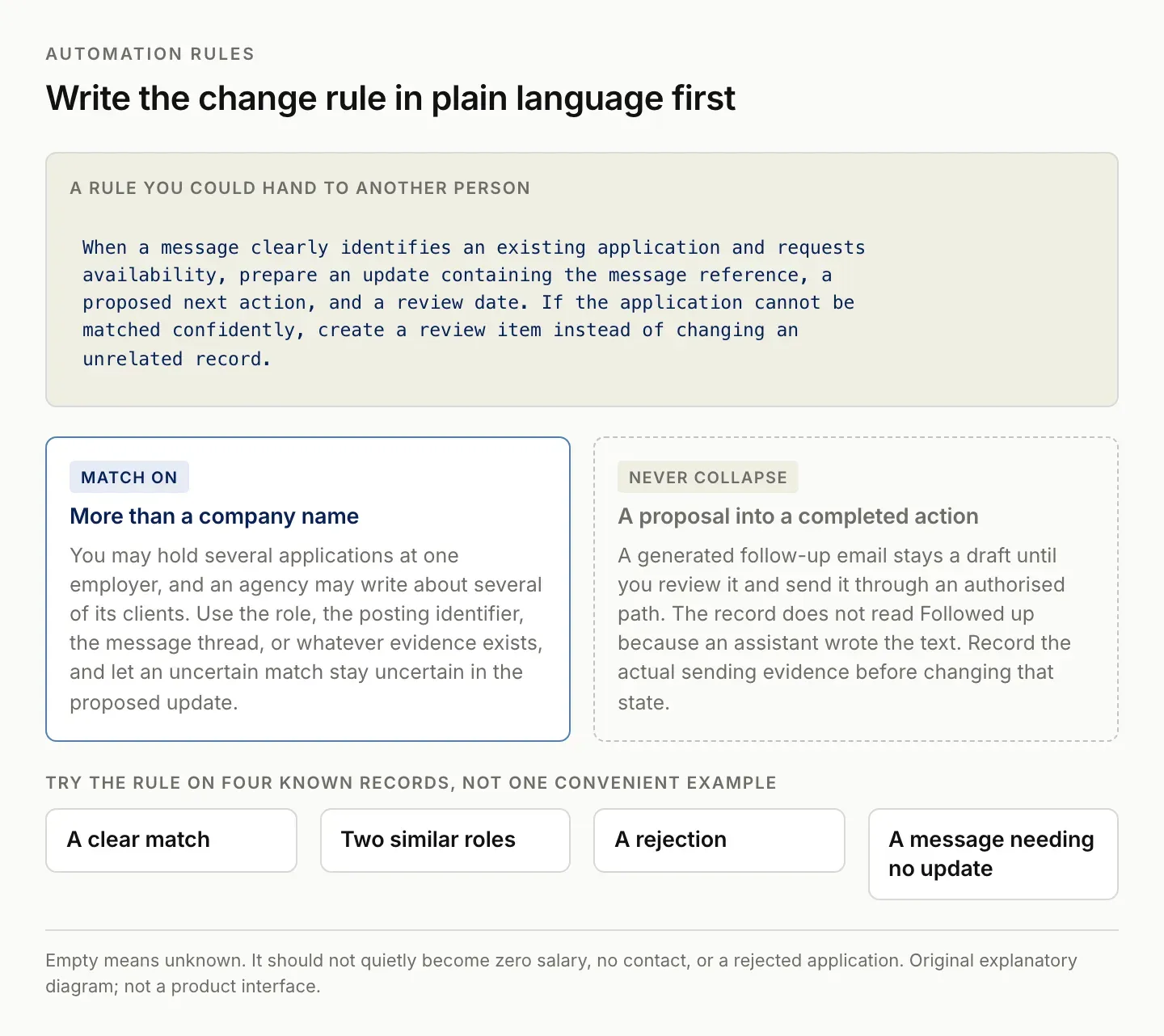
Try the rule on a clear match, two similar roles, a rejection, and a message needing no update.
Where Zentor fits in the job search workflow
Zentor's intended role is to help maintain work across the tools you already use. For this tracker, the useful workflow would connect the application record with the relevant job description, submitted documents, and follow-up draft. The value would come from retaining that context between reviews, rather than producing another generic cover letter.
Use a concrete brief when evaluating that workflow: “Review these selected applications against their linked messages. Propose changes to Next action and Follow-up, cite the source for each change, and prepare replies as drafts. Leave ambiguous matches for review.” That brief describes an observable result you can inspect.
Zentor is in early access. This article does not claim that a particular email connection, scheduled review, or database write has been demonstrated in your workspace. Confirm the available connections and inspect a real result before relying on the workflow. The underlying Notion setup remains usable on its own while you evaluate those capabilities.
If your existing template and a short manual review already keep the search current, continue with them. If you repeatedly reconstruct the same context across documents and messages, that is the work to bring to an early-access evaluation. Explore Zentor with one bounded application workflow and a clear definition of a correct update.
FAQ: Notion job application tracker fields and views
What should a Notion job application tracker include?
Start with the role, company, stage, source link, next action, and follow-up date. Add submitted-document links and supporting messages inside the application page. Expand the schema only when a recurring decision requires another field.
Is a board enough to manage a job search?
A board shows the pipeline well, but it usually needs a dated action view alongside it. Two applications in the same stage can require completely different work today.
Can I automate every status change?
Only automate changes you can define and verify. Ambiguous messages, similar job titles, and draft replies need explicit handling. A generated message does not establish that you sent it or that the recipient responded.
Should I track rejected applications?
Keep the history if it is useful for your own search review, but remove closed items from daily action views. Retain only the personal information you need, especially if you share the tracker with someone helping you.

Zentor Editorial Zentor editorial team
The Zentor editorial team writes about workflow automation, AI agents, and the tools we build. Default byline for industry overviews, listicles, and collaborative pieces.
Stop doing this manually.
Zentor runs on its own cloud computer - research, monitoring, reports, browser tasks. No setup. No self-hosting.