Notion Meeting Notes: Capture Decisions and Next Steps

Notion meeting notes can hold decisions and next steps in one place. Set up a repeatable note, assign actions, and review what still needs follow-up.
Notion meeting notes carry client decisions, next steps, and questions into follow-up work. This guide covers a repeatable note and separate Tasks records for actions needing longer tracking.
Key Takeaways:
- A useful note distinguishes confirmed decisions from open questions.
- Shared templates need a Client and Project relation check before reuse.
- Each action needs an owner and an agreed date, or a visible gap to resolve.
- Longer-running work involves tasks and should be reviewed before the next call.
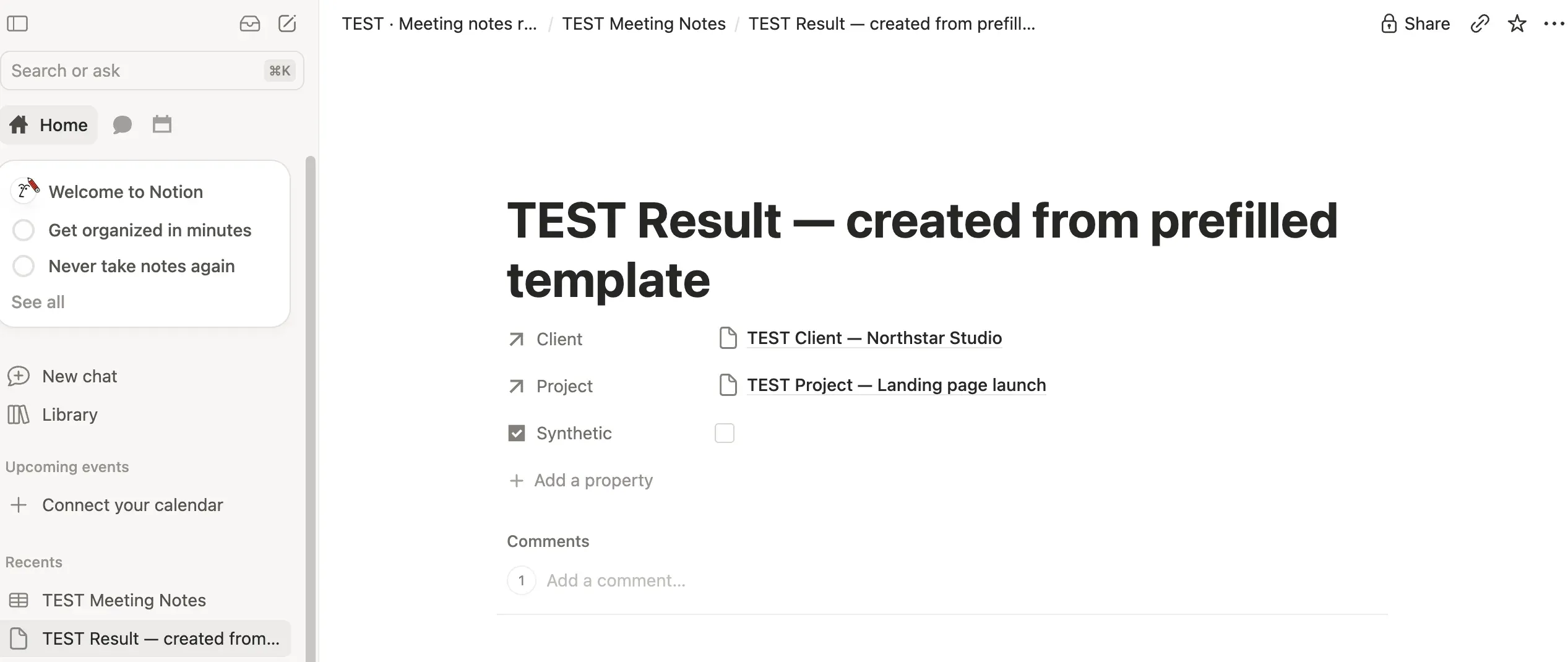
The vendor supplied a screenshot of a synthetic Notion record in which a newly created meeting note shows prefilled Client and Project relations. That is an easy detail to miss when a template is shared across clients.
What Should a Useful Meeting Note Preserve?
Useful Notion meeting notes make the next decision easy to find. Record the decision, next action, one owner, agreed due date, and open question. No transcript is needed. Mark missing owners or dates for follow-up.
Keep your confirmed work context available
Zentor keeps workspace memory you can carry between AI tools through Zentor MCP. The client recap still needs your approval.
Get early access →
Set Up a Repeatable Meeting Note in Notion
Create a Notion meeting database called Meeting Notes. Add a reusable Notion meeting notes template named Client Call; it copies prompts and fields into each note created from the template, so your client call notes start with the same structure. Every database item is a Notion page. Database properties hold dates, people, and relations; templates copy the page layout.
Keep Meeting date, Client, Project, Participants, Status, and Next review date. Relate to existing Client or Project databases when useful. Add prompts for Purpose, Decisions, Action items, Unresolved questions, and Confirmation sent. Create each note before a call; add client, project, decision, and open actions. If client records need their own follow-up history, see the Notion CRM guide.
Leave Client and Project relations empty in a shared template. Check both fields before reuse. A client-specific template can keep its intended Client relation; clear Project if it should vary.
Vendor-supplied workspace example (October 28, 2026): The screenshot below shows a synthetic note created with Client and Project relations already filled. It illustrates the risk in this one example; it does not establish behavior in every Notion configuration.
Capture Decisions, Owners, and Due Dates
Write the outcome in plain language, then list each action with one owner and a date only if the date was agreed. Keep a decision at Needs confirmation until the client or decision-maker verifies the recap.
Fictional example: Suppose a client is preparing a landing page launch. The team decides to keep the first release to one page. The client product lead will confirm the pricing copy by November 4, and you will revise the page copy by November 6. One question remains open: who approves the legal copy? These dates are example fields, not a real client commitment.
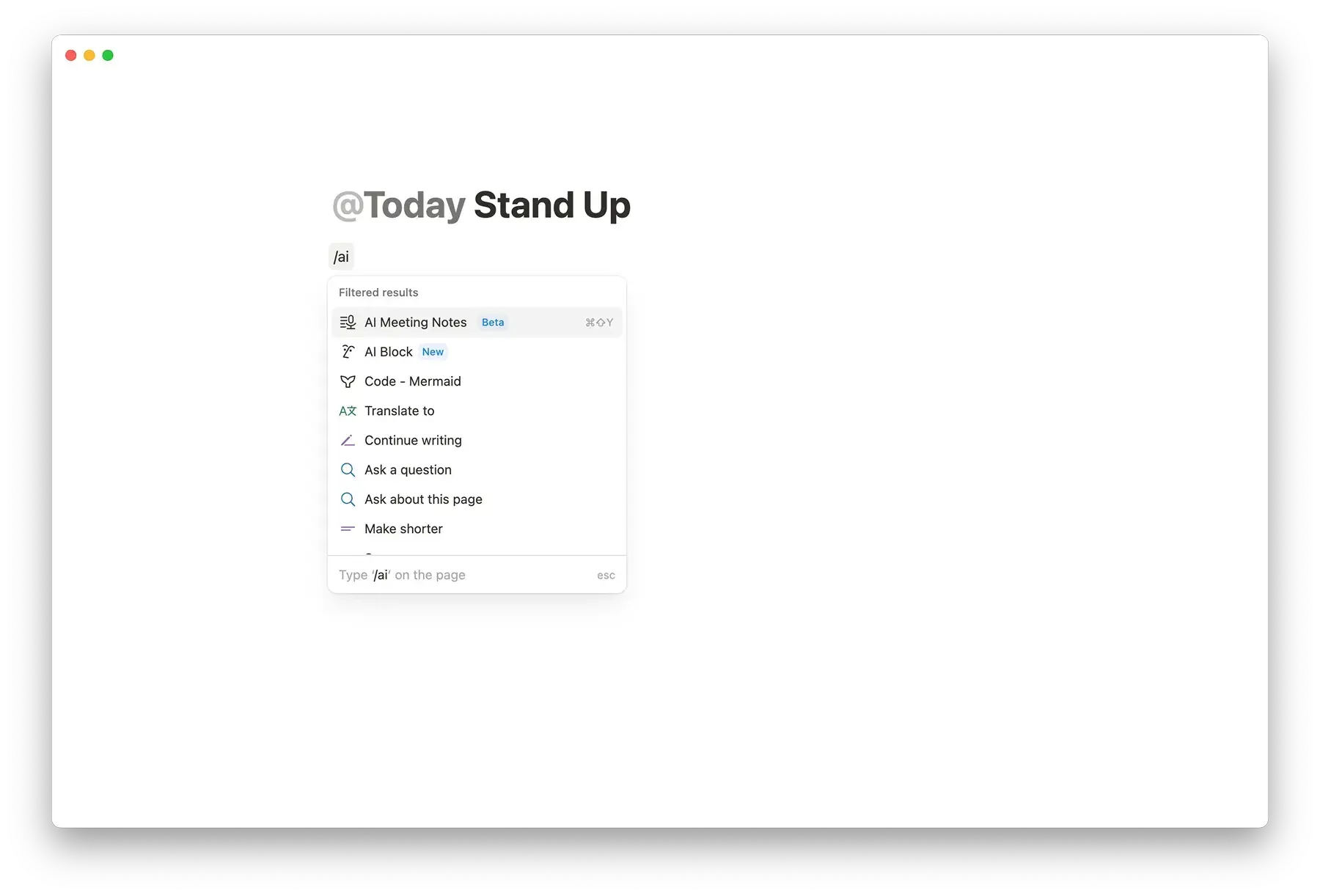
Keep meeting action items in Notion traceable to their decisions. Before recording or transcribing, disclose the service, what it captures, how it will be used or shared, who can access it, and how long it will be kept. Get consent from everyone; if someone declines, take manual notes. Notion's AI Meeting Notes guidance discusses consent and sharing controls. You do not need the AI menu shown below for this manual workflow.
Link Action Items to the Right Project
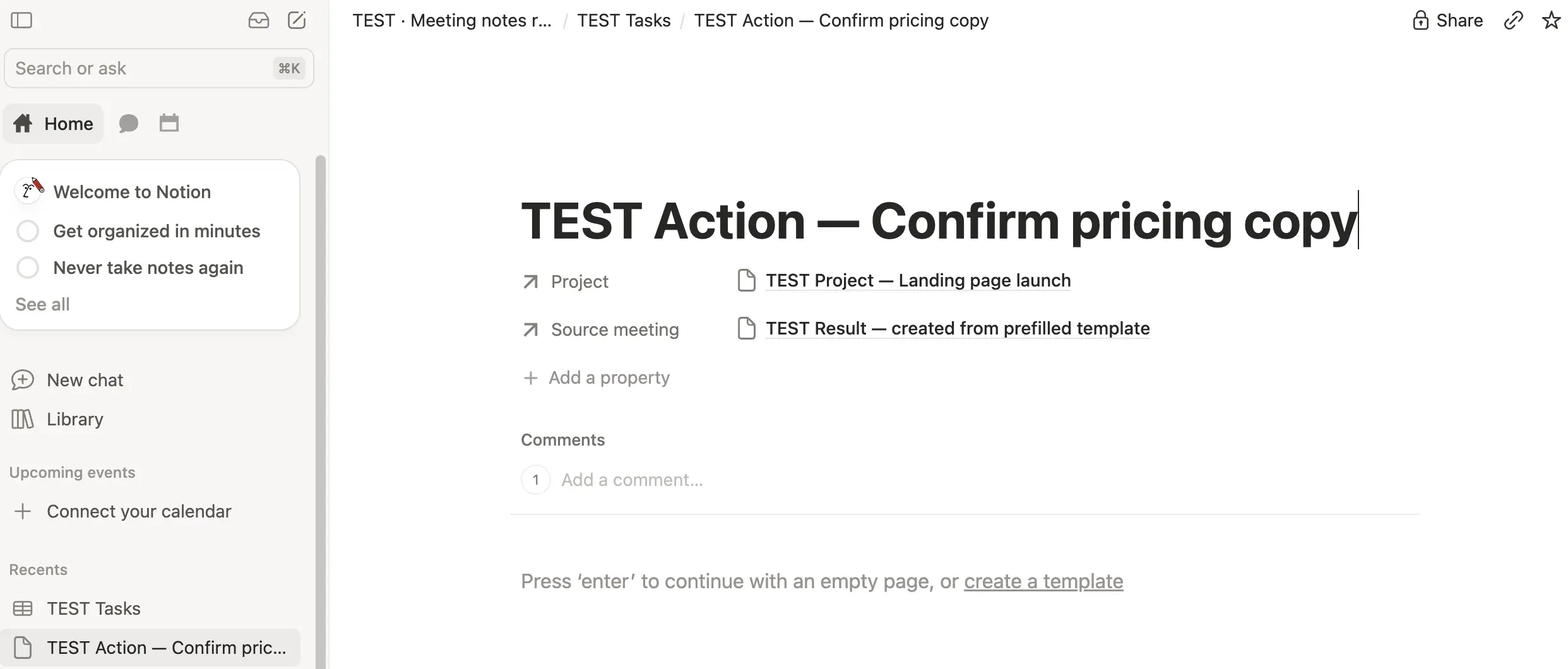
Not every action needs a separate task. A quick follow-up that will be resolved before the next call can stay in the meeting note. For work that lasts longer, create a record in a Tasks database. If you do not already have a Tasks database, create one first. Add Action, Owner, Due date, Status, Project, and Source meeting, and relate each task to this note and project. Notion relations and rollups connect pages across databases. See Zentor's project management guide for the wider setup.
Vendor-supplied workspace example (October 28, 2026): A synthetic task screenshot shows Project and Source meeting relations on the action page. It does not demonstrate that note text and task status sync; update each record deliberately.
Review and Share the Notes After the Call
After the call, confirm the decision, owner, due date, and open questions. Send a human-reviewed recap through the client's usual channel; invite correction where wording could change scope or cost. Record when it was sent and whether it was confirmed; a polished summary is not proof of agreement.
Share only needed content. From the meeting page's Share menu, invite the client to that page with view or comment access rather than giving access to the full workspace. Workspace settings may restrict direct guest invites or require owner approval; ask the owner if blocked. Check subpages and wider database/workspace permissions. A PDF is a static copy clients can open without a Notion account. Inspect it before sending it. See Notion's guest guide, sharing guide, and export guide.
Zentor's workspace memory, available to different AI tools through Zentor MCP, can be an optional place to carry confirmed working context. It does not replace a client-approved decision in Notion, and this workflow assumes no Zentor–Notion connection.
Keep Open Commitments Visible at the Next Meeting
Before each call, review short actions in the previous note and the Tasks Open Actions view (Status is not Done; sort by Due date, filter by Project). Mark completed items done; move unfinished ones that need ongoing tracking to Tasks; otherwise, leave them in the notes with a review point. A Date-property reminder is a prompt to review, not proof the assigned owner accepted the work.
Start with the view before adding automation. Check the plan, permissions, and triggering conditions in Notion's database automations guide before relying on a notification. Review overdue actions and open questions at the start of the next call.
What If a Decision Is Missing or Disputed?
Keep the status at Needs confirmation or Disputed until the people involved resolve the wording. Preserve the date and source of the disagreement, then record a correction rather than silently replacing the decision. Add an owner and next review date for the question. If nobody accepts it, carry it forward as a decision needed, not an assigned task.
FAQ
Can an action be assigned to someone without a Notion account?
Not as a Person value unless they join as a member or guest. Instead, record their name as text and confirm responsibility through the agreed client channel. A Person value alone should not be treated as proof that the assignee can open the page; check sharing permissions.
Can meeting notes be exported for a client who does not use Notion?
Yes. Use a PDF when the client needs only a read-only snapshot. If they need to comment or collaborate in Notion, invite them to the specific meeting page with the appropriate access level. Keep the database page as the authoritative working record.
How can guests see notes without seeing the full workspace?
Give the client access to the specific meeting page rather than inviting them into the wider workspace. Page access should match what they need to do: view the recap or leave comments. Review inherited permissions, subpages, and linked content before sharing. Access to one page should not be treated as proof that every connected record is private. If guest invitations are restricted, ask a workspace owner to approve the appropriate access.
Can old meeting notes be searched by client?
Yes. A client relation can show a client's connected meeting notes from its record. If you use a text or select property instead, keep the spelling consistent and filter the Notes database by that value.
What should happen when an action has no owner?
Leave Owner blank and set a temporary status such as Needs owner. Name who will ask the group for a volunteer and when to revisit the gap. Assign the action only after someone accepts; otherwise use that review date to defer or cancel it.
Carry Client Decisions Into the Next Call
A meeting note can look complete while still pointing to the wrong client through a prefilled relation. A clear recap can also make an unconfirmed decision look final. A meeting decisions tracker in Notion meeting notes makes those gaps visible. Before the next call, check the client and project links, confirm which decisions are settled, and bring unfinished actions back into view. The goal is not simply to keep tidy notes. It is to make sure the next person can act on the right information.

Zentor Editorial Zentor editorial team
The Zentor editorial team writes about workflow automation, AI agents, and the tools we build. Default byline for industry overviews, listicles, and collaborative pieces.
Stop doing this manually.
Zentor runs on its own cloud computer - research, monitoring, reports, browser tasks. No setup. No self-hosting.