Claude Whiteboards Team Planning: Handoff
Claude Whiteboards team planning: use a handoff checklist to confirm decisions, owners, dates, and recipients before moving a board into a team document.
Claude Whiteboards team planning gives a team and Claude a shared canvas for working through a plan. For a team handoff, the useful output is a checked account of what was decided, who has the next move, and where that work will live.
Key Takeaways:
- Treat the board as a working plan until the decision-maker confirms its decisions.
- Give each action a deliverable, an accepted owner, a date or visible date gap, and any blocking dependency.
- Turn the checked board into a handoff document, then name its recipients and the destination for ongoing work.
Start With a Shared Planning Board
In this fictional example, a small consultancy has put a client's campaign goal, proposed channels, draft milestones, and open questions on a Claude Whiteboard after kickoff.
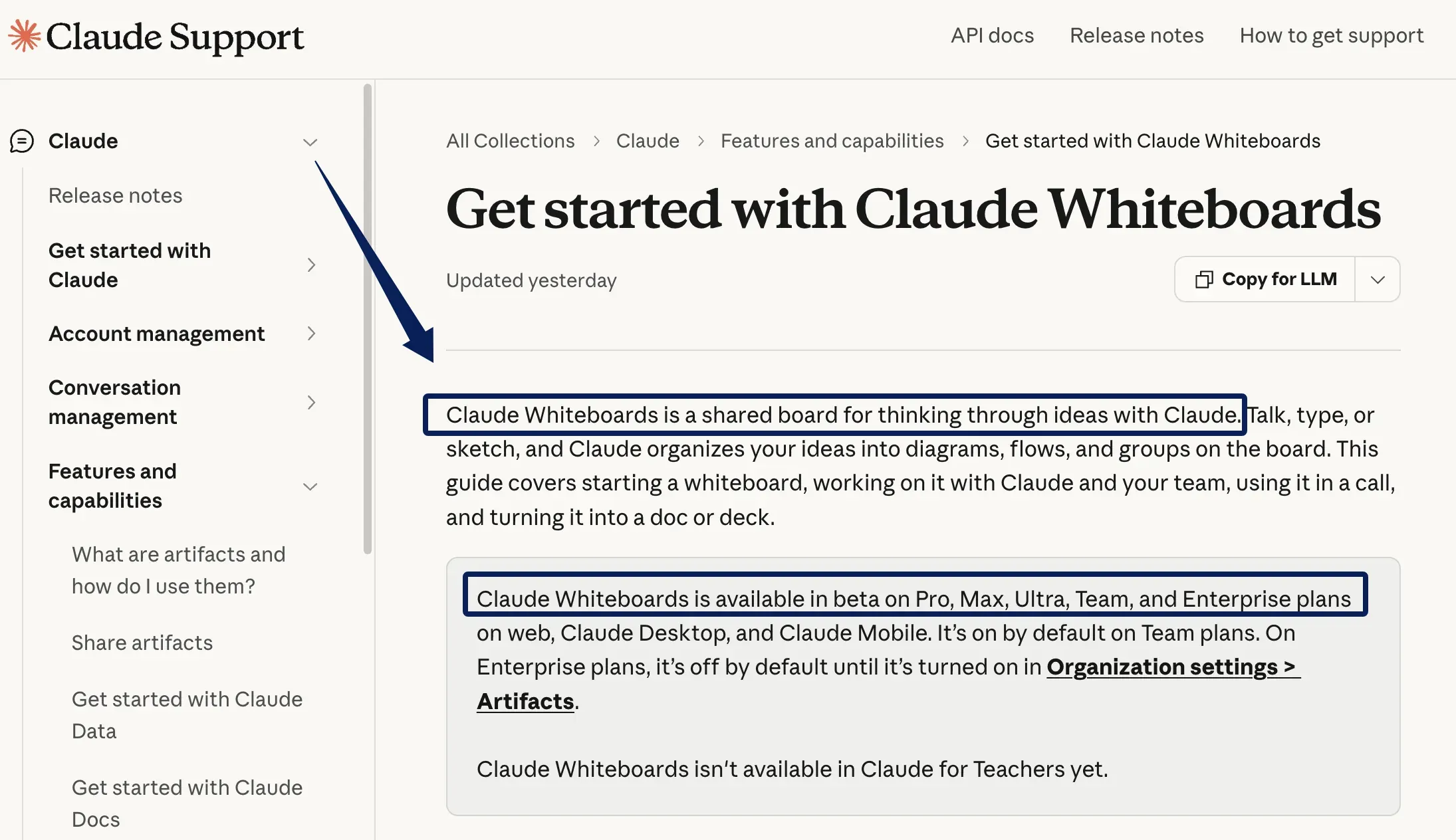
Anthropic describes Claude Whiteboards as a beta shared board where teams collaborate with Claude in real time. As of November 14, 2026, it is available on Pro, Max, Ultra, Team, and Enterprise plans. Team plans have it on by default; Enterprise organizations must turn it on in Organization settings > Artifacts. Claude can arrange a rough plan into a timeline with owners and dates. The arrangement still needs checking against what the team agreed.
Mark which campaign choices the client approved. If the group discussed paid ads but agreed only to explore them, label that branch Proposed. If the client approved an email-first launch, record the decision, its source, and who confirmed it. Keep the labels visible during review.
Keep a confirmed client handoff where you work
Use Zentor to prepare a follow-up from approved context in your connected tools. Review the draft before anything goes out; a Claude Whiteboard is not a live Zentor connection.
Start free trial →
What Belongs in the Handoff Checklist?
A Claude Whiteboards team planning handoff should let someone who missed kickoff start work without mistaking a suggestion for an instruction. Check three areas first.
Approved Decisions and Source Notes
For each choice, record the outcome, approver, date, and source: an approved brief, client reply, or reviewed notes. "Email is the first launch channel" is a decision only if the client or authorized lead confirmed it; "Try email first?" remains an option.
Link to the relevant brief section instead of pasting the whole discussion. Resolve any conflict between source and board before work starts. Zentor's guide to meeting action items likewise separates commitments from suggestions.
Owners, Dates, and Dependencies
Turn each confirmed step into a deliverable. "Draft the first campaign email for client review" tells the next person more than "Work on launch." Name the person who agreed to do it. Owning the Whiteboard does not make someone responsible for every task on it.
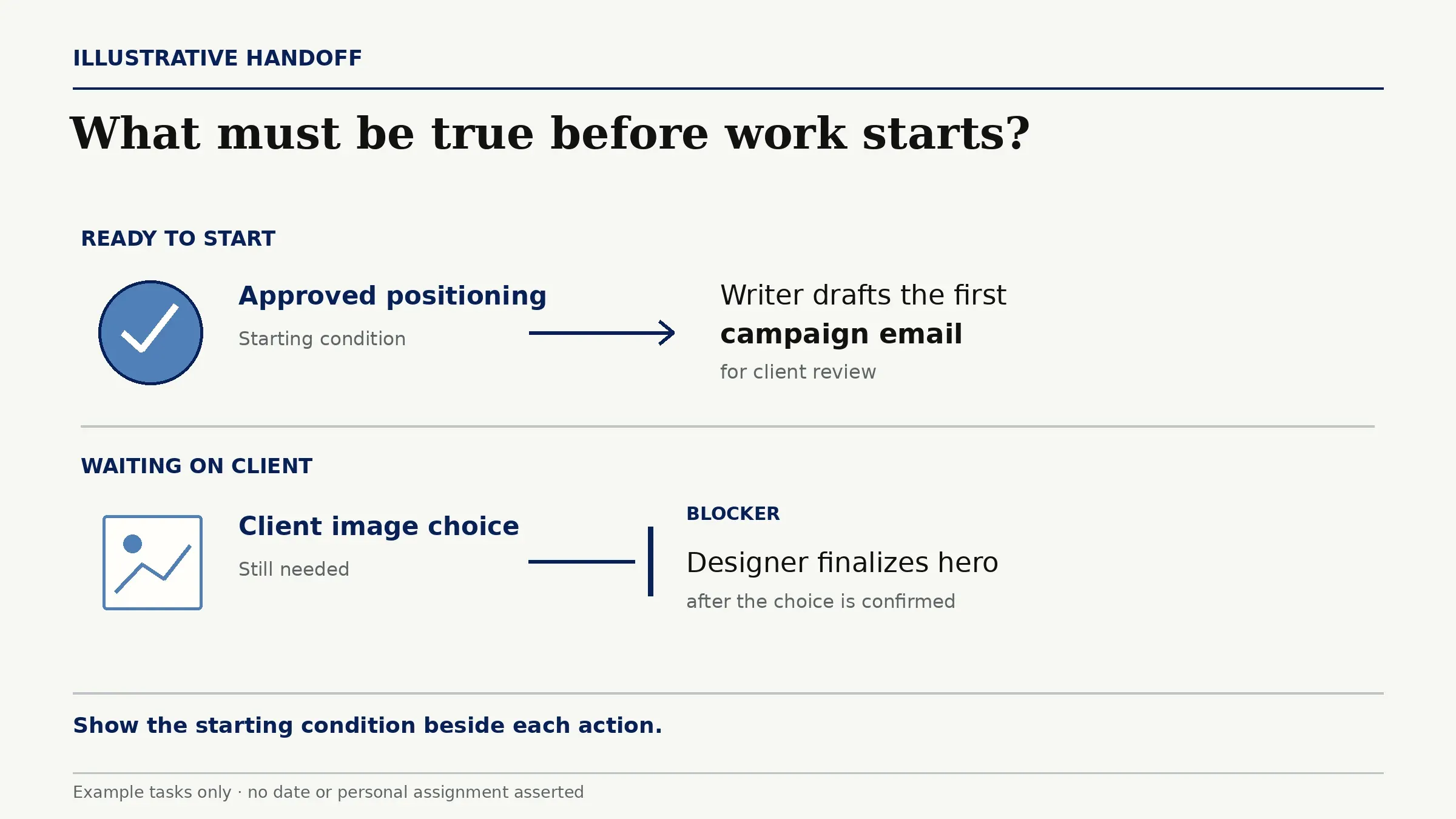
For each action, check the owner, agreed date, and dependency. The writer can draft from approved positioning; the designer needs the client's image choice before finalizing the hero. Show that blocker beside the design action. For a missing date, write Date to confirm and name who will ask. Each action item on the Claude Whiteboard should show its starting condition.
Open Questions and Approval Status
Give open questions their own area: decision needed, decision-maker, follow-up owner, and blocked work. For example: "Client to choose one of two hero images; account lead to request approval; final design waits."
Use Approved, Needs confirmation, and Proposed only as the evidence warrants. If a later client message changes scope, update the decision and source before handoff.
Turn the Board Into a Handoff Document
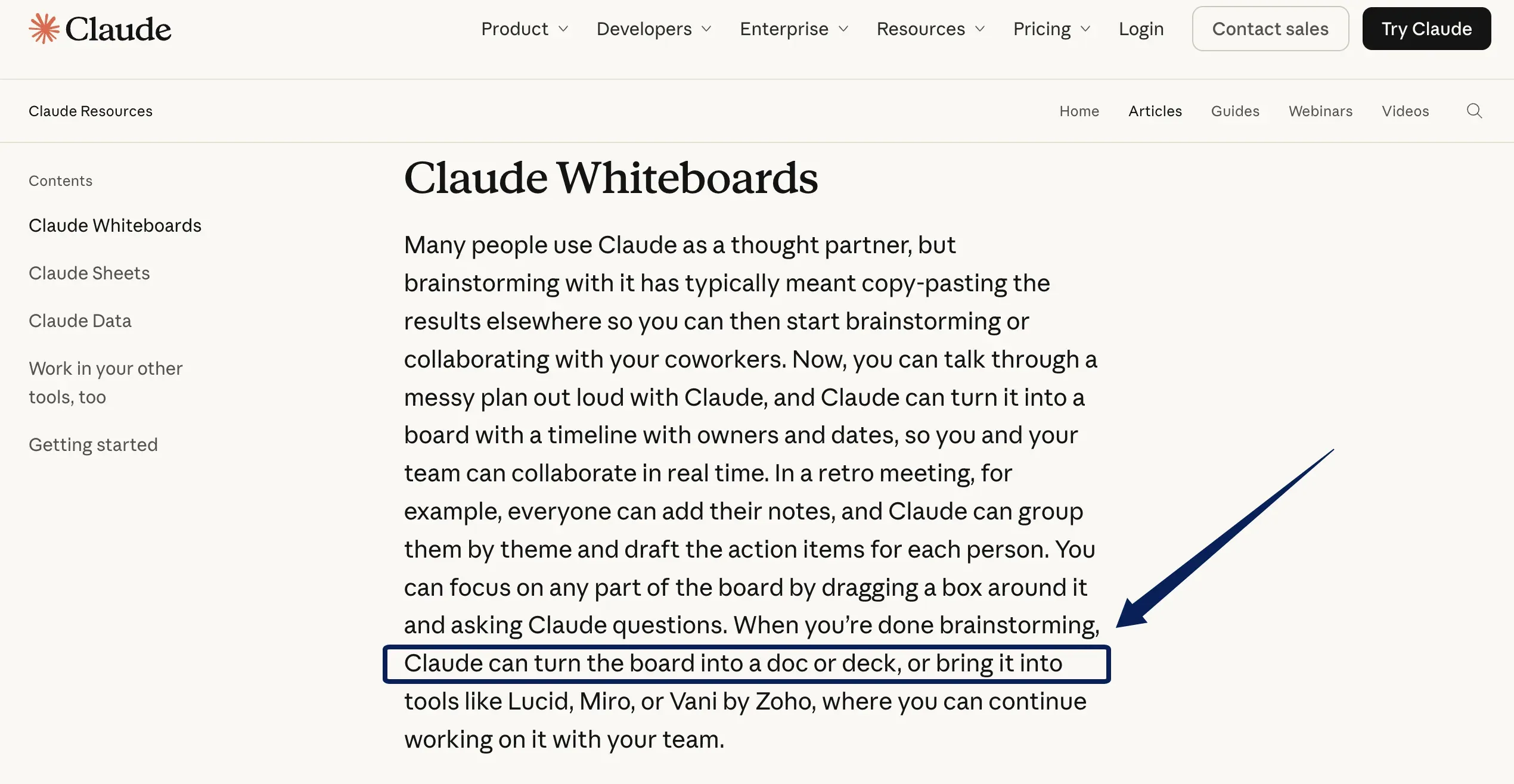
After review, ask Claude to turn the board into a project plan or short handoff document. Anthropic's Whiteboards launch overview describes conversion to a doc or deck. For this campaign, order a doc by approved scope, deliverables and owners, dates and dependencies, then open questions. A client deck needs the same approval boundaries.
Read the document against the board and sources. Check that it has not promoted a proposed channel, assigned an unclaimed task, or turned a target date into a promise. Link to the source when a recipient may need to inspect a decision. The resulting project plan must match what was confirmed.
Confirm Recipients and the Work Destination
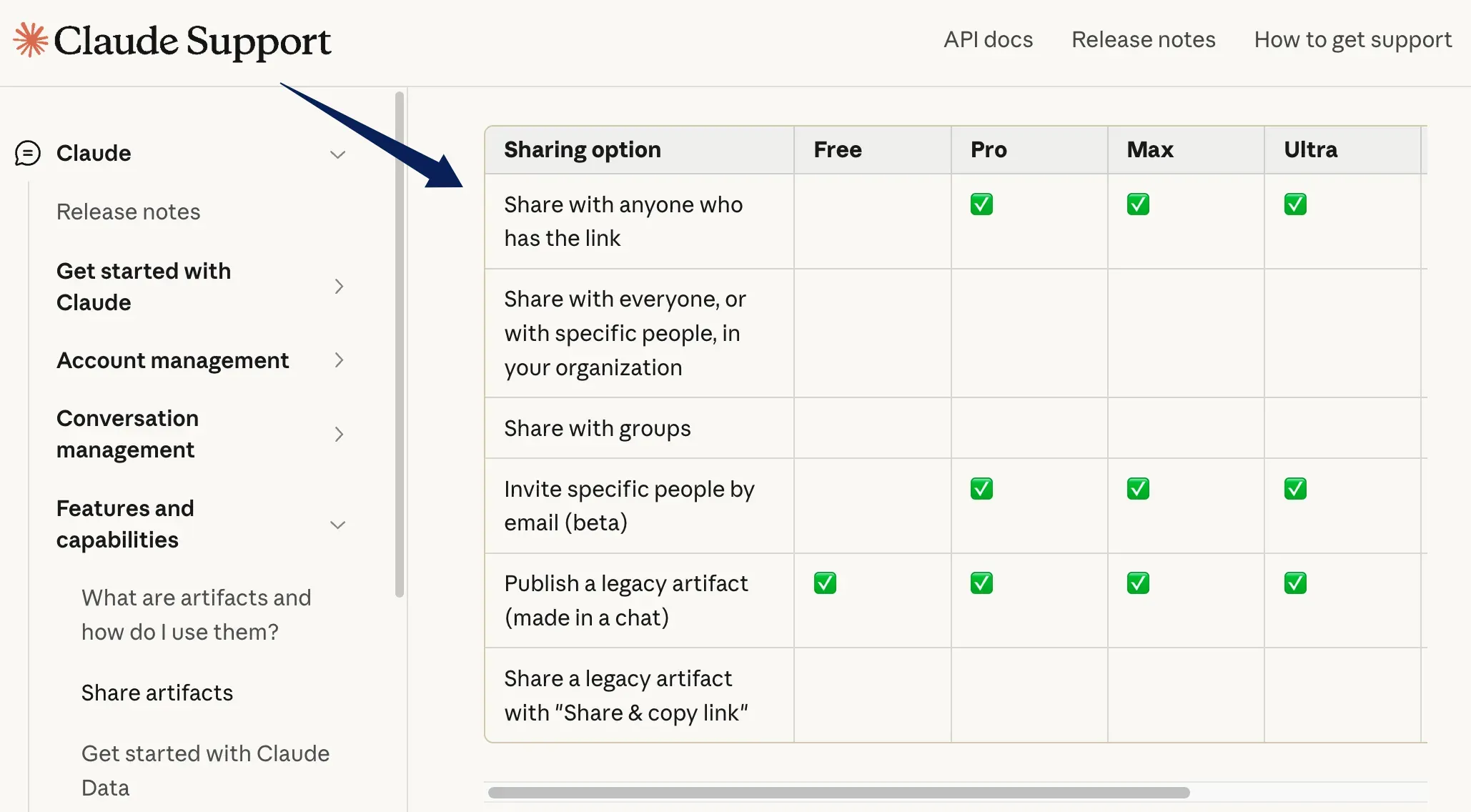
Name recipients and their next moves: the writer needs the approved message, the designer needs the image decision, and the account lead needs the open questions. For the Whiteboard, choose whether each person can view, comment, or edit. Anthropic's artifact-sharing controls define those access levels; invitations outside a Team or Enterprise organization depend on its settings. The Artifacts admin guide distinguishes public-link sharing from outside email invitations. If you share a generated Claude Doc instead, its sharing guide says recipients must sign in; link viewers can only view, while invited recipients may receive comment or edit access where settings allow. Check the deck's own sharing settings if you use one.
Choose where work will be maintained: perhaps a project board for tasks and a client-facing document for approved scope. Record the links and who updates each place. The Whiteboard alone does not show that a task was accepted there. For a Notion setup, Zentor's meeting-notes guide links decisions to separate tasks without assuming status sync. Zentor can use an authorized Notion connection to retrieve relevant workspace context for a separate reviewed draft; it does not read a Claude Whiteboard or sync its board status. Before sending, check that owners can open the right version.
FAQ
Can a teammate follow another person's view while reviewing a Claude Whiteboard?
Yes. People on a board can work on it live and follow a teammate around the board to see what that person is looking at.
Does a Claude Whiteboard use context from connected apps?
No. Anthropic says Claude works from what is on the board and does not use context from connected apps in Whiteboards at launch. Add relevant, approved information to the board yourself.
Can you import an existing board file into Claude Whiteboards?
No. You can add pictures and videos to a board, but Anthropic says you cannot import a board from a file.
Can you export a Claude Whiteboard as an image?
Yes. Open Share, choose Export, then select PNG. Check that the exported image is readable for its intended recipient.
Can you send a Claude Whiteboard to Miro or Lucid?
Yes. Anthropic lists Lucid and Miro, along with Zoho Vani, as destinations under Send to. Confirm what arrives in the destination before treating it as the team's maintained plan.
A Handoff Is Ready When the Next Owner Can Start
Can the next action owner find the approved decision, deliverable, date or date gap, and person who can unblock them? Have they accepted the assignment, and can the intended recipients open the correct version? With those answers confirmed and the work destination named, the team can move from kickoff to assigned work. Route any missing answer to the person who can decide.

Zentor Editorial Zentor editorial team
The Zentor editorial team writes about workflow automation, AI agents, and the tools we build. Default byline for industry overviews, listicles, and collaborative pieces.
Stop doing this manually.
Zentor handles research, monitoring, reports, and browser tasks for you. No setup. No self-hosting.