A Notion Second Brain You Can Maintain
Build a Notion second brain around active projects, useful source notes, and a short review routine. Use PARA where it helps without adding upkeep.
A Notion second brain should help you retrieve useful material and finish current work without requiring constant reorganization. PARA, the method most of these builds start from, sorts everything into four categories: projects, areas, resources and archives. Four categories is a filing decision, not an instruction to maintain four databases, and that distinction is where most abandoned setups go wrong. Forte Labs on PARA. Start with a small capture inbox, active projects, and a reference library; the PARA method offers four organizing categories, but you do not need four elaborate databases to use them. Forte Labs on PARA.
Key Takeaways:
- Organize around work you expect to do, then add structure when repeated retrieval problems justify it.
- Separate an actionable task from the source material that supports it. A saved article is not automatically a commitment.
- Review active projects and unresolved captures before redesigning the dashboard.
- Evaluate assistants on whether they can preserve sources, distinguish current decisions from old notes, and return useful work to the right place.
Decide what your second brain is for
Before choosing a template, finish this sentence: “When I open this workspace, I need to find or produce...” Make the answer concrete. You might need the latest brief for a client proposal, the evidence for an upcoming presentation, or the notes supporting your next job application. Those answers imply different structures from a general ambition to remember everything.
Choose one current use case as your first test. Gather the material for a real piece of work and try to use it. Can you identify the approved brief? Can you distinguish a useful source from an idea you have already rejected? Can you find the next action without searching five dashboards? These are better tests than whether the home page looks complete.
Treat the system as a working collection rather than a complete representation of your life. Some information belongs in another application, and some is not worth keeping. You can link to a document in its original location instead of creating another copy whose freshness you must maintain.
Define success in terms of a result you can observe. “I found the source and used it in the draft” is a result. “I added twelve tags” describes maintenance. Tags can be useful, but their value depends on the retrieval or decision they support. A simpler workspace that regularly contributes to finished work is doing its job.
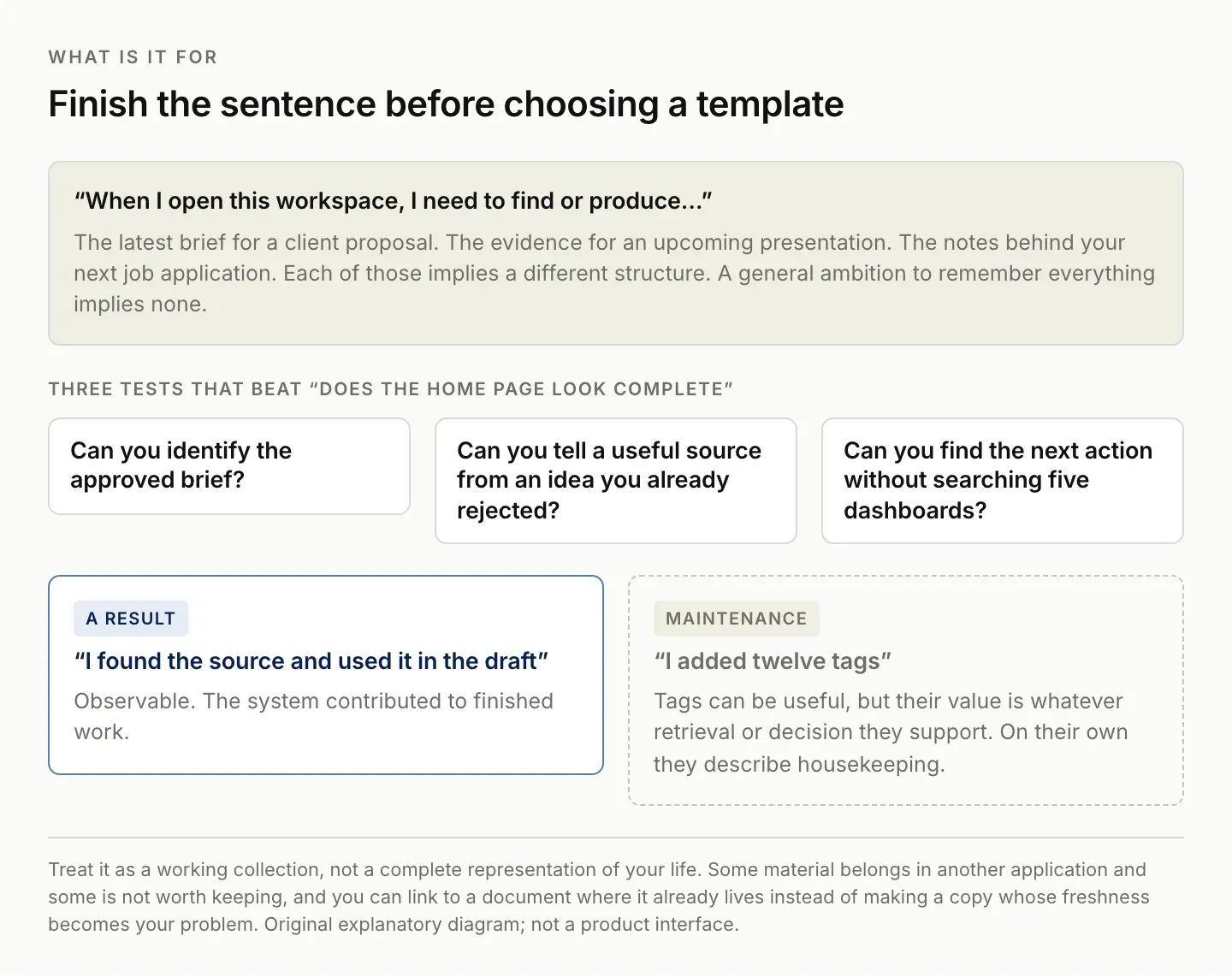
"I found the source and used it in the draft" is a result. "I added twelve tags" is housekeeping.
Use PARA as a filing decision, not a mandate
PARA stands for Projects, Areas, Resources, and Archives. In practice, it gives you a way to distinguish work with an outcome, ongoing responsibilities, material of interest, and inactive material. Attribute the framework to Tiago Forte; the database design below is an implementation suggestion rather than an official PARA template.
For a new item, first ask whether it supports an active outcome. A research note for a proposal belongs with that project. A reusable checklist for all proposals may belong in a reference collection or an ongoing area. When the proposal ends, its working material can leave your active view without losing its history.
Do not force every item into a perfect category at capture time. Use an Inbox value for undecided material, then decide during review whether to attach it to current work, keep it as reference, or remove it. If choosing a category takes longer than saving the useful context, your capture process has become too demanding.
The categories can be pages, a select property, or views over a database. Pick the implementation you understand well enough to repair yourself. Four category names do not require four sets of relations, formulas, and rollups. Add those only when you can describe the specific question they will answer.
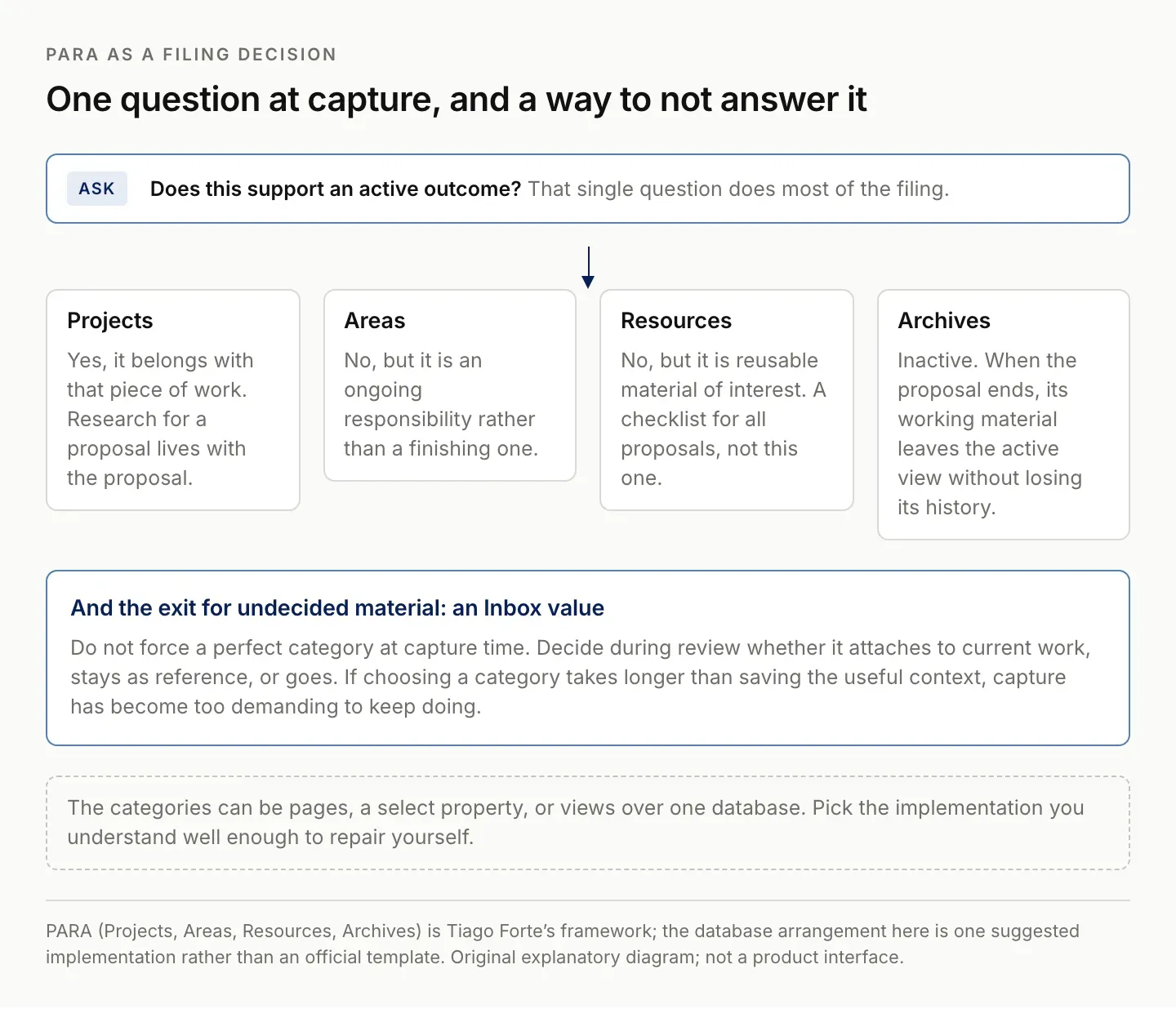
Do not force a perfect category at capture. If filing costs more than saving the context, capture stops happening.
Build the smallest useful Notion structure
Start with a Projects database and a Notes database. If you are already comfortable with a simpler page-based setup, keep it. The point of the database version is to let several views reuse the same records, not to make every note resemble a project-management form.
In Projects, keep a title, outcome, status, next action, and review date. The outcome should describe what finished means. “Client research” could continue forever; “Deliver a sourced three-page research brief” gives you a stopping point. Put detailed working material inside the project page or link to it.
In Notes, keep a title, source URL where applicable, a short explanation of why you saved it, and a category. Add a relation to Projects when a note needs a clear connection to active work. Notion's relation feature connects database records; it does not decide the relationship for you. Notion relations and rollups.
| Collection | Keep visible | Keep inside the page |
|---|---|---|
| Projects | Outcome, status, next action, review date | Brief, decisions, deliverable links |
| Notes | Title, source, category, related project | Useful excerpt, interpretation, possible use |
| Inbox view | Unprocessed notes | Enough context to decide what to do |
| Archive view | Inactive material | Historical evidence and completed work |
Keep source and interpretation distinct. If you save a statistic, preserve the original page and its relevant context. Your note about what it might imply is a different piece of information. This separation becomes especially valuable when an assistant later uses the note in a draft.
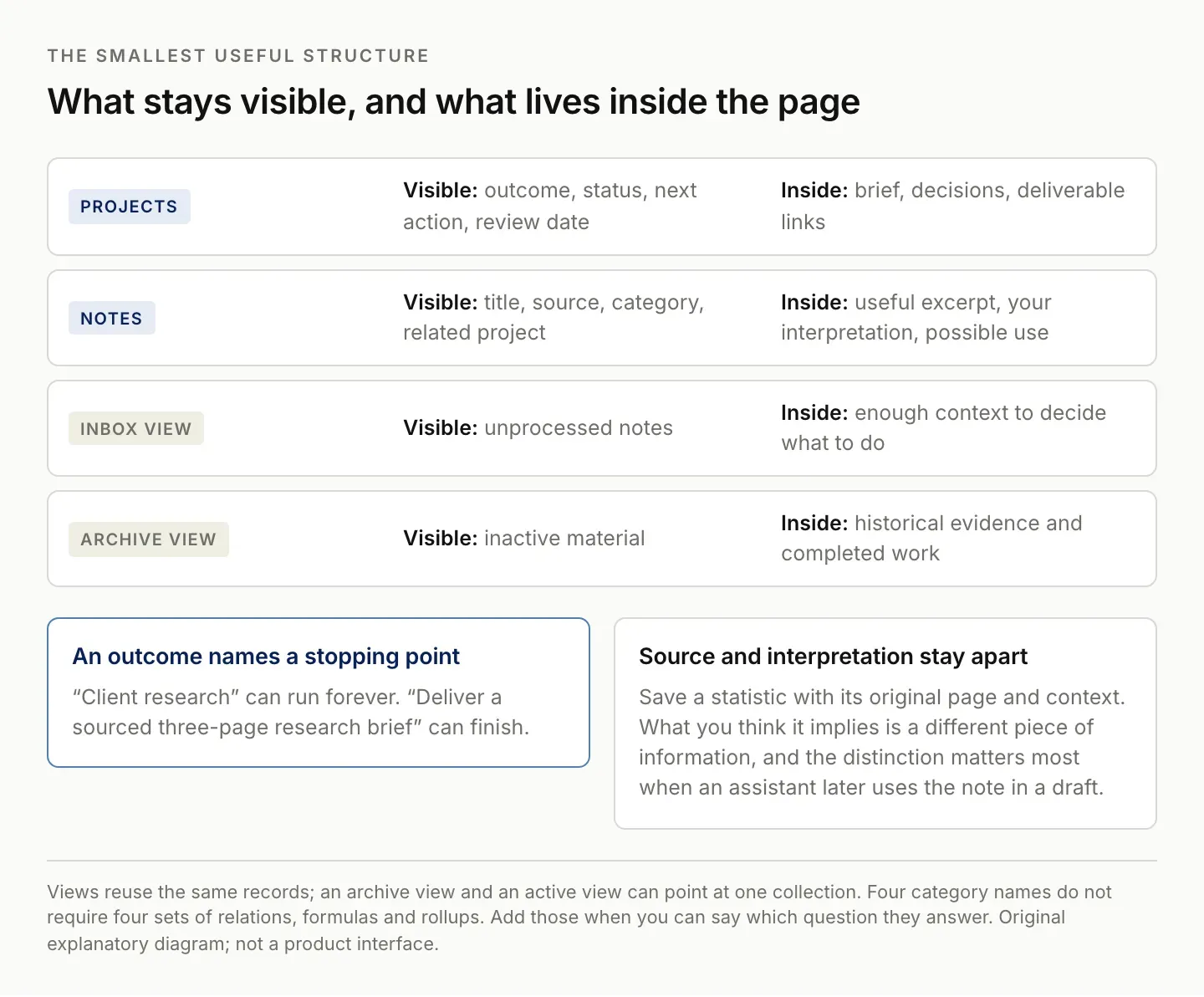
Four category names do not require four sets of relations, formulas and rollups.
Capture enough context to make notes reusable
A title and a link may be enough for something you will use tomorrow. For material you might revisit weeks later, add a sentence explaining why it matters. Write the intended use in your own words: a comparison to check, an example for a presentation, or evidence for a decision.
Avoid turning capture into a summary-writing assignment. You do not need to fully process every source before saving it. Record the part that made it worth keeping and the question it might answer. If the source turns out to be irrelevant, remove it without feeling obligated to finish an elaborate note. Zentor's Notion integration page lists the Notion connections currently available to an account.
Use one entry point for incoming material. Notion's Web Clipper can save web pages into a workspace, which may reduce the number of manual capture steps. Review the saved result and preserve the original URL when the source matters. A clipped page is a convenience, not proof that you have captured every detail correctly. Notion Web Clipper.
For meeting notes, record decisions and commitments separately from general discussion. “We discussed changing the schedule” does not mean the schedule changed. Include the person responsible for confirming the decision and the source of the final agreement. If the outcome is unresolved, leave that uncertainty visible.
When a note already exists, update or link it deliberately. Creating another slightly different summary can make later retrieval harder. You want to know whether two pages are independent sources, different versions, or duplicate captures of the same source.
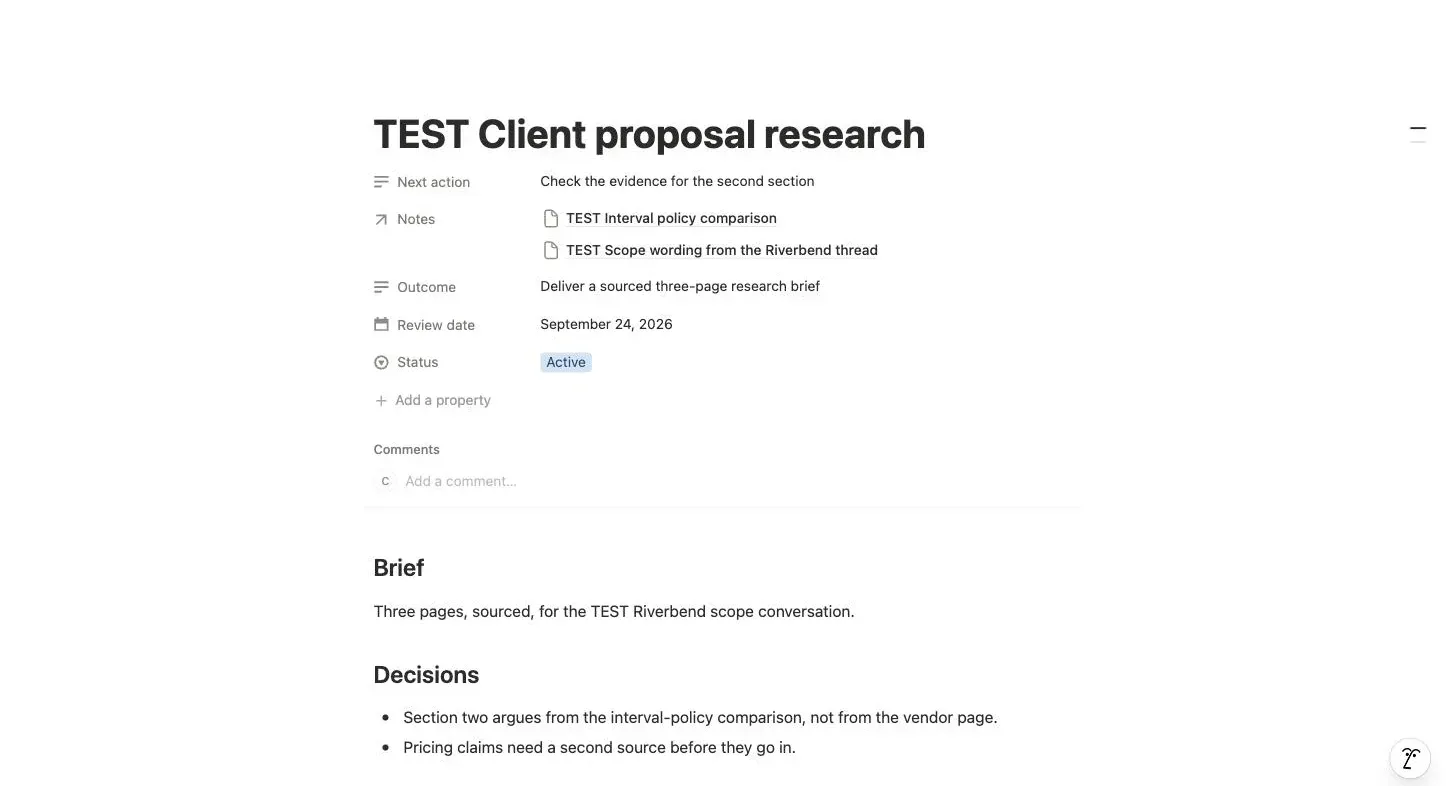
The project reaches its material through the relation, and each note carries why it was saved. Nothing here is a blank dashboard widget.
Design a home page around current work
Make the first section of your home page a short view of active projects. Show the outcome and next action. Below it, show unresolved inbox items and material awaiting review. Put reference browsing farther down the page, where it remains available without competing with today's work.
Use views rather than duplicating records. Notion supports independent filters and sorts for database views, so an archive view and an active view can refer to the same underlying collection. Notion database views.
A useful Today section should answer what you can do next. Do not populate it with every note edited recently unless recency is genuinely the selection rule you need. A source updated yesterday might be irrelevant to today's deadline, while a stable brief written last month may be essential.
Test the page by returning after a few days away. Can you resume a project without reading its entire history? If not, improve the project summary or next action before adding another widget. The home page should reduce the amount of context you have to reconstruct.
Use visual decoration selectively. An icon can make a section recognizable; a large gallery of inactive projects can push the actual work out of view. There is nothing wrong with a personal workspace looking attractive, but presentation should make repeated use easier.
Run a weekly review that changes something useful
During review, begin with active outcomes. Identify what moved forward, what is blocked, and what no longer needs attention. Update the next action while the context is fresh. A review that only rearranges notes leaves the same decisions unresolved.
Then process the inbox. For each item, choose one of four outcomes: connect it to active work, keep it as reference with a reason, defer it explicitly, or remove it. You do not need a new tag for every subtle topic. If you cannot explain why you are retaining an item, consider whether it deserves space in the system.
Archive completed or abandoned projects from active views. Keep a brief closing note explaining the result and linking to the final deliverable. This makes old projects useful as examples while preventing their unfinished-looking tasks from distracting you during current work. If you are weighing the built-in assistant against a separate one, the Notion AI alternative comparison covers that choice.
Inspect one retrieval problem from the week. Search for the thing you struggled to find and identify why it was difficult. Was the title vague? Was the source missing? Were there duplicate versions? Fix that concrete issue. Broad reorganization is expensive when the underlying problem was one unclear title.
Notion's search supports exact phrases and offers additional search options depending on your workspace. Test native retrieval before assuming you need a new tool. Notion search guidance. The right improvement may be better source names and project links rather than more automation.
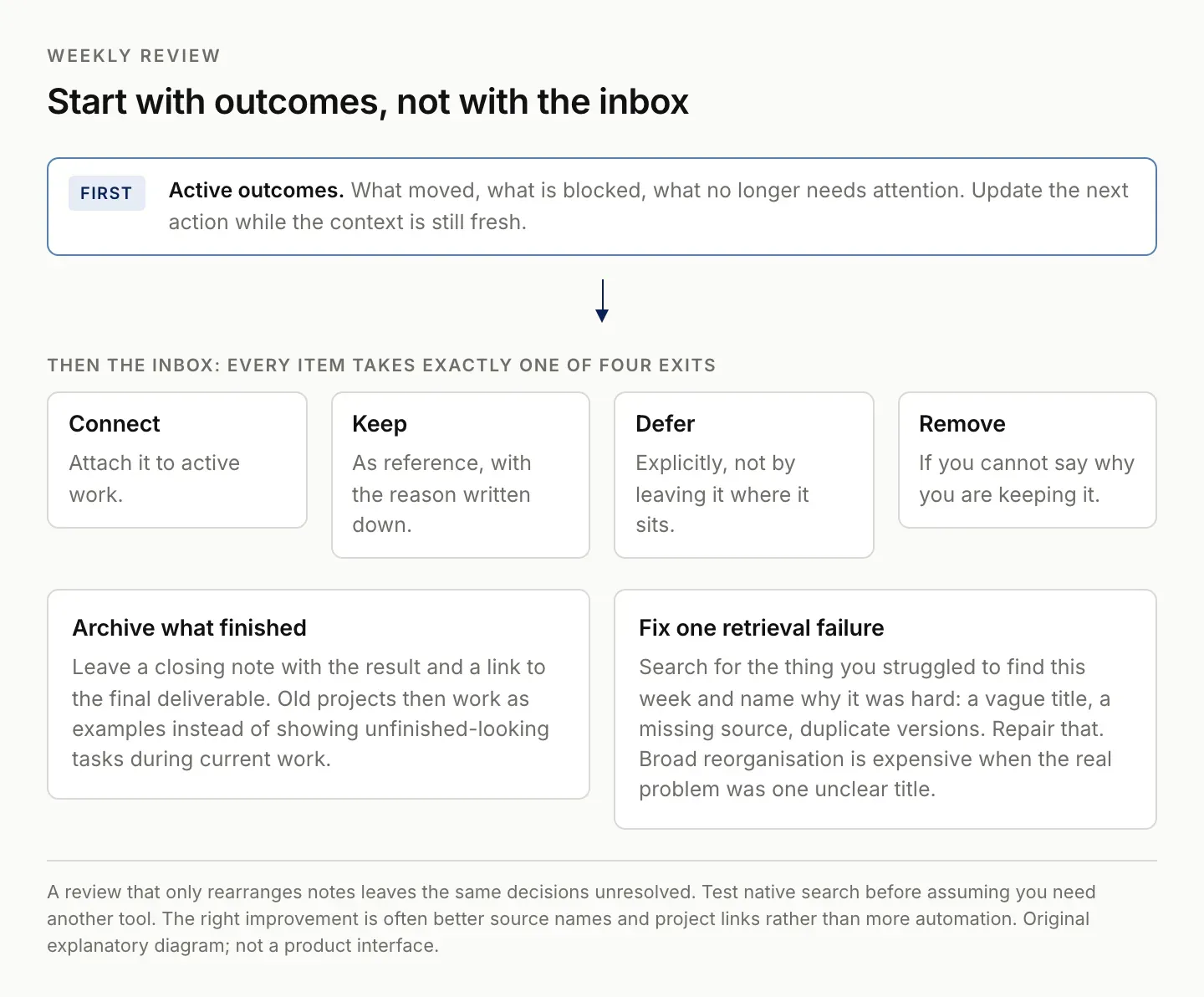
A review that only rearranges notes leaves the same decisions unresolved.
Add assistance where repeated context work remains
An assistant is most useful when you can specify the result and inspect its evidence. Ask it to assemble the notes relevant to one current brief, identify conflicting decisions, or prepare a draft using selected sources. “Organize my second brain” leaves too many decisions implicit.
Use a brief such as: “Prepare the next draft of this proposal using the approved project brief and the linked research notes. List any source you could not access. Separate confirmed requirements from suggestions, and return the draft to this project.” That makes missing context visible and gives you a specific place to review the output.
Zentor's intended fit is this repeated use of workspace context across tools. A proposal might depend on a Notion brief, documents, and a conversation outside Notion. The useful test is whether an available Zentor workflow can preserve those references and place the result where you already work. It is not whether it can produce a fluent summary of arbitrary notes.
Zentor is in early access, and this guide does not present an untested connection or recurring workflow as a shipped result. Confirm the connections available to your account and run one bounded task before depending on it. You can explore Zentor with a current project and a small set of approved sources.
Keep the existing Notion setup if it already meets your needs. An additional assistant earns its place by reducing a recurring burden you can identify, while preserving enough evidence for you to trust and revise the work.
FAQ: building and maintaining a Notion second brain
Do I need a Notion second brain template?
No. A template can save setup time, but you still need to understand its fields and views. Start with a small structure if a large template requires more maintenance than the work it supports.
Should every note become a task?
No. Reference material can remain reference material. Create a task when you have decided to take an action, and connect it to the relevant source rather than confusing saved information with a commitment.
How many databases should I use?
Use as few as you can maintain while answering your recurring questions. The two-database design in this guide is a starting point, not a universal minimum or an instruction to replace a working system.
Can AI maintain the whole system automatically?
Evaluate individual workflows first. Source access, ambiguous decisions, duplicate records, and destination permissions all affect the result. A reliable bounded task is more useful than a broad promise to organize everything.

Zentor Editorial Zentor editorial team
The Zentor editorial team writes about workflow automation, AI agents, and the tools we build. Default byline for industry overviews, listicles, and collaborative pieces.
Ready to put this into practice?
Zentor runs browser tasks, research, and schedules automatically. Try it free.