Bluedot AI Review: From Client Call to Follow-Up

Bluedot AI review for client calls: assess capture, recap accuracy, action ownership, sharing, consent, and whether follow-ups reach the right workspace.
Bluedot AI is a meeting recorder and note taker that turns calls into transcripts, summaries, and follow-up material. For a client team, the key question is whether those records are accurate, decisions are shared appropriately, and there's a place for the approved follow-up to live. This is an assessment of public documentation, not a hands-on product test.
Key Takeaways:
- A capture route must work on the team's meeting platform, with a manual-notes fallback when recording is declined.
- Conditional approval is easy to flatten into a commitment; verify the recap lines that change scope, price, or dates.
- A generated follow-up needs a confirmed owner and a destination in the task system before work begins.
- Test what a guest can open from a recording link, and transfer essential records before a contractor leaves.
- Export client records before changing or cancelling service; confirm the current retention terms for your account.
A weekly client call might end with one approved design, a requested date change, and a possible second project. In this hypothetical case, a recap that treats all three as commitments would create work the client never approved. The question is what the team will confirm and act on after the call.
What a Client Team Needs After a Call
A call yields a transcript of what was said, a recap that interprets it, a proposed task list, and a client message the team stands behind. They are different records.
Before choosing a note taker, define the minimum handoff. For each decision, record what was agreed, who confirmed it, and any condition attached. For each action, specify an owner, deadline or next check-in, and destination. For an unresolved question, name the person who will obtain the answer. This is more useful than demanding a longer summary.
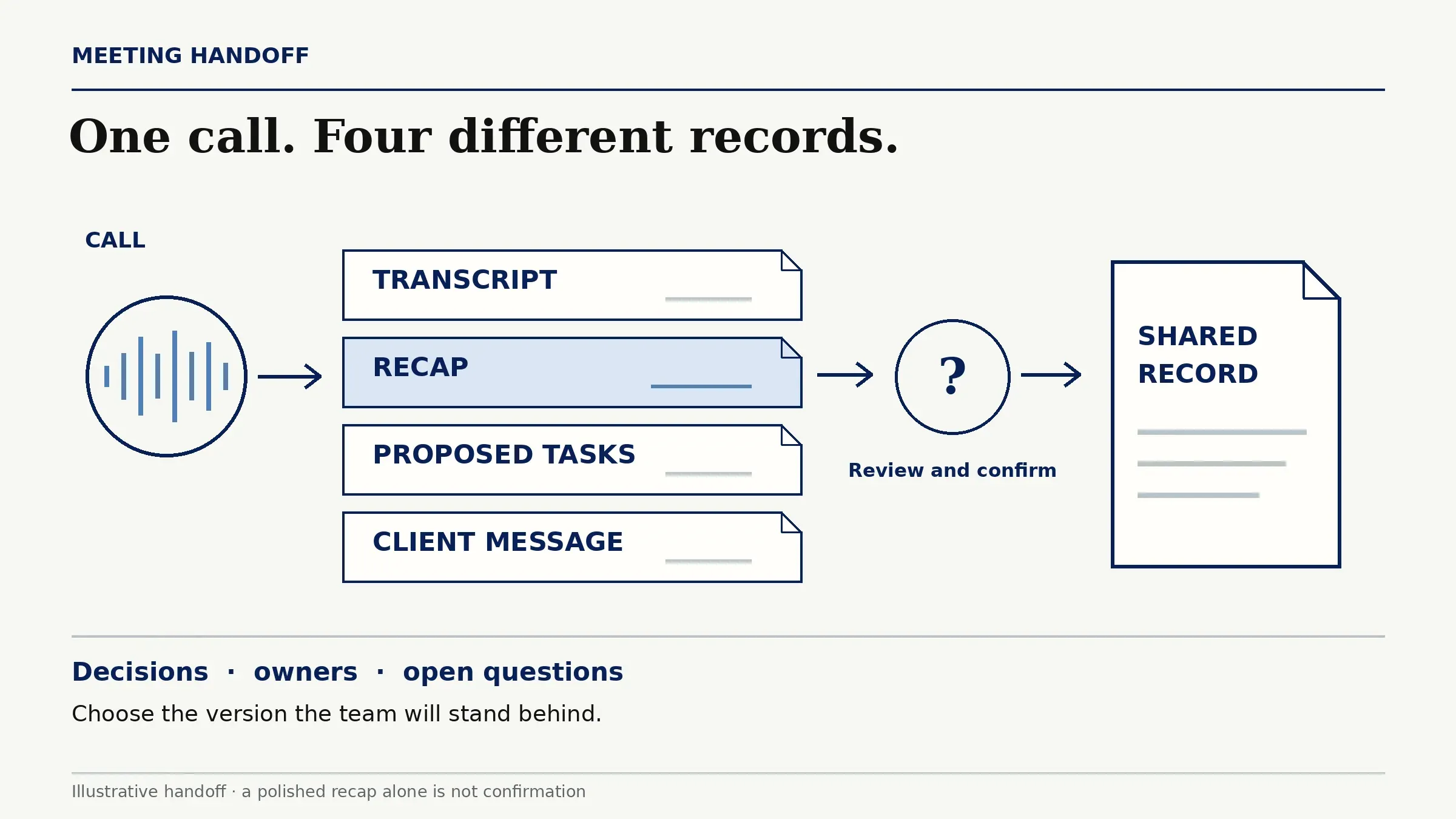
The destination matters as much as the capture. If you keep client meeting context in Notion, the Notion meeting notes workflow offers a way to think about the page or database that holds an approved recap. A meeting tool may supply the raw material, but you still need a rule for which version becomes the shared record.
Keep the approved client recap in reach
Use Zentor with the Notion context you authorize, then review the follow-up before it goes out.
Start free trial →
Assess Recording and Consent Before Capture
Bluedot AI's capture method depends on where and how the meeting runs. Its desktop app documentation lists Google Meet, Zoom, Microsoft Teams, and audio-only Slack huddles. The documented path can change between a browser meeting and a desktop app, so confirm the route your team will use.
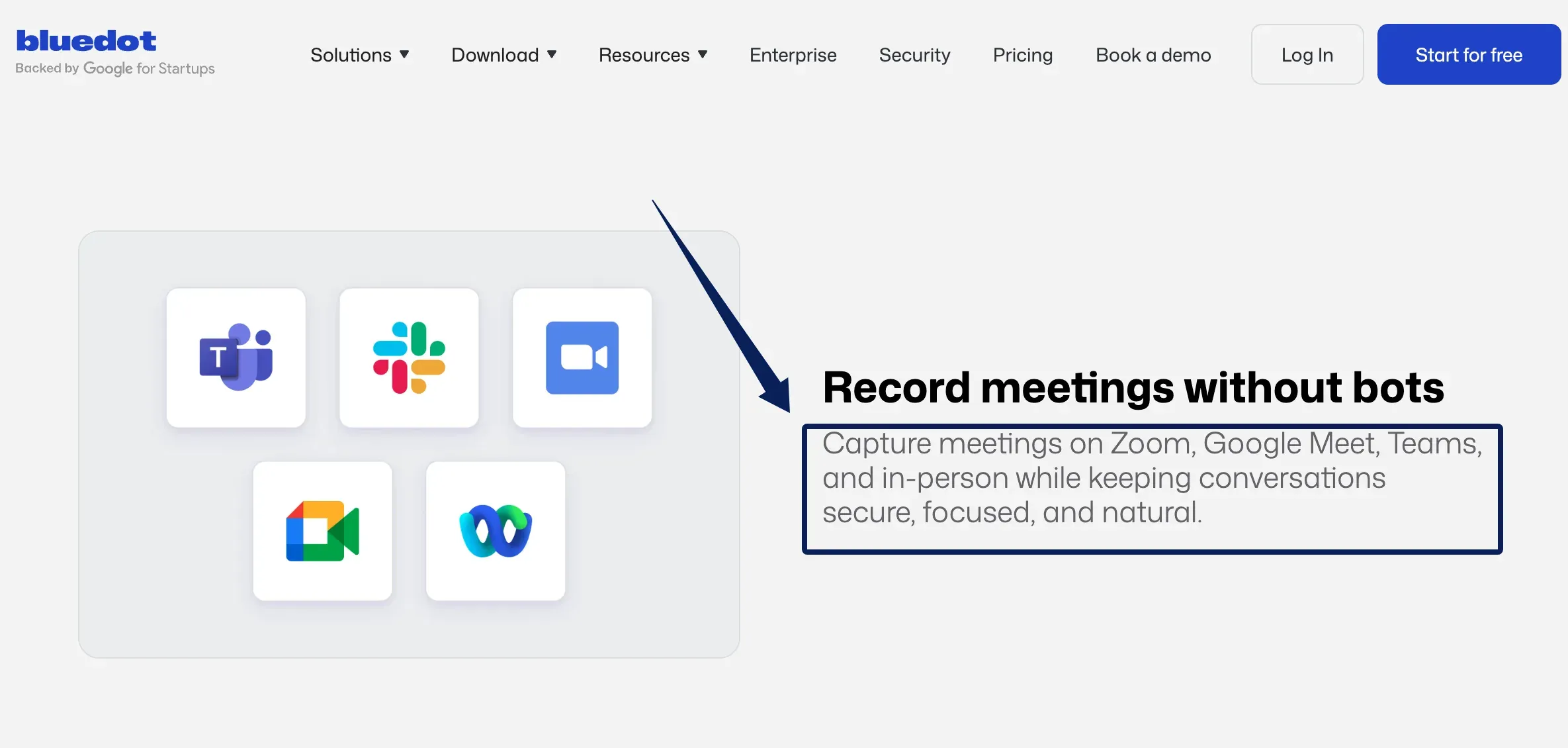
Test the host's device and conferencing platform. For calls where capture is unavailable or unwelcome, designate a human note taker and send a post-call confirmation.
Recording permission is a separate step from software setup. Tell participants what will be captured, why, where it will be shared, and how they can object. Bluedot's workspace settings guide documents a consent-message control for the Chrome extension. That setting does not replace your own notice and permission process. Requirements vary by location and circumstances, so follow applicable local rules and your legal guidance rather than assume one toggle settles consent. This is not legal advice.
If someone declines recording, use the manual route. Label its recap as human notes, not a verified transcript.
Review Summary, Decisions, and Action Items
The first quality check is about meaning, not grammar. Look for negation, conditions, dates, and speaker attribution. "We can ship Friday if the client approves the copy" is different from "We will ship Friday." A proposed budget is different from an authorized budget. A client question is not a decision.
Read the generated recap alongside the relevant portion of the recording or transcript. Verify the few statements that would change work: approval, scope, deadline, price, and responsibility. If a sentence remains ambiguous, label it as open and ask for clarification. Do not polish uncertainty into certainty.
Templates can make this review easier when the same kinds of calls recur. Bluedot's custom note template guide describes prompts, questions, tables, and checklists, with private or shared templates and a default option. A client team could ask for decisions, open questions, owner, and due date in separate fields. The template creates a place to look; it cannot establish that a speaker actually accepted a task.
Check Who Owns Each Follow-Up
An action item is useful when it says who will do what and when. "Send revised timeline" still leaves room for two people to assume the other is responsible. The reviewer should add the agreed owner and deadline, then place the task in the team's normal task system. If the meeting did not settle ownership, the immediate task is to obtain an owner.
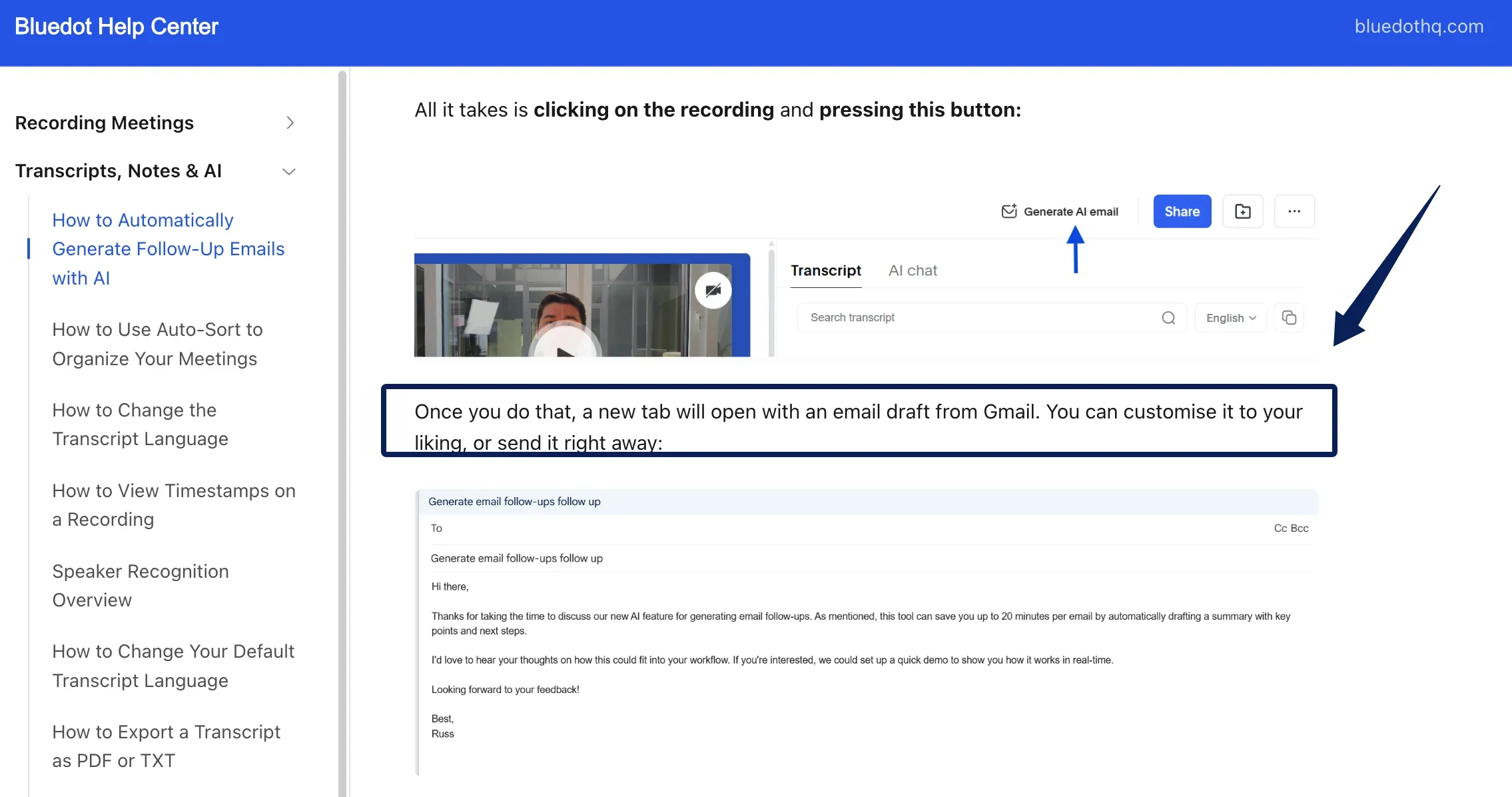
Separate internal work from client communication. Bluedot's AI-generated Gmail draft guide shows a draft opening for review after the user clicks Generate AI email; the example does not prove what happens in every account. Check recipients, commitments, names, and dates before sending.
The handoff succeeds when the approved recap, assigned tasks, and client confirmation agree. The meeting notes to action items guide explores that transfer. A generated bullet alone is not a completed handoff.
Bluedot AI lists integrations and automation options, including Notion, Slack, Zapier, and CRM or ATS connections on certain plans. Their presence on a plan doesn't prove a specific assignee, field, or client record updates correctly. Map one real call's approved action through the configured destination before relying on it. If the destination cannot carry the needed owner or status, use a controlled manual transfer.
If you store an approved recap in Notion, Zentor's Notion integration can use the authorized page or database as context for a later draft. This is a separate step, not an automatic Bluedot-to-Zentor transfer; review any proposed follow-up before sending it.
Test Sharing and Access to Call Records
Client recordings can contain details never meant for a broad channel. Set a team rule for which material to send: a client-facing summary can travel separately, while access to the recording and transcript stays restricted. This is a sharing decision, not a claim that Bluedot offers separate permissions for each field or summary. Check what a guest can actually see.
Bluedot's recording link, invitation, password, and revocation controls govern sharing. An invited email may include a meeting link and transcript summary; test the recipient view before sharing client material. Treat "anyone with the link" as a deliberate access choice.
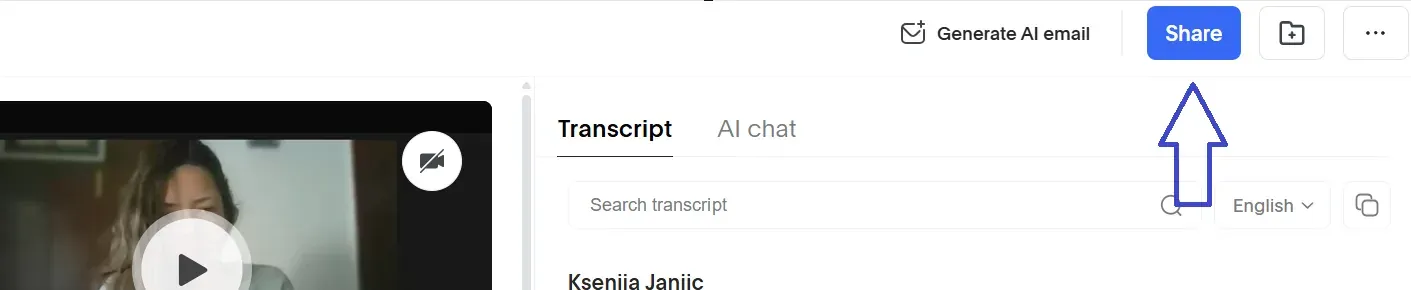
Access after a contractor leaves needs planning while the contractor is still available. Bluedot AI's role documentation says workspace owners and admins do not automatically see another user's private recordings. Have the owner share the necessary recordings or place them in an appropriately controlled collection, verify another authorized person can open them, and then remove the departing person's access under your offboarding process. Do not assume an admin account can recover every private call later.
For recurring client calls in Bluedot AI, record who may capture, review, receive, and change access. Recheck when a contact changes.
Check Current Plans, Integrations, and Limits
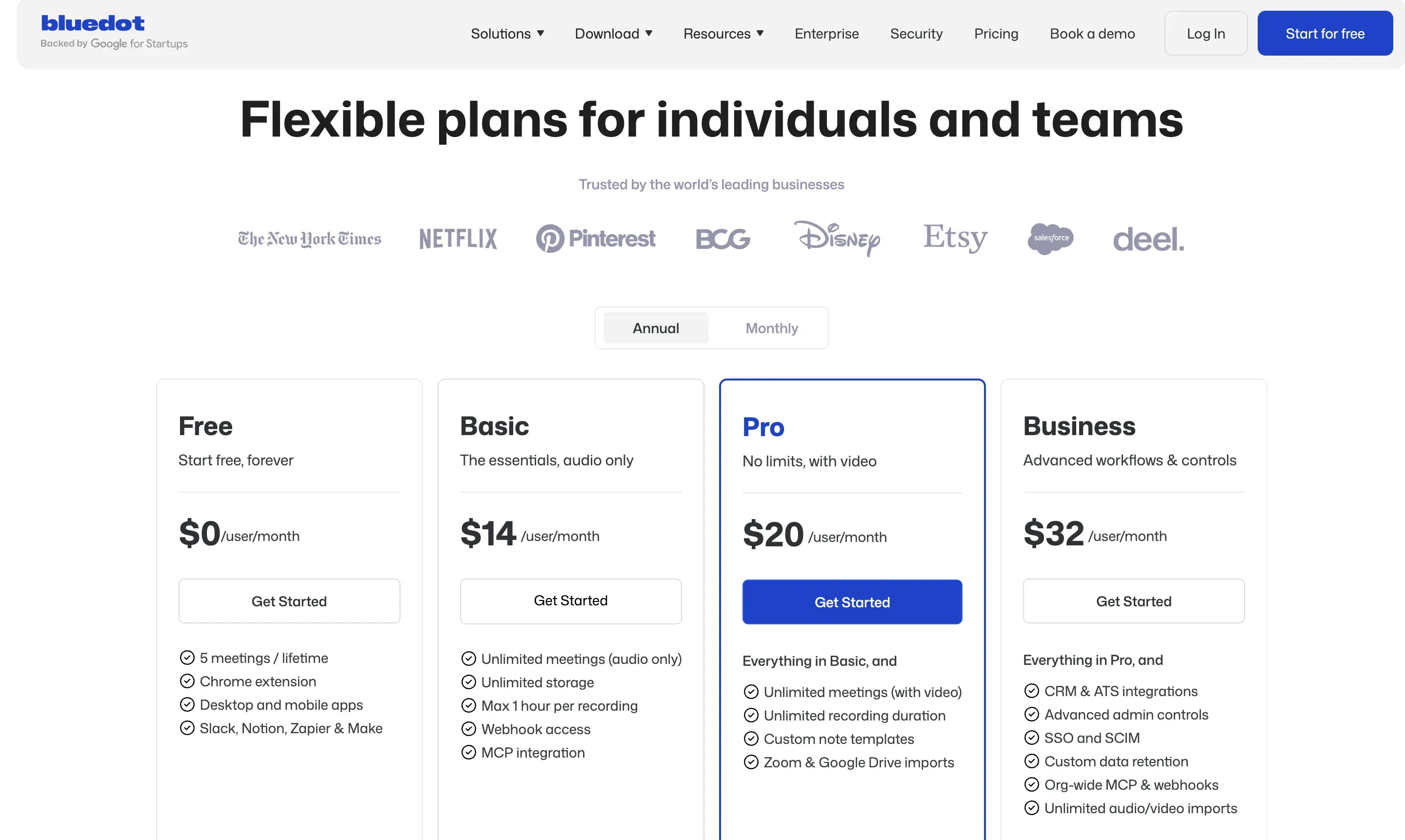
Bluedot's published plan comparison, cross-checked against its current pricing page on November 12, 2026, lists five Free meetings in total. Basic is $14 per recording user per month billed annually, or $18 with monthly billing; it is audio-only and limits each recording to one hour. Pro is $20 or $25 and adds video, unlimited recording duration, and custom note templates. Business is $32 or $39 and lists CRM and ATS integrations, admin controls, and custom retention. Verify the final price and required connections for your account.
Bluedot's cancellation help page says recordings get deleted a month after moving to Free and stopping use, while its terms describe removal from active systems on cancellation and possible backup storage for up to 30 days. These describe different circumstances; ask Bluedot to confirm what applies to your account, and export the client records you need before changing service.
Match the plan to video, template, and administrative needs. If the process depends on a CRM connection, verify its connector, fields, permissions, and destination in your account.
Sending notes to Notion, posting to Slack, drafting an email, and writing an owned CRM task are different outcomes. Test the one you need, including failure and access changes.
Decide When Bluedot Fits a Client Workflow
Bluedot AI is a plausible fit when calls are frequent enough to justify capture, participants can be informed and give permission, and someone has time to approve the notes before they become commitments. You should value a searchable call record and have a clear destination for the final recap and tasks.
It is a weaker fit when you expect transcription alone to guarantee ownership, compliant recording, or a correct CRM update. Manual notes may be simpler for occasional sensitive calls. For solo consultants keeping approved client context in Notion, Zentor can draw on that authorized context for later drafts; it does not verify the original call or take over consent.
FAQ
Can recurring client calls use different summary templates?
Yes, Bluedot documents collection-level templates for new meetings. Verify your plan and the selected template for each call type. Changing a collection template does not automatically regenerate existing notes.
Can an action item be reassigned after the call?
The public documentation reviewed here does not establish a dedicated reassignment control. Confirm the new owner, correct the recap, and update the delivery task. Check the current workspace if in-product reassignment is essential.
How should a client correct a misheard decision?
Ask the client to identify the statement and intended meaning. Compare it with the recording when available, amend the recap, and notify anyone assigned work from the error. Mark older exports or emails as superseded.
Who can access a recording after a contractor leaves?
Bluedot's role guide says Enterprise admins may request access to private recordings, but access is not automatic. Before a contractor leaves, share required calls with an authorized colleague, test that access, then revoke the contractor's permissions.
What happens if a meeting has no clear next action?
Record that no action was agreed. If a question remains, assign someone to seek an answer and set a review date. Keep decisions, open questions, and action-free discussion distinct.
Before You Use Bluedot AI for Client Calls
Make one representative call the buying test. If you can capture it with permission, correct uncertain claims, assign the resulting work, and control access to the record, Bluedot AI has a defined place in your client workflow. Write down any missing handoff before making it the default. Zentor can then use the approved workspace context for a follow-up draft that you review.

Zentor Editorial Zentor editorial team
The Zentor editorial team writes about workflow automation, AI agents, and the tools we build. Default byline for industry overviews, listicles, and collaborative pieces.
Choosing between tools? Let Zentor run the work.
An always-on AI assistant that does the work. No switching required, no setup.