Notion AI Version History: Review Agent Edits

Notion AI version history helps you inspect agent edits. See how to review a changed client page and decide whether to restore it.
Notion AI version history is the page and database history you use to inspect edits made by people or agents. It shows who changed a client brief and lets you preview an earlier version. It cannot tell you whether the client agreed to the change.
Key Takeaways:
- Find the last client-approved brief before choosing a version to restore.
- Check the database row as well as the page; an incorrect status can survive a corrected paragraph.
- Save later valid edits before a full restore replaces them.
Suppose a client brief promises a four-week launch. An agent changes it to three weeks and marks the database row Approved. The page and status now agree; the client's email may still say four weeks. Before anyone acts on that new deadline, someone needs to check what the client actually accepted.
I used Notion's release and help material as of October 15, 2026, for this guide. The four-week brief is an example, not a live workspace test.
Quick Answer on Reviewing Agent Edits
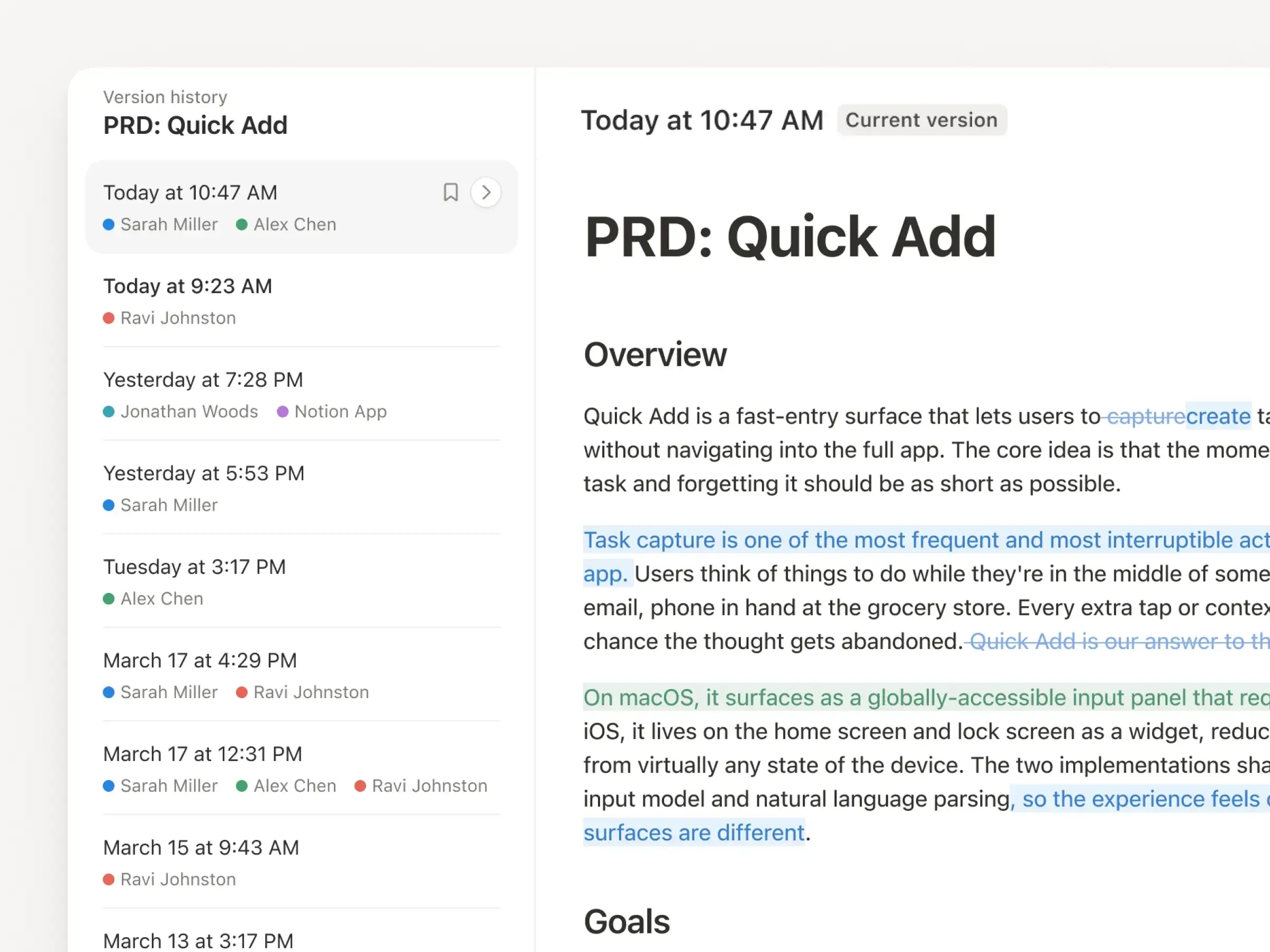
To check Notion AI version history, open the brief's three-dot menu and choose Version history. Select the version before the disputed edit and preview it without restoring yet. Notion's October 13 update added highlighted edits and attribution across pages and databases. Notion agent changes can appear beside a colleague's corrections, but the highlights do not capture every change. Use them to locate the edit, then check it against the approved brief.
Keep your Notion context close while you review edits
Zentor can use connected Notion pages and databases as work context. Keep version restoration and client approval in your own review process.
Get early access →
Find the Changed Client Page or Database
Start with the page the client will read. If the team uses a Notion CRM, follow the link from the client record to the actual brief; the CRM view will not show that page's history. Copy its URL into your review note, especially if last month's brief has a similar name. Zentor reads connected Notion context; approve the version from the brief itself.
Then open the linked database row. In the launch example, restoring the four-week sentence would still leave an Approved status that no one authorized. Check the owner, deadline, and fee properties too if the agent could have changed them.
Compare the Current and Earlier Versions
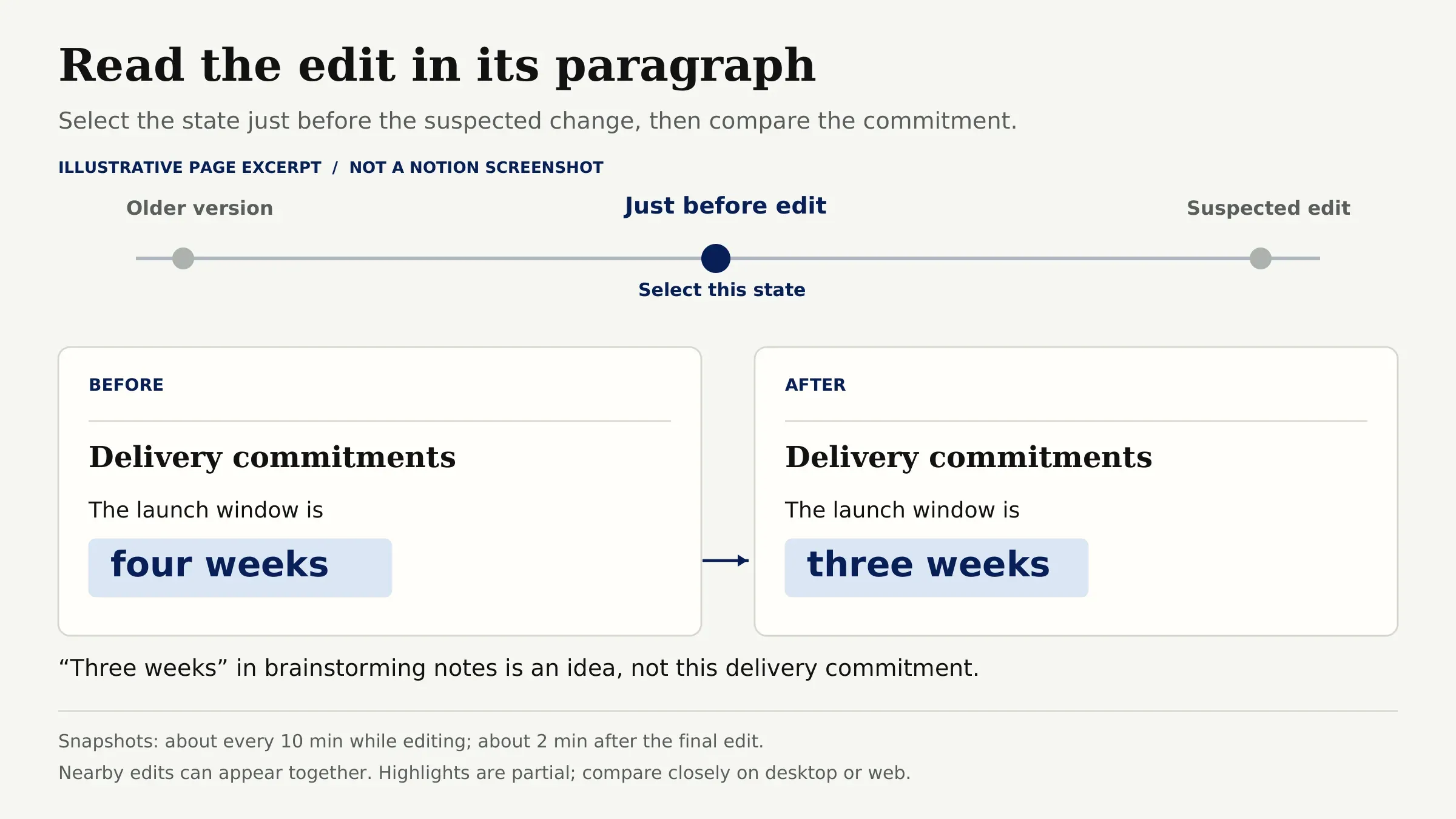
Choose the state just before the suspected edit, not simply the oldest version you can find. Compare "four weeks" with "three weeks" in its surrounding paragraph. A shorter launch window in brainstorming notes is different from one placed under "Delivery commitments."
Notion records a version about every 10 minutes during active editing and another roughly two minutes after the last edit. Several nearby changes may therefore appear together; one highlight is not a transcript of an entire agent run. Detailed Notion page history comparison is unavailable on mobile, so use desktop or web for a close review.
Check Attribution and Changed Properties
Read the editor beside the page change, then inspect database change history for the status. Attribution tells you who made an edit, not what instruction prompted it. For a Notion Custom Agent, the Activity log can show the trigger and actions taken to users with Full Access to that agent. For an external assistant, check its task record; Enterprise audit logs can identify external AI edits. Neither proves client consent.
If the edit came from outside Notion, the page history is only half the trail. Zentor's Notion connection describes access to page and database context, not a version-restoration feature. If an external task produced the edit, restoring the brief would leave the task's instruction untouched. Correct that instruction before rerunning the task.
Also check who can edit the status property. On Business and Enterprise plans, database property access can be assigned to agents. Restoring an older database version keeps the current access rules, so a restore does not itself change which agent may edit that property.
Decide What to Restore or Keep
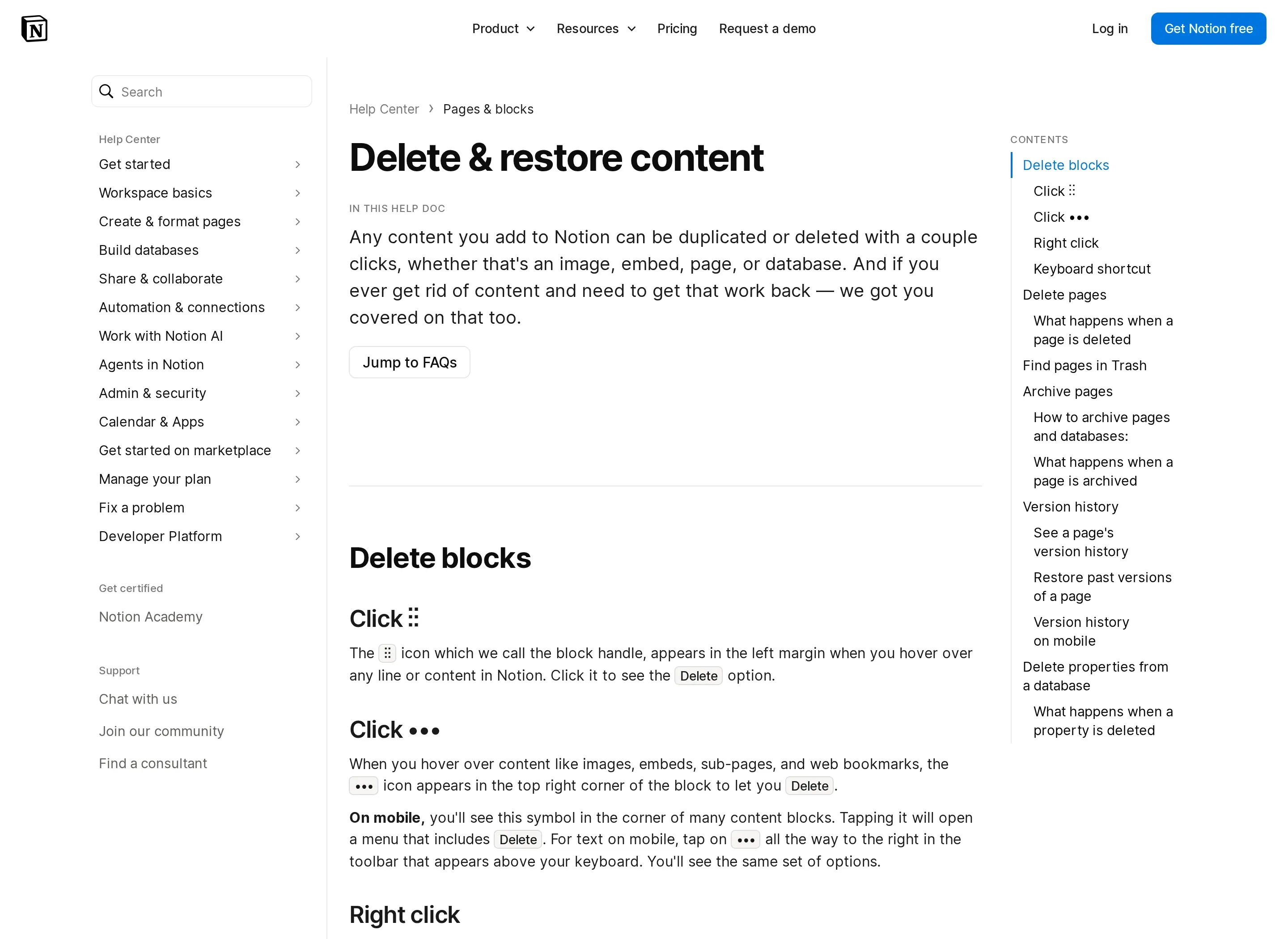
To restore agent edits without losing a colleague's later work, start small. If only the launch sentence is wrong, copy the correct block from an earlier version. If the whole brief is wrong, bookmark the current version, preview the earlier one, and check for valid edits made in between before selecting Restore.
Restoring the database does not repair every page inside it. The restore can bring back pages and properties, but not the text within each database page; those bodies need their own restoration. It may also change colleagues' views. In the launch case, correct the brief and status separately, then compare both with the client's message.
Record the Approved Client Version
Once the owner has checked the client's approval, record the date, agreed deadline, and approver beside the brief. Name or bookmark the Notion version if it helps the team find that state again. The version URL shows what the page said; the approval message shows who accepted it. Zentor's MCP-linked memory travels between AI tools; keep client approval in its source message.
If approval is pending, say so: "Four-week launch retained; Approved status removed pending client reply; project owner to confirm." Leave the status pending until the client answers.
For an outside handoff, export and inspect the approved page. PDF, HTML, and Markdown exports are deliverables, not a copy of the full edit timeline.
FAQ
Who Can Restore a Previous Page Version?
Notion requires at least Can edit access to open a page's version history. Check access to that specific brief before asking a colleague to restore it; sending the URL does not grant editing rights.
Does Restoring a Page Also Restore Comments?
Notion does not promise that comments rewind when page content is restored. Save a client approval thread separately before restoring. An HTML export can include comments, but it is not a history backup.
Can You Export a Version History Record?
Notion does not document a download of a page's complete version history. You can share a version URL. Enterprise organization owners can export filtered audit-log events as CSV, but the CSV is not a copy of earlier page text.
Can a Restored Page Recover Deleted Files?
Not reliably. History highlights only some non-text changes, so it is not a file backup. Check Notion Trash and the original file source before restoring the containing page.
How Long Are Older Versions Available?
Notion retains versions for 7 days on Free, 30 on Plus, 90 on Business, and indefinitely on Enterprise. If a client disputes an older deadline, your plan's history window may already have closed.
Restore the Record, Then Confirm the Commitment
Before the project owner marks the row Approved again, they need the client's reply, not just the restored four-week wording. Keep that reply with the corrected page and status. If the client has not answered, leave the decision open so the next person sees a pending question instead of a false approval.

Zentor Editorial Zentor editorial team
The Zentor editorial team writes about workflow automation, AI agents, and the tools we build. Default byline for industry overviews, listicles, and collaborative pieces.
Stop doing this manually.
Zentor runs on its own cloud computer - research, monitoring, reports, browser tasks. No setup. No self-hosting.