Slack to Notion: Save Decisions, Not Noise

Move Slack to Notion with native capture actions, then preserve decisions, owners, and source links in a record you can retrieve and maintain later.
You can move a Slack message into a Notion database with the native integration, then add the decision, owner, and review date that make it useful later. This matters more than it looks: Slack's own usage-limits page states that free workspaces can view and search only the last 90 days of messages and files, so a saved link is a pointer, not an archive. Slack free-workspace limits. Slack to Notion does not require a custom automation for basic capture: Notion documents both a message shortcut and the /notion create command. Notion's Slack integration.
Key Takeaways:
- Capture the outcome of a discussion with its source link, not an unfiltered copy of every message.
- Use the native Slack-to-Notion action when a person can identify the important message.
- Separate decisions, action items, and unresolved questions so a summary cannot silently turn one into another.
- Check source access and retention separately. A saved link is not an archive of the original conversation.
Identify what keeps getting lost in Slack
Start with the last piece of information you had to ask someone to repeat. Was it an approved decision, a promised delivery date, an explanation, or a file? These have different destinations. A decision belongs in a decision record; a task belongs in a work queue; a reference answer may belong in a knowledge page.
If everything goes into a database named Slack Notes, you can reproduce the same retrieval problem in another application. Before saving an item, write the question it should answer later. “Which version did we approve?” is a useful retrieval question. “What happened in the channel?” is too broad to define a durable record.
Check whether the information is actually missing. Slack search supports modifiers for people, channels, and dates. A scoped search such as a topic inside the relevant channel and time range can find the original evidence without creating another copy. Slack search guide.
Use a knowledge-capture workflow for recurring retrieval failures or important outcomes, not as a reflex for every conversation. The goal is a small set of maintained answers. A larger archive that no one reviews can make an outdated answer look more authoritative simply because it lives on a polished page.
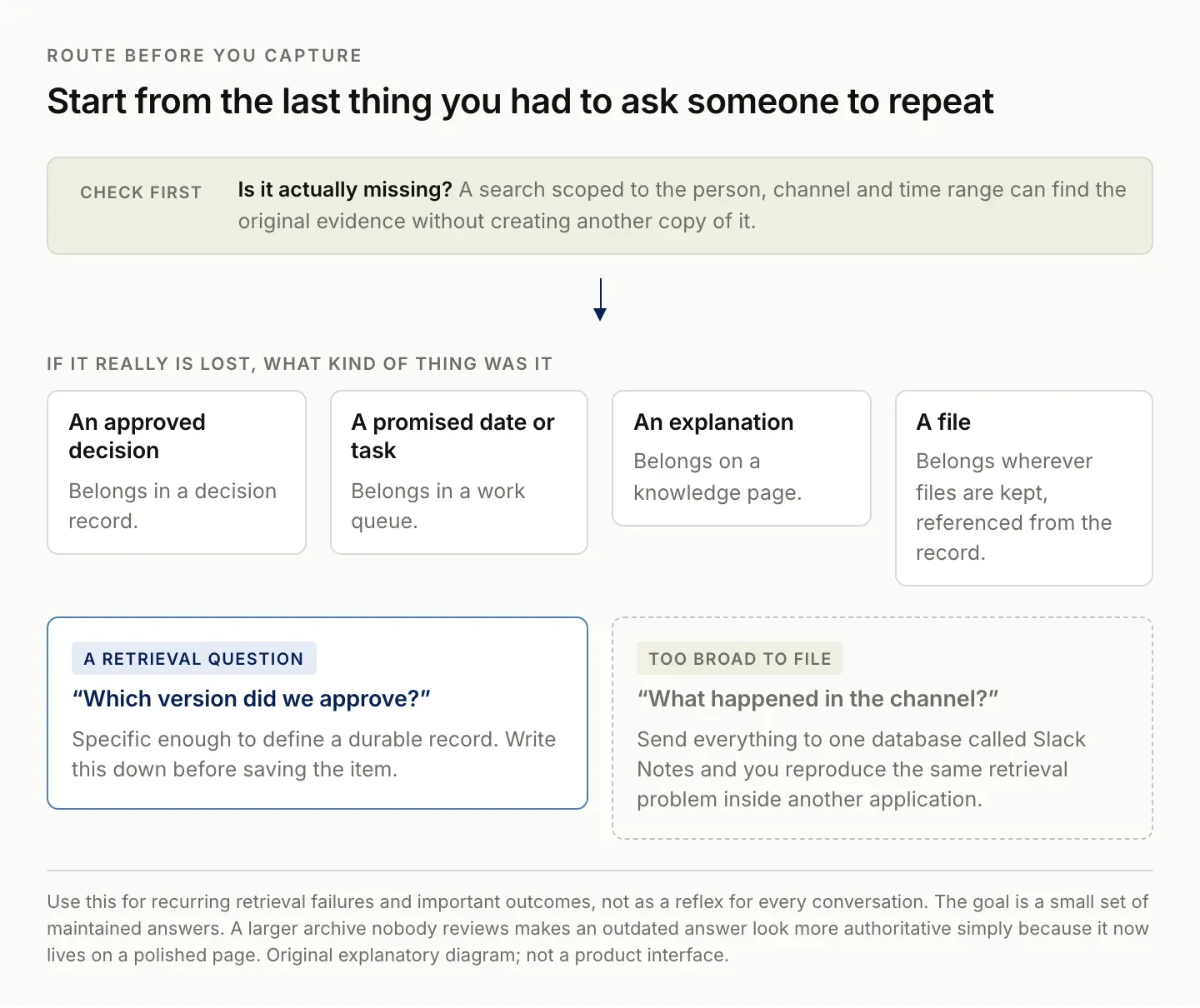
Write the question the record should answer later. If it is too broad to write, the record will be too broad to use.
Choose a record structure before connecting tools
Create a Notion database for the kind of information you want to maintain. For a small client or project workflow, a Decisions and Follow-ups database can work if the record type is explicit. Keep a title, Type, Project, Owner, Source, State, and Review date.
Use Type to distinguish Decision, Action, and Open question. Use State to indicate whether the item is proposed, confirmed, completed, or superseded. These labels are an editorial workflow you define, not an automatic interpretation supplied by the integration.
| Record type | What the page should contain | What it must not imply |
|---|---|---|
| Decision | Chosen option, decision date, source, consequences | Every suggestion in the thread was approved |
| Action | Specific work, responsible person, agreed date | A mentioned person accepted ownership |
| Open question | Missing answer and who can resolve it | A guess is the agreed answer |
| Reference | Reusable explanation and source context | The explanation will remain current forever |
Keep the original message link in a dedicated URL property and put the useful context in the page body. Notion's database properties support the basic types needed for this structure. Database property guide.
Avoid assigning a due date because a date happened to appear in the discussion. It could refer to a past delivery, a tentative option, or another project. Capture the date as confirmed only when the source supports that meaning. Otherwise, write what needs clarification.
Use the native Slack-to-Notion capture action
For a message that contains a useful outcome, open its message menu in Slack and choose Send to Notion. If the shortcut is not immediately visible, inspect the additional message shortcuts. Choose the destination database, give the record a useful title, add the relevant properties, and save it.
The alternative documented entry point is /notion create at channel level. Notion notes that this command does not operate inside Slack threads. Use the message shortcut when working from a particular message rather than assuming the slash command has the same context.
Review the public confirmation option before saving. In a quiet capture workflow, you may not need another channel message announcing each database item. In a collaborative handoff, confirmation can help others find the new record. Choose deliberately based on the team workflow and your authority to post.
Open the created record in Notion and inspect it. Confirm that it landed in the correct database, that the source link points to the intended message, and that the properties mean what you intended. A successful save is only the first acceptance check; the resulting record must also be useful.
For repeated capture, keep titles answer-oriented. “Approved delivery format for the research brief” is easier to recognize than “Slack message from Tuesday.” You do not need to summarize the entire discussion in the title. Identify the durable outcome, then retain the evidence in the page.
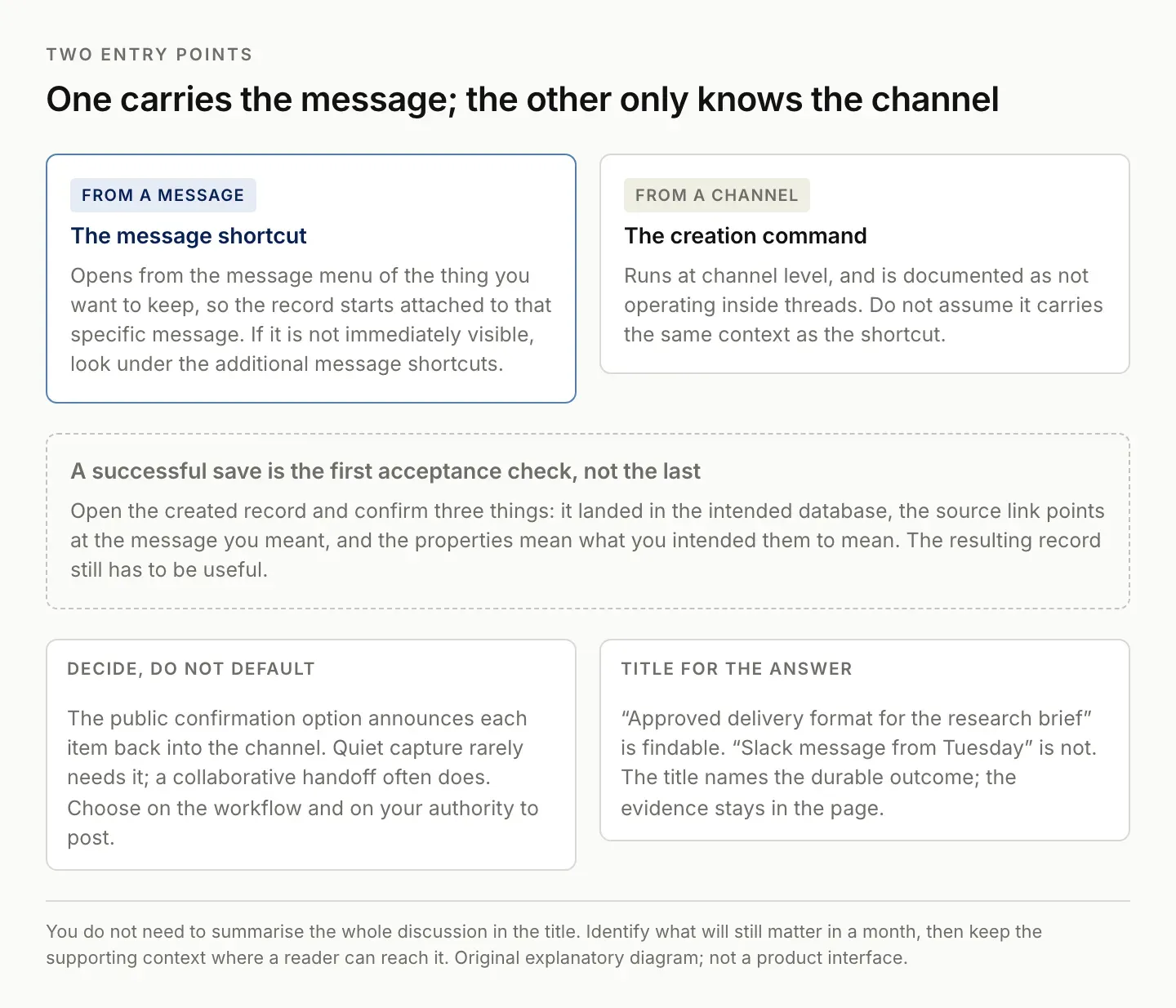
A successful save is the first acceptance check, not the last. Open the record and read it.
Read the thread before turning it into a decision
A single message can be superseded by a later reply. Before labeling a record Confirmed, inspect the surrounding discussion and identify the final agreement. If the conversation contains competing proposals without a conclusion, capture an open question instead.
Use a compact page structure: outcome, source, implications, next action, and unresolved points. The outcome should be a short factual statement. The implications explain what changes because of it. Keep your suggested next action separate from work that someone explicitly agreed to perform. Zentor's Slack integration page lists what a connected Slack account currently exposes.
When a decision changes, preserve the relationship between the old and new records. Mark the older record Superseded and link to the replacement. Deleting the old context can make it harder to understand why earlier work followed a different direction. Leaving both records looking current creates a different problem.
Slack's AI features can provide summaries and answers with citations. Use those citations to inspect the source before promoting an answer into maintained project knowledge. A summary can accelerate review; it does not eliminate the need to decide whether the source contains a confirmed commitment. Slack AI feature guide.
For a client commitment, preserve the exact scope that was agreed. “Send a draft for review” and “Deliver the final version” are different obligations. Your maintained record should make that distinction visible even when the surrounding discussion was informal.
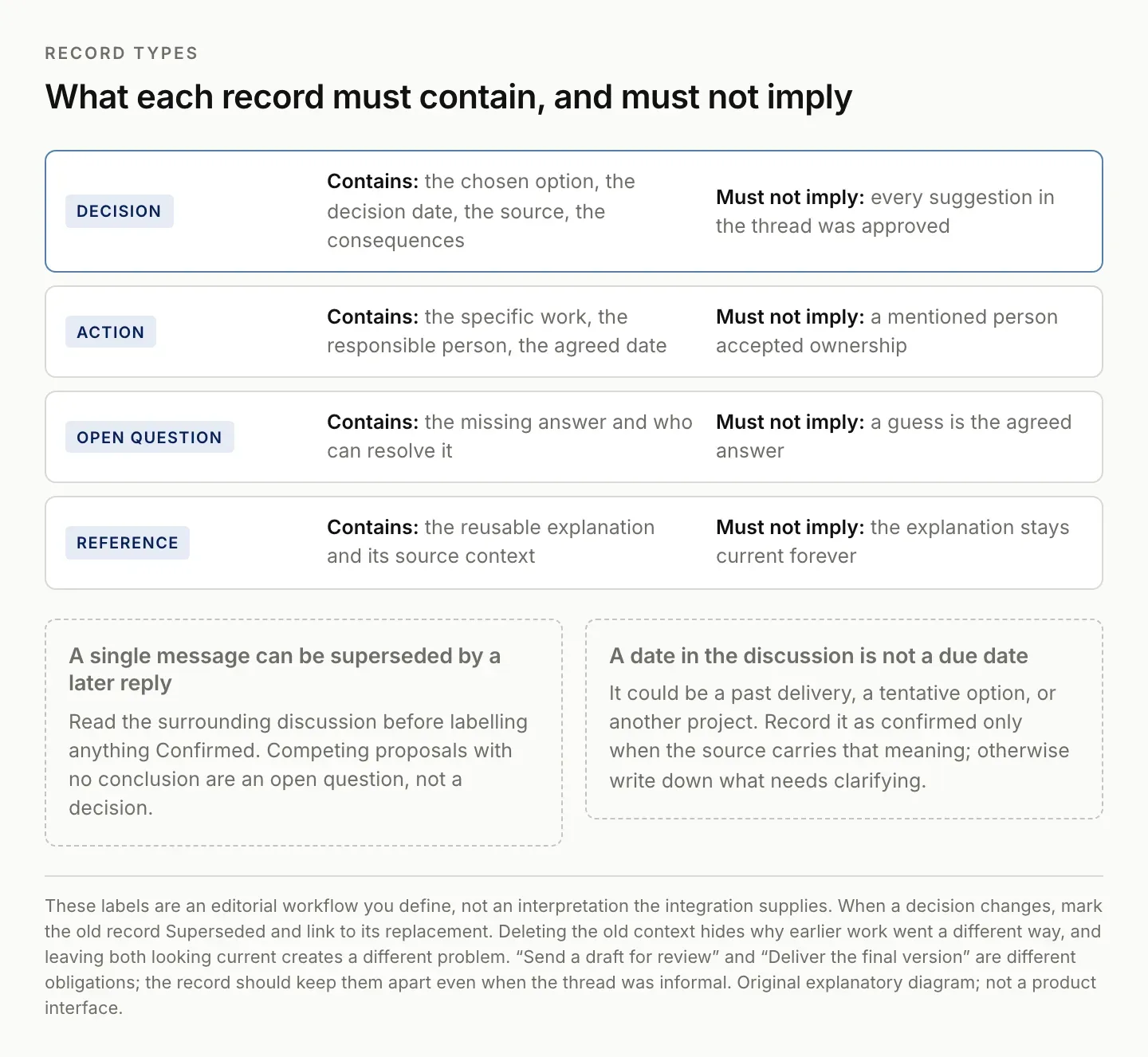
The labels are an editorial workflow you define, not an interpretation the integration hands you.
Make the Notion records easy to retrieve
Create an Active decisions view filtered to confirmed items that have not been superseded. Create an Open questions view for unresolved items, and a Follow-ups view for actions awaiting completion. These views should point to the same underlying records rather than maintain separate copies.
Notion lets you configure filters and sorts per view. Use that capability to show the fields needed for each decision: source and project for confirmed decisions, owner and review date for open questions, and next action for follow-ups. Notion views and filters.
Place a link to the relevant project page in the record. If your workspace already has a Projects database, a relation may be useful; if it does not, a clear page link is enough to start. Avoid rebuilding the workspace just to capture a few recurring decisions.
During project review, check the records that are due for review and the ones lacking an owner. An empty owner should be a visible unresolved condition, not a reason to assign the person who most recently spoke in Slack. Ownership is a work agreement, not a text-extraction shortcut.
Test retrieval by asking a real project question and following the record back to its source. If the page answers the question but the link is inaccessible to the intended reader, decide whether the record can be shared with that reader and whether approved context needs to be included. Do not assume that access in one tool grants access in the other.
Distinguish knowledge capture from message backup
Saving a Slack link in Notion does not preserve the underlying message indefinitely. Slack's free-plan documentation distinguishes access to recent history from longer-term retention, and workspace settings affect what remains available. Review the current policy before relying on source links as your only historical evidence.
Capture an approved summary of the decision while the source is available. Include the date and enough context to understand it. This supports future project work, but it is not a full export or a substitute for a retention process your organization requires.
Keep access boundaries intact. A private conversation should not automatically become a broadly shared Notion page. Select the destination audience before copying sensitive context, and include only what that audience is entitled to see. The technical ability to create a page does not settle who should receive its contents.
Likewise, an assistant cannot retrieve messages its connection cannot access or restore data that is no longer available. Make unavailable evidence visible in the output. A record labeled “source unavailable” is more useful than an invented reconstruction presented as the original agreement. Zentor's Notion integration page lists the Notion connections currently available to an account.
For a small workflow, write down who maintains the destination and how changes are reviewed. Without an owner, knowledge capture can become a one-time migration followed by gradual decay. Maintenance is part of the workflow you are evaluating, not an optional extra after the database is created.
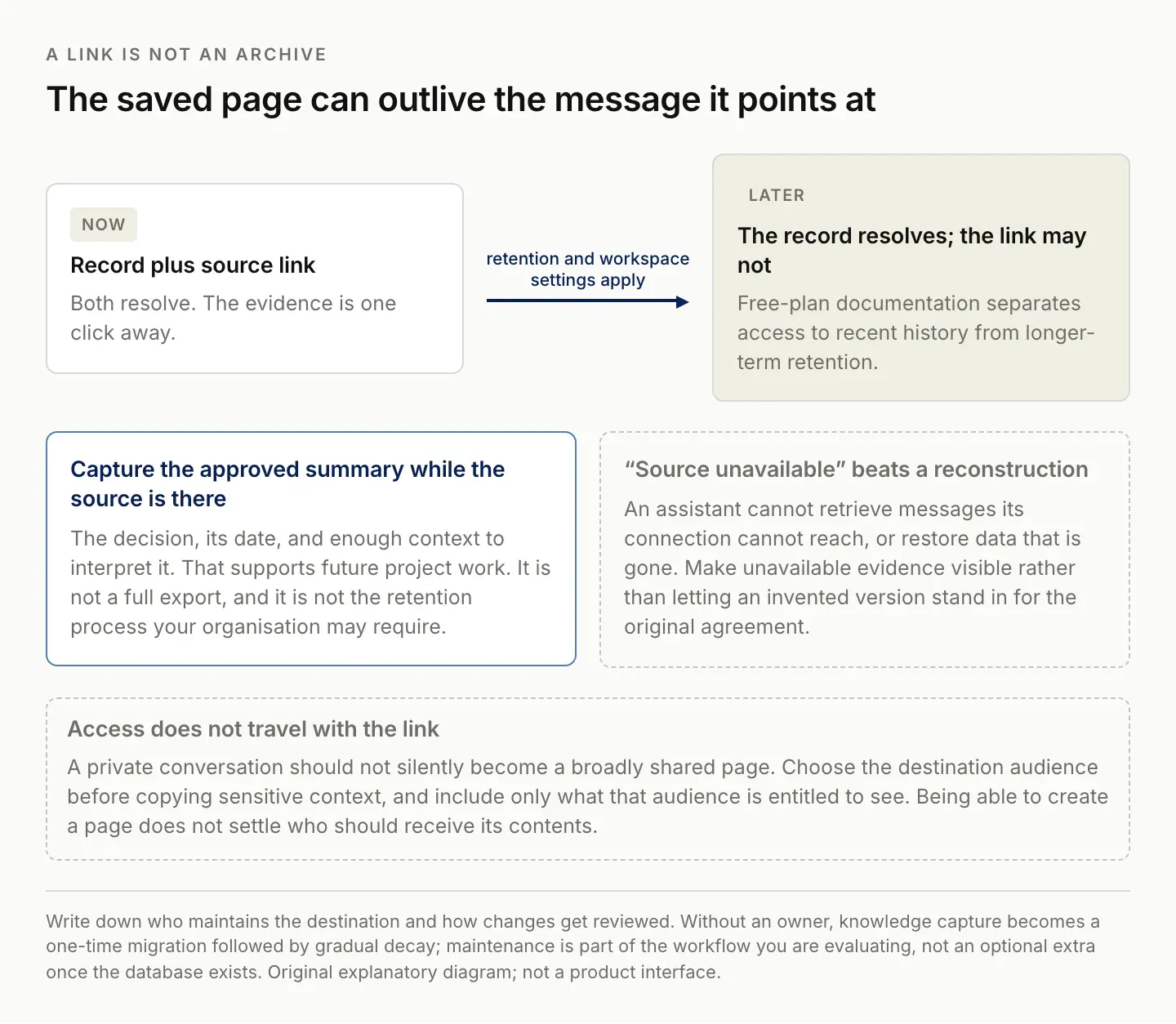
Capture the approved summary while the source is still there. A link is a pointer, not an archive.
Use Zentor for a bounded maintenance workflow
If you are deciding whether Slack AI summaries are worth paying for, separate catching up from maintaining durable decisions. Evaluate a summary on a known thread: does it cover the relevant discussion, preserve the final agreement, and link to the evidence? Then measure the remaining work needed to update your decision record. A summary can be useful even if that second step remains manual.
Check the features and charges actually available in your workspace before comparing costs. This guide does not use a historical add-on price as a current quote. If native summaries already solve the recurring problem, another tool needs a different, demonstrated benefit. If the remaining burden is updating project records and preparing follow-up drafts across tools, use that specific task in the comparison.
The native capture action is a good fit when you can recognize the important message and save it yourself. The next problem is repeated maintenance: checking selected discussions for changed commitments, reconciling them with existing records, and preparing the next piece of work with the right context.
That is the kind of workflow Zentor is intended to support across existing tools. A useful evaluation brief would be: “Review these selected project threads against this decision database. Propose new decisions or changes, cite the supporting message for each, and leave uncertain ownership or dates unresolved. Prepare follow-up text as drafts.”
Ask for a change list before broad writes. It should identify the existing record, proposed change, source, and reason. If nothing material changed, the result should say so instead of creating another summary page. The output should help you review the work with less effort than reconstructing each conversation yourself.
Zentor is in early access. This article does not claim that a specific Slack connection, recurring scan, or Notion write has been tested in your account. Confirm the available capabilities and inspect one real task before expanding the workflow. Explore Zentor with a small project and a clear capture rule.
Measure the result by whether you can retrieve the current decision and its evidence, not by the number of pages generated. A maintained answer is useful; ten overlapping summaries can become another source of noise.
FAQ: saving Slack decisions to Notion
Can I send Slack messages to Notion without Zapier?
Yes. Notion documents a native Send to Notion message shortcut and a channel-level creation command. Your workspace must have the integration and the appropriate access configured.
Does the integration keep every Slack message in sync?
Do not assume that saving a message creates a complete continuously synchronized archive. Inspect the behavior you need separately, especially edits, replies, deletion, and later decisions.
Should I save a whole thread or just the final message?
Preserve the final outcome with enough supporting context to interpret it. Keep the source reference, and record unresolved points when the thread does not contain a clear conclusion.
Is this a backup strategy for Slack?
No. It is a workflow for maintaining useful project knowledge. Message retention, exports, and organizational backup requirements need their own appropriate process.

Zentor Editorial Zentor editorial team
The Zentor editorial team writes about workflow automation, AI agents, and the tools we build. Default byline for industry overviews, listicles, and collaborative pieces.
Stop doing this manually.
Zentor runs on its own cloud computer - research, monitoring, reports, browser tasks. No setup. No self-hosting.