Otter AI Alternatives for 2027: Meeting Follow-Ups

Compare Otter AI alternatives for recording meetings and handing off decisions, owners, and follow-ups after the call ends.
Otter AI alternatives are meeting tools that capture a conversation and help turn it into a transcript, summary, or follow-up record. For freelancers, the useful comparison is what happens between a client's last comment and an approved next step, not which app produces the longest recap.
Key Takeaways:
- Stay with Otter if you already have a searchable call archive and your current follow-up process works.
- Choose Fireflies.ai if meeting notes need to land in your CRM. Check where each recap goes and who can open it.
- Choose Fathom if you want to send clients a summary and decide separately whether to share the recording.
- Choose Granola if you want your own notes to guide the summary and can work without audio playback.
AI meeting notes apps can surface a client's request for a revised proposal. They cannot decide whether the client approved its scope or due date. That distinction determines what gets assigned and shared.
This 2027 comparison uses public product documentation checked on November 15, 2026; it includes no hands-on accuracy test or future-plan claim.
What do you need after an Otter-recorded meeting?
Otter remains a sensible baseline if your recordings and searchable transcripts already live there. Its Notetaker joins Zoom, Google Meet, and Microsoft Teams calls and can produce summaries and action items. Switching solely to get a call record may add work.
The reason to compare Otter AI alternatives for meetings is a more specific handoff: a call linked to a client record, a selective summary, or a note shaped by your observations. Decide whether the approved next step belongs in email, a CRM, or a project record, and who may see the transcript.
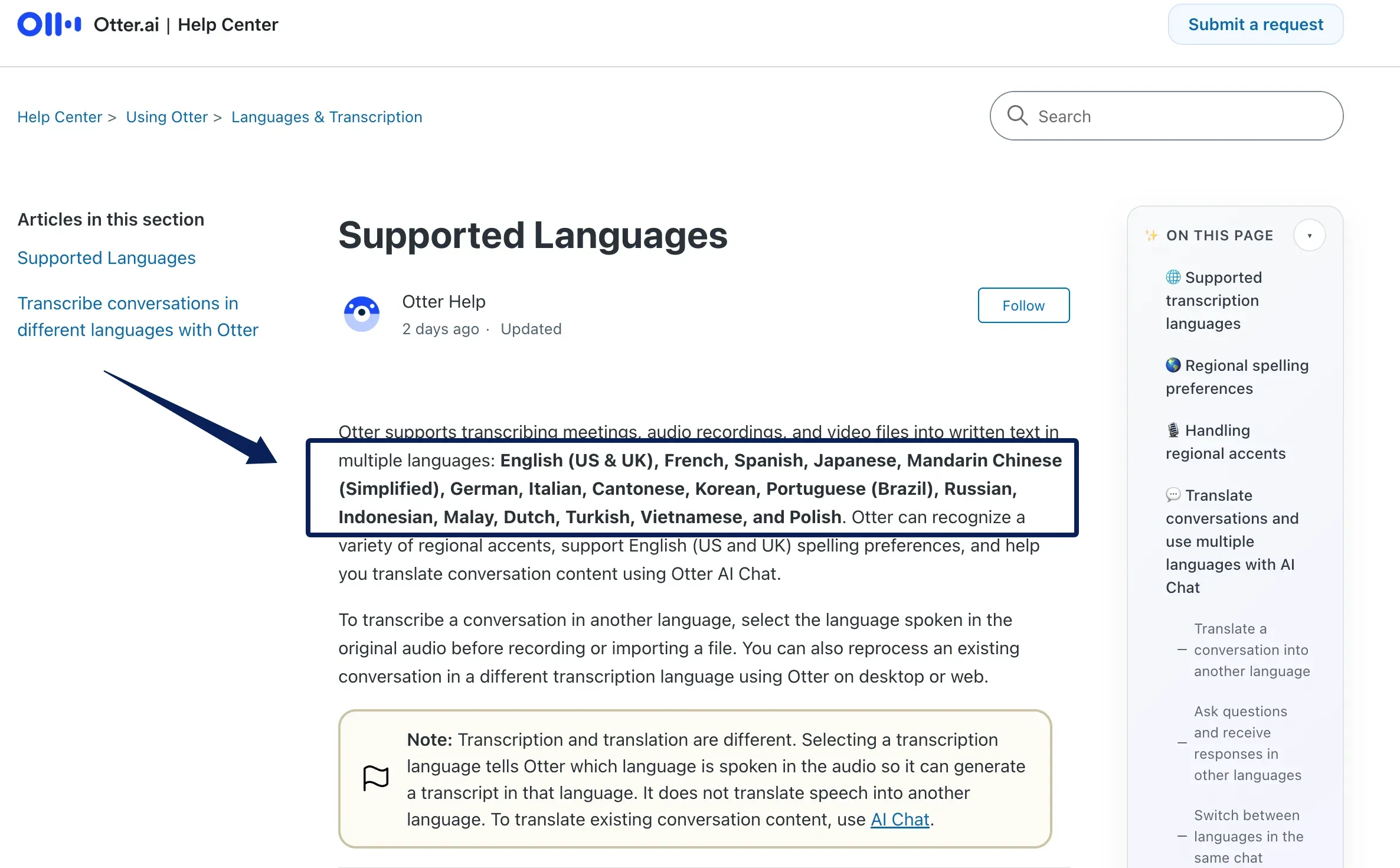
Check current capabilities. Otter's supported transcription languages include English, Spanish, French, Japanese, Mandarin Chinese, and others, making older four- or six-language comparisons obsolete. A listed language still does not establish accuracy for your speakers or terminology.
Turn approved meeting decisions into a follow-up draft
Keep the next action in your workspace, then review the reply before it goes out.
Start free trial →
How do we compare capture and follow-through?
Compare these Otter AI alternatives on five dimensions: capture, summary, action items, sharing, and remaining manual work. All four have free and paid tiers as of the cutoff date. Check the current plan for the feature you need; limits and promotions change.
| Tool | Capture method | Summary and action items | Sharing and follow-through | Limitation to check |
|---|---|---|---|---|
| Otter | Notetaker, desktop capture, or imported files | Conversation summary and action items | Conversation permissions and exports | Basic transcript exports are TXT only |
| Fireflies.ai | Meeting bot, supported desktop or browser capture, and file upload | Searchable recap with action items | Meeting access controls and configurable CRM handoff | Default recap visibility may include teammates and link holders |
| Fathom | Bot or eligible bot-free call capture | Transcript and summary; AI action items depend on plan | Optional attendee auto-sharing and manual sharing | Capture modes and workspace overrides vary |
| Granola | User starts transcription from a desktop or mobile note | AI-enhanced notes; Chat can surface candidate actions | Private notes until shared or moved into a team space | No stored audio recording to replay later |
First, tell participants about the capture and obtain any permission required for that meeting. On a permitted sample call, inspect the summary, speaker labels, sharing settings, exports, and destination record. Use the same meeting action item worksheet across tools to check whether each proposed action reflects what was agreed on and whether its owner and due date are supported by the conversation. Public documentation cannot show how your account is configured.
1. Fireflies.ai: recorded calls and CRM handoff
Fireflies fits calls that must become part of a shared client history. It can join supported video meetings, capture through its desktop app or a Chrome extension for eligible web meetings, and process uploaded recordings. Its meeting record contains a transcript, summary, and action items for checking what was said.
Fireflies can send meeting material to a CRM. Check the account permissions and destination contact or deal before syncing a note or transcript link; a misplaced link can expose more of a call than the task requires. A separate HubSpot task-creation setting is off by default. Once enabled, Fireflies creates tasks from extracted action items after meetings. Keep it off if a person must approve each commitment before it reaches the CRM.
Fireflies' meeting fit and limits
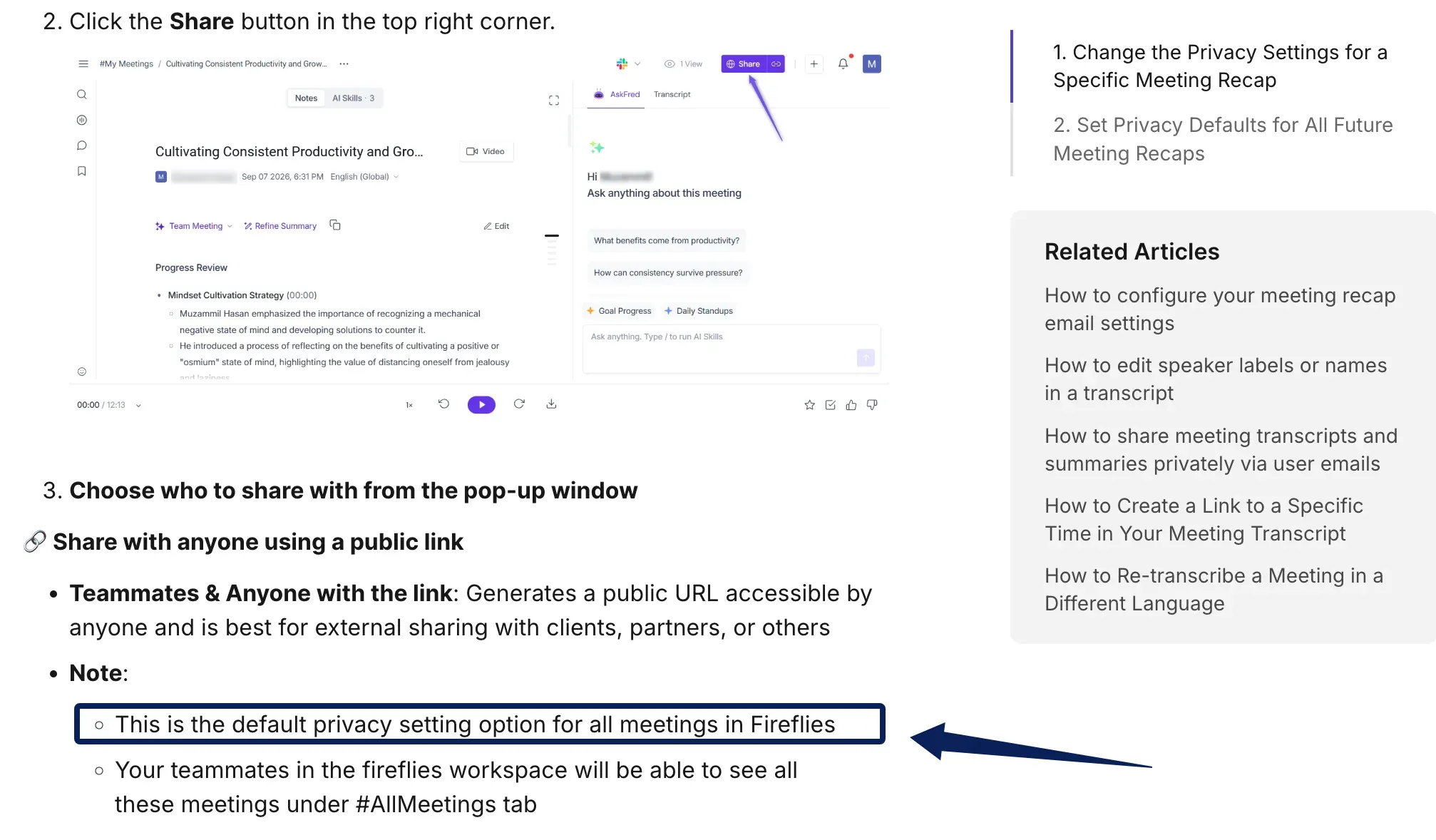
Fireflies is useful for recurring calls a team needs to search. For a sensitive conversation, review the Only Owner recap visibility option: Fireflies' documented default is "Teammates & Anyone with the link." You can later invite selected people. Enterprise Super Admins can still access private workspace meetings.
Fireflies offers many transcription languages. Its beta mode for multiple languages in one meeting is available on Business and Enterprise. Test a permitted sample with your speakers. Plans also differ in storage, recording, and automation allowances; check your tier before relying on CRM write-back.
2. Fathom: straightforward call notes
Fathom suits a freelancer who wants a call record and a controlled sharing decision. It supports Zoom, Google Meet, and Microsoft Teams. Capture can use a visible bot or eligible bot-free mode, with retained media depending on the mode. Google Meet bot-free video, for example, needs a supported Mac and Chrome extension. Check the mode offered for each meeting.
Captured calls can produce a transcript and summary. Fathom's free individual plan includes unlimited recording and transcription, while AI action items and advanced summaries have plan- and usage-dependent limits on Free. Fathom’s release notes describe AI action items on the first five calls per month for Free users. Check the output available on your plan, then review the summary before deciding whether to send the recording.
Fathom's meeting fit and limits
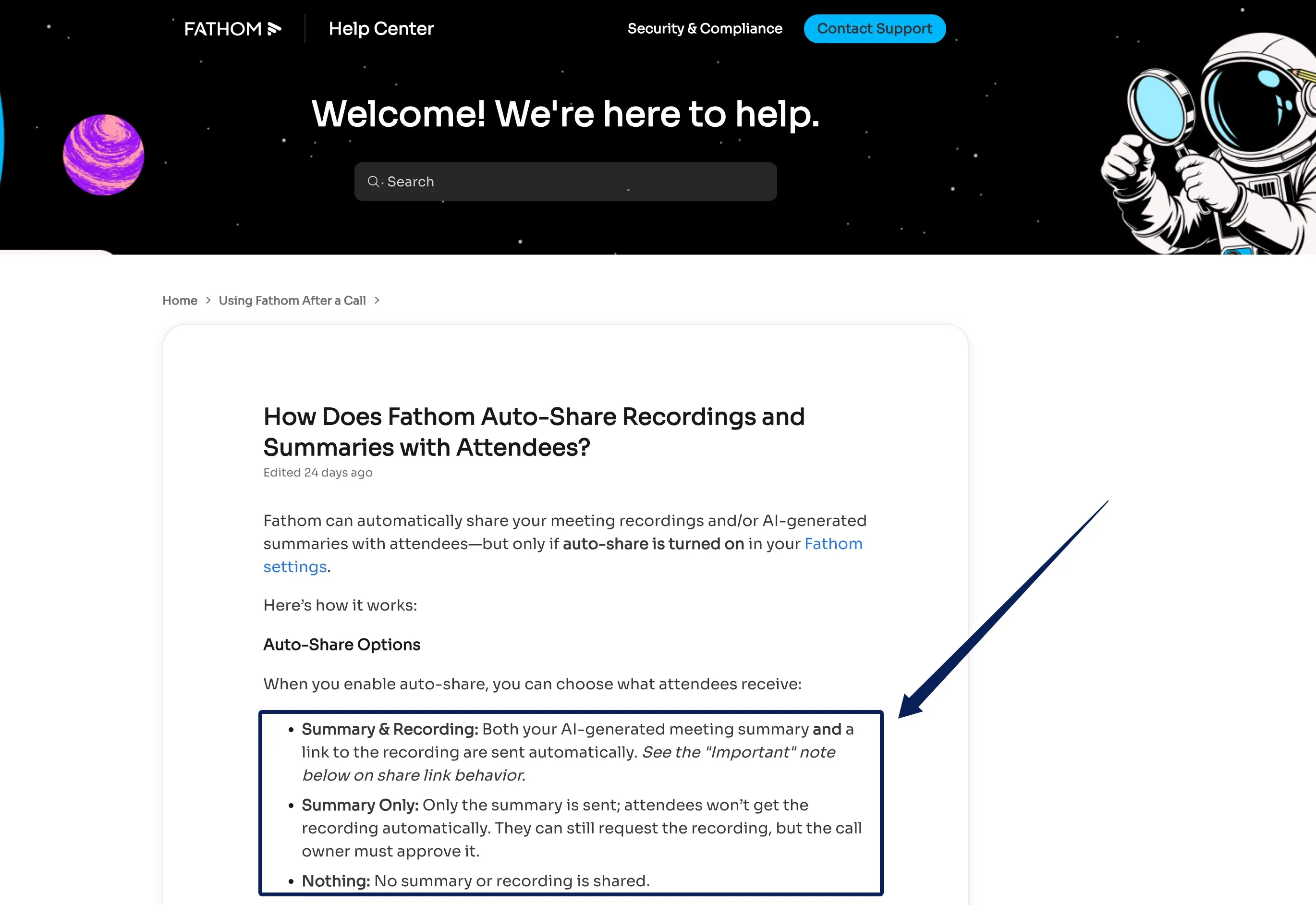
Fathom's attendee auto-share and recording-link settings include "Summary & Recording," "Summary Only," and "Nothing." "Nothing" prevents that automatic attendee email, but a team workspace can override a person's preference for internal sharing. Calendar invitees may receive an enabled auto-share even if they did not attend. On Free and Individual plans, an automatically shared recording link can be viewed by anyone who has it; set the recording to "Only people added can view" when access must stay with named recipients. Check the settings before a private client call and inspect the actual recording's access afterward.
Fathom's help center says uploaded calls are not supported. That limits its value if you want to process a backlog of Otter audio, even if it fits new live calls.
3. Granola: personal meeting notes
Granola starts with your notes. Tell participants and obtain any required permission before capture; a bot-free meeting still needs a clear notice. Then open a meeting note, jot down what matters, and start transcription from the desktop or mobile app. The generated version uses the transcript, your raw notes, and calendar context. It can also work from the transcript when you leave the note blank.
Granola's AI-enhanced notes highlight raw notes and let you inspect a generated point's source. You can edit either version and regenerate. Granola Chat can surface candidate actions from a meeting, but check the original wording if a tentative remark appears as a commitment.
Granola's organization fit and limits
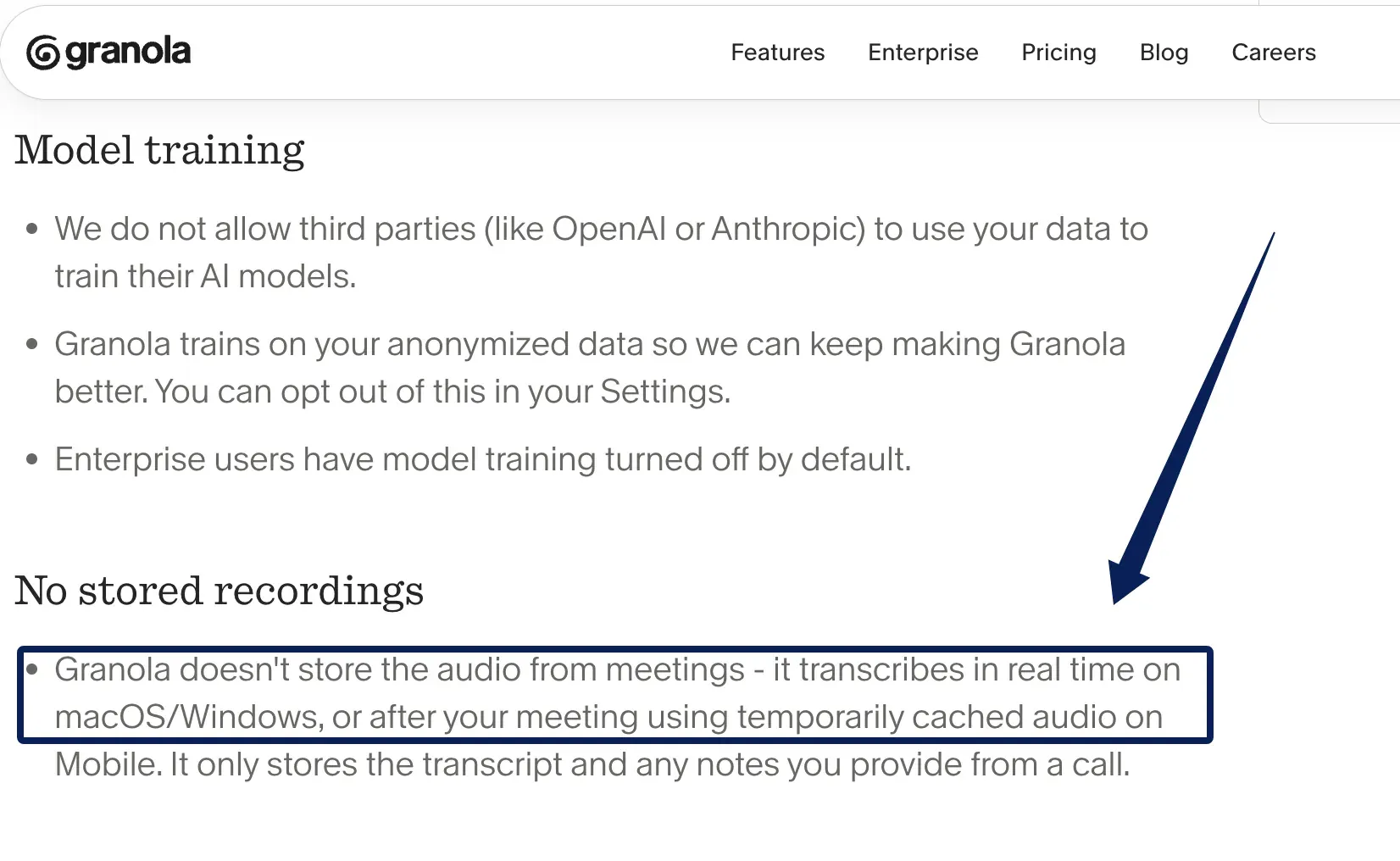
Granola says notes stay private until shared or moved into a team space. An individually invited note viewer does not automatically receive the full transcript; a workspace or shared-folder recipient may have different access, so inspect the recipient view. Granola's security information says it does not store meeting audio after transcription. If approval requires replay, choose a tool that retains the recording.
Granola's desktop app works across meeting platforms; mobile handles in-person conversations. Its language documentation lists 31 transcription languages on desktop and 17 on mobile; language support is included across plans, while integrations and note history differ by plan. Check your device, tier, and destination permissions before sending notes to a CRM or Notion.
How do you turn one meeting into approved next steps?
When comparing meeting action item tools, separate suggested actions from decisions, explicit commitments, and open questions. For each commitment, record the deliverable, owner, agreed date, and source passage. Correct uncertain speaker labels. "We should send an updated quote" is not a named person's promise.
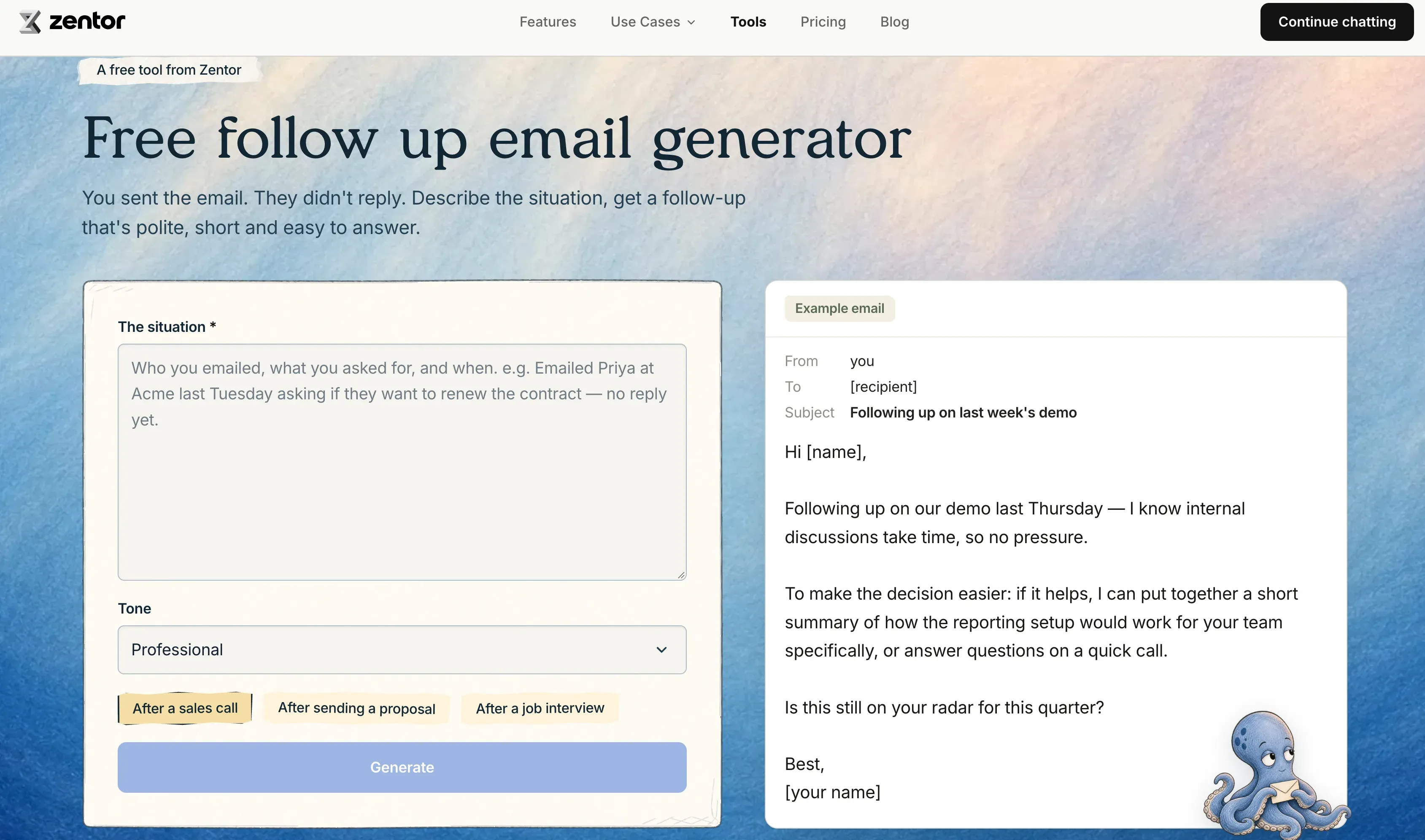
Draft a short follow-up with unresolved questions above confirmed work. Ask the client to confirm any open points about scope or timing. If you use Zentor's follow-up email generator, type the specific question you need answered and review its draft before sending. It does not import the meeting recording or write to a CRM for you.
Once an action is approved, add it to the chosen CRM or project record. Before saving or syncing, confirm the destination and check that the agreed owner and due date go into the correct fields.
FAQ
Can someone receive a Fireflies recap email without access to the full transcript?
Yes. Fireflies controls recap email delivery separately from access to the meeting. A recipient can see any summary or action items included in the email even if they cannot open the transcript link. For a sensitive client call, set "Send email recap to" to "Only me" and check who can open the meeting separately.
Can I revoke access to a Fathom recording after sharing the link?
Yes. Open the recording's sharing settings, select "Only people added can view," and remove anyone who should no longer have access. Removing a person alone leaves the link open if it is still set to "Anyone with the link can view." If the recording is in a shared folder, check the folder's permissions too.
Can Granola keep a personal annotation separate from its generated meeting summary?
You can return to your raw notes separately and edit them, but they are an input to Granola's enhanced summary. Do not assume a private annotation written in the meeting note is excluded from generation. For a thought that must stay outside the shared recap, keep it in a separate private record and inspect the generated note before sharing.
Which option allows correction of a speaker name after recording?
Fireflies and Otter both document post-recording speaker-name corrections. Fireflies lets the meeting owner change a label within that transcript, then regenerate notes if needed. Otter lets you tag a speaker in a conversation or rename a speaker profile you own; renaming that profile can affect its label across your account. Check ownership permissions and the revised summary before assigning an action.
What happens to an Otter recording when it is exported to another tool?
Export creates a separate file, subject to your Otter plan and permissions. Basic's text-transcript export is TXT only; audio export can produce an MP3, while other text formats require a paid plan. Importing a file elsewhere does not transfer Otter's sharing controls to the new copy. Set access at the destination and govern the original conversation separately. A copied action item is not an approved assignment.
Otter AI Alternatives for Meetings: Choose by the Next Step
The best choice follows the record you need to maintain. Fireflies fits a CRM-centered client history; Fathom fits a lighter call-to-summary routine; Granola gives your own notes a stronger role. Stay with Otter if its capture and exports already meet the requirement. Whichever tool you use, the meaningful finish is a confirmed owner and next action in the right place, with the source conversation shared only as far as necessary.

Zentor Editorial Zentor editorial team
The Zentor editorial team writes about workflow automation, AI agents, and the tools we build. Default byline for industry overviews, listicles, and collaborative pieces.
Choosing between tools? Let Zentor run the work.
An always-on AI assistant that does the work. No switching required, no setup.