Airtable Omni: Check the Numbers First

Verify Airtable Omni data analysis with a defined record set, native calculations, source evidence, and checks for incorrect totals or claimed changes.
For Airtable Omni data analysis, calculate the required totals from a defined set of records before asking AI to explain them. Airtable's current Omni documentation explicitly distinguishes counting records and using precomputed numerical fields from unsupported statistical calculations, so a fluent answer should not be your only evidence for a number. Airtable's Omni guide.
Key Takeaways:
- Define what one record represents before choosing a count, sum, or percentage.
- Use an explicit filter and deterministic calculation for report numbers, then let AI help explain the verified result.
- Check missing values, duplicate records, and group membership before interpreting a discrepancy as a model failure.
- Ask any assistant, including Zentor, to show sources and calculation rules. Replacing the assistant does not replace validation.
Reproduce the question before changing the prompt
An Airtable community report describes a volunteer attendance analysis in which the user said Omni assigned people to incorrect areas and did not use the attendance checkbox as expected. That is a concrete reason to inspect the underlying calculation, but it is a report from one workflow, not a measured failure rate for every Omni task. Read the original analysis question.
Write the requested result in one sentence before asking again. For attendance, that might be the number of checked attendance records in each area during a specified event. This is different from the number of unique volunteers, the number of assignments, or the number of people registered.
Record the table, relevant view, date range, attendance field, and grouping field. Then identify what a row means. If a volunteer can have several assignments, counting rows may count that person several times. No prompt can resolve that ambiguity unless you decide which quantity you actually want.
Keep the original incorrect output alongside the exact request and a small source sample. This lets you distinguish a changed answer from a corrected method. If you keep rewriting the prompt without preserving the expected result, you may end up accepting whichever answer sounds most plausible.
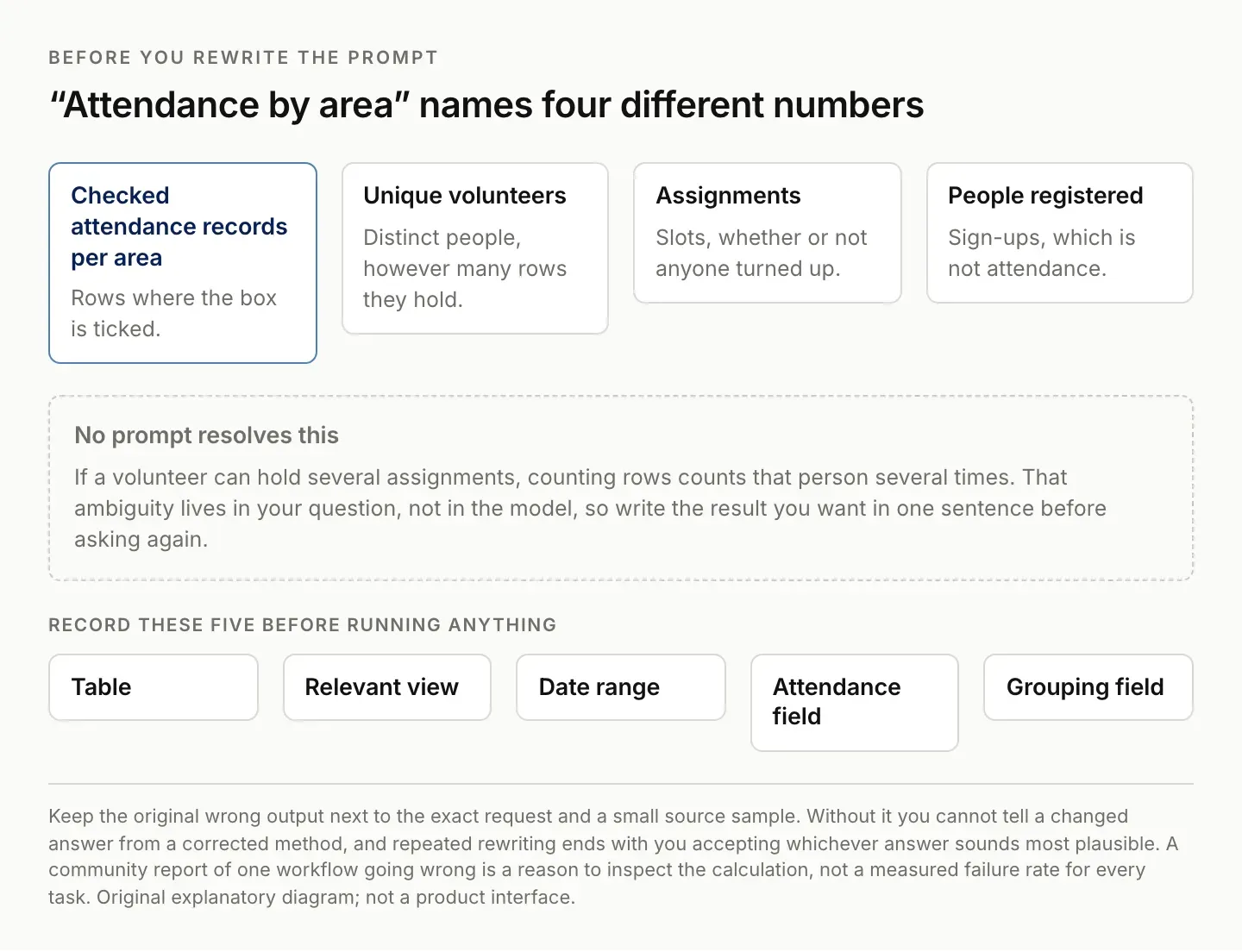
The ambiguity is in the question, not the model. No amount of prompt rewriting resolves it.
Define the population and denominator
The population is the set of records included in the calculation. The denominator is the quantity used for a rate or percentage. Write both explicitly. “Attendance rate” could mean checked-in people divided by registered people, attended assignments divided by scheduled assignments, or filled positions divided by available positions.
For a reproducible report, choose one definition and label it. If you need two definitions, report two separate metrics. Do not combine them under the same heading because the resulting numbers happen to look similar in a small sample.
Consider this constructed test fixture, which is demonstration data rather than an account of an actual organization:
| Record | Person key | Area | Attended |
|---|---|---|---|
| TEST-01 | P-01 | Welcome | Yes |
| TEST-02 | P-02 | Welcome | No |
| TEST-03 | P-01 | Setup | Yes |
| TEST-04 | P-03 | Setup | Yes |
The fixture contains four assignment records and three attended assignments. It contains three distinct people, of whom two have at least one attended assignment. Both counts can be correct, but they answer different questions. Summing attended assignments and calling the result unique volunteers would be incorrect.
If you calculate attendance by area, the same person may appear in more than one area. State whether the grand total is a sum of area assignments or a distinct-person total. That small note prevents readers from treating a legitimate difference as an arithmetic error.
Calculate the native result in a controlled view
Create a dedicated reporting view with the intended filters and visible fields. Include the stable record identifier or another way to inspect the rows behind the result. Keep a separate unfiltered view available for investigating excluded records.
Airtable's summary extension can display a record count or a summary function such as a sum or average for a selected view. Use a compatible field and inspect which view supplies the data. The number is meaningful only when its population matches your report definition. Airtable summary extension.
For a straightforward attended-assignment count, filter to the relevant event and checked attendance values, then inspect the records included. Grouping by area can make the distribution easier to review. A grouped display is useful for inspection, but confirm the actual calculation rather than estimating a total from the visible screen.
If the report requires linked information, check the relationships before using a lookup or rollup. A missing linked record can cause a blank result even when the source information exists elsewhere in the base. Airtable's lookup guide explains that the relationship must be populated at the record level. Airtable lookup fields.
For repeated calculations, a formula or deliberately configured rollup can make the rule persistent. Keep the formula understandable and document its assumptions. Airtable's function reference is the place to verify syntax and supported behavior before relying on a generated expression. Airtable formula reference.
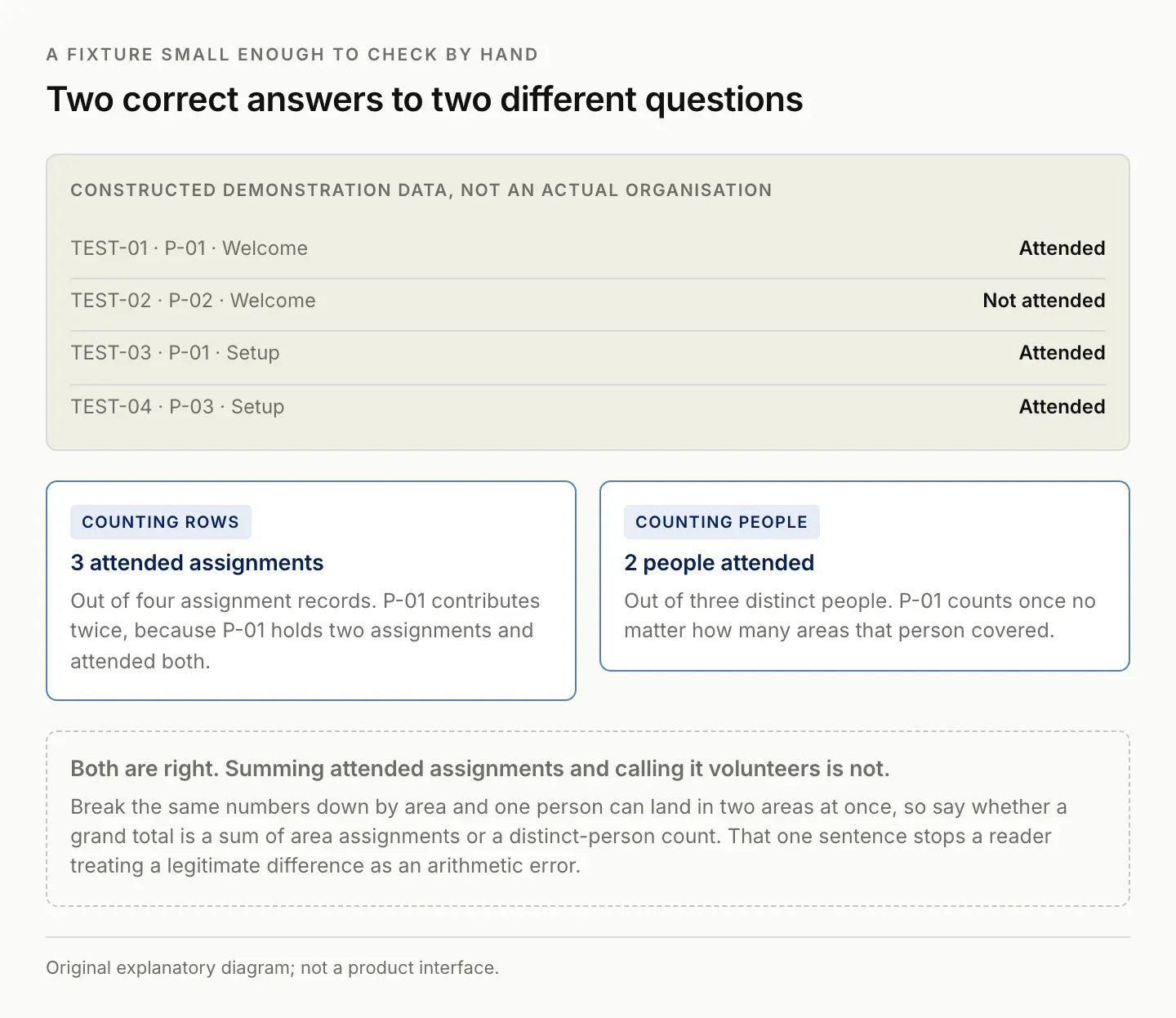
Both counts are right. Summing attended assignments and calling the result volunteers is not.
Investigate differences one record at a time
When the assistant's answer differs from the native result, identify the first differing group and inspect its records. A smaller discrepancy is easier to explain than a vague statement that the entire report is wrong. Work from the record set toward the output rather than guessing at the model's reasoning.
Check for duplicate records, blank group values, multiple linked groups, and dates outside the intended range. Confirm whether unchecked means absent or simply not yet reviewed. Those meanings require different reporting rules, even if both appear as an empty checkbox.
Also check whether the requested data was accessible from the context in which the assistant ran. A user in an interface may see a different subset from a base owner. An answer based on a restricted subset should identify that scope; it should not be presented as the whole organization's result. Zentor's Airtable integration page lists the Airtable connections currently available to an account.
Build a small acceptance set with expected answers. Include one duplicate person across assignments, one absent person, one blank group, and one record outside the date range. Decide the expected treatment before running the calculation. A test that only contains clean records does not establish how the workflow handles common exceptions.
Record the discrepancy in plain language: “The output counted assignments as people,” or “The filter included a different event.” That diagnosis leads to a specific fix. “The AI is bad” may express frustration, but it does not tell you which part of the workflow to change.
Give AI verified numbers and ask for interpretation
Once the totals are reconciled, provide a compact result table with the metric definitions, time range, and exceptions. Ask the assistant to explain the result, identify questions worth investigating, or draft the narrative section of a report. Do not ask it to quietly replace missing numbers with plausible values.
A useful instruction is: “Use only the supplied totals. Preserve the distinction between assignments and unique people. Identify any conclusion that requires additional evidence. Do not infer why attendance changed from these counts alone.” This turns the assistant's task into a reviewable writing job.
Separate observation from explanation. A lower attendance count is an observation if the source supports it. Poor reminders, weather, scheduling conflicts, or changing interest are possible explanations that require their own evidence. A polished report should not turn those possibilities into established causes.
Keep the calculation date and source scope with the draft. If the base changes later, the report may describe a previous snapshot rather than the current live total. That is acceptable when it is labeled. It becomes confusing when readers expect a live dashboard and receive an undated static narrative.
Review every number in the final draft against the verified table, including numbers repeated in headings, charts, and conclusions. A correct input table does not guarantee that a generated paragraph or diagram will reproduce it accurately.
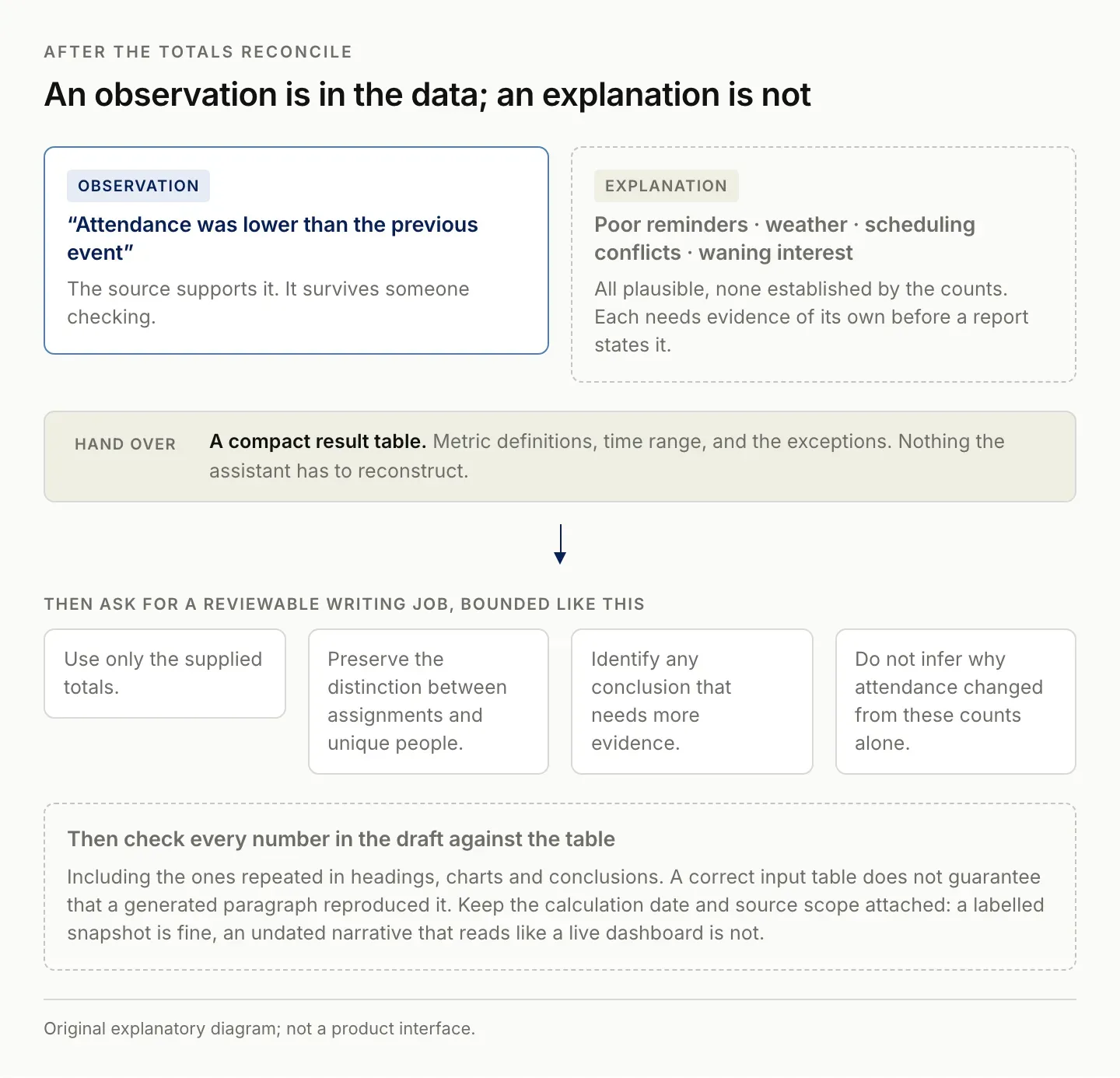
Hand over verified totals and ask for writing you can review, not for a cause the counts cannot establish.
Apply the same evidence rule to claimed edits
The same principle helps when an assistant says it changed an interface or created a feature. Treat the statement as something to verify in the destination. Open the relevant object and inspect the actual change. A description of a button is not a button, and a proposed schema is not a completed database update.
Capture the before state, the intended change, and the after state for a bounded test. Check the behavior, not only the appearance. If a button exists but acts on the wrong record, the visible change alone has not satisfied the task.
Airtable's Omni documentation currently contains conflicting statements about some creation capabilities, including views and forms. Because the page is internally inconsistent, this guide does not use it to make a blanket claim that Omni can or cannot perform every such edit. Confirm the particular operation in your workspace and consult current support guidance when the behavior differs.
For a failed edit, preserve the request and the actual result before retrying. Repeating a broad instruction may create duplicate objects or make the state harder to understand. Narrow the correction to the missing or incorrect behavior and inspect the destination again.
This is a general acceptance method for agent-assisted work. It does not depend on assuming dishonest intent when a system reports success incorrectly. The practical question is whether the observable result matches the requested change. The Airtable vs Google Sheets comparison covers when a spreadsheet is still the better fit.
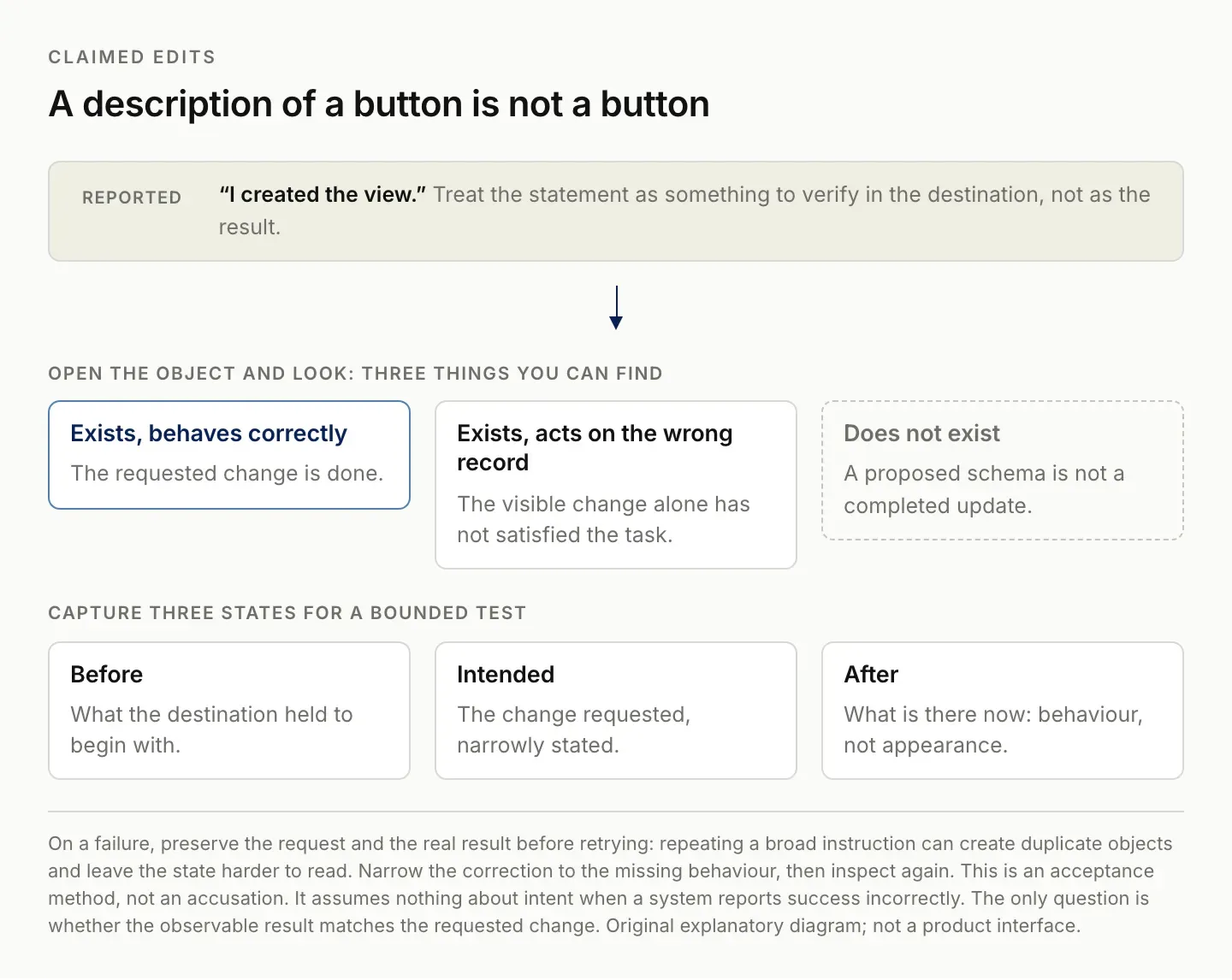
A description of a button is not a button. Check the behaviour, not the appearance.
Evaluate Zentor on the report it returns
For repeated view changes across bases, verify the actual configuration as well as the data. A separate community question describes maintaining 13 event bases and explicitly says that record capacity made consolidation unattractive. “Put everything in one base” therefore does not answer that user's stated constraint. Multi-base maintenance question.
Keep a small change specification listing visible fields, order, filters, sorts, and the bases that need the revision. Apply it to one test base and inspect the resulting view before repeating the change. Record the version applied to each destination so partial completion remains visible. Do not assume that syncing record data propagates every view configuration, or that exporting CSV preserves those settings. The available create-or-edit operation needs its own current capability check.
This maintenance problem belongs beside the claimed-edit checks above. The required evidence is the resulting configuration in every selected destination, not a statement that a template was updated somewhere.
For a recurring business report, Zentor's intended role is to connect the verified data with the surrounding work and prepare a deliverable in the place you use. A meaningful evaluation might start with a selected Airtable report and ask for a source-linked weekly draft, with exceptions and unresolved explanations kept visible.
The brief should specify the calculation owner. For example: “Use the checked reporting view and the attached verified totals. Prepare a weekly summary, preserve all metric definitions, and list missing evidence. Return a draft without changing the underlying attendance records.” That makes the proposed output concrete.
Zentor is in early access, and this article does not claim an untested connection or calculation workflow has already run. Confirm the available capabilities, compare the returned numbers with the source, and inspect the actual destination before relying on a recurring task. Explore Zentor with one report whose correct result you already know.
Keep deterministic calculations where they are easy to inspect. The useful addition is less repeated assembly and writing, with the evidence intact. A different assistant should meet the same acceptance standard as the native one.
FAQ: Airtable Omni data analysis and verification
Can Airtable Omni count records?
Airtable's documentation lists record counting and the use of precomputed numerical fields as supported exceptions to its calculation limitations. Still define the record set and verify that the count answers your intended question.
Should I stop using Omni for reports?
Use it for tasks whose output you can inspect. A checked result table plus an explanatory draft is easier to validate than an unsupported final number produced from an ambiguous request.
Why do grouped counts differ from unique people?
One person can belong to several assignment records or groups. A sum of group counts and a distinct-person count can therefore differ without either calculation being arithmetically wrong.
Does Zentor remove the need to validate numbers?
No. Evaluate the actual records, rules, numbers, and destination. Any assistant used for operational reporting should preserve the evidence needed for that review.

Zentor Editorial Zentor editorial team
The Zentor editorial team writes about workflow automation, AI agents, and the tools we build. Default byline for industry overviews, listicles, and collaborative pieces.
Ready to put this into practice?
Zentor runs browser tasks, research, and schedules automatically. Try it free.