How to Share Google Calendar at Work

How to share Google Calendar at work: choose a recipient, set the right permission, and check what they can see before coordinating follow-ups.
Learning how to share Google Calendar at work starts with giving specific people access to the calendar they need. Calendar permissions determine whether they see busy time, read event details, edit appointments, or manage sharing.
Key Takeaways
- Match access to the recipient's job: finding a meeting time, preparing for work, or maintaining the schedule.
- A calendar's wider sharing settings and an event's visibility both affect what someone sees.
- Complete the handoff from the recipient's account, including opening the invitation and trying the intended action.
Say a client's coordinator emails you for two open slots next week. They need to know when you're free. They don't need to see who you're meeting on Tuesday. Meanwhile, your teammate needs to move a delivery block when a deadline shifts. I'd give the coordinator free/busy access to Client meetings and let the teammate edit ordinary events on Internal work. Then I'd check both from the recipient's side. Can one find a slot? Can the other move the block?
Choose the Calendar and the People Who Need It
Start with the calendar's contents. Sharing Client meetings gives access across that calendar, so the decision includes every client appointment stored there. Use an individual event invitation when someone only needs to attend one meeting.
For ongoing Google Calendar sharing, write down each recipient's task. Give the coordinator availability access to Client meetings. Give the colleague access to Internal work appropriate to the work they maintain. A person who only needs to read the schedule needs no editing authority.
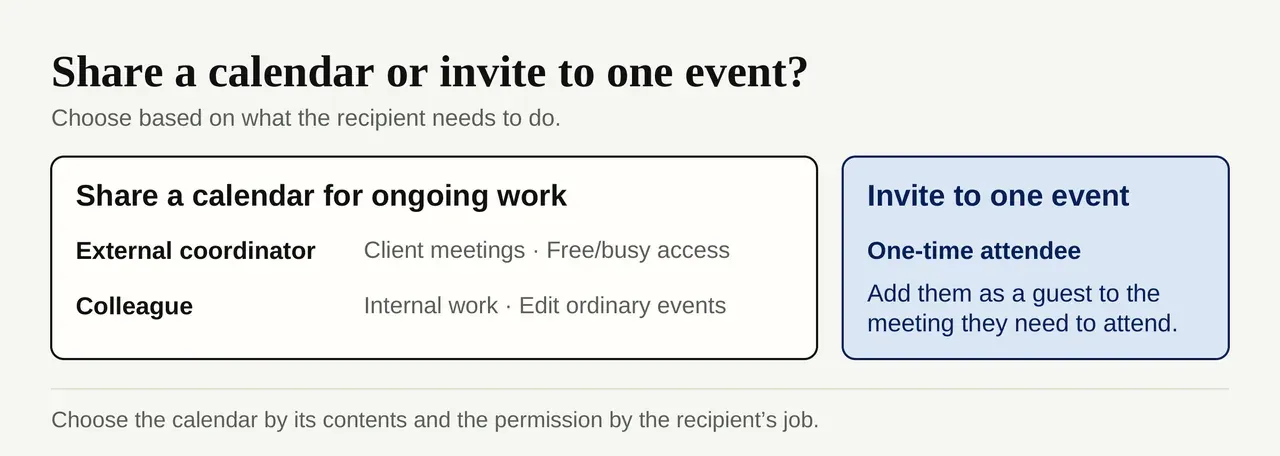
To share someone else's calendar, its owner must give you Make changes and manage sharing permission. A work administrator can also restrict sharing. For a "share calendar with team" request, a named Google group can represent the continuing audience. Review its membership before granting access.
Keep the follow-up in the right hands
Search the Gmail thread, draft the reply with Zentor, and review it before anything goes out. Calendar sharing stays your choice.
Start free trial →
Pick an Access Level for the Work
Set calendar permissions by what the recipient needs to do. The distinction between reading a schedule and maintaining it matters more than whether someone is a colleague or a client.
Free and Busy Only
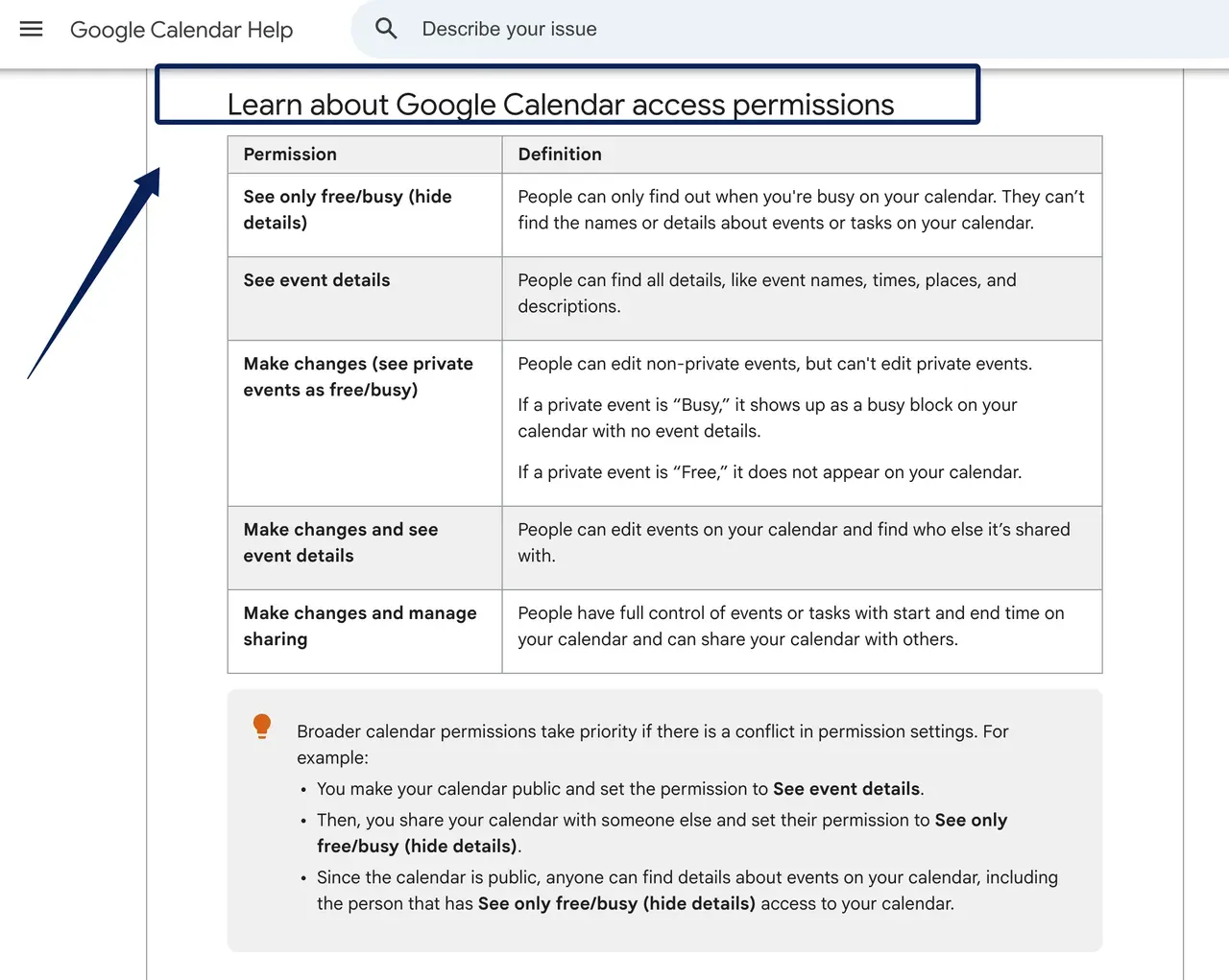
See only free/busy (hide details) suits the coordinator who is finding a meeting slot. It shows busy time without event names or descriptions. They can work around an appointment without learning which client it concerns.
Broader calendar access still applies. A public calendar with detail-level access can expose those details even to someone individually assigned free/busy. Review public and organization-wide access alongside the person's entry when setting what others can do with your calendar.
Event Details or Editing
See event details fits a colleague who needs names, times, places, and descriptions to prepare for work. For someone maintaining Internal work, the editing choices have different scopes:
| Permission | Work it supports |
|---|---|
| Make changes (see private events as free/busy) | Edit non-private events while leaving private events uneditable. |
| Make changes and see event details | Edit events, see private details, and see who else has calendar access. |
| Make changes and manage sharing | Maintain events and grant access to other people. |
Reserve sharing management for the person responsible for the calendar's audience. Moving a work block alone does not require that authority.
Share the Calendar From a Computer
To decide how to share Google Calendar, have the calendar name, recipient email, and chosen permission ready. Then use the desktop sharing controls:
- Open Google Calendar on your computer.
- Expand My calendars on the left.
- Beside the intended calendar, select More, then Settings and sharing.
- Select Shared with, then Add people and groups.
- Enter the person's or Google group's email address.
- Select the permission for their task.
- Select Send.
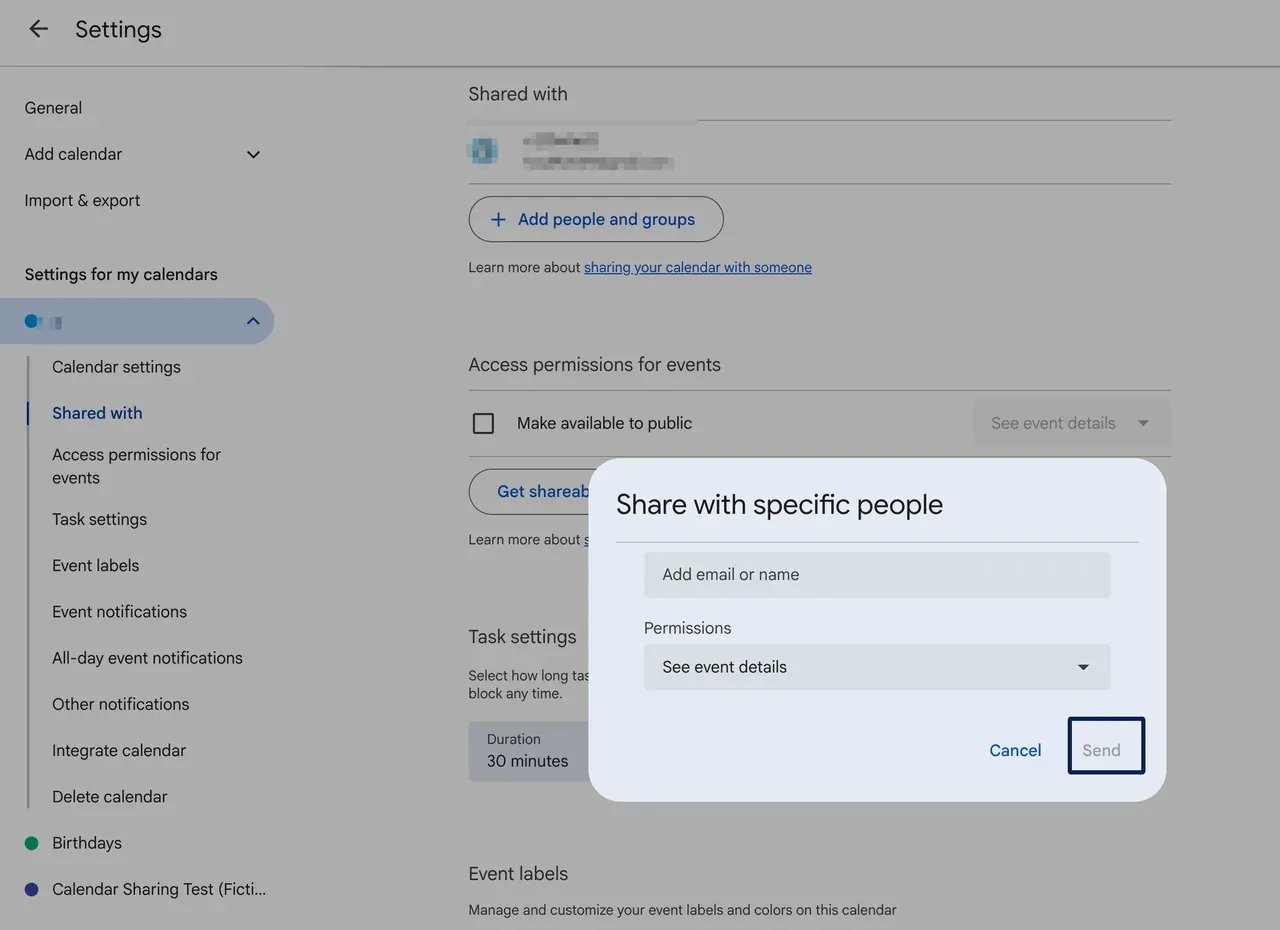
Use the recipient's intended work identity, especially when they have several accounts. They receive an email and must open its link to add the calendar. Sending the invitation is the owner's step; adding it completes the recipient's step.
Check the Recipient's View
Use sample appointments with no client information for the first handoff. On Client meetings, add a Busy event named Sample consultation, with a fictional location and description. On Internal work, add an ordinary delivery block and a separate private Busy appointment.
Have the coordinator open Client meetings while signed in to the invited account. With free/busy access and no broader grant, the expected view is a busy period without the sample title, location, or description. Ask them to identify a usable meeting time from that view.
Next, have the colleague open Internal work and move the ordinary delivery block to an agreed test time. With **Make changes (see private events as free/busy)**, the private Busy appointment should appear as a busy block without editable details. A private event marked Free does not appear to that editing role.
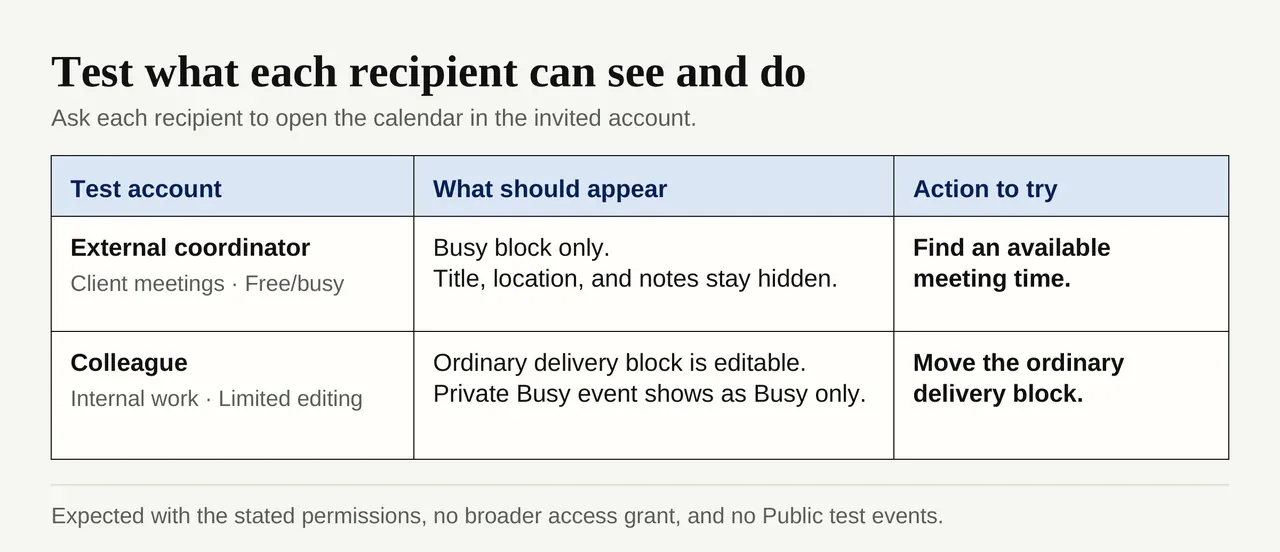
An event's Default, Public, or Private visibility changes the result. Public event details are visible even to people with free/busy calendar access; Private hides details from ordinary readers, while the higher editing roles can still see them. Compare the sample events with the assigned role before putting client details on the shared calendar.
Use Availability Without Exposing Client Details
When you share work calendar availability, keep the scheduling question separate from the meeting's contents. The coordinator needs a usable time. The attendee needs the agenda and joining information for their own appointment.
The two-calendar setup also needs a clear availability rule. A colleague looking only at Client meetings is not looking at Internal work. Include internal commitments in your scheduling decisions before offering a slot, even when they are absent from the recipient's view. If you also use a scheduling tool, test a booking across both calendars. Pick a time already blocked on Internal work and see whether the coordinator can book it or see any event details.
For an external recipient, Workspace external-sharing settings set the available ceiling. A user cannot grant more external visibility than the organization allows. Super administrators and admins with Manage Calendars permission can also see event details regardless of ordinary sharing settings, so Private is a recipient-level control rather than a restriction on those administrators.
Once the coordinator picks a slot, you can send a short reply with the date, time zone, and agenda. If you arrange client meetings every week, the writing is usually the easy part. The time zone might be in one email and the agreed agenda three replies back. You can use Zentor to search the Gmail thread and draft a reply from those details. Its AI email assistant leaves the reply for your approval before it goes out. Sharing the calendar alone does not authorize Zentor to read it or send invitations.
The calendar permission is a separate choice. The coordinator can keep free/busy access to Client meetings for future scheduling. Attendees get the agenda and joining details in their own event invitation.
FAQ
Can you share one event without sharing the whole calendar?
Yes. Open the event, select Edit event, add the person's email under Guests, and save. Google supports invitations to people who do not use Google Calendar. This gives them the meeting invitation without making them a viewer of the whole calendar.
Can you stop sharing a calendar without deleting its events?
Yes. Open Settings and sharing, go to Shared with, and remove the person or group. This removes that sharing entry without deleting events. Someone may still have access through another group or a public or organization-wide grant; remove the relevant route as well.
**Can someone without a Google account accept a calendar share?
For private access, have the recipient sign in to a Google Account linked to the invited email; that account can use a non-Gmail address. Someone without a Google Account can receive a single-event invitation by email. Signed-out calendar viewing uses a public calendar's Public URL, which opens access to a wider audience.
Can you share a calendar from the mobile app?
Yes. Current Android and iPhone/iPad instructions support sharing with people or groups. In the app, open Menu, Settings, the calendar, then Shared with. Use Add people or groups, select recipients and their permission, and save. Adding a newly shared calendar is a separate recipient action handled in a computer browser.
What if a work administrator blocks external sharing?
Ask the administrator which external access level is allowed for that calendar and recipient. Request an approved change when the work requires it. Keep coordination within the permitted level while that decision is pending; administrative policy changes can take up to 24 hours to apply.
Google Calendar Sharing Works When Access Matches the Job
Finish with one recipient and one sample appointment. The coordinator should be able to identify a meeting time; the colleague maintaining Internal work should be able to move an ordinary block. Once those actions match the access you intended, use the calendars for scheduling and approve the next invitation or follow-up.

Zentor Editorial Zentor editorial team
The Zentor editorial team writes about workflow automation, AI agents, and the tools we build. Default byline for industry overviews, listicles, and collaborative pieces.
Stop doing this manually.
Zentor handles research, monitoring, reports, and browser tasks for you. No setup. No self-hosting.