Kanban Apps for Personal and Small-Team Tasks
Kanban apps for personal and small-team tasks: compare Trello, Todoist, Notion, and Asana on board setup, ownership, and client handoffs.
Kanban apps display tasks as cards grouped into stages, making it easier to see what is ready, underway, waiting, or finished. For freelancers and teams of two to five, the useful board makes the next action and its owner visible.
Key Takeaways:
- Start with Trello for a shared card-and-column workflow, or Todoist when your personal task list needs a board view.
- Use Notion when tasks need their project notes beside them, and Asana when individual assignments drive the work.
- Decide how the client will review work before inviting them. Editing access, viewing access, and a downloaded copy serve different purposes.
Illustrative example: A freelance writer and designer are preparing a client's two-page service brochure. The client supplies approved facts and reviews the draft before delivery. The comparison below uses that invented project and documented product features.
What Should a Small Kanban Board Track?
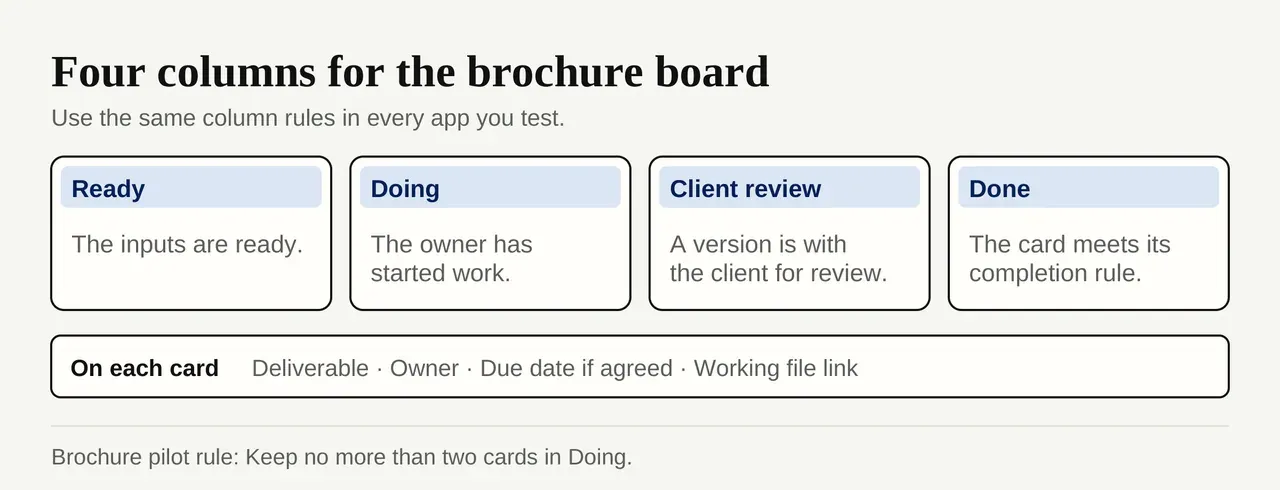
Begin with four columns named Ready, Doing, Client review, and Done. A task enters Ready when its inputs are available. Client review means the team has sent a version for a decision. Done means the agreed completion condition has been met.
Give each card a deliverable, a responsible person, a due date where agreed, and a link to the working file. "Brochure" is too broad for a handoff. "Draft the two service descriptions" lets the writer finish something the designer can use.
The designer can own the layout while the client owns the approval decision. Record that decision alongside the version it covers.
For this project, agree to keep at most two cards in Doing. This work-in-progress limit helps a small team kanban board show when finishing existing work should take priority.
Keep client follow-ups tied to the work
Draft a status reply from the Gmail thread, check it before sending, and keep the decision with your project notes.
Start free trial →
Compare Setup, Ownership, and Board Views
Setup cost includes deciding what each column means, adding project information, and teaching the next person how to update it. These kanban apps organize that work differently.
| App | Initial setup | Ownership | Handoff route |
|---|---|---|---|
| Trello | Create lists and cards | Add card members and name a lead when several people contribute | Share the board with the appropriate role |
| Todoist | Create a project and use sections as columns | Assign one person per shared task | Share a project or export active tasks |
| Notion | Create a task database with a board view | Add a Person property and an agreed ownership rule | Share the source pages and working notes |
| Asana | Create a project, board sections, and tasks | Assign the person responsible for each task | Give the client project access or a selected export |
For personal kanban software, start with the kanban apps you already open daily. For shared work, another person needs to find the correct draft, understand its stage, and take the next action.
1. Trello for a Simple Shared Board
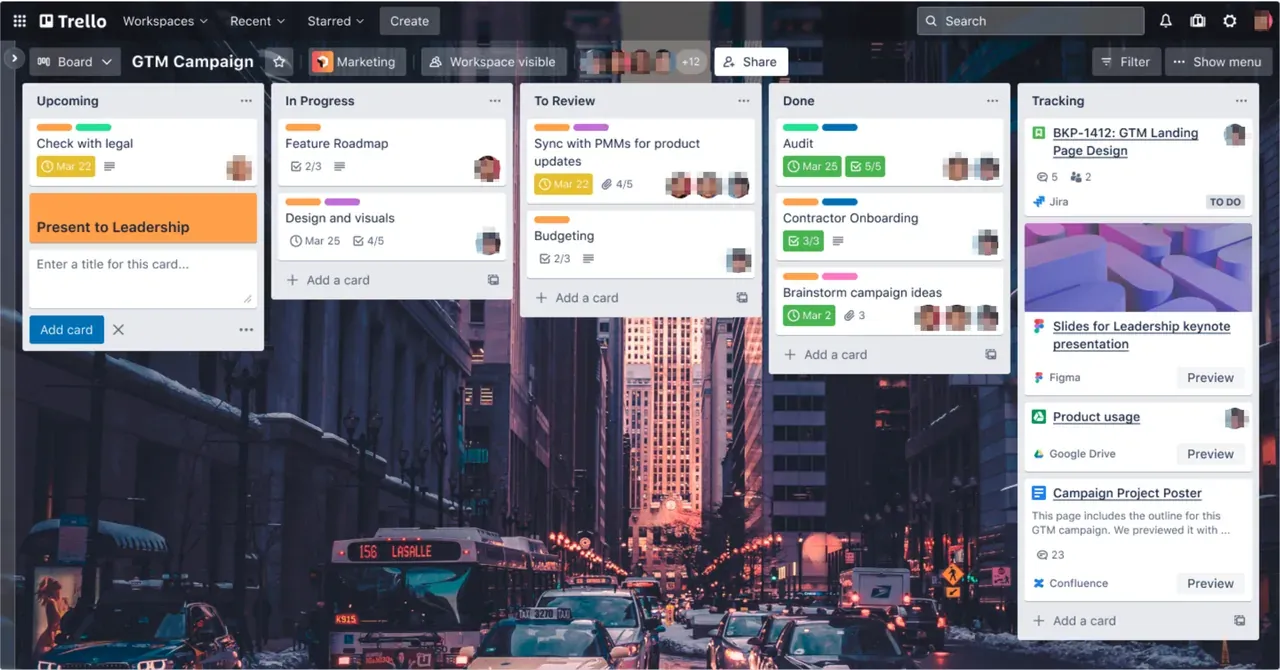
Of these kanban apps, Trello starts with a board containing lists, then cards within those lists. For the brochure, create the four agreed lists and add cards for approved facts, copy, layout, client review, and delivery. Keep the working document and review notes on the relevant card.
As of November 25, 2026, Trello Free Workspaces have a ten-collaborator limit across the Workspace, including guests and pending invitations. A small project can fit within that limit, though other boards in the same Workspace contribute to the count.
The writer moves copy to Client review when the review file is ready. The designer starts layout from approved copy and records any missing image as a blocker.
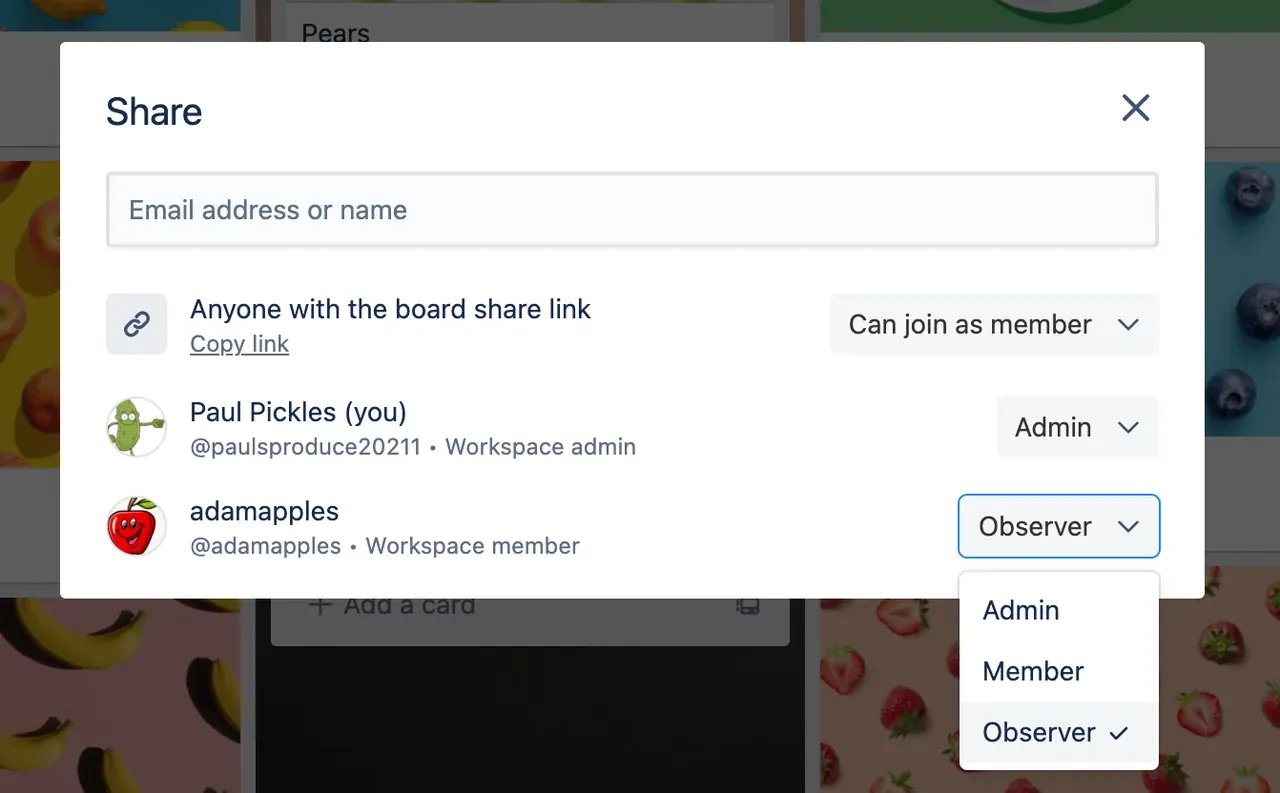
For private client viewing with restricted editing, Trello Premium supports board observers. Observers can view cards and download attachments, with commenting controlled by board settings. Standard board members can edit cards, so a client invitation needs a deliberate role choice.
At project close, board members can export JSON, with CSV available in Premium Workspaces. CSV excludes comments, so keep the approval record accessible when choosing what to hand over.
2. Todoist for Personal Tasks With a Board View
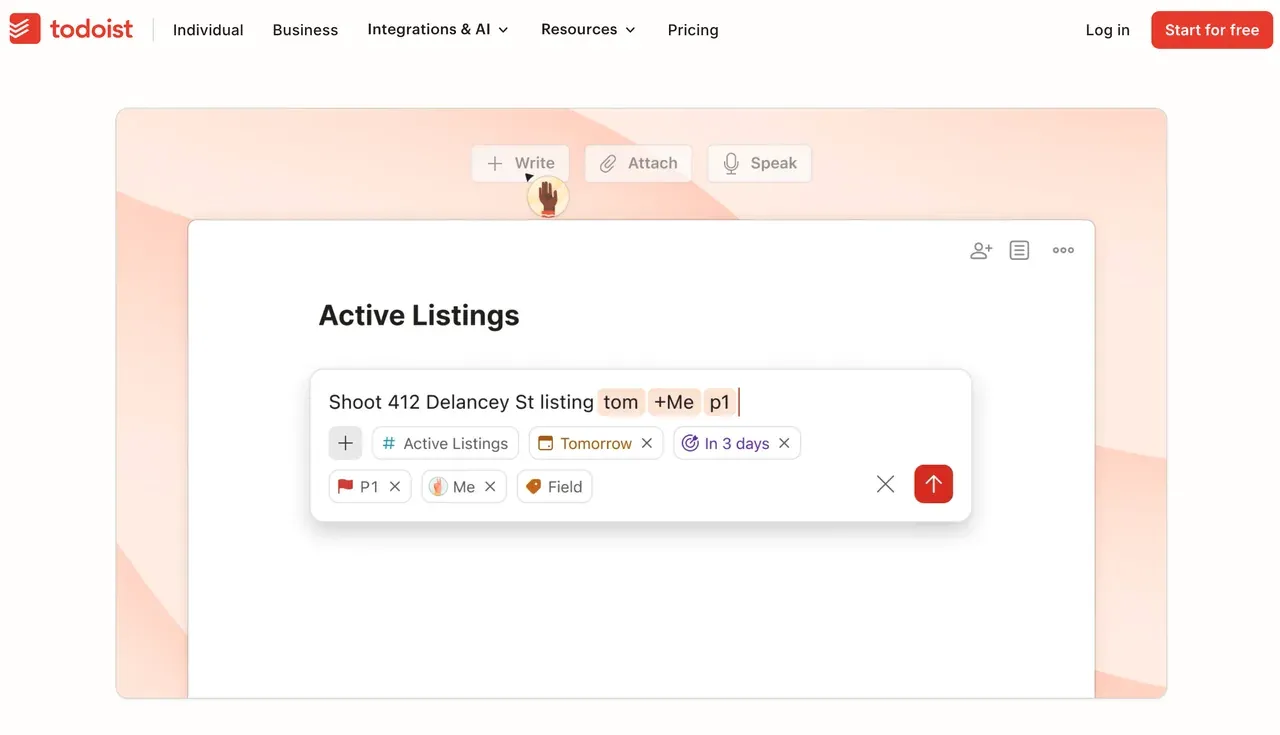
Todoist is a useful task board for freelancers who already collect their work in a task list. Its board layout is available on Beginner, Pro, and Business. Sections become columns, and tasks appear as cards that you can drag between them.
For the brochure, turn the project into a board and add the same four sections. Dates remain attached to tasks, so you can keep the project workflow alongside the work you plan to do today.
Sharing adds individual accountability. Assign the copy task to the writer and layout to the designer. Todoist permits one assignee per task, which suits this division. Keep the client's review request as a separate task so completing the writing task does not imply client approval.
A shared personal project gives invited collaborators editing access to its contents. Use that arrangement when the designer is actively working with you. A client who only needs a progress update needs a suitable viewing route.
Todoist also exports projects to CSV on web and desktop. Completed tasks are excluded from that export, so it is useful for transferring active work. A final project record needs the completed deliverables and approval evidence as well.
3. Notion for Tasks Near Project Notes
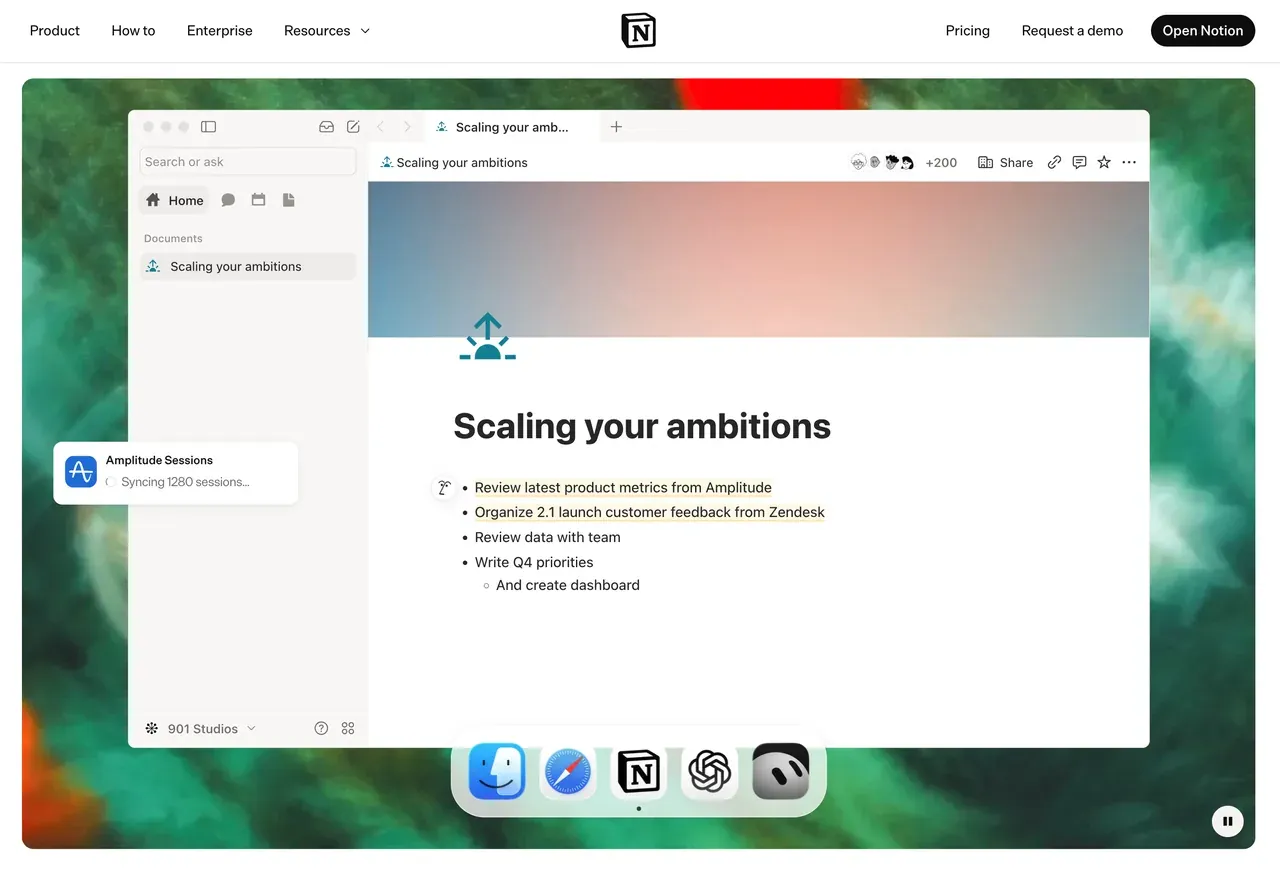
Notion fits when the brochure brief, client facts, draft links, and tasks belong together. A Notion board groups database pages by a property, including Status or Person. Each task can therefore hold its own notes while appearing as a card.
Create Status, Owner, Due date, and Working file properties. Group the board by Status and use the page body for the brief excerpt, review request, and accepted decision. Choose one owner even when the Person property allows several names.
On "Prepare print-ready brochure," the designer can find the approved copy and delivery specifications in the same task page. That context is the reason to configure a database alongside the columns.
Keep sharing aligned with the client project. A filtered view shows a selected set of records, while access comes from page and database permissions. Client access should cover the intended source pages and linked files.
Notion offers Free and Plus plans. Export options include page documents and database data. Choose the actual notes and task records needed for handoff, rather than treating a board image as the project archive. Group the Notion project board by Status and use the page body for the brief excerpt, review request, and accepted decision.
4. Asana for Team Assignments
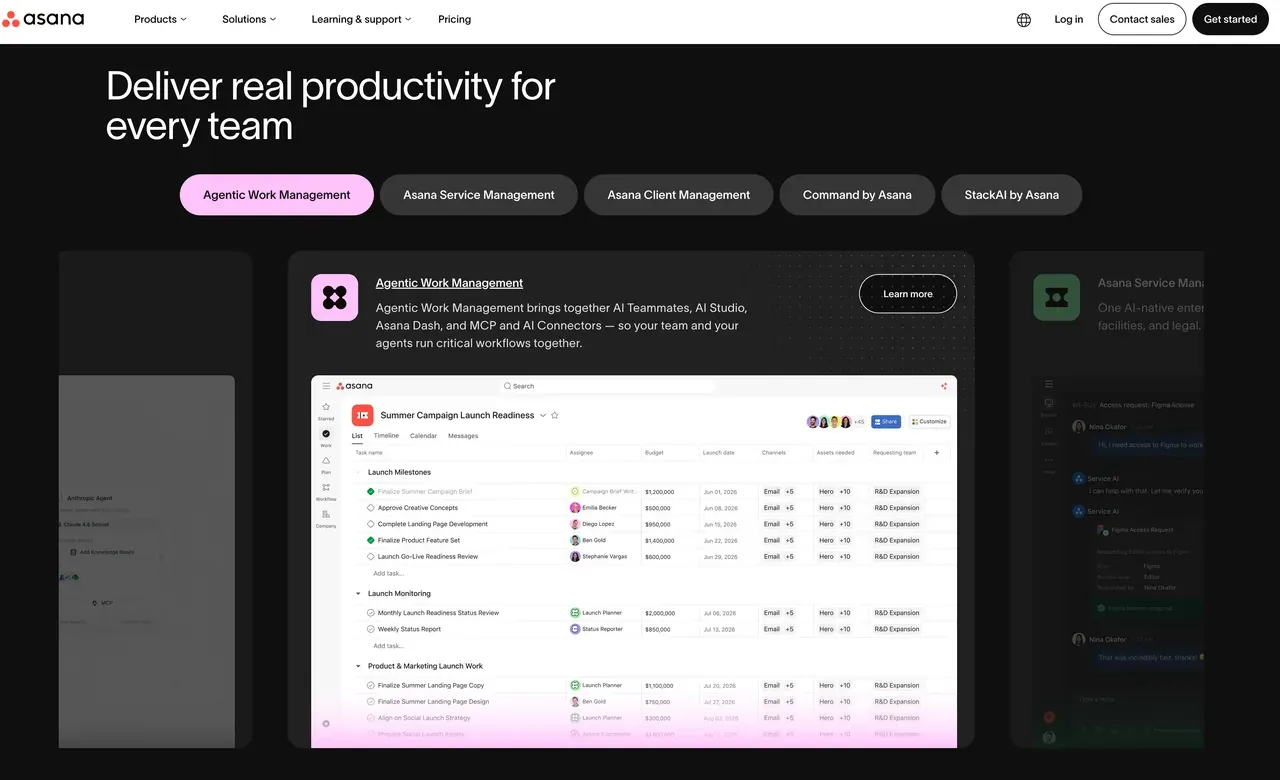
Asana suits a team that organizes delivery around named assignments and due dates. Use board sections for the agreed stages, assign the copy and layout tasks, and keep feedback in the relevant task discussion.
For the brochure, the designer's task should name the copy version it depends on. When the client requests a revision, move the layout back to Doing and describe the requested change. The task then tells the writer or designer what must happen next.
As of November 25, 2026, the current Asana Personal plan includes Board view and up to two seats per project and team. Its legacy Personal plan is being phased out. For three to five collaborators, check the available plan before inviting the team rather than planning around the legacy allowance.
Asana provides a Viewer project role for account holders who need progress visibility without editing. Task assignment and viewing permission answer different questions, so choose the client's role separately from who is responsible for producing the brochure.
Projects can be exported as CSV or JSON. Preserve the discussion history needed alongside the task rows.
Test One Client Project on a Board
Compare kanban apps using the brochure sample for a short pilot. Add these deliverables and keep the same people and completion conditions across the tools you compare.
| Card | Owner | Input needed | Completion condition |
|---|---|---|---|
| Confirm service facts | Writer | Client's approved brief | Facts ready for drafting |
| Draft two service descriptions | Writer | Confirmed facts | Copy sent for client review |
| Lay out two brochure pages | Designer | Approved copy and images | Review file ready |
| Record client approval | Writer | Client's decision | Accepted version identified |
| Deliver final files | Designer | Approval and file specification | Delivery package received |
Run one revision through the board. The client asks to change a service description after seeing the layout. Record the request, return the relevant card to Doing, and leave final delivery waiting for approval.
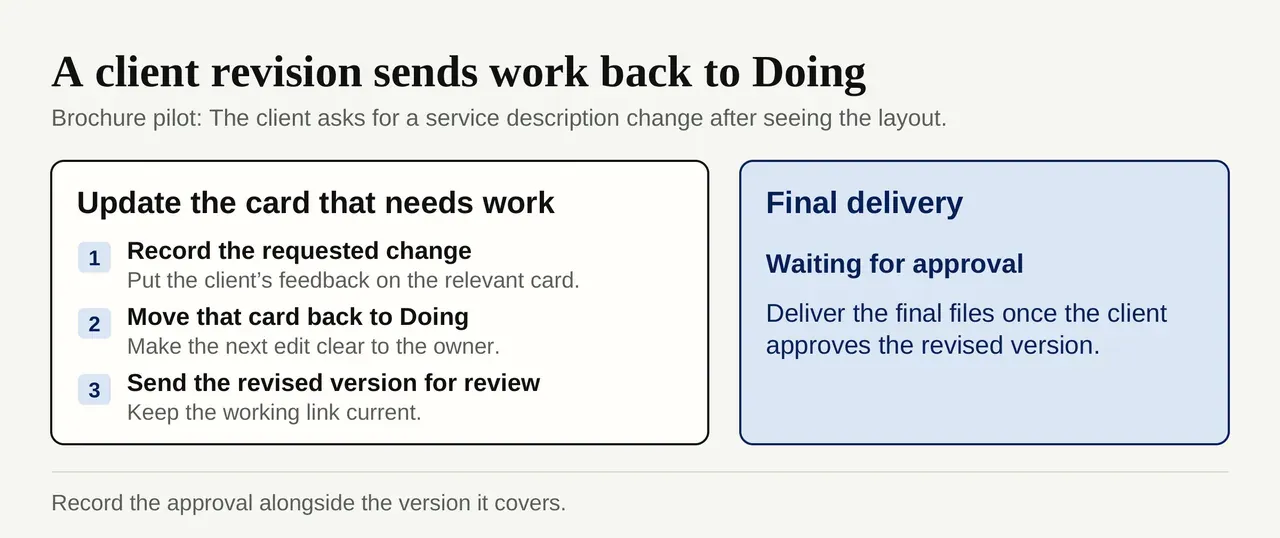
Then hand the board to the other collaborator. They should be able to find the current file, explain the next action, and identify who can approve it. Count the explanations needed outside the card. Those gaps show which fields or notes the board needs.
Finally, inspect the intended client view and an export using synthetic content. Open the working-file links as the recipient and look for the owner, current stage, and approval record. Compare what the recipient can actually use.
When a Task List Is Simpler
Use a list when each item is yours, can be completed independently, and needs little discussion. "Send invoice," "book courier," and "download receipt" can live comfortably in a dated list.
Kanban apps earn their place when work waits on someone, passes through review, or changes owners. For the brochure, Client review explains a delay that an unchecked list item leaves ambiguous.
Keep one maintained version of each task. A list and board can be alternative views of the same records. Agree where changes happen before maintaining another copy for the client.
For client sign-off by email, Zentor can read the Gmail thread and draft a follow-up for your approval. Keep the accepted decision with the task in Notion or Airtable; the board still shows who must act next.
FAQ
Can Trello cards be moved to a different workspace?
Yes, by moving the card to a board you're assigned to in the destination Workspace. Descriptions, checklists, attachments, and comments move with it. Activity history does not transfer, and card members absent from the destination board are removed from the card. Enterprise restrictions can prevent moves outside the Enterprise.
Does Todoist board view work in a shared project?
Yes. Shared projects support the board layout, and moving tasks between sections updates the project for collaborators. Each task can have one assignee. Plan features follow the user's eligibility, so sharing a paid user's personal project does not give other collaborators all that user's paid features.
Can a Notion board show tasks from more than one database?
Notion lets a database contain linked data sources from other databases. That supports bringing task sources into the same database location. The documentation does not establish that every such setup combines all tasks into one board view. For a straightforward shared board, use one task source and project properties. Linked sources retain their original permissions.
Can Asana board comments be exported with tasks?
Asana documents CSV and JSON project exports. Its Personal Projects migration instructions explicitly exclude comments from CSV. The official organization-export documentation does not confirm which comments appear in that JSON. For a small-team handoff, preserve essential approval decisions in the task description or an accompanying document, and inspect the exported file's contents.
Which of these boards can a client view without editing?
Trello offers observers in Premium, Notion offers Can view sharing, and Asana offers a Viewer project role requiring an account. Todoist offers public team-project links as an experimental feature that is not available to everyone; invited shared-personal-project collaborators can edit. Public visibility suits only material approved for public access. Private client work needs appropriately restricted sharing.
A Board Is Ready When the Next Person Can Move Work Forward
Start with the kanban apps whose setup matches how your project already works. Trello centers the shared board, Todoist keeps it close to personal tasks, Notion carries the notes, and Asana emphasizes assignments. Use the brochure pilot to settle the practical choice. The board is ready when the next person can find the current work and move it forward.

Zentor Editorial Zentor editorial team
The Zentor editorial team writes about workflow automation, AI agents, and the tools we build. Default byline for industry overviews, listicles, and collaborative pieces.
Choosing between tools? Let Zentor run the work.
An always-on AI assistant that does the work. No switching required, no setup.