Airtable Slack Mentions: Fix the Missing ID

Fix Airtable Slack mentions with verified member IDs, linked people records, lookup fields, and controlled tests for routing and duplicate messages.
Airtable Slack mentions work when the message contains the correct Slack member ID, not just a display name. The missing step is usually connecting a person in your base to that ID: an October 2023 community question about this exact gap received another unresolved follow-up in October 2024. Read the original question.
Key Takeaways:
- A formula can format a Slack member ID, but it cannot discover an ID that your base does not contain.
- Store the verified member ID in a People table, link each work record to the right person, and look up the ID through that relationship.
- Treat no match and multiple matches as exceptions. Neither should silently produce a message to a guessed recipient.
- Test the mapping separately from the message format. A successful automation run does not prove that the intended person was mentioned.
Why Airtable Slack mentions become plain text
You can have a working Slack automation and still have a broken mention. The message arrives in the correct channel, the subject is right, and the record link opens. Yet the intended person is represented by ordinary text rather than a Slack user reference. These are separate parts of the workflow, so start by isolating which one failed.
Slack documents the mention syntax as a member ID enclosed in angle brackets with an at sign. A string such as <@U012AB3CD> represents the format; the example ID here is illustrative and should never be copied as a real recipient. Slack resolves the ID to its current user representation. A person's visible name is therefore not the value your automation should depend on. Slack message formatting reference.
This distinction matters when someone changes their display name. If your workflow used the name as its identity, the apparent match can disappear even though the underlying person has not changed. Start by comparing the stored identifier with the intended member's actual profile, rather than rewriting the message over and over.
Also distinguish a mention from a notification. A correctly rendered mention identifies the member; whether that person receives an immediate notification depends on Slack's delivery and notification behavior. Your first acceptance check should be the rendered recipient identity. Notification expectations require a separate check in your own workspace.
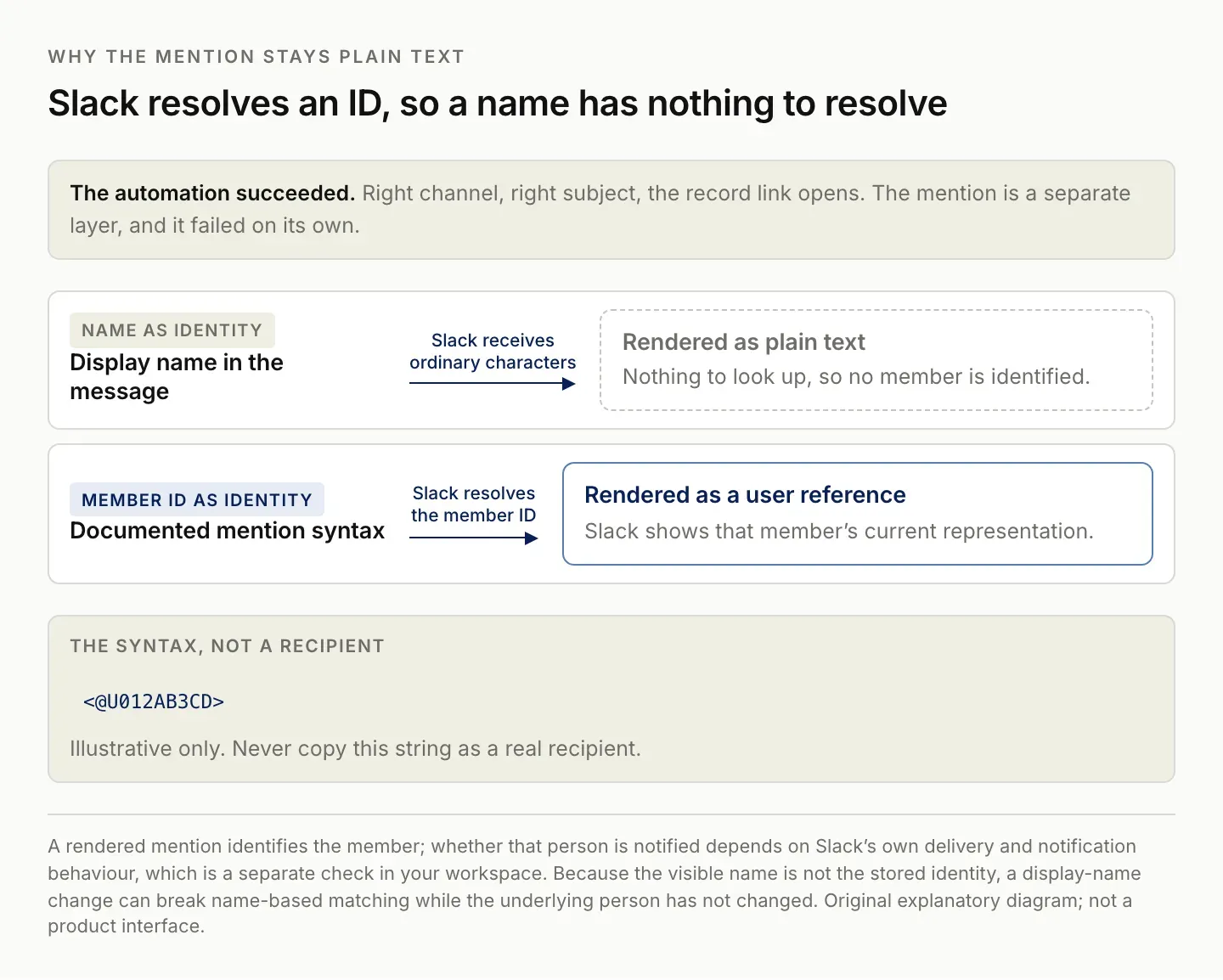
The automation can succeed completely while the mention fails on its own. They are separate layers.
Create the missing People-to-Slack mapping
For a small team, use one People table as the source of recipient identity. Add a person label, a stable internal person key if you already have one, a work email address, the Slack workspace identifier or clearly named workspace, and a Slack member ID field. Store the last verification date and a mapping status so an unreviewed entry cannot look identical to a confirmed one.
The email address is useful for matching, but it is not the mention itself. The display name is useful for human review, but it should not be the only key. If the source system supplies only a manager's name, that is an unresolved identity problem. Two people can share a name, and the same person can use different names across products.
For an initial manual setup, obtain the member ID from the correct Slack member profile and verify that the account belongs to the intended person. Populate a single People record before copying the approach to the rest of the team. Record which workspace the ID belongs to. A correct identifier from a different workspace is still the wrong mapping for the destination.
Keep the actual ID in one place. If you paste it independently into many work records, every later correction becomes a search for stale copies. A related People record gives you a central point for review and maintenance. The purpose of the extra table is to reduce repeated identity work, not to build an elaborate employee directory.
Link each Airtable record before creating a lookup
In the table that triggers the automation, add a linked-record field pointing to People. Name it for the responsibility, such as Owner or Manager, so the relationship is understandable when you inspect a work record. Link the record to the actual person, then add a lookup that retrieves the Slack member ID through that relationship.
Airtable's lookup documentation makes an important distinction: creating a linked-record field is not enough. Individual records must actually be connected. If the lookup is blank, check the link and the source field before troubleshooting the formula. Airtable lookup field guide.
Work through one record in this order:
- Open the work record and identify the intended owner.
- Open the linked People record and confirm the workspace and member ID.
- Return to the work record and confirm that the lookup shows that ID.
- Confirm that there is exactly one intended recipient for this workflow.
- Only then build the mention text.
A lookup can contain a list of values. That matters if your linked-record field permits multiple people. Do not convert a list of several IDs into one malformed mention. Decide whether the workflow should mention one owner, several owners individually, or no one until a person reviews the assignment. For a single-owner tutorial, use one linked person and reject multiple results.
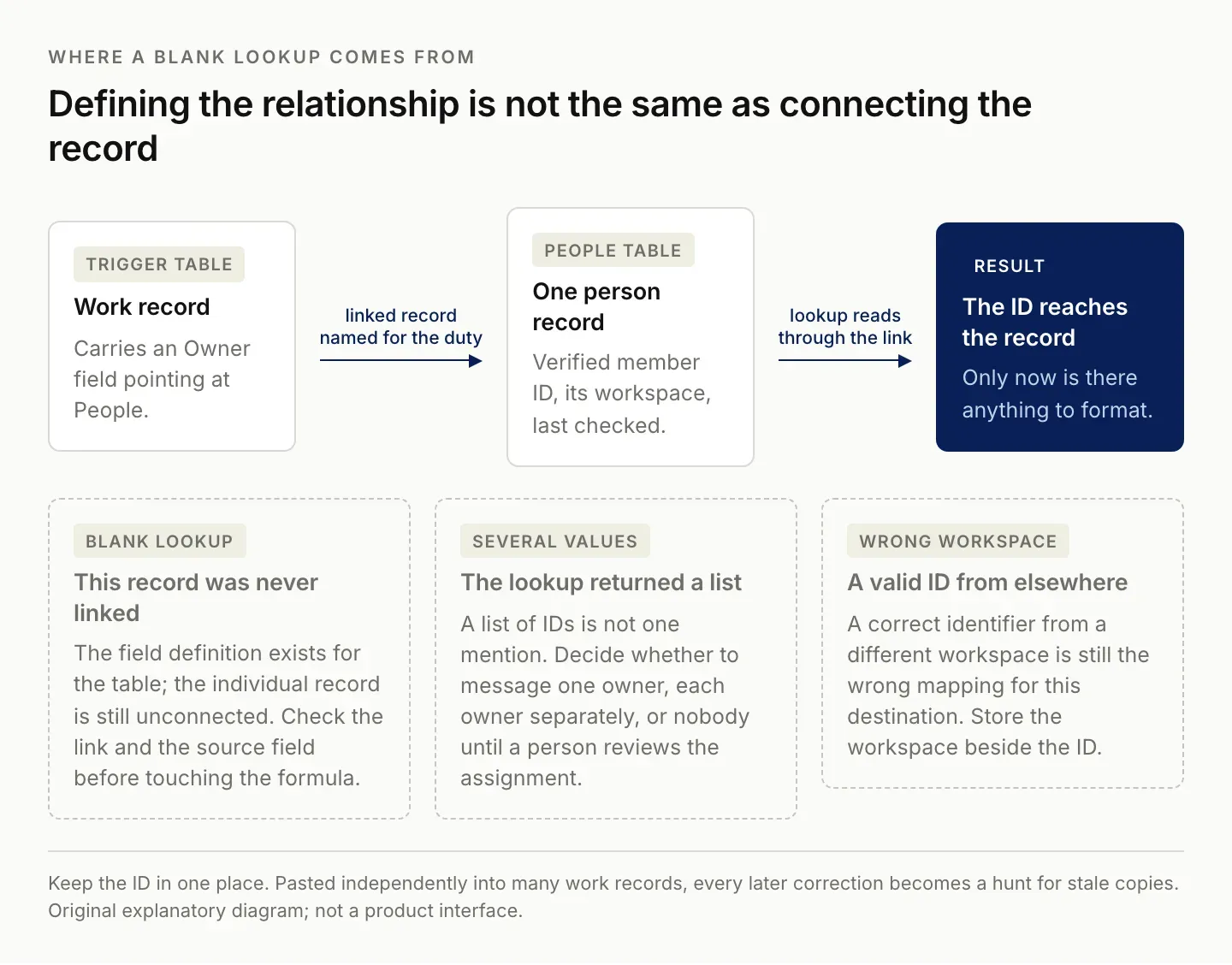
Defining the relationship for the table is not the same as connecting this record. Check the link before you touch the formula.
Format the mention and configure the Slack action
Once a record contains one verified member ID, the basic formatting is straightforward. The commonly shown formula wraps the field value in the syntax Slack expects:
CONCATENATE("<@", {Slack member ID}, ">")
This example assumes a plain text field containing exactly one verified ID. If your value comes from a lookup, account for the list returned by the lookup before applying the format. Do not paste a formula designed for a plain text field into a different field arrangement and assume the result will be equivalent.
For a first test, you can keep the formula out of the process altogether: put one verified mention string into the message body and confirm it renders correctly. That isolates message formatting from record matching. Once the fixed string works, replace it with the field value and run the same test again. Zentor's Airtable integration page lists the Airtable connections currently available to an account.
In Airtable's automation editor, choose the relevant trigger, add the Slack message action, select the connected Slack account, select the intended test destination, and insert the dynamic field value into the message. The official documentation covers static and dynamic recipients and message content. A dynamic channel destination and a dynamic mention inside a message solve different problems; configure each intentionally. Airtable Slack automation guide.
Use a test location you are authorized to message. A preview of the text is useful, but it does not establish how the final message will render in Slack. Keep the test narrow and inspect the actual result before applying the automation to real operational records.
Find member IDs automatically without guessing names
Manual mapping is reasonable when the team is small and membership changes infrequently. When People records arrive from another system or new managers appear regularly, you may want to automate discovery. Separate that discovery step from message sending so an uncertain identity cannot immediately turn into a wrong notification.
Slack provides a method for looking up a user by their registered email address. Its documented permission requirement includes users:read.email. The same documentation notes that deactivated users can produce users_not_found, so an unsuccessful lookup should not automatically be interpreted as a typo or a newly hired person. Slack users.lookupByEmail reference.
A practical flow is: obtain an approved email address from the source record, perform the lookup in the correct workspace, inspect the returned identity, and save the member ID only when the match is acceptable. If the source does not provide a reliable email or stable identity, put the record in a review queue. A name-only search may help a person investigate, but it is not a dependable automatic decision rule.
Keep failure states explicit. Missing permission, an absent account, a deactivated account, and a missing email need different remedies. Repeating the same lookup does not fix all four. Store enough status to explain why a recipient is unresolved, without copying unnecessary profile data into every work record.
When the person changes roles, update the responsibility relationship in the work table. When the same person changes a visible name, review whether the stored member identity remains valid. These are different changes and should not trigger the same replacement logic.
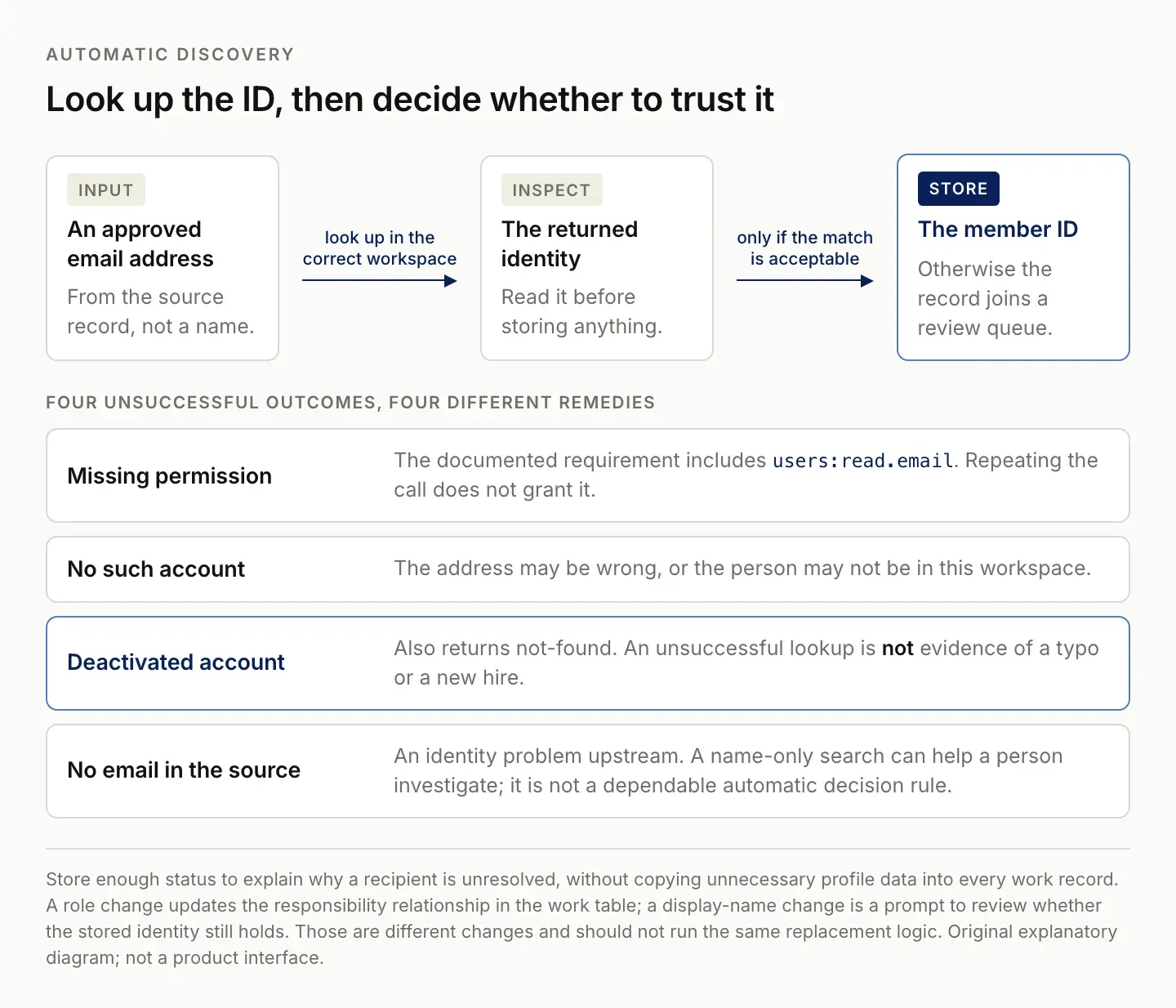
A deactivated account also returns not-found, so an unsuccessful lookup is not evidence of a typo.
Test routing, formatting, and repeated runs separately
Before expanding the automation, prepare a small test checklist with expected outcomes. Use accounts and destinations designated for testing, and avoid sending broad mentions. The goal is to establish behavior, not to demonstrate volume.
| Test | Expected result | What a failure means |
|---|---|---|
| One verified owner | Message resolves to that member | Mapping or formatting needs inspection |
| Owner field empty | No guessed recipient; visible exception | Missing-data handling is inadequate |
| Two linked owners | Review or explicitly supported multi-recipient behavior | A list was treated as one ID |
| Owner's display name changes | Mapping is reviewed against the member identity | Name-dependent matching may be brittle |
| Wrong workspace mapping | Stop and correct the mapping | ID was stored without its workspace context |
| Same work item runs twice | Behavior matches the chosen resend policy | Trigger/retry logic needs a separate fix |
The last case is not a mention-format problem. If two identical messages arrive with correct mentions, changing the lookup formula will not prevent the duplicate. Decide whether a second run is an intentional reminder or an accidental repeat. Then record a delivery state or another appropriate guard for that workflow.
Do not mark an action delivered before the sending step succeeds. Equally, if a request times out after Slack may have accepted it, do not assume that an immediate blind retry is harmless. Review the destination or the provider's delivery evidence before deciding what happened. That operational uncertainty should be visible in the workflow. Zentor's Slack integration page lists what a connected Slack account currently exposes.
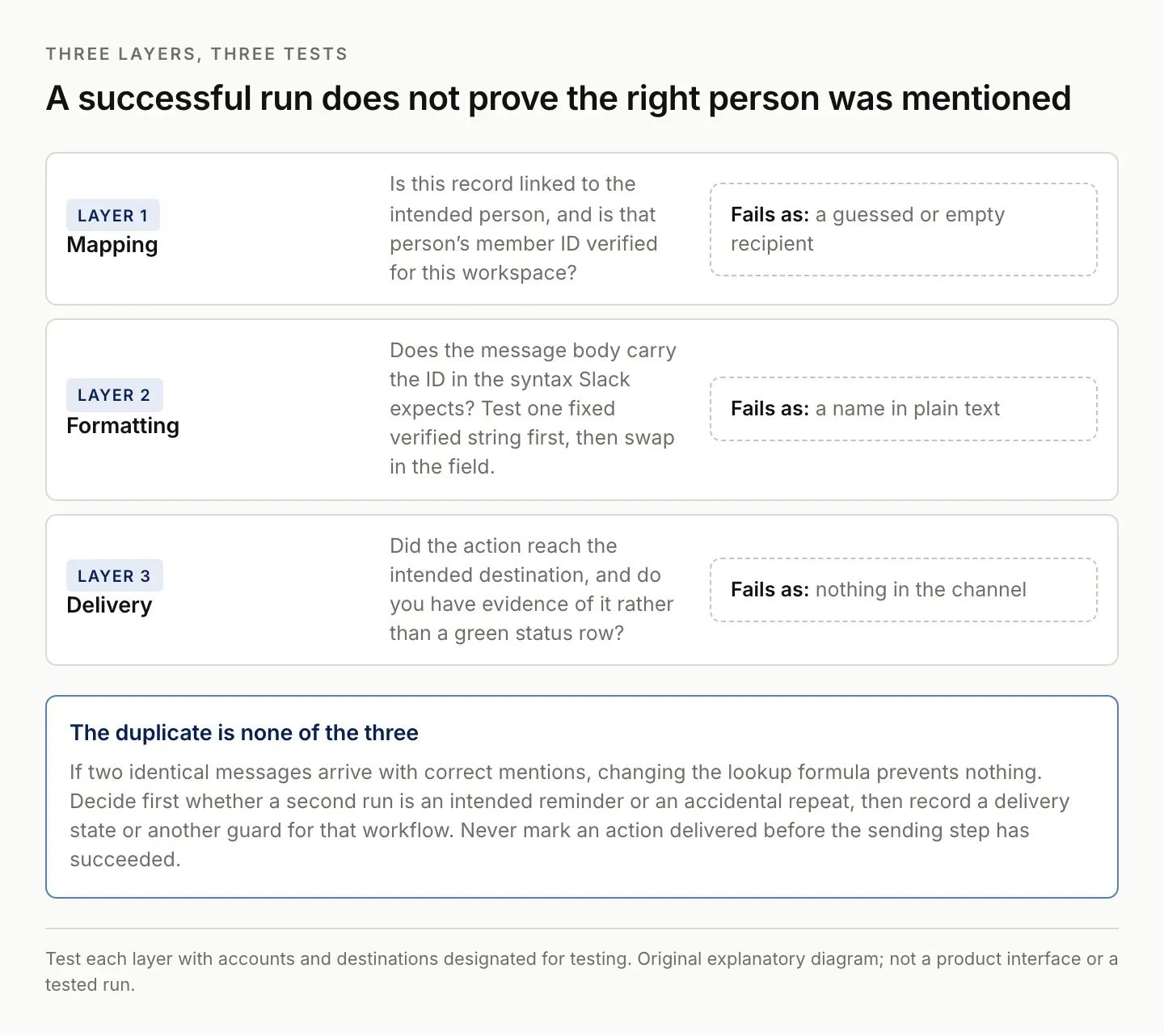
Each layer fails in its own way, so each needs its own test. A green run proves only that something was sent.
Choose the simplest maintained Slack mention workflow
The best starting point is usually a verified mapping table and one controlled automation. It lets you distinguish a missing identity from a broken relationship, a malformed message, or an unsuccessful delivery. Each layer has an observable result, which makes later automation easier to review.
For an agent-assisted workflow, the useful work is maintaining those boundaries: identify records needing a mapping, check existing relationships, prepare a proposed correction, and surface exceptions. Merely asking an assistant to “mention the manager” skips the identity problem the original community question exposed.
Zentor's intended role is to help maintain recurring work across existing tools. A useful evaluation brief for this problem is: “Review the selected work records and People mappings. Propose missing or inconsistent recipient mappings with the supporting identity evidence, and leave uncertain matches for review. Do not send messages.” This produces an inspectable mapping task before delivery is considered.
Zentor is in early access. This guide does not claim that a specific Slack lookup, Airtable write, or message-sending workflow has been demonstrated in your account. Confirm the available connections and inspect one real result before relying on it. Explore Zentor with the same controlled cases used for the native workflow.
Keep an agent's task narrow enough to inspect. Creating a mapping proposal, reviewing it, and then using it in the existing automation is a different level of delegation from allowing an agent to change recipients and send messages in one step. Choose based on what you can verify in your own workflow.
FAQ: Airtable Slack mention troubleshooting
Why does the mention formula not find the person's Slack ID?
The formula formats values already available to it. Establish the person-to-ID mapping first, then bring that value into the triggering record through a linked record and lookup or another verified method.
Can I use a display name instead of a member ID?
Use the documented member-ID syntax for programmatic mentions. Display names can help people review a record, but they are a weak basis for automatic identity matching.
Why is my lookup blank even though the People table has IDs?
Check that this particular work record is linked to the correct People record and that the lookup reads the intended field. A table relationship definition does not automatically connect all matching records.
Should I automate member-ID discovery immediately?
First make one manually verified mapping work end to end. Then automate discovery where a reliable source identity and the required permissions exist. Keep unresolved matches visible rather than guessing.

Zentor Editorial Zentor editorial team
The Zentor editorial team writes about workflow automation, AI agents, and the tools we build. Default byline for industry overviews, listicles, and collaborative pieces.
Stop doing this manually.
Zentor runs on its own cloud computer - research, monitoring, reports, browser tasks. No setup. No self-hosting.